How to Use Scan & Go at Walmart: A Practical Guide
Learn how to use Walmart's Scan & Go feature, from enabling the app to scanning items and paying in-app. Practical steps, tips, and troubleshooting for a smooth in-store checkout.


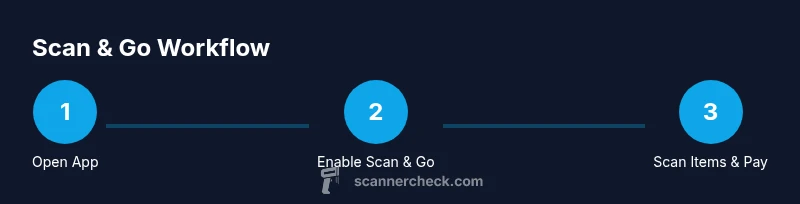
By using Walmart's Scan & Go, you can shop and pay on your phone without lines. Start by enabling Scan & Go in the Walmart app, confirm your store, and scan each item as you add it to your cart. When finished, pay in-app and exit via the digital receipt. This guide shows how.
What is Scan & Go at Walmart?
Scan & Go is Walmart's mobile checkout feature that lets customers scan items with the Walmart app as they shop, pay in-app, and exit without waiting at a traditional checkout. It relies on barcode scanning to capture product details and stores a digital receipt in your account. This approach can save time for quick trips and big shopping lists alike. For many shoppers, the central question remains: how do you use scan and go at walmart? In practice, you initiate the feature in the app, scan items as you go, and settle the bill without queuing. The workflow is designed to be intuitive, but it pays to understand the steps and any store-specific rules first.
Scanner Check’s guidance emphasizes clarity and reliability so you can complete your purchases efficiently. The approach relies on a stable connection, a compatible device, and a properly configured Walmart account. Throughout this guide, you’ll see how to prepare, scan, pay, and troubleshoot common hiccups. The goal is to help you harness the speed of Scan & Go while keeping accuracy and security top of mind.
Availability and eligibility
Not every Walmart location supports Scan & Go at all times. Availability varies by store and may depend on region or ongoing promotions. Before you head out, check the app’s Scan & Go section for a store list and status icons. If your store isn’t eligible, you might see a notification or no option to enable the feature. Scanner Check notes that following the store prompts is essential because features can be rolled out gradually and paused for maintenance or safety reasons.
If you’re unsure about eligibility, contact customer service or ask a store associate for the latest guidance. The Scan & Go experience is typically tied to a connected Walmart account and an up-to-date app version. Keeping both current helps prevent feature gaps at the point of purchase.
Getting started: prerequisites and setup
To begin, install or update the Walmart app on your smartphone and sign in to your Walmart account. Ensure your payment method is linked in-app, and verify that you have a stable internet connection when you shop. You’ll typically need to enable Scan & Go within the app and select your preferred store. Having a charged phone and a backup power option reduces the risk of interruptions mid-shopping. This setup is the foundation for a smooth Scan & Go experience.
From a best-practice perspective, review your account security settings and enable any biometric sign-in options available on your device. This makes logging in quick and secure. Scanner Check’s analysis suggests minimizing account friction while maintaining strong authentication so you can start scanning without delay.
Scanning items: technique and tips
As you pick up products, use the app’s camera to scan each item’s barcode. If a barcode is damaged or unscannable, you can search for the item in the app and select the correct product. For larger or multi-pack items, scan each unit if the app prompts you to do so, ensuring your cart reflects every item. Keep your phone steady and avoid moving the camera too quickly; a brief hold helps the scanner read the code accurately. If you’re shopping in dim lighting, angle the screen to maximize contrast for the barcode. Reviewing the on-screen confirmation after each scan helps prevent missing items.
Remember to keep an eye on the cart count as you add items. If you notice a discrepancy, pause scanning, verify the item, and correct any mistakes before proceeding to checkout. This proactive check reduces the chance of disputes at the end of your trip.
Payment and checkout: completing the purchase
When you’re ready to pay, open the in-app checkout screen and review your cart. The app will summarize items and totals, then prompt you to pay using your linked method. Confirm the payment within the app, and you’ll receive a digital receipt stored in your account. Some stores offer a final code or QR at exit to further streamline the process; if so, present it at the door or simply exit with your digital receipt as proof of purchase. Scanner Check notes that keeping the receipt accessible in-app helps resolve any post-purchase questions quickly.
Limitations and caveats
Scan & Go is a powerful tool, but it isn’t flawless in every scenario. Availability can be limited by location or device compatibility, and occasional scanner hiccups can occur with damaged barcodes or bulk items. Some stores may require you to show a receipt on demand or have staff review certain items. Remember that promotions, price audits, and in-store policies can influence how Scan & Go works in your area. Always be prepared for potential deviations from the ideal workflow and have a backup plan in case you need to switch to a traditional checkout.
Troubleshooting common issues
If you encounter scan errors, first ensure the item’s barcode is clean and fully visible. Restart the app, or re-login if scans fail repeatedly. Check your internet connection and confirm your store is still supporting Scan & Go. If an item won’t scan, search for it manually in the app and add it to your cart that way. For payment failures, verify your linked payment method and try again. If the app shows a glitch, clear cache or reinstall the app and try once more. If problems persist, reach out to Walmart customer support or a store associate for on-site help.
Best practices for a smooth Scan & Go experience
- Confirm eligibility before you shop and ensure your app is up to date.
- Scan items carefully and verify each entry for accuracy before payment.
- Keep your phone charged and bring a power option for longer shopping trips.
- Review promotions and digital coupons that apply to your cart.
- Use the app’s search to quickly add items that don’t scan well.
- Understand store-specific rules and exit procedures to avoid delays.
Quick tips and caveats (summary)
- Have your payment method ready in-app and test the checkout flow before a big trip.
- If a barcode won’t scan, search for the item by name and select the correct product.
- Always review your cart before exiting to ensure you’re billed correctly.
- Some items or locations may require a staff check; follow on-screen prompts and store staff directions.
Tools & Materials
- Smartphone with Walmart app installed(iOS or Android; ensure the app is up to date and you are signed in to your Walmart account)
- Active Walmart account(Linked payment method and saved preferences)
- Stable internet connection(Prefer reliable Wi-Fi; cellular data can work but may be slower)
- Charged phone or power bank(Keep battery above 30% to avoid interruptions)
- In-app payment method configured(Add a card, wallet, or Walmart Pay in the app)
- Store location with Scan & Go enabled(Availability varies by store; confirm before shopping)
Steps
Estimated time: 20-30 minutes
- 1
Open the Walmart app and sign in
Launch the Walmart app, enter your credentials, and verify you’re signed in. This ensures your Scan & Go options appear and your cart information is saved to your account. If you haven’t used Scan & Go before, explore the app’s onboarding prompts to enable the feature.
Tip: Enable biometric sign-in to speed up future checkouts. - 2
Enable Scan & Go and select your store
In the app, find the Scan & Go option and toggle it on. Choose your preferred Walmart store from the list to ensure item availability and pricing reflect your location. This step ties your cart to the correct store and pickup flow.
Tip: If you travel between stores, switch your store in-app before scanning. - 3
Scan items as you shop
Use the in-app scanner to read barcodes as you add items to your cart. If a barcode won’t scan, search for the item in the app and add it manually. Periodically review the cart count to catch missed scans early.
Tip: Hold the camera steady and keep the barcode in clear view for faster scanning. - 4
Review your cart and adjust as needed
Take a moment to verify each scanned item, remove duplicates, and adjust quantities if necessary. This step helps prevent overcharges or missing items at checkout. Use the app’s search to add items not readily scanned.
Tip: Sort cart by aisle or category in the app to speed final checks. - 5
Pay in-app and confirm
When you’re ready, proceed to checkout in the app. Confirm the order total, choose a payment method if needed, and complete the payment. A digital receipt will be saved in your account for reference.
Tip: Review promotions or digital coupons that apply to your cart before paying. - 6
Exit with the digital receipt
Use the app’s exit flow or a staff-assisted exit to leave the store with your purchases. The digital receipt serves as proof of purchase, and you can access order details later in the app if needed.
Tip: If you retain a physical receipt, retain it in case a confirmation issue arises.
Common Questions
What is Walmart Scan & Go and how does it work?
Scan & Go is Walmart's mobile checkout feature that lets you scan items with the Walmart app as you shop, pay in-app, and exit without a traditional checkout. It relies on barcode scanning to capture product details and stores a digital receipt in your account.
Scan & Go lets you scan items with the Walmart app, pay inside the app, and leave with a digital receipt.
Is this service free to use?
There’s no separate Scan & Go fee; you simply pay for the items you scan using your configured payment method in the app.
There’s no extra charge to use Scan & Go—you pay for what you scan in the app.
Can I use Scan & Go at all Walmart stores?
Availability varies by location and can change due to promotions or maintenance. Check the app before shopping to confirm whether Scan & Go is active at your store.
Availability depends on the store; check the app to confirm before you shop.
What should I do if an item doesn’t scan?
If a barcode won’t scan, search for the item in the app and add it to your cart manually. This keeps your total accurate without delaying checkout.
If a barcode won’t scan, search for the product in the app and add it manually.
Does Scan & Go require an internet connection during the shop?
A stable internet connection improves reliability, but some basic scanning may work offline. For best results, stay connected while shopping and paying.
An internet connection helps reliability; keep your device connected during scanning and payment.
Can I use Scan & Go for online pickup orders too?
Scan & Go is designed for in-store shopping flow. Online pickup orders use separate processes in the app or website. Plan accordingly when you need curbside service.
Scan & Go is for in-store use; online pickup uses a different flow.
What happens if I forget my phone or battery dies?
If your phone dies mid-transaction, staff can help you complete the checkout using a standard method. It’s best to have backup power or a spare device ready.
If your phone dies, staff can help you finish the checkout with the usual process.
Watch Video
Key Takeaways
- Enable Scan & Go in the Walmart app before shopping.
- Scan items as you shop and verify each entry for accuracy.
- Pay in-app and store digital receipt for easy reference.
- Check store availability and follow on-screen prompts for exit.
- Have a backup plan for hiccups and know when to seek staff assistance.