Where to Scan in Spotify: A Practical Guide to Spotify Codes
Discover where to scan in Spotify using Spotify Codes. This educational guide covers devices, steps, tips, and troubleshooting to access tracks and playlists quickly.


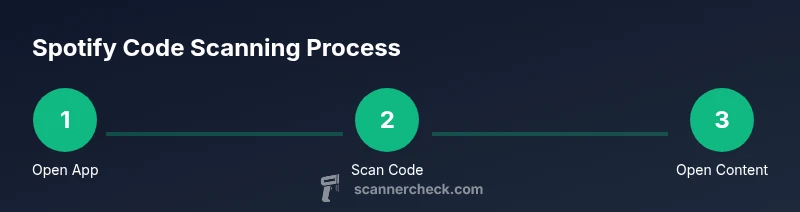
You can scan Spotify Codes directly in the Spotify mobile app. Open Search, tap the camera icon, and point at the code to jump to a song, album, artist, or playlist. Codes can be scanned from posters, screens, or printed materials. This works on iOS and Android, provided your app is up to date.
How Spotify Codes Work
Spotify Codes are a simple, visual key that encodes a track, album, artist, or playlist into a scannable image. When you scan a code with the Spotify app, the code is decoded and the app jumps directly to the associated content. This feature is especially handy for posters at events, in-store displays, or digital screens where you want to share content quickly without typing. The concept is similar to QR codes widely used for websites, payments, or digital tickets, but Spotify Codes are designed specifically for music discovery. According to Scanner Check, these codes improve discovery and reduce friction for users moving between media sources. In practice, you can scan codes printed on posters, displayed on screens at concerts, or shared in social media posts to instantly open the linked track, album, artist, or playlist in Spotify. The codes can be generated by artists and brands and can be redeemed by scanning via the Spotify app, which makes sharing music across venues and channels seamless.
Where to Find the Scan Tool in the Spotify App
To scan a Spotify Code, you need access to the app’s scan feature. The scannable function lives in the Search tab as a camera icon. This design keeps scanning integrated with discovery, so you can jump straight from a code to content without leaving the app. On iOS and Android, you may see the camera icon in different places depending on app version, so ensure your app is up to date. If you don’t see the icon, grant camera permissions and restart the app. Scanner Check notes that staying current with app updates helps preserve the scanning workflow across devices.
Step-by-Step Context (Non-Enumerated)
In real-world use, you will often encounter Spotify Codes on posters, product packaging, or digital screens. The scanning process is designed to be fast: aim your device at the code, hold steady to give the app time to recognize, and then your content will automatically appear. Lighting, distance, and code clarity influence scan success, so treat codes printed in high-contrast, cleanly printed formats as the most reliable. If scanning a code from a screen, minimize glare and ensure the code isn’t distorted by the display.
Environments and Advantages of Spotify Codes
Spotify Codes are versatile across contexts. In concerts, venues often display codes that fans can scan to instantly pull up the artist’s profile or a curated playlist. In stores or libraries, codes can link to seasonal playlists or promotional content. The ability to scan from printed posters or screens creates a bridge between physical media and digital content, helping brands reach audiences through a single, shared code. Scanner Check highlights that the ease of scanning is a key factor in successful marketing campaigns and improved content discovery.
Troubleshooting Common Issues
If a code doesn’t scan, several factors could be at fault. First, verify that you’re using the latest Spotify app version on a compatible device. Check camera permissions in your phone settings and try again in brighter lighting. Clean the camera lens to avoid blurred recognition. If scanning still fails, move closer or farther from the code and ensure there’s no severe distortion or cropping. When all else fails, you can still search manually in Spotify by entering the track, album, artist, or playlist name.
Privacy, Accessibility, and Best Practices
Scanning Spotify Codes is generally a private interaction between your device and Spotify servers when needed for content retrieval. Use codes from trusted sources to avoid phishing or misinformation. For accessibility, ensure codes have high contrast and are large enough to scan easily; if you rely on screen readers, rely on the alternative search function rather than codes. As you integrate codes into events or marketing, keep user consent and data usage in mind and provide clear instructions on how to use codes safely. Scanner Check recommends testing codes across multiple devices and lighting conditions before deploying them publicly.
AUTHORITY SOURCES
- https://www.nih.gov
- https://www.cdc.gov
- https://www.nist.gov/topics/qr-codes
Real-World Use Cases and Tips
From music festivals to local coffee shops, Spotify Codes create a seamless bridge between physical spaces and digital playlists. Use codes on posters, drink menus, seating charts, or merch to guide listeners to curated playlists or artist pages. For best results, print codes with high contrast on solid backgrounds, keep scale consistent across materials, and include a brief label explaining what the code links to. As you design campaigns, test codes with multiple devices and under various lighting to ensure broad accessibility. The goal is instant access; practical scanning reduces friction and boosts engagement.
SUMMARY FOR QUICK REFERENCE
- Use the camera icon in the Spotify Search tab to scan codes.
- Codes link to tracks, albums, artists, or playlists with no typing required.
- Ensure app is up to date, lighting is good, and the code isn’t distorted.
- If scanning fails, you can always search manually by name.
- Print codes with high contrast and test across devices before large-scale deployment.
Tools & Materials
- Smartphone or tablet with internet access(iOS or Android; ensure Spotify is installed)
- Spotify app (latest version)(Update from the App Store or Google Play)
- Printed Spotify Code or display screen with accessible code(High-contrast code, undistorted)
- Stable lighting and clean camera lens(Avoid glare and shadows)
- Optional: a secondary device for verification(Useful for cross-checking results)
Steps
Estimated time: 15-25 minutes
- 1
Open Spotify and locate Search
Launch the Spotify app and navigate to the Search tab. This is where the scanning feature is typically integrated, and it primes the app for fast decoding when you present a code. You should see a camera icon within the search area on supported versions.
Tip: If the camera icon isn’t visible, update the app and check camera permissions. - 2
Tap the camera icon to activate the scanner
Tap the camera icon to open the scanning interface. Point your device at the code, keeping it within the on-screen frame. Hold steady and let the app recognize the code. It should automatically decode and navigate to the linked content.
Tip: Ensure the code isn’t cropped and the surrounding lighting isn’t too dark. - 3
Align code within the frame and scan
Center the code in the camera frame and adjust distance for a clear read. If the code is damaged or printed with low contrast, try moving closer or farther away. The app should automatically take you to the track, album, artist, or playlist.
Tip: Avoid reflections from glossy surfaces by angling the code slightly. - 4
Confirm the result and interact
When the code is recognized, the content page opens. You can start playing immediately or save the link for later. If you want to scan a different code, return to the scanning screen.
Tip: If nothing happens, try a manual search for the content by name. - 5
Scan from different sources and validate
Practice scanning from posters, screens, and digital materials to understand how code quality affects recognition. Check that nearby lighting won’t cause glare or distortion and verify that the content loads correctly on multiple devices.
Tip: Keep a few codes on hand during events to test consistency. - 6
Troubleshoot and fallback
If scanning fails after trying different distances and lighting, verify app version, permissions, and code integrity. As a fallback, search by content name directly in Spotify. This ensures access even when scanning isn’t possible.
Tip: Document common failure modes for your deployment team.
Common Questions
Can I scan Spotify Codes on desktop or web players?
Spotify Codes are designed for mobile use. The scanning feature is accessible in the mobile app. On desktop, you can search for content by name if you don’t have access to a code scanner. Some streaming experiences may use codes in mobile-only contexts.
Spotify Codes work best on mobile. If you’re on desktop, try searching for the content by name instead.
Where can I find a Spotify Code to scan?
Codes appear in the Share options for tracks, albums, artists, and playlists, as well as on posters and screens where Spotify content is promoted.
Look for the Share option to generate a Spotify Code, or scan codes printed on posters.
What should I check if a code doesn’t scan?
Ensure you’re using the latest Spotify app, grant camera access, and verify the code isn’t distorted. Improve lighting and try different distances. If all else fails, search for the content by name in Spotify.
Make sure your app is updated, the camera has access, and you’re using good lighting.
Do Spotify Codes expire or change over time?
Spotify Codes themselves do not expire; a valid code should work as long as the linked content remains available in Spotify.
Codes generally stay valid unless the linked content is removed.
Can I create my own Spotify Codes for sharing?
Yes. Use Spotify's Share feature on any track, album, artist, or playlist to generate a Code that others can scan.
You can create codes to share content easily.
Is there a privacy or safety concern when scanning codes?
Scanning codes itself is a straightforward content link. Avoid codes from untrusted sources and be mindful of where you share your own codes.
Be cautious with codes from unknown sources and keep your sharing to trusted content.
Watch Video
Key Takeaways
- Scan codes from the Spotify Search tab using the camera icon.
- Code clarity and lighting impact scan reliability.
- If scanning fails, rely on manual search to access content.
- Use high-contrast codes and test in real-world conditions.
- Spotify Codes connect physical media to digital playlists instantly.