How to Check Scanner History: A Practical Guide
Learn how to check scanner history across devices, protect privacy, and generate audit-ready reports with practical steps from Scanner Check.


Learn how to check scanner history across devices and apps, so you can audit activity, verify workflows, and protect privacy. This guide covers where logs live, how to access them on Windows, macOS, and mobile apps, and how to export reports for audits. Follow practical, step-by-step checks to build reliable history records.
Understanding Scanner History and Why It Matters
Scanner history records the actions performed by a scanner and its software, including who triggered a scan, when it happened, which device produced the output, and what type of document was scanned. In practical terms, history entries can include timestamps, user IDs, job type (color or grayscale), page counts, and occasionally the destination or workflow that the scan followed. For teams that handle sensitive documents or work in regulated environments, maintaining an accessible history log is a cornerstone of accountability and traceability. According to Scanner Check, regular review of scan history helps organizations verify that workflows align with policy, detect anomalies early, and minimize the risk of misdelivery or data leakage. The scope of history varies by device and software, but most modern scanners offer a persistent log that can be viewed live, archived, or exported for audits. Understanding what constitutes history is the first step toward reliable auditing and governance.
What Exactly Counts as History Entry?
History entries are not limited to successful scans. They typically include event data such as login or access events, failed attempts, edits to job settings, export actions, and metadata like document type or source. A well-structured history record makes it possible to reconstruct workflows, confirm that each document was processed by authorized personnel, and verify that retention and privacy policies were followed. Some systems also tag entries with status indicators (completed, canceled, or failed) and include references to user accounts, device IDs, and the software module that generated the log. The breadth of data captured depends on the scanner model, the embedded firmware, and the management software you use. By defining what counts as history up front, you establish a consistent basis for audits and investigations.
Where History Is Stored: Local vs Cloud
Scanner history can reside in multiple layers of a scanning environment. Local logs may live on the device’s internal storage or on a connected PC, while application logs live within the scanning software’s database. In cloud-aware setups, history can be synchronized to a centralized management console or cloud storage, enabling cross-device visibility and longer retention. Understanding where history is stored helps determine who can access it, how to export it, and how long it remains available. If you use a fleet of scanners, expect a mix of local and cloud-backed history, with export options that let you consolidate entries into a single report. Always verify retention settings in each component (device, software, and cloud) to avoid gaps in your audit trail.
Device-level Logs vs Application Logs
Device-level logs capture hardware events such as boot times, scanner errors, and job completions, while application logs record user actions, configuration changes, and export activities. Both types are valuable for different reasons: device logs help diagnose mechanical or firmware issues, and application logs provide an audit trail for user behavior and file handling. Depending on your setup, you may access device logs through a web interface, the printer/scanner’s panel, or a companion desktop/mobile app. Application logs are typically available in the software’s “History” or “Logs” section and can be filtered by user, date, or job type. An effective audit strategy combines both sources for a complete picture of scanner activity.
Windows: Where to Find and How to View History
On Windows, many scanners integrate with vendor software or Windows Imaging Component (WIC). Start by opening the vendor’s scanning application or the Windows Scan app, then navigate to a section labeled History, Logs, or Audit. Use filters for date ranges, users, and job types to narrow results. If the software supports exporting, choose a format such as CSV or PDF for downstream auditing. For environments with multiple devices, verify that you’re viewing logs for the correct device by checking the device name, IP address, or serial number. If you run into permission issues, confirm your user role includes log access and that any security software is not blocking the log view.
macOS, iOS, and Android: Scanning Apps and Cloud Sync
macOS and mobile platforms often centralize history in scanning apps or cloud-connected services. On macOS, look for a History tab within the Image Capture, Preview, or vendor app you use to manage scans. On iOS and Android, native apps or vendor-provided apps may expose a History or Activity log; cloud-sync features can also replicate history across devices. If history is stored in the cloud, ensure you have network access and valid credentials to fetch the data. When exporting, prefer widely supported formats (CSV, JSON, or PDF) to ensure compatibility with your audit workflows. Keep in mind that mobile environments may impose stricter privacy controls; always review access permissions and consent requirements when handling history data.
Privacy, Retention, and Compliance Best Practices
History data can contain sensitive information, including usernames, document names, and content outlines. Protect logs with role-based access control (RBAC), encryption at rest, and secure transport when exporting. Establish clear retention policies that reflect regulatory requirements and organizational risk tolerance; avoid retaining more data than necessary. Regularly review access logs to detect unauthorized view attempts and confirm that only approved personnel can retrieve history data. Documentation of retention and access policies helps demonstrate compliance during audits and reduces the risk of data breaches.
Interpreting History Logs: Key Fields and What They Mean
A typical history entry includes fields such as timestamp, device ID, user ID, job type, page count, document type, and status. Interpreting these fields requires understanding your organization’s workflow and definitions for each term. For example, a “color” job type may imply different processing rules and storage paths than a “black-and-white” job. If a log marks a job as failed, examine the error code and any accompanying messages to determine whether it was due to user action, device fault, or a misconfigured setting. Regularly mapping fields to your internal data model helps auditors align scanner activity with business processes.
Exporting History for Audits: Formats and Tips
Export history in formats that suit your audit needs, typically CSV, JSON, or PDF. CSV is ideal for numeric analysis in spreadsheets, while JSON is better for structured data interchange. When exporting, include a consistent set of fields (timestamp, device ID, user, job type, status) and attach metadata such as export date and scope. Store exports securely in an access-controlled repository and maintain version history. If your organization requires, automate scheduled exports and integrate them with your compliance tooling to reduce manual effort and errors.
Troubleshooting Common Issues When Checking History
If history does not appear, first check that you have the necessary permissions and that the correct device is selected. Some systems require an active connection or a recent software update to display logs. If entries look incomplete, verify time zone settings, as mismatches can obscure the timeline of events. In cases of missing data after a software upgrade, re-indexing or re-syncing log databases may be required. When users report discrepancies, compare exported log files with the on-device or cloud-stored originals to identify where the divergence occurs.
Scheduling Regular History Reviews for Security
A proactive approach to scanner history involves setting a recurring review cadence. Decide who is responsible for checks, what time windows you cover, and how findings are documented. A standing SOP (standard operating procedure) ensures consistency and reduces the chance of missed anomalies. Include a quick drill on how to escalate issues to IT or compliance teams and how to preserve evidence for audits. Regular reviews build a culture of accountability and help detect issues before they escalate.
Real-World Scenarios and Decision Points
Real-world decisions hinge on the quality and accessibility of history data. For example, if a sensitive document is scanned by an unauthorized user, you should immediately verify the user’s credentials and investigate the device and time window. If you notice a pattern of failed scans, determine whether the root cause is user error, hardware limitations, or misconfigurations in the software. In cloud-connected environments, ensure that access controls extend to history data and that policy changes propagate to all linked devices. Each scenario highlights the value of a clear audit trail and disciplined data governance.
Tools & Materials
- Access to the scanner’s web interface or installed software(Ensure you have admin or user credentials with logs access)
- Device identity and model information(Needed to locate the correct log source)
- Authorized login credentials for the scanning software(Keep credentials secure; avoid shared accounts)
- A PC or mobile device with network access to the scanner(Logs may be stored locally or in the cloud)
- A secure exported log format (CSV, JSON, or PDF)(Optional but helpful for reporting)
Steps
Estimated time: 60-90 minutes
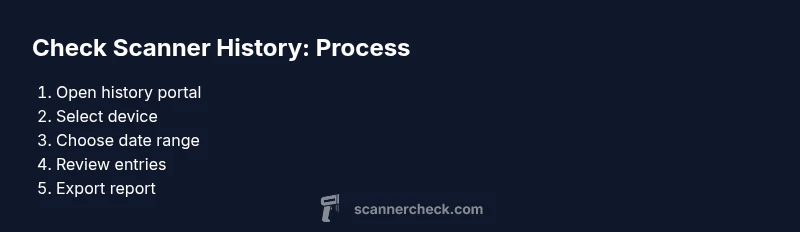
- 1
Log in to the scanner history portal
Open the scanner’s web interface or the desktop/mobile app used to manage logs. Enter your admin or user credentials and navigate to the History or Logs section. Confirm you are viewing the correct device if there are multiple connected scanners.
Tip: If you cannot sign in, check that two-factor authentication is not blocking your access. - 2
Select the correct device or log source
In environments with multiple scanners, choose the device whose history you want to review. Verify the device name, IP address, or serial to avoid mixing logs.
Tip: Cross-check against the scanner’s label on the device to prevent mistakes. - 3
Pick a date range and filters
Use the date picker to narrow the history to the period of interest. Apply filters like user ID, job type (color/black-and-white), or document type to reduce noise.
Tip: If your platform supports it, save frequently used filter presets. - 4
Review entries for accuracy and policy compliance
Scan the list of entries for any unexpected or unauthorized activity. Look for abnormal timestamps, unusual users, or unusual document types. Cross-verify against your expected workflow.
Tip: Document any anomalies with a screenshot or export for auditing. - 5
Export or save a history report
Export the history to a secure file (CSV, JSON, or PDF). Store the report in a compliant location and note the export date and scope for future reference.
Tip: Prefer versioned exports to preserve a traceable audit trail. - 6
Review privacy controls and retention
Check that log retention settings align with your privacy policy or regulatory requirements. Enable encryption if available and restrict access to authorized personnel.
Tip: Document retention policy and ensure it is applied consistently. - 7
Log out and secure credentials
After review, sign out of the scanner interface and clear any local caches if the device is shared. Ensure session timeouts reduce risk of unattended access.
Tip: Avoid saving credentials on shared devices.
Common Questions
What counts as scanner history?
Scanner history includes logs of scans, user activity, device info, and timestamps stored by the scanner or its software. It may also include metadata such as job type and document source.
Scanner history includes logs of scans and who performed them, with timestamps and device details.
Where is history stored?
History can be stored locally on the scanner, on a connected computer, or in the cloud depending on the setup and software used.
The log may be on the device, the computer, or in the cloud.
How long should history be retained?
Retention length varies by device and policy. Check vendor documentation and your organization’s data retention rules to determine a suitable period.
Retention length depends on your policy and device—check docs to set a reasonable period.
Is scanner history secure?
History data should be protected with access controls, encryption at rest, and secure export practices to prevent unauthorized access.
Yes, with good access controls, encryption, and careful handling of exports.
What to do if history shows unexpected activity?
Investigate immediately by verifying user accounts, checking for spoofed access, and reviewing recent documents or jobs for legitimacy.
If you see odd activity, verify accounts and documents, and escalate as needed.
Can I check history from a mobile app?
Some scanners offer mobile-compatible interfaces. Check vendor app capabilities and ensure secure access from mobile devices.
Some apps let you view logs on mobile, if supported.
Watch Video
Key Takeaways
- Check scanner history regularly to detect anomalies
- Use device-specific logs to verify activity
- Export reports for audits and compliance
- Maintain strict access controls around history data