How to Make PDF in OKEN Scanner: A Complete Guide
Learn how to make a PDF from documents scanned with an OKEN scanner. This step-by-step guide covers scan settings, saving as PDF, OCR for searchable text, and best practices for archiving.


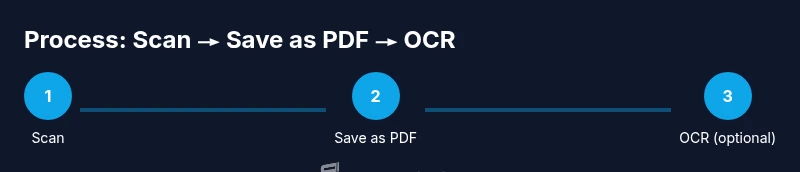
This guide shows you how to make a PDF in OKEN scanner. You’ll scan your documents, select PDF as the output, and save. If you want searchable text, enable OCR after the scan. The process works with the OKEN desktop software or universal PDF tools, and it preserves layout, images, and order.
Understanding the PDF workflow with OKEN scanners
According to Scanner Check, creating a reliable PDF from an OKEN scanner starts with clear source pages and consistent scan settings. In practice, you should decide whether you want a simple image-based PDF or a searchable PDF with embedded text. The choice affects file size, searchability, and accessibility. The OKEN scanner's output options typically include PDF, JPEG, and occasionally TIFF; choosing PDF provides a universal format that can be shared across platforms. If you anticipate archiving, plan for consistent naming, folder structure, and metadata. This section introduces the core concept: transform physical pages into a portable, indexable digital document without losing layout or readability. The approach outlined here mirrors standard document-scanning workflows discussed in professional guidance, and aligns with what the Scanner Check team emphasizes for dependable results.
Preparing your hardware and software environment
Before you start, verify your OKEN scanner is connected to a computer with current drivers. Close unnecessary apps to allocate system resources. Ensure your PDF software supports OCR if you need searchable text later. Keep a backup copy of your source pages in case you need to re-scan. Having a reliable internet connection is helpful if you plan to upload scanned PDFs to cloud storage or use online OCR services. The goal is to have a smooth, repeatable workflow where each scan yields consistent quality and predictable file sizes. Scanner Check analysis shows that repeatable hardware connections and up-to-date drivers reduce scan errors, which helps produce cleaner PDFs from OKEN.
Scanning settings that matter for PDFs
Scan resolution is a key factor for readability and file size. A setting of 200–300 dpi usually produces good results for text-heavy documents, while photos may require 300–600 dpi. Color mode affects both fidelity and size; monochrome is often sufficient for typed pages, while color may be needed for forms with logos. Use the OKEN scanner’s automatic document feeder (ADF) if you have multi-page documents; ensure pages are aligned to prevent skew. Most scanners offer a brightness/contrast adjustment and deskew options; turn on deskew to correct scans with slight angles. If you are scanning mixed materials (photos and text), consider scanning in two passes and merging later.
Saving, naming, and organizing PDF outputs
After scanning, select the PDF format in the scanner software, then choose a destination folder. Use a consistent naming convention such as YYYYMMDD_project_page or similar. For multi-document batches, enable single PDF with bookmarks or a table of contents if available. If your scanner supports automatic page merging, enable it to combine pages into a single file. Verify the page order before final save because physical page order translates directly to the digital PDF. A well-organized folder structure and predictable naming help long-term retrieval and archiving.
OCR and making PDFs searchable
If you require searchable text, enable OCR in the scanner software or run OCR after saving the PDF with a desktop tool. OCR converts images of text into actual text characters, enabling search and copy/paste. Choose a suitable language pack and perform a quick test on a sample page to gauge accuracy. For noisy scans, pre-process with image adjustments (contrast, brightness) and run OCR again. Some tools allow you to correct recognized text and add bookmarks for navigation. When done, save the searchable PDF with a clear name reflecting its content and date.
Handling multi-page documents and large batches
For long documents, consider splitting scans into logical sections or using batch mode if the OKEN scanner supports it. Tables, forms, and diagrams may require higher DPI or color to preserve readability. Use bookmarks and metadata to improve accessibility. When you merge PDFs, verify that page orientation and margins are consistent. For very large files, apply compression settings or split into chapters to keep file sizes manageable while preserving readability. Efficient batching reduces manual handling and speeds up archiving workflows.
Quality control: readability and accessibility
After generating the PDF, perform a quick QA pass: check page order, margins, text legibility, and image clarity. Ensure the text is selectable if you intended OCR; verify bookmarks and metadata if your use case requires structured navigation. Accessibility considerations include tagging headings and using searchable text. If the document will be shared publicly, run a final check for sensitive information and apply redaction if needed. A deliberate, repeatable QA process aligns with best practices and supports consistent results across different scanning runs.
Troubleshooting common scanning issues
If pages appear tilted, enable deskew and re-scan, or rotate during post-processing. Blurry text often results from too-low DPI or motion during scanning; increase resolution and re-scan. Missing pages can occur if the feeder jams or pages are not fed correctly—check alignment and use a slower feed speed if available. If color fidelity is off, verify color mode settings and adjust exposure. When OCR fails to recognize text, confirm language packs, check image quality, and run OCR again after improving clarity.
Security, privacy, and archiving tips
Store PDFs in a secure location and manage permissions if sharing externally. Consider encrypting sensitive PDFs and using access controls on cloud storage. Maintain an audit trail by keeping original scans alongside final PDFs for reference. For long-term archiving, use PDF/A compliant settings and verify readability over time as software evolves. The Scanner Check team emphasizes keeping consistent versioning and backups to prevent data loss and ensure referential integrity across generations of documents.
Final workflow optimization: speed and consistency
Create a documented workflow with step-by-step actions, defaults for scan settings, and a naming convention that scales with your projects. Use batch scanning for multi-document workflows and rely on OCR when searchable text is necessary. Regularly update firmware and software to minimize compatibility issues. The end goal is a fast, reliable process that consistently delivers high-quality PDFs suitable for filing, sharing, and long-term storage. Applying these practices will help you finish tasks faster while preserving document fidelity.
Tools & Materials
- OKEN scanner(Ensure firmware is current and output supports PDF)
- Computer or tablet(With up-to-date OS and sufficient RAM (8GB+ recommended))
- PDF software with OCR(Acrobat, ScanSoft, or built-in OS tools with OCR capability)
- USB cable or network connection(For wired connection or local network access)
- OCR language packs(Install for the languages you routinely scan)
- External storage or cloud syncing(For archiving large batches)
Steps
Estimated time: 30-45 minutes
- 1
Connect and power the OKEN scanner
Power on the device and connect it to your computer using a stable USB cable or a reliable network connection. Confirm the scanner appears in the host software and that there are no pending firmware updates. This foundational step avoids connection drops that disrupt scans.
Tip: Verify driver installation and test a quick scan to confirm communication before starting a full batch. - 2
Load documents and configure initial scan settings
Place documents into the feeder or align them on the flatbed. Set the initial scan parameters: 200–300 dpi for text, color or grayscale as needed, and select PDF as the output format. If you expect mixed content, plan two passes to optimize readability.
Tip: Turn on deskew and border removal if available to improve readability and reduce post-processing time. - 3
Scan and preview the first page
Run a short preview scan to verify alignment, brightness, and contrast. Make small adjustments, then rerun the preview until the page looks clean and legible. This prevents wasted scans on bad pages.
Tip: Check margins and ensure no text is cut off near the edges. - 4
Save as PDF and choose output options
Perform the full scan batch and save as PDF. If the software supports bookmarks or a table of contents, enable them for easy navigation. Choose a logical destination folder with a consistent naming convention.
Tip: Use a naming scheme that includes date, project, and page range. - 5
Enable OCR for searchable PDFs
If you need text searchability, run OCR on the saved PDF or enable OCR within the scanner software prior to saving. Verify a sample page to check recognition accuracy and adjust language packs as needed.
Tip: Run OCR after an initial clean-up of the scanned image for better results. - 6
Organize and merge multi-document scans
For multi-document batches, merge pages into a single file and use bookmarks for chapters or sections. Ensure page orientation is consistent and that you preserve the original sequence.
Tip: Split large batches into logical batches if you encounter performance lags. - 7
Verify accessibility and metadata
Check that headings, bookmarks, and text are accessible. Add metadata like author, title, and subject if the tool supports it. This improves discoverability and archiving fidelity.
Tip: Keep metadata concise and descriptive for future retrieval. - 8
Secure and back up the final PDFs
Store final PDFs in a secure location and, if needed, encrypt sensitive files. Create a backup copy in a separate location to protect against data loss.
Tip: Use versioning to track changes across edits or re-scans. - 9
Review and document the workflow
Document the exact steps you followed, including settings and software versions, so others can reproduce the process consistently. This fortifies reliability across teams.
Tip: Keep a quick-reference sheet with key settings for common document types.
Common Questions
Can OKEN scanners output PDFs directly without a computer?
Some models support direct PDF output or saving to a connected drive. If yours does not, you can scan to a computer and export as PDF using the software.
Some OKEN models can save PDFs directly; otherwise, scan to a computer and export as PDF using the software.
Do I always need OCR when creating a PDF?
OCR is needed if you require searchable text. If you only need an image-based PDF, OCR is optional.
OCR is only needed if you want searchable text; otherwise, you can skip it.
What DPI should I use for text documents?
200–300 dpi is usually sufficient for text-heavy documents; higher DPI improves clarity but increases file size.
For text documents, 200 to 300 DPI is typically enough; higher DPI makes bigger files.
How can I fix scanned pages that are tilted?
Use the deskew option in your scanner or post-process in your PDF editor to straighten pages before saving.
Use deskew to straighten tilted pages, either during scan or after scanning.
How do I merge multi-document PDFs efficiently?
Use your scanner software or a PDF editor to merge pages and create bookmarks for easy navigation.
Merge documents in the editor and add bookmarks for navigation.
Is there a recommended workflow for archiving?
Yes — maintain a consistent folder structure, use PDF/A for long-term archival when possible, and keep backups in separate locations.
Maintain a consistent archive structure and back up PDFs in multiple locations.
Watch Video
Key Takeaways
- Start with clean source pages and stable connections.
- Choose PDF as the primary output for universal compatibility.
- Enable OCR only when you need searchable text.
- Maintain consistent naming and folder structure for archiving.
- Verify each step with a quick QA check to prevent errors.