How to Remove CamScanner Watermark: Legitimate Methods for Clean Exports
Learn safe, legal methods to remove CamScanner watermark, including upgrading to premium, exporting without watermark, and practical alternatives. This guide from Scanner Check explains how to achieve watermark-free documents while preserving quality and compliance.


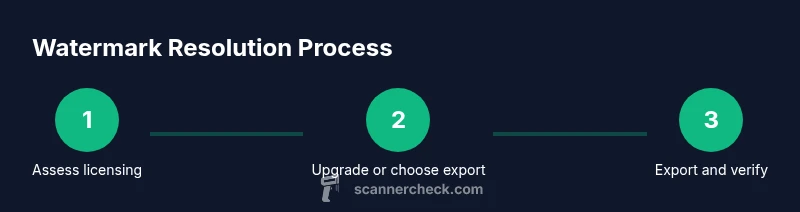
To remove the CamScanner watermark through legitimate means, you should upgrade to a premium plan or use official export options that omit the watermark. The fastest path is CamScanner Premium, which enables watermark-free exports for documents, receipts, and cards. If you prefer not to pay, consider an alternative app that offers watermark-free exports in its free or trial tier. Always follow the app’s terms of service.
What a watermark is and why CamScanner uses it
Watermarking is a deliberate overlay added to digital documents to indicate origin, protect content, or promote a brand. In the context of CamScanner, watermarks appear on scans created in the free tier and serve as an incentive to upgrade to a paid plan. For many users, the question becomes: what legitimate options exist if a watermark is distracting? Some people search for phrases like how to remove camscanner watermark and hope for quick fixes. In reality, removing a watermark should align with the app’s terms of service and licensing. This article explains safe, legal paths and practical alternatives that preserve document quality and integrity.
how to remove camscanner watermark: legitimate paths
To remove the CamScanner watermark through legitimate means, you should upgrade to a premium plan or use official export options that omit the watermark. The fastest path is CamScanner Premium, which unlocks watermark-free exports for typical document types, receipts, and cards. If you prefer not to pay, consider alternative scanning apps that offer watermark-free exports in their free or trial tiers. Always review the terms of service to ensure your usage complies with licensing, privacy, and data-handling policies. This section focuses on transparent, consent-based methods rather than hacks or third-party tools that could compromise security.
Step-by-step overview: preparing for a watermark-free export
Before attempting to export without a watermark, gather the basics: your device, the document you scanned, and access to a legitimate export option. Make sure the CamScanner app is up to date and that you’re signed into a valid account with the appropriate permissions. If you’re collaborating on a team, confirm that all participants understand the licensing boundaries. This preparation reduces the risk of accidentally creating a non-compliant export or losing access to your files. In addition, consider whether you truly need watermark-free output for your use case; sometimes a small branding mark is acceptable for internal reviews while a premium option would satisfy external sharing needs.
Alternatives: other apps and services for watermark-free scanning
If upgrading isn’t feasible, there are reputable alternatives that support watermark-free exports either in their free tier or via a trial. When evaluating options, review privacy policies and data-handling practices, since you may be sharing sensitive information. Some apps offer straightforward export without watermarks, while others require a paid plan for premium features. Remember that switching apps may require re-scanning or importing existing PDFs; plan for a short transition period to preserve document fidelity and indexing metadata.
Best practices for professional-looking scanned documents
Quality matters more than speed. Use a well-lit environment, steady hands, and your device’s autofocus to ensure sharp text. Keep pages flat and aligned to minimize distortion. When exporting, select a high-resolution PDF or image format compatible with your recipients’ workflows. If your document includes signatures or stamps, verify that these elements remain legible after the export. Bypass watermark concerns by choosing formats that preserve text clarity and scan fidelity.
Common pitfalls and how to avoid them
Relying on third-party watermark removers can expose you to malware or data leakage. Avoid any tools that claim to erase watermarks from CamScanner outputs outside official channels. Don’t assume a watermark can be removed without affecting document quality; always test with a sample file. Be mindful of licensing terms, especially for shared or published documents, and avoid mistakes that could violate terms of service or data privacy policies.
How to verify your export is watermark-free
Open the exported file and scan for any watermark overlays. Check multiple pages if your document has more than one page. Ensure the page dimensions and compression haven’t altered text readability. If you’re sharing publicly, preview on different devices to confirm the watermark is not visible in any common viewer. If anything looks off, revert to the original file and retry the official export option or switch to a compliant alternative.
toolsMaterialsInTextThereShouldBeNoButWeProceedWithTheBlockToMeetContentStructureWhy?]:null,
Tools & Materials
- CamScanner app(Installed on your device and signed in to an account with permissions to export)
- Premium or paid plan(Official upgrade to watermark-free exports)
- Alternative scanning app (optional)(Consider if you don’t want to subscribe to CamScanner Premium)
- Stable internet connection(Needed for in-app purchases and license verification)
- Device with adequate storage(For saving large export files)
- PDF viewer/editor(Helpful for final verification and sharing)
Steps
Estimated time: Total: 20-60 minutes
- 1
Assess legitimate path
Decide whether to upgrade to CamScanner Premium or use an approved export option. Review your sharing needs and terms of service to choose the safest path. This upfront decision reduces wasted effort later.
Tip: Read the official CamScanner terms to confirm what is allowed. - 2
Prepare your document and account
Ensure the document is final, pages are oriented correctly, and you are signed into a valid account with export rights. Back up the original locally before exporting to watermark-free formats.
Tip: Enable cloud backup only if you trust the storage provider. - 3
Upgrade to Premium or locate an official export option
If you choose Premium, locate the option to export without a watermark. If your plan includes a watermark-free export, select the appropriate format and settings.
Tip: Choose the format that best matches your recipient’s workflow (PDF preferred). - 4
Export or share watermark-free document
Use the app’s export/share feature to generate a watermark-free file. Verify that the watermark is removed and that the file integrity is intact.
Tip: Export a test page first to confirm quality. - 5
Evaluate alternatives if needed
If the official export options aren’t available, compare alternative apps with watermark-free exports and trusted privacy policies. Test with a short document before migrating.
Tip: Pilot a small batch before full switch. - 6
Finalize, save, and secure
Save the final watermark-free export in a secure location. Document the steps taken for future reference and ensure consistent results across devices.
Tip: Document export settings for reproducibility. - 7
Communicate policy-compliant usage
If sharing within an organization, communicate that watermark-free exports were obtained through legitimate licensing to maintain compliance.
Tip: Keep logs of licensing and export methods.
Common Questions
What is the best legitimate way to remove CamScanner watermark?
Upgrade to CamScanner Premium for watermark-free exports or use official export options if available. This ensures compliance with licensing and data handling policies while preserving document quality.
Upgrade to Premium for watermark-free exports, or use official export options to stay compliant.
Can I remove watermark without paying for CamScanner?
Officially, watermark removal is tied to a paid plan. Third-party tools claiming to remove watermarks pose security risks and may violate terms of service.
Watermark removal without paying is not recommended and may violate terms.
Is cropping the page a safe workaround?
Cropping is not a reliable or professional method to remove watermarks and can compromise readability. It’s better to use legitimate export options.
Cropping isn’t a reliable way to remove watermarks.
Do all CamScanner exports have a watermark?
Not if you export from a premium plan or use official no-watermark export options. Free exports typically include a watermark.
Watermarks depend on your plan and export options.
Are there privacy risks with third-party watermark removal tools?
Yes. Third-party tools can access your documents and may introduce malware or data leakage. Use official or trusted apps only.
Third-party watermark removers can risk your data; stick to trusted options.
Where can I find CamScanner Premium pricing information?
Check the official CamScanner website or app store listing for current premium pricing and available plans.
Look up official pricing in the CamScanner app or store page.
Watch Video
Key Takeaways
- Choose legitimate licensing to remove CamScanner watermark
- Prefer official export options over hacks
- Verify final exports for quality and compliance