How to Scan Without an HP Account: A Practical Guide
Learn how to scan without logging into an HP account. This comprehensive guide covers guest-mode options, destinations (USB, email, network), privacy tips, and troubleshooting for smooth, account-free scanning.


This guide shows you how to scan without an HP account by using guest/local scan modes on your printer, choosing a destination like USB, email, or a network folder, and avoiding sign-in. It covers model-agnostic steps, privacy considerations, and quick workarounds so you can get scans without authenticating to an HP account.
What it means to scan without an HP account
Scanning without an HP account refers to using a printer's built-in guest or local scanning options, which let you create and save scan files without signing in to an HP account. This approach is especially useful in shared environments, schools, or small offices where multiple people need access without creating personal accounts. In practice, you typically choose a destination such as a USB drive, an email address, or a network shared folder directly from the printer's control panel. According to Scanner Check, many modern HP devices offer guest-scan modes that don’t require account authentication, enabling quick digitization while preserving privacy for casual users. The key idea is to leverage the device's onboard scanning features instead of cloud login requirements. If you need to share scans later, you can move them to a computer or drive after the fact. The exact steps vary by model, but the general flow remains consistent across most HP all-in-one printers.
The Scanner Check team emphasizes that guest scanning is a practical option for frequent, short-term use. While not every model supports every destination, most support at least one offline path (USB or local network). If you plan to scan regularly without an HP login, check your printer’s user guide for the exact menu names (for example: Scan > Destination > USB/Email/Network).
This approach can feel limited compared to account-based features, but it delivers reliable results for everyday tasks. It also reduces friction when sharing devices in public or semi-public spaces, since you don’t need to hand out account credentials. The goal is to complete a scan quickly and securely without exposing sensitive login data.
Tools & Materials
- HP printer or multifunction printer with built-in scanning(Prefer models that explicitly advertise guest/local scanning or multiple destinations without sign-in.)
- USB flash drive(Used to store scans locally when the printer supports saving directly to USB.)
- Destination for scanned files (email address or network share)(Preconfigure a reachable destination; have the address or path ready before scanning.)
- Stable network or direct USB connection(Network can be wired or wireless; USB is ideal for offline, high-privacy workflows.)
- Printer manual or quick-start guide(Helpful for model-specific navigation and ensuring guest mode is enabled.)
Steps
Estimated time: 5-15 minutes
- 1
Prepare the device and destinations
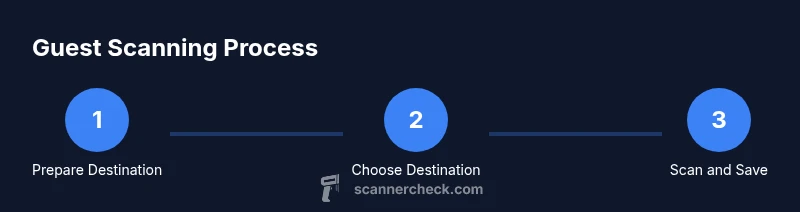
Power on the printer and navigate to the scanning settings. Confirm that a guest/local mode is available and that the primary destinations (USB, email, or network share) are ready. If you’re using USB, insert the drive before starting. This setup minimizes interruptions during the actual scan.
Tip: If you’re unsure whether guest mode is enabled, consult the user manual or printer’s on-screen help. - 2
Access the scan function from the control panel
From the home screen, select Scan and then choose the appropriate destination option (USB, Email, or Network). Some models label this as Scan to USB, Scan to Email, or Scan to Network. Do not sign in to any account if the goal is an account-free workflow.
Tip: If the destination isn’t visible, try a firmware update or reset of the scanning settings to restore defaults. - 3
Configure destination and scan settings
Pick the destination you prepared (USB, email, or network). Choose file format (PDF or JPEG) and resolution. Lowering resolution can speed up the process and save storage space, which is helpful for frequent scans.
Tip: Test a small document first to confirm the destination path works and the file saves correctly. - 4
Run the scan and save or send
Place the document in the ADF or on the glass, align properly, and start the scan. If saving to USB, wait for the device to indicate completion. If sending to email or network, ensure the destination receives the file.
Tip: Watch for a confirmation screen or LED indicator; if the scan doesn’t appear, re-check the destination path. - 5
Verify, eject, and secure
Check that the file exists at the destination, then safely eject the USB drive or confirm email delivery. Clear any temporary files from the printer’s memory if available and consider deleting any unsecured drafts from the queue.
Tip: For security, physically remove USB drives after use and avoid leaving prints or files exposed to others.
Common Questions
Do I need an HP account to scan with an HP printer?
No. Many HP printers support guest or local scanning that doesn’t require signing into an HP account. Some advanced features may require authentication, but the core scanning workflow can work without one.
No, you can scan without signing in, though some features may require an account.
Can I scan to email without logging in?
Yes, if your printer supports sending scans to an email address. Configure the destination in the scanner’s menu, typically under Scan > Destination > Email. You may need SMTP settings from your network admin.
Yes, you can scan to email if the destination is configured in the printer.
What should I do if the printer asks for a password?
Switch to guest or local scan mode if available. If the device requires login for certain destinations, update firmware or consult the manual for default guest options.
Switch to guest mode or check for firmware updates.
Is scanning without an HP account secure?
Security depends on the destination. USB storage stays offline, while email or network destinations should be secured (encrypted, access-controlled). Avoid exposing sensitive data to public networks.
Yes, if you choose offline destinations or secure paths for online destinations.
Where can I locate scanning options on my device?
Look in the printer’s control panel under Scan, Destination, or Preferences. The labels vary by model, so refer to the manual for the exact path to access guest scanning features.
Open the Scan menu and find Destination or Guest Scan in the options.
Watch Video
Key Takeaways
- Actively configure a guest scanning path to speed up future tasks.
- Use local destinations (USB or direct network) to preserve privacy.
- Always verify destinations before scanning to prevent data leakage.
- Test with simple documents to confirm setup works reliably.