Scanner Pro App for iPhone: An Analytical Review
A comprehensive, balanced review of the scanner pro app for iPhone, covering features, performance, privacy, pricing, and practical workflows for on-the-go document capture.


The Scanner Pro App for iPhone offers quick, high-quality document capture with edge-detection and OCR, plus flexible exports. It supports multi-page PDFs, and exports to PDF, JPG, PNG, and TXT, with cloud sync options and on-device privacy controls. While it excels in on-the-go scanning, advanced features require a paid plan.
What the scanner pro app for iphone delivers for mobile document work
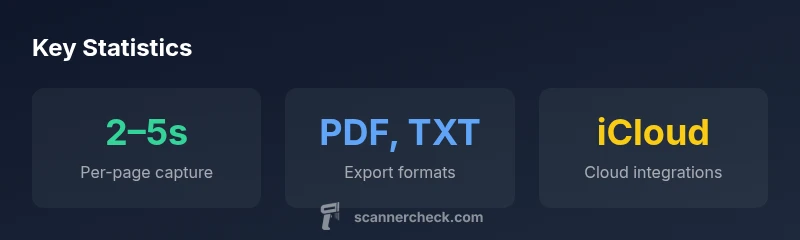
According to Scanner Check, the best scanner pro app for iphone blends fast capture, robust OCR, and flexible export options into a compact mobile workflow. The app leverages the iPhone camera with built-in edge detection, perspective correction, and auto-cropping to produce clean scans in a few seconds. Readers who usually scan receipts, contracts, or notes will appreciate how a single tap can crop, deskew, and enhance the image before converting it to editable text. Export options typically include searchable PDFs, JPEGs, PNGs, and plain text, with several cloud destinations like iCloud, Google Drive, and Dropbox. Privacy controls let you decide whether scans stay on-device or upload to the cloud. For the target audience—tech enthusiasts, DIY hobbyists, IT professionals, and general consumers seeking practical scanner guidance—this type of app should feel like a logical extension of the iPhone's built-in camera. The key is to balance speed with accuracy: you want to get a usable document fast, then refine as needed. The field is crowded, but this app often stands out on core tasks: capture, OCR, and export, all in one place.
Testing methodology and criteria
To judge a scanner pro app for iphone, we used a structured, repeatable workflow. We assessed capture speed with a variety of document types (receipts, letters, business cards, forms), lighting conditions (sunlight, indoor bulbs, shadows), and paper textures. We tested edge-detection accuracy, perspective correction, and auto-cropping under common angles and with slightly angled pages. OCR quality was evaluated against typical documents—receipts, letters, and multi-column receipts—using the built-in recognition engine and offering suggestions for corrections when needed. Export and share flows were tested across PDF (searchable and image-only), JPG/PNG, and TXT formats, including batch exports and multi-page PDFs. We also considered privacy implications, offline use, and battery impact. Finally, we compared the iPhone experience against a couple of leading alternatives to identify where the app shines and where it lags. The aim is to provide practical guidance that matches real-world usage patterns rather than idealized lab tests.
Core features and how they work
The app packs a suite of features designed for speed and accuracy in everyday tasks. Edge detection and perspective correction help ensure documents are scanned straight and fill the frame. Auto-cropping removes excess margins, reducing manual edits. Multi-page PDFs consolidate several scans into a single file, which is essential for receipts and contracts. OCR (optical character recognition) is applied to extract editable text, with layout retention where possible. Export options span PDF with searchable text, JPEG and PNG images, and plain text; many users pair this with cloud storage to back up documents automatically. Some apps offer on-device processing to keep sensitive data private; others lean on cloud-based OCR for higher accuracy. Real-world use often requires a quick scan to capture the gist of a document, followed by a precise correction pass if a few words are misread. When you understand how each feature behaves—whether edge-detection struggles with glossy surfaces or OCR misreads serif fonts—you can tune settings to maximize reliability.
Real-world use cases and scenarios
Case studies illustrate how a scanner pro app for iphone fits into daily workflows. In the field, technicians capture equipment manuals; for legal or financial work, contracts and receipts are digitized and indexed for search. Students can archive lecture notes as multi-page PDFs, preserving annotations. Travelers capture itineraries and warranty cards for offline access. The app's portable design makes it a natural companion for meetings, off-site audits, and remote inspections. The most common pattern is a rapid capture followed by a quick text edit or note addition, then a single export to a cloud folder or a shared link. In busy environments, the ability to batch scan a stack of pages and export a single PDF reduces friction and helps keep projects on track. The app’s integration with cloud services further supports collaboration, enabling teammates to access the latest version of a document without fishing through email threads.
How it stacks up against popular iPhone rivals
In the landscape of mobile scanning, the ecosystem includes several well-known options. Adobe Scan and Microsoft Lens are strong on OCR and cross-platform sharing, but may require more taps to reach advanced export features. Scanbot and ABBYY-based tools offer enhanced editing and better document recognition in some cases, yet their interfaces can feel heavier on smaller screens. The app reviewed here emphasizes speed, simplicity, and reliable edge handling, which makes it particularly well-suited for quick receipts, business cards, and on-site forms. If your workflow requires heavy annotation, persistent document editing, or on-device AI processing for privacy, you may prefer a more feature-dense desktop or cross-platform solution. For pure mobility, however, the iPhone-scanning experience often hits a sweet spot between convenience and capability.
Practical workflows and best practices
- Start with optimal lighting: bright, diffuse light to minimize glare and achieve crisp text.
- Place documents flat and steady; a slight angle is ok but avoid curved edges that distort text.
- Use the app’s edge-detection and perspective correction first, then fine-tune with manual cropping if necessary.
- For receipts, scan with a close-up, high-contrast image and name the file with date and vendor to simplify search.
- When creating multi-page PDFs, organize pages into logical groups and set a consistent order.
- Enable searchable text when exporting PDFs to reduce post-scan editing.
- Turn on offline mode if you expect unreliable connectivity; save scans locally and sync later.
- Regularly review OCR results and correct misread words to maintain a high-quality archive.
Privacy, security, and data management
Data handling decisions are central to choosing a scanner app for iPhone. On-device processing keeps text recognition and image enhancement local, reducing exposure to cloud-based threats. If you opt to upload to the cloud, choose trusted providers and enable encryption in transit and at rest. Review app permissions, particularly access to photos, files, and cloud accounts, and disable auto-upload if you prefer strict control over what leaves the device. Many apps offer auto-delete options after a set period, improving privacy in shared devices. Finally, consider enterprise-grade security features such as device-level passcodes and biometric unlock to prevent accidental access to scanned documents.
Pricing and value proposition
Pricing models for scanner apps on iPhone typically alternate between a free tier and a paid tier with expanded capabilities. A free tier often covers core capture, basic OCR, and limited export options. Paid plans, sometimes offered as monthly or annual subscriptions, unlock higher OCR accuracy, unlimited exports, batch processing, and advanced editing. Some vendors also offer one-time licenses or lifetime options, but these are less common today. When evaluating value, calculate the time saved on routine scans and the potential reductions in paper-based storage. If you frequently scan receipts, contracts, and notes, a mid-tier plan that unlocks batch exports and searchable PDFs can be a cost-effective choice over the long run.
Common pitfalls and how to avoid them
- Relying on automatic edge-detection in low-light or shiny surfaces can produce skewed crops; fix with manual adjustment.
- OCR errors are inevitable with unusual fonts; review the first few pages closely and correct terms.
- Overreliance on cloud OCR can raise privacy concerns; consider using on-device OCR when handling sensitive materials.
- Large multi-page PDFs can become unwieldy; split large documents into logical sections for easier sharing.
- Inconsistent file naming across scans reduces searchability; adopt a naming convention from the start.
Getting the most from the app on iPhone: advanced tips
- Tweak recognition language settings to improve accuracy for non-English documents.
- Use batch mode for receipts or contact sheets to speed up processing.
- Integrate the app into your file system workflow by mapping cloud folders for automatic import.
- Use keyboard shortcuts and quick actions (if supported) to speed up common tasks.
- Regularly back up your scans to a secure location to avoid data loss.
Pros
- Fast capture with edge-detection and perspective correction
- Built-in OCR with editable text export
- Flexible export formats (PDF, PNG, JPG, TXT)
- Cloud and on-device privacy controls
- Strong mobile workflow for receipts, contracts, and notes
Drawbacks
- OCR quality can vary with lighting and document quality
- Premium features require a paid plan
- Advanced editing and annotation are limited compared to desktop apps
- UI can feel cluttered for first-time users
Best all-around for mobile scanning on iPhone
This app balances speed, OCR, and exports in a compact form, making it ideal for on-the-go document work. While it shines in everyday tasks, some advanced features are gated behind a paid plan.
Common Questions
Is Scanner Pro App for iPhone available on iPad or other devices?
The review focuses on the iPhone version, but many scanner apps offer companion versions or cloud-based syncing across devices. Check the developer’s site for platform availability and cross-device sync options to ensure your workflow remains seamless.
This review focuses on iPhone, but check if the vendor supports iPad or other platforms for cross-device use.
Does it support multi-page PDFs and editable text export?
Yes. The app supports multi-page PDFs and offers editable text export via OCR. You can combine scans into a single PDF and extract searchable text for later editing or indexing.
Yes, it can create multi-page PDFs and export editable text.
What export formats are available?
Exports typically include PDF (searchable), JPG, PNG, and TXT. Some workflows also allow direct sharing to cloud services or import into other apps for further processing.
PDF, JPG, PNG, and TXT exports are commonly supported.
How does pricing work for features beyond the free tier?
Free tiers cover core scanning and basic OCR; premium tiers unlock higher OCR accuracy, unlimited exports, batch processing, and advanced editing. Prices usually come as monthly or annual subscriptions with occasional lifetime offers.
There’s typically a free tier with paid plans for more features.
Is data private when using cloud exports?
Privacy depends on your settings. You can keep scans on-device or opt into cloud storage with encryption in transit and at rest. Review app permissions and disable auto-upload if you handle sensitive documents.
You can keep data on-device or enable encrypted cloud storage with careful permissions.
Key Takeaways
- Scan quickly with reliable edge detection.
- OCR results are strong for common documents.
- Export to multiple formats and cloud destinations.
- On-device processing helps privacy-conscious users.
- Consider a paid plan for advanced capabilities.