Scanner to Scan Documents: A Practical How-To Guide
Learn how to turn paper documents into searchable digital copies using a scanner. This step-by-step guide covers gear, settings, OCR, and file organization to help you build a reliable document-scanning workflow.


You will learn how to convert paper documents into high-quality digital scans using a scanner to scan documents. Key requirements: a flatbed or sheet-fed scanner, appropriate scanning software, and the right resolution and color settings. This guide covers setup, workflow, and best practices to produce clean, searchable digital copies. Whether you’re digitizing receipts, contracts, or research notes, this steps-based method helps preserve detail and text recognition.
What a 'scanner to scan documents' means
In practical terms, a scanner to scan documents is any device and workflow that converts physical pages into digital representations you can store, search, and share. It goes beyond simply pressing Scan; it includes selecting the right hardware, choosing scan settings, running OCR, and organizing the digital archive for quick retrieval. Scanner Check defines a pragmatic approach: start with the right hardware, optimize the capture, and apply OCR to capture text. The goal is legible images and reliable text, not perfect art. The phrase covers a spectrum—from a budget sheet-fed scanner you stash in a desk drawer to robust workgroup models connected to networked storage. For most users, the best option balances speed, quality, and ease of use. According to Scanner Check, the right pairing of hardware and workflow makes the difference between a pile of images and a useful digital library.
This section sets the stage for the rest of the guide by framing the problem: you want digital copies that are easy to share, searchable, and durable over years of storage. The more you plan at the outset—document types, volumes, and archival format—the more efficient your workflow will be later.
Choosing the right scanner for document scanning
Choosing the right scanner is the single most impactful decision in a document scanning workflow. Sheet-fed models with an automatic document feeder (ADF) are ideal for bulk work, enabling rapid throughput while maintaining consistent results. Flatbed scanners excel when you deal with bound materials, fragile pages, or documents that resist simple feeding. If you work with mixed media—receipts, invoices, letters, and photographs—look for duplex scanning, good color depth, and reliable OCR output. Consider duty cycle (the number of pages per day you expect to scan) and connectivity options (USB, Wi‑Fi, or network sharing). A crucial balance to strike is price versus reliability: a mid-range device often beats a bargain model for long-term consistency. Based on Scanner Check research, a well-chosen sheet-fed scanner with reliable drivers frequently yields the best throughput for typical office workloads, while a desktop flatbed can handle irregular items without compromising quality.
Understanding scanning resolution, color, and formats
Resolution, color mode, and file format directly affect readability, file size, and long-term accessibility. For text documents, a baseline of 300 dpi is common; 600 dpi improves legibility for small fonts or dense layouts. If you frequently scan forms or documents with color highlights, consider color or grayscale with selective color preservation to balance authenticity and size. Many users opt for PDF or PDF/A for multi-page documents because these formats support embedded text and long-term archival stability. TIFF offers excellent image fidelity for archival copies but can create very large files. JPEG is convenient for quick sharing but may lose detail with compression. OCR-enabled workflows typically produce searchable PDFs, where the visual layer and the text layer are aligned so you can search and copy text without sacrificing the page appearance.
The ideal workflow: from paper to searchable PDFs
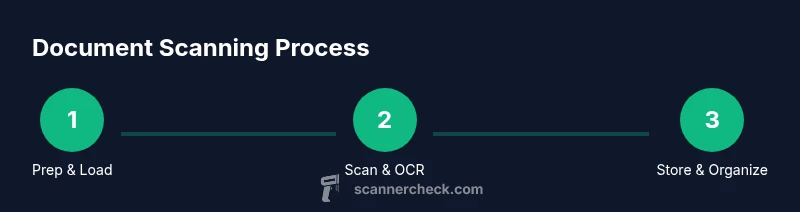
A clean, repeatable workflow reduces errors and saves time. Start with a well-lit, glare-free workspace and prioritize paper preparation: remove staples, straighten pages, and separate mixed-sized sheets. Set your scanner to the desired resolution, color mode, and output format before you start scanning. Running an initial test page helps you verify alignment, margins, and contrast. Use OCR during or after scanning to convert images to searchable text. For multi-page documents, save as a single PDF/A file with the text layer embedded for accessibility and future searchability. Finally, inspect the resulting file for legibility, check for garbled characters, and adjust settings if needed. A consistent naming convention (date-topic-type) and a logical folder structure will pay dividends over time.
OCR and searching: turning images into text
Optical character recognition (OCR) is the bridge between an image of a document and searchable text. Modern scanners often include built-in OCR software, but you can also use standalone OCR tools for better control over language packs and post-processing. When configuring OCR, select the correct language, enable document layout analysis for columns, and run a quick quality check on sampled pages. Post-processing steps—like correcting misread characters, adding hyphenation, and training the OCR engine on your common fonts—improve accuracy dramatically. The result is a searchable PDF where you can highlight, copy, and search text. Remember that OCR accuracy depends on image quality; ensure clean scans, straight pages, and adequate contrast to maximize recognition rates.
Organizing your scanned library: naming, folders, and metadata
Organization is the backbone of a usable digital archive. Create a stable folder structure and adhere to a consistent file naming convention (for example, 2026-01-15_finance_invoice_001.pdf). Embed metadata where possible—document type, author, date, and version—to support searchability. If you are managing thousands of pages, a simple cataloging approach can save hours later, including tagging with keywords such as project names, departments, or content themes. Consider including a brief per-document note or a two-sentence description in the file's metadata to aid discovery. Regular audits to remove duplicates and obsolete scans help keep storage lean and retrieval fast.
Common issues and how to fix them
Scanning isn’t flawless. Skewed pages or shadows around text are common problems that degrade readability. Remedies include reloading pages with improved alignment, enabling deskew features in the scanner software, and adjusting brightness and contrast to minimize shadows. Glare on glossy pages can obscure text; using a matte sheet or scanning at a lower angle reduces glare. When documents are fragile or bound, a flatbed scanner reduces the risk of damage and ensures more precise cropping. If multiple pages show inconsistent color or brightness, run batch corrections or re-scan with a unified profile. Finally, verify OCR accuracy on a few representative pages to catch systematic errors early.
Maintenance, calibration, and longevity of your scanner
A long-lasting scanning setup requires routine maintenance. Clean the glass and rollers regularly with a microfiber cloth and a mild cleaner recommended by the manufacturer. Keep drivers up to date to ensure compatibility with your operating system and OCR software. Periodically calibrate color and brightness using a reference target to maintain consistency across sessions. Store scanned files in a reliable archive format and back up to at least two separate locations. If you rely on cloud storage, verify that your connection is secure and that permissions are managed properly. A well-maintained scanner and tidy workflow reduce downtime and protect your digitized assets over years of use.
Accessibility, compliance, and future-proofing scans
Accessibility matters for long-term usefulness. Save documents with accessible text layers, use screen-reader friendly PDF/A formats, and include metadata to describe document content. Compliance considerations include secure storage, access controls, and retention schedules aligned with your organization’s policies. Plan for future-proofing by adopting standard file formats, avoiding proprietary codecs when possible, and maintaining an auditable scan log. Scanner Check’s guidance emphasizes building a repeatable, audited process so digital copies remain usable as technology evolves. The Scanner Check team recommends validating scans with a quick quality check before archiving, then periodically re-scan older materials if fidelity deteriorates.
Tools & Materials
- Scanner(Flatbed or sheet-fed with clean glass; ensure duplex capability if possible)
- Computer with scanning software(Windows or macOS; include OCR capable software)
- USB cable or network connection(For initial setup and ongoing updates)
- External storage or cloud storage(Back up scans; recommended 1TB+ and versioning enabled)
- Microfiber cleaning cloth(Clean the glass before every session to avoid smudges)
- Color reference target (optional)(Helpful for color-critical work)
Steps
Estimated time: 30-60 minutes (depending on batch size)
- 1
Power on and prep your workspace
Power the scanner and open the lid. Clear the glass of dust and fingerprints, and ensure the area has even lighting to prevent glare. Gather your documents and separate mixed sizes into neat stacks.
Tip: Wipe the glass with a microfiber cloth before starting to enhance image clarity. - 2
Load documents correctly
Place documents face-down on the glass or into the document feeder if available. Align edges to minimize skew and prevent jams. If you have mixed sizes, scan the largest size first.
Tip: Do not overfill the feeder; follow the device's max-sheet guidelines. - 3
Choose scan settings
Set the resolution, color mode, and file format in the software. For text, grayscale or black-and-white often keeps file sizes manageable; for mixed content, use color.
Tip: Use 300-600 dpi for text; higher if you expect small fonts or detailed images. - 4
Scan a test page
Run a test page to verify alignment, margins, and brightness. Adjust settings if the test shows skew, blur, or poor contrast before proceeding.
Tip: Check the preview to catch issues early and save rework time. - 5
Scan the full batch
Proceed with the rest of the documents in batches to maintain quality. Save interim files if needed and keep batches labeled by date or topic.
Tip: Name files consistently during the session to avoid post-scan reorganization. - 6
Save and organize files
Save as PDF or TIFF with OCR enabled, and store in a clear folder hierarchy. Apply descriptive file names and metadata where possible.
Tip: Use PDF/A for long-term archival and ensure you maintain an accessible text layer.
Common Questions
What resolution should I use for scanning documents?
For text, 300 dpi is a common baseline; 600 dpi improves readability for small fonts. For photos and mixed content, 600-1200 dpi yields better detail. Always balance file size with readability.
For text, use around 300 dpi as a baseline. Increase to 600 dpi for small fonts or mixed content.
Should I scan in color or grayscale?
If the documents are text-only, grayscale saves space and speeds up processing. Use color for receipts, forms with color highlights, or documents where color conveys meaning.
Text-only scans are usually grayscale to save space; use color when color is meaningful.
What file format should I save?
Save multi-page documents as PDF or PDF/A for long-term preservation. Use TIFF for archival images, and JPEG/PNG for individual images.
PDF for most scans, especially multi-page; TIFF can be good for archival images.
How can I OCR my scans?
Use built-in OCR in your scanner software or a dedicated OCR tool. Ensure the language is correct and perform a quick text verification after scanning.
Enable OCR and verify text accuracy after scanning.
How should I organize scanned documents?
Adopt a consistent naming convention (date-topic-type) and a logical folder structure. Include metadata like author, date, and version when possible.
Use consistent names and folders to find documents quickly.
Is a sheet-fed scanner better than a flatbed?
Sheet-fed scanners are faster for large volumes, while flatbed scanners offer higher accuracy and flexibility for fragile or bound items.
Sheet-fed is faster for big jobs; flatbed handles fragile items better.
Watch Video
Key Takeaways
- Plan your workflow before you start
- Choose the right scanner for your document loads
- Scan in batches to preserve quality
- Run OCR to create searchable text
- Organize and back up digital copies