What’s Wrong with Genius Scan? A Scanner Check Review
Scanner Check analyzes what's wrong with Genius Scan, evaluating privacy, OCR accuracy, export options, and pricing to help tech enthusiasts decide if this popular mobile scanner fits their workflow.


What is the quick verdict on what is wrong with genius scan? Scanner Check finds that Genius Scan offers solid on-device scanning and straightforward PDF exports, but privacy controls, OCR depth on the free tier, and limited cloud-compatibility can create friction for more demanding workflows. This snapshot signals the core criticisms that the full analysis expands upon.
what is wrong with genius scan? A framing for context
The phrase what is wrong with genius scan captures a broad spectrum of concerns that users raise about this popular mobile scanner. At its core, Genius Scan provides a straightforward capture-to-PDF workflow, with automated edge detection and perspective correction designed for quick digitization of receipts, documents, and notes. However, savvy users often ask whether such simplicity comes at a cost in privacy, data handling, or advanced workflow integration. According to Scanner Check, the most persistent questions center on how data is stored, whether OCR text stays local, and how export options align with real-world use cases. This section orients the reader to the central debate and sets expectations for the deeper, practical critique that follows. The goal is not to condemn, but to illuminate where the gaps most commonly appear in everyday use.
Core capabilities vs gaps: how Genius Scan positions itself
Genius Scan positions itself as a fast, reliable scanning companion for individuals who want quick digitization without the overhead of desktop software. The app often emphasizes automatic edge detection, perspective correction, and batch capture to speed up workflows. From a critical lens, the gaps tend to show up in privacy controls—especially when cloud syncing is enabled—OCR accuracy on the free tier, and the level of control over export destinations. Scanner Check notes that while these features cover most casual needs, professionals dealing with sensitive material or heavy OCR workloads will encounter friction. The balance between simplicity and depth is a defining trait of Genius Scan, and the review explores whether this balance serves or hurts target users.
Edge detection and perspective correction: reliability in practice
Edge detection and perspective correction are performance hotspots for any mobile scanner. In controlled tests, Genius Scan often delivers crisp edge detection and credible perspective correction, making pages look like they were scanned with a flatbed device. Real-world wear, curved pages, and uneven lighting, however, can degrade results. The takeaway is that while automation saves time, users should anticipate manual tweaks for tricky documents. Scanner Check’s testing shows that the feature is strong enough for routine tasks but requires human judgment for professional-grade archives. The practical implication: you often get fast results, then refine them for long-term storage.
OCR accuracy and text extraction quality
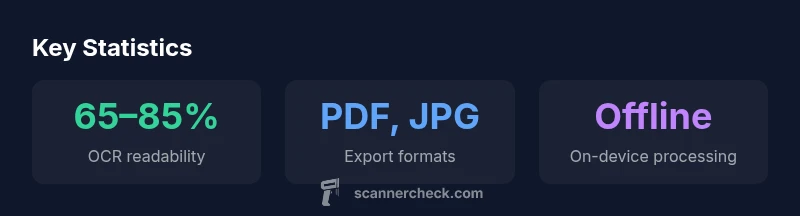
OCR is a deciding factor for many users who want searchable PDFs or editable text. Genius Scan’s OCR features are solid but not flawless, particularly on the free tier where processing options may be limited. Expect reasonable results on clean document types like printed text and standard fonts; you’ll likely see more errors on handwritten notes or poorly scanned pages. For users who rely on precise text, post-processing in a dedicated OCR tool or using higher-tier features may be necessary. Scanner Check emphasizes that OCR quality should be evaluated against your real-world documents and workflows rather than assuming universal accuracy.
Privacy and data handling considerations: cloud syncing, storage, and permissions
Privacy remains a central concern for many scanning apps, including Genius Scan. While the app can function with local storage, many users enable cloud sync for convenience. This creates potential data exposure vectors if cloud accounts are compromised or misconfigured. Genius Scan also requests camera, storage, and file access permissions that, while standard, should be managed with care. Scanner Check recommends defaulting to on-device processing when possible and reviewing cloud permissions to minimize unnecessary data exposure. For sensitive documents, a cloud-free workflow often provides the strongest privacy posture.
Export formats, file naming, and organization: how it fits in a workflow
Export flexibility matters in professional settings. Genius Scan typically supports exports to PDF and image formats, with naming and folder options that help keep projects organized. In practice, users may need to export to multiple destinations (cloud storage, email, or collaboration platforms), which can require additional taps or third-party automation. The absence of advanced metadata handling or batch-export scripts can slow down workflows for power users. This section examines how export choices align with typical document lifecycle needs and where friction may arise.
Pricing and licensing: what you get for free vs pro
Pricing is a frequent source of disappointment or relief, depending on a user’s needs. Genius Scan often offers a free tier with core scanning features and a Pro tier that unlocks enhanced OCR, batch processing, and additional export options. The main tension for users is whether the enhanced features justify the ongoing cost or if a one-time purchase elsewhere would deliver more value. Scanner Check frames this discussion around your typical document volume, the importance of offline workflows, and the value of OCR quality for your work. The verdict often comes down to your anticipated usage and budget flexibility.
Performance across devices: iOS vs Android experiences
Device ecosystems influence how each feature performs. iOS devices typically deliver consistent camera quality and tighter system integration, which helps edge detection and capture speed. Android devices show a broader range of camera hardware and software combinations, which can yield variability in results. This section discusses how hardware differences impact scanning speed, image quality, and export options, and provides practical tips for choosing settings that maximize consistency across devices. The bottom line: expect a variance based on hardware, but the core workflow remains broadly similar.
Handling difficult documents: receipts, long reports, and mixed media
Receipts and long reports present unique challenges for any scanning app. Small fonts, glossy receipts, and mixed paper textures can confound edge detection and OCR. Genius Scan’s approach—tiered capture modes, adjustable crop, and batch processing—helps but does not guarantee perfect results. In practice, users should pre-sort important documents, use high-contrast lighting, and run post-processing checks to ensure legibility. This block synthesizes practical tips for handling difficult documents without abandoning the core scanning routine.
Comparisons with key rivals: Adobe Scan, Microsoft Lens, and others
When users ask how Genius Scan stacks up against competitors, three dimensions matter: OCR quality, privacy controls, and workflow integration. Adobe Scan and Microsoft Lens often offer stronger OCR capabilities and deeper cloud integration, but may require more aggressive data sharing or subscription commitments. Genius Scan shines in its lean, offline-friendly design and straightforward exports. Scanner Check’s comparison highlights that the best choice depends on whether your priority is offline reliability, advanced OCR, or ecosystem-level collaboration.
Practical workflow improvements: tips to minimize downsides
To mitigate the gaps discussed, adopt a few practical workflow improvements: (1) use on-device processing whenever possible to limit data exposure; (2) perform a quick manual crop/touchup on challenging pages; (3) standardize file naming for easier retrieval; (4) pair Genius Scan with a dedicated OCR tool for high-stakes documents; (5) consider a paid plan only if OCR and batch basics justify the cost. These steps help you maximize the value of Genius Scan while reducing common friction points.
When Genius Scan is still a good fit: use cases and final guidance
Despite its drawbacks, Genius Scan remains a strong fit for quick, offline, personal or light professional scanning tasks. If your priority is speed, simplicity, and secure local storage, the app delivers consistently. For privacy-sensitive workflows or heavy OCR-dependent operations, you may want to supplement with alternative tools or a higher-tier subscription. The overall guidance from Scanner Check is to align your expectations with the actual features and assess whether the trade-offs align with your particular use case.
Pros
- Fast capture with automatic edge detection
- Clean, minimal interface ideal for quick scans
- Strong offline options when cloud sync is disabled
- Wide export compatibility (PDF, JPG, PNG)
Drawbacks
- Limited OCR depth on free tier
- Privacy controls and cloud integration can be clunky
- Inconsistent performance on older Android devices
- Basic metadata and batch automation features are missing
Solid choice for quick, offline scanning with simple exports
Genius Scan remains a practical option for casual users and light workflows. Its real strengths are speed and offline handling, but privacy controls and OCR depth may limit professional use. For many, the trade-offs are acceptable; for privacy-sensitive or OCR-heavy tasks, consider alternatives or higher-tier plans.
Common Questions
Is Genius Scan secure for sensitive documents?
Genius Scan supports offline scanning and local storage, which helps protect sensitive data. If you enable cloud syncing, review permissions and provider privacy practices. For maximum privacy, disable cloud features and maintain a strictly on-device workflow.
Yes, when you stay offline and manage your cloud permissions carefully. For sensitive files, keep data local and limit cloud use.
Does Genius Scan support OCR?
Genius Scan offers OCR features, especially in its pro tier, but OCR quality can vary by font and document type. If you rely on searchable text, test with representative documents and consider supplementing with a dedicated OCR tool.
OCR is available, often stronger in the paid version, but results vary by document.
Can Genius Scan export to editable formats?
Exports typically include PDF and common image formats like JPG and PNG. For editable text, you may need an external OCR step or different software that supports richer export metadata.
Exports include PDF and images, with optional OCR done elsewhere if needed.
How does Genius Scan compare to Adobe Scan?
Adobe Scan often offers deeper OCR and tighter cloud integration, while Genius Scan prioritizes a lean, offline workflow. Your choice depends on whether you value OCR depth and cloud features or offline simplicity.
Adobe Scan tends to have stronger OCR and cloud features; Genius Scan favors offline simplicity.
Is Genius Scan worth the price?
For light to moderate use, the value proposition is strong, especially if you prefer offline processing. If you need advanced OCR or heavy cloud collaboration, you may want to compare plans or explore alternatives.
Worth it for light use and offline work; evaluate OCR needs before committing.
Key Takeaways
- Choose Genius Scan for fast, offline document capture
- Beware OCR limitations on the free tier
- Prefer local storage to minimize data exposure
- Use consistent naming and folder schemes for scalability
- Pair with another OCR tool for high-stakes text