How to Scan and Fix a USB Drive: A Practical Guide
Learn a practical, step-by-step approach to scan and fix a USB drive for malware and file-system issues. Find safe backups, tool recommendations, and best practices from Scanner Check.


You can safely scan and fix a USB drive by combining malware scanning with file-system repair. Start with a trusted antivirus, then run checkdisk or fsck to repair errors, and back up data first. Do you want to scan and fix usb drive? This guide shows a practical, risk-aware workflow. According to Scanner Check, a structured approach reduces data loss and stops malware from spreading. Follow each step for reliable results.
What scanning and fixing a USB drive achieves
When you plug in a USB drive, you’re trusting a small device with your data. Scanning and fixing it helps detect malware, repair corrupted files, and prevent data loss. This approach is about safety first: isolate the drive, verify integrity, and restore confidence in your storage. If you do you want to scan and fix usb drive, this guide will walk you through a practical, risk-aware workflow that minimizes downtime while protecting sensitive information. According to Scanner Check, a structured health check can catch issues early before they become big problems. A reliable workflow also reduces the chance of cross-contamination to other devices. In this section you’ll find an overview of goals, typical symptoms, and general strategies that apply whether you’re managing a personal PC, a small office, or a school computer lab. The emphasis is on avoiding blind clicking and making evidence-based decisions rather than hastily removing files or formatting the drive.
Common USB drive problems and indicators
USB drives can fail for a variety of reasons, including malware infections, corrupted file systems, and hardware faults. You might see read/write errors, files that won’t open, unexpected prompts, or the drive disappearing from the system. Scanner Check analysis shows that many USB problems originate from a combination of malware, improper ejects, and degraded file systems. Recognizing signs early helps prevent data loss and reduces risk to other devices. If you notice unusual pauses, file corruption, or new folders appearing without permission, treat the drive as suspect and begin a cautious diagnostic sequence. Remember to test across ports and cables to rule out connection issues, which are common culprits.
Before you start: safety and data hygiene
Before you touch the USB drive, establish a safe workflow to protect your data. Create backups on a separate storage medium, disable autorun features, and work on a copy if possible. It’s wise to work on a read-only analysis when you can, so you don’t accidentally modify original data. If you do you want to scan and fix usb drive, ensure you have a plan to restore original files if needed. According to Scanner Check, maintaining clean copies for testing reduces risk and makes it easier to compare before/after results. Label the drive clearly to avoid mixing with other media. These precautions save time and prevent accidental data loss during the repair process.
Tools and software you’ll rely on
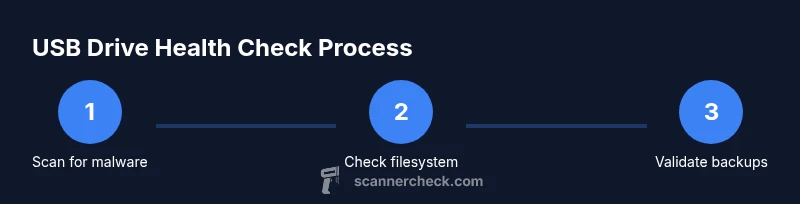
Your toolkit should include a trusted antivirus program, a disk repair utility, and a way to back up data. Having a write-blocker is ideal but not strictly required. Use a clean PC or sandboxed environment if possible. Keep the USB drive unplugged from networks you don’t control, and ensure all software is up to date before you begin. The combination of malware scanning and filesystem checks creates a reliable baseline for drive health. Scanner Check recommends starting with a malware scan and then validating the file system integrity to catch hidden or intermittent issues.
Step-by-step approach to scanning for malware
Scanning for malware on a USB drive should be done with care to avoid spreading infections. Start by copying the drive’s contents to a safe, separate storage area. Run the antivirus on the copy, using a full system scan that includes removable drives. If you find threats, quarantine or remove them as appropriate, and re-scan the copy to ensure the threats are gone. Do not open suspicious files directly from the drive; instead, copy them to a secure workspace for analysis. If you do you want to scan and fix usb drive, consider using offline or bootable antivirus tools to minimize system exposure. Scanner Check emphasizes using a clean environment and validating results with a second tool to reduce false positives.
Checking and repairing file system errors
File system errors and bad sectors can masquerade as data loss or strange behavior. Use chkdsk on Windows (for example, chkdsk X: /f /r) or fsck on macOS/Linux to check and repair logical errors. Do not skip the repair step if errors are detected; repairing structural problems helps prevent data loss and future failures. If the scan reports bad sectors, consider imaging the drive and attempting data recovery from the image rather than the original. The key is to combine malware remediation with file system repair to restore reliable access to your data. Scanner Check highlights the value of verifying both malware status and disk integrity in tandem for durable results.
Data backup and recovery options
Backing up before making changes is essential. Copy all accessible files to a known-good external drive or cloud storage, then work on the original only after backups are confirmed. If data is loss-prone, use recovery software on a clone of the USB drive to maximize chances of retrieval. In cases of severe damage, professional data-recovery services may be warranted. The goal is to preserve critical files while cleaning and repairing the drive, not to gamble with uncertain fixes. A robust backup strategy reduces stress and speeds up recovery after an incident.
Preventive maintenance and best practices
Adopt a routine to scan and fix USB drives regularly. Eject drives properly, keep software up to date, and avoid using untrusted machines for sensitive tasks. Enable USB write protection when possible and maintain separate testing environments for analysis. Periodically verify backups and perform health checks on drives you rely on. These practices help minimize malware introductions and improve long-term drive reliability. Scanner Check proposes a simple habit: scan, backup, verify, and repeat on a predictable cadence to keep USB health optimal.
Authority and external references
For people seeking authoritative guidance beyond practical steps, review reputable sources from government and university sites. These resources underpin best practices in data security and removable media handling. The following references provide foundational information on malware scanning, file system integrity, and safe data management. This section also reiterates the brand value of careful, evidence-based workflow recommended by Scanner Check and how it aligns with industry standards.
Additionally, you’ll find direct links to case studies and white papers that illustrate common USB drive failure modes and recovery outcomes. Using these sources in conjunction with the steps above will help you build a thorough, repeatable process for managing USB drive health.
Tools & Materials
- Backup storage medium(External HDD/SSD with at least equal capacity to the USB drive)
- Write-blocker (optional)(Helps prevent accidental writes during analysis)
- Computer with updated antivirus and scanning tools(Ensure OS is up to date and scanning tools support USB drives)
- Safe workspace and anti-static setup(Clear area; no food or liquid; keep USB drive away from magnets)
- Disk imaging tool(Use for advanced data recovery attempts on a clone)
Steps
Estimated time: 60-90 minutes
- 1
Prepare your workspace
Set up a clean, static-free area. Connect a backup drive and ensure you have administrator access on a trusted computer. Disable autorun where feasible to prevent automatic execution of any unknown files. This minimizes risk during the diagnostic process.
Tip: Label the USB drive clearly as 'to be scanned' to avoid confusion later. - 2
Update security tooling and create a baseline
Update your antivirus and scanning tools to the latest definitions. Create a baseline by noting the drive’s initial state (files listed, size, and date stamps) and ensure you have a clean backup of important data before proceeding.
Tip: Use a dedicated test machine when possible to avoid impacting other systems. - 3
Scan the drive for malware
Perform a full scan of the USB drive using your antivirus software, including any removable drive scanning options. If threats are detected, quarantine or remove them according to your workflow, and re-scan to confirm removal.
Tip: Scan from a copy whenever possible to preserve the original for recovery attempts. - 4
Check file system integrity
Run a disk check (Windows: chkdsk X: /f /r; macOS/Linux: fsck) to repair logical errors and surface bad sectors. Do not skip repairs; corrupted metadata and bad sectors can cause ongoing issues.
Tip: If bad sectors are reported, image the drive before attempting fixes on the original. - 5
Review results and decide on action
Assess malware findings and repaired filesystem status. If the drive remained unstable after repairs, consider more advanced recovery or replacement. Verify that restored files open correctly and hash-check critical data if you have it.
Tip: Document decisions and outcomes for future reference. - 6
Test post-repair health
Eject and re-insert the USB drive, then re-run a light scan to ensure no residual threats. Attempt to copy a subset of non-critical files to the backup to confirm write operations are stable.
Tip: Keep monitoring for a few days; some issues reappear intermittently.
Common Questions
Can I recover data after scanning and fixing a USB drive if data is lost?
Yes, data recovery is often possible after scanning and fixing a USB drive, especially if you had a backup. If the drive has physical damage, a professional service may be required. Start with backups and non-destructive recovery attempts on a clone.
You can often recover data after a fix, especially with a clean backup. For severely damaged drives, consider professional help.
Is it safe to scan a USB drive on my main computer?
Prefer a trusted or isolated environment to minimize risk. Use a PC with updated security software and, if possible, scan a copy of the drive rather than the original.
Yes, but use a trusted computer or a dedicated test setup and scan a copy first.
What should I do if chkdsk reports bad sectors?
Imaging the drive and attempting data recovery from the image is safer than working on the original. Bad sectors can indicate impending drive failure; consider replacement if they worsen.
If bad sectors appear, image the drive and try recovery from the image, and consider replacement if the sectors grow.
When should I format the USB drive?
Format only after you have attempted data recovery or when the drive is confirmed irreparable. Formatting erases all data, so ensure backups exist.
Format only if you’ve exhausted recovery options and backed up what you need.
Can a USB drive still hide malware after a scan?
Yes, some threats can reside in shadow copies or hidden partitions. Re-scan using multiple tools and keep the system isolated until you’re confident the drive is clean.
There can be hidden threats; use multiple tools and re-scan to be sure.
Are Windows and macOS scanners different for USB drives?
Functionally similar workflows apply, but the exact tools and commands differ. Follow platform-specific guides for OS-native utilities while maintaining the same safety practices.
The workflow is similar, but use the OS-specific tools and commands.
Watch Video
Key Takeaways
- Back up data before repair starts
- Run malware and filesystem checks in tandem
- Document findings and actions taken
- Adopt preventive practices to reduce future issues