Can you get scan results on NHS App? A practical guide
Learn how to view scan results in the NHS App, what data is shown, and how to request missing reports. This Scanner Check guide covers steps, limitations, privacy, and practical tips.


Yes, you can view some scan results in the NHS App, but availability depends on the test type, your local NHS trust, and how data is integrated with your records. This guide explains what you can access, where to find it, and common limitations.
can you get scan results on nhs app
can you get scan results on nhs app? The short answer is yes for some results, but not all. You can view certain lab results and screening outcomes in the NHS App, but availability depends on how data is created, whether it's linked to your NHS number, and regional sharing practices. According to Scanner Check, many users gain access to test results through their patient records, while imaging results may require a hospital portal or direct request. In this section we’ll outline what to expect and how to verify what’s visible for you.
How the NHS App surfaces scan results
The NHS App pulls data from multiple health system sources, primarily your GP record and lab portals. When a result is finalized and shared with your record, it often appears in the app within minutes to hours. However, hospital imaging reports and some specialized tests may not automatically flow to the app and may require a hospital portal or direct communication with your clinician. This section explains the typical data pathways and how to tell whether a result is accessible in the app.
Types of results visible in the NHS App
Not every scan produces an entry you can see in the app. Commonly accessible data includes routine lab test results, disease screening outcomes, vaccination records, and appointment summaries. Imaging reports such as X rays or MRIs may appear only after a clinician has uploaded the final report, and in some regions you may see only a summary rather than full notes. If you rely on imaging results, plan for a secondary check through the hospital portal or your GP.
Locating scan results in the app
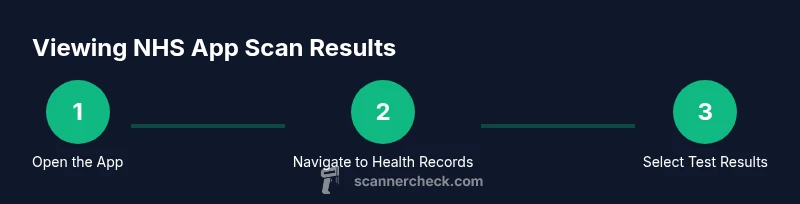
To find available results, open the NHS App and sign in with your verified identity. Navigate to the Health Records or Your Health section, then look for a tab labeled Test results, Lab results, or Screenings. Results are typically listed by date, with the most recent items at the top. Tap any entry to view details, notes, and interpretation where provided. If a result isn’t visible, proceed to the next steps described below.
What to do if you cannot see results
If you expect a result but it is missing, first confirm you are using the latest version of the app and that your account is correctly linked to your NHS number. Some data may be delayed due to processing or regional sharing rules. If you still cannot see the result, contact your GP practice or hospital records team to request access or to obtain the report directly.
How to request results not shown in the app
You have several options. Ask your GP to share the report directly to your NHS App account if they support the feature, or request a patient access portal link to the hospital’s system. You can also ask for a printed copy or secure email of the report. If sensitive imaging results are involved, the clinician may authorize best timing; always confirm identity before sharing any medical data.
Security, privacy, and data sharing in the NHS App
The NHS App uses standard NHS identity verification and permissions. Your data is protected by encryption in transit and at rest. You control which parts of your medical record you can view, and you can revoke access if needed. Be mindful of public or shared devices, and always sign out after use. For auditing, check your app’s privacy settings and consent choices.
Common issues and troubleshooting tips
If you notice missing or incorrect results, first check that you are signed in to the correct account and that your device has a stable internet connection. Update the app to the latest version. If issues persist, clear the app cache or reinstall, then re-log in. For persistent problems, contact your GP or hospital records team.
Practical tips for staying organized and preparing for future results
Keep a running list of tests you expect and dates, save digital copies when possible, and verify the report format you are viewing in the app. If you routinely need access to results, consider setting up a secondary alert with your GP or hospital portal, so you know when new data is uploaded.
Tools & Materials
- Smartphone with NHS App installed(Latest version on iOS or Android)
- Stable internet connection(Wi‑Fi or mobile data with good signal)
- NHS login credentials(User ID and password, with two‑factor authentication ready)
- Access to GP/hospital portal (optional)(Useful if results aren’t in-app)
- Note-taking/record-keeping method(Have a secure place to store copies or export links)
Steps
Estimated time: 15-25 minutes
- 1
Update the app and sign in
Open the NHS App and confirm you are running the latest version. Sign in with your NHS login credentials and complete any required two-factor verification. This ensures you access the most current data and reduces login-related issues.
Tip: If you see a login error, reset your password and verify device time is correct. - 2
Navigate to Health Records
From the home screen, go to Health Records or Your Health. This is where data linked to your NHS number is typically shown. Ensure you’re using a patient account that is linked to the correct identifier.
Tip: If you have multiple accounts, switch to the one tied to your usual NHS number to avoid mismatched data. - 3
Find Test or Lab results
Look for tabs labeled Test results, Lab results, or Screenings. Results are usually listed newest first, with a summary line and date. Tap any entry to view the full details provided by the lab or clinician.
Tip: If you don’t see a result, keep reading for how to request missing data. - 4
Review the result details
Read the interpretation, reference ranges, and any clinician notes that accompany the result. Some entries include links to the full report or next steps.
Tip: Note dates and clinician names for future reference in case you need to discuss results. - 5
Check for missing data
If a suspected result isn’t visible, confirm app version and account linkage, and check regional data-sharing status. Delays can occur during system updates or data migrations.
Tip: Document the missing entry date and your patient identifier to speed up follow-up. - 6
Request missing results through GP or hospital
Ask your GP to share the report directly to your NHS App account if supported, or request access through the hospital patient portal. They can often provide a PDF copy or direct link.
Tip: If security is a concern, ask for a secure email or encrypted file instead of sharing via generic channels. - 7
Use alternative channels if needed
For results not available in the app, use the hospital or GP's patient portal, or request a printed copy. Some imaging reports require direct hospital access.
Tip: Bring your photo ID and NHS number when requesting records in person. - 8
Export or share results securely
Use the app’s share function or export feature to save a copy locally, email securely, or attach to a patient portal.
Tip: Always verify recipient identity before sharing sensitive health data.
Common Questions
Can you see all scan results in the NHS App?
No. The app shows results that are uploaded to your health record; some imaging or hospital reports may not appear automatically.
Most results are available in the app, but some imaging and hospital reports may not.
Do I need to log in with NHS credentials to view results?
Yes. Accessing results requires signing in with your verified NHS account and completing any required security steps.
Yes, you need your NHS login to view results.
What should I do if I still can’t see a result after updating the app?
Check your data sharing settings, confirm the data is linked to your NHS number, and contact your GP or hospital records if needed.
If missing after update, contact your GP or hospital records.
Are scan results shown differently by region or trust?
Yes, availability can vary by trust and region due to data sharing policies and system integrations.
Availability varies by region.
Can I share or export my NHS App results securely?
Yes. Use the built-in share or export features, or request a PDF copy from your clinician.
You can securely share or export results.
How can I verify imaging results like X-rays in the app?
Imaging reports may be summarized or require the hospital portal; check the report type in the entry.
Imaging results may require additional steps.
Watch Video
Key Takeaways
- Verify which results appear in the app for your region
- Update the app regularly to improve data visibility
- If data is missing, contact your GP or hospital for direct access
- Protect your NHS login and sign out on shared devices