Can the fingerprint scanner be fixed? An urgent troubleshooting guide
Can the fingerprint scanner be fixed? A practical, urgent troubleshooting guide with diagnostics, common causes, and step-by-step fixes to restore biometric sensing. Includes safety tips and guidance on when to seek professional help. Updated for 2026.


Yes — in most cases the fingerprint scanner can be fixed or restored to working order with simple checks and updates. Follow the steps below and reach out for professional help if the issue persists. According to Scanner Check, start with the basics: verify the sensor is clean, reboot the device, and update any security software. If the issue remains, apply the step-by-step fixes in this guide.
Can the fingerprint scanner be fixed? Quick reality check
When you ask can the fingerprint scanner be fixed, the short answer is often yes. In many cases, the problem comes from a dirty sensor, smudges on the screen protector, or a software hiccup rather than a failed biometric sensor. According to Scanner Check, most fixes are practical and user-serviceable with the right sequence of checks and hands-on steps. The goal is to quickly restore recognition accuracy and minimize downtime, while avoiding unnecessary hardware replacements. This article is designed for tech enthusiasts, IT pros, and everyday users who need a fast, reliable path back to biometric access. Throughout, you will see practical, safety-conscious guidance that respects your time and devices.
In the sections that follow, we will walk through the most common causes, quick checks you can perform immediately, a diagnostic flow to help you pinpoint the culprit, and a clear set of step-by-step fixes. By the end, you should know whether the fingerprint scanner can be fixed in your case and exactly what to do next.
Common causes of fingerprint scanner failures
Biometric sensors are resilient, but they rely on a clean surface, stable software, and proper enrollment. Common causes include dirt, oil, or moisture on the sensor, an aging or miscalibrated sensor, a mis-enrolled fingerprint, or a software glitch after a system update. Protective films or screen protectors can create a shadow or glare that reduces recognition. Another frequent factor is user changes in finger condition—dry or worn fingerprints can fail to enroll or be recognized reliably. Finally, a corrupted security app or driver can disrupt authentication without any hardware fault. Understanding these causes helps you triage quickly and avoid unnecessary fixes.
To determine if the issue is fixable, consider recent device changes, such as a system update or new security software, and whether the problem appears with multiple fingerprints or a single enrolled finger. If the scanner seems fine for some fingers but not others, you may be dealing with enrollment or calibration issues rather than a faulty sensor.
Safe, quick checks you can perform now
Before you open devices or replace parts, run through these low-risk checks:
- Clean the sensor and surrounding area with a microfiber cloth. Lightly wipe away oils and smudges; avoid liquids that could seep into the device.
- Dry your finger and ensure your finger is clean and free of lotion or moisture.
- Reboot the device and try re-enrolling your fingerprint. In some cases, a fresh enrollment solves inconsistent recognition.
- Check for software updates related to biometrics or device security. A mismatch between the OS version and biometric drivers can cause failures.
- Temporarily disable any third-party security apps that might interfere with biometric authentication, then test again.
Diagnostic flow: symptom to solution overview
This section outlines a practical approach to diagnose fingerprint scanner issues without professional intervention. Start by listing the symptom (unrecognized fingerprint, partial success, slow responses) and consider two broad paths: sensor condition and software/driver health. If the symptom is inconsistent across reboots or resets, you are likely facing a software or enrollment issue. If it’s persistent and uniform across all fingerprints, hardware might be involved. The goal is to narrow down whether the problem is fixable with basic steps or if professional help is warranted.
Step-by-step fixes for the most common causes
The following steps address the most likely causes in order of ease and impact. Each step includes a practical action, a brief rationale, and a check to confirm whether you should move to the next step.
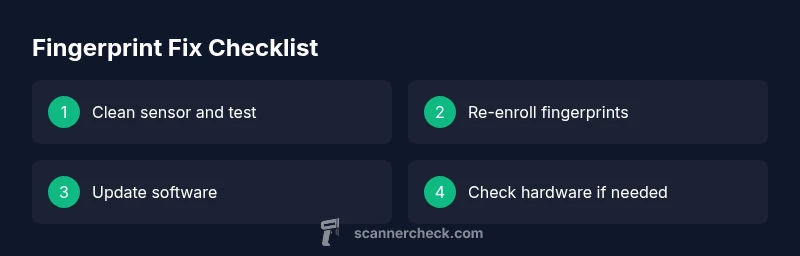
- Clean and reseat the sensor: Power off, remove any protective film where the sensor sits, gently clean, and reassemble. Reboot and test recognition.
- Re-enroll fingerprints: Delete old templates, re-register your fingertips in a clean, dry state. A fresh enrollment often restores reliability.
- Update firmware/OS: Install the latest biometric drivers and system updates. Compatibility fixes are a common reason for recent failures.
- Check for moisture and temperature: Ensure the device hasn’t been exposed to high humidity or heat, which can affect sensor performance.
- Factory reset as a last resort: If software corruption is suspected, a reset can clear problematic configurations while preserving user data with backups.
- Hardware assessment: If none of the above helps, the sensor hardware or PCB may need professional testing or replacement.
Safety notes, warnings, and when to seek professional help
Biometric sensors are sensitive components. Use only clean, dry hands and avoid liquids that can reach the internal modules. If you notice physical damage, cracking, or loose connections around the sensor, stop DIY repairs and consult an authorized service provider. If the issue persists after a full fix cycle, a certified technician can diagnose potential hardware faults with specialized tools. Remember to back up access methods before attempting resets or enrollments.
Prevention tips to extend fingerprint sensor life
To keep the fingerprint scanner reliable:
- Clean the sensor weekly and after exposure to lotions or oils.
- Avoid applying force on the sensor or screen protector. Gentle pressure is enough for accurate readings.
- Keep the device cool and dry; avoid moisture-rich environments that may affect electronics.
- Periodically re-enroll fingerprints if recognition becomes inconsistent, especially after major OS updates.
- Maintain security software vigilance but avoid overly aggressive tools that might interfere with biometric modules.
How to test and verify success after fixes
Test the fingerprint sensor across at least three successful authentications for each enrolled finger. If any finger fails after a fix, re-enroll it and repeat the test. Verify that the sensor responds consistently under different lighting conditions and at varying finger temperatures. Ensure there is a reliable backup login method in case biometrics fail again, and keep a plan for escalation if failures persist.
Final thoughts and next steps
If you have followed the steps and the fingerprint scanner is now reliable, document the fixes and the conditions under which the problem occurred. If you still experience issues, re-check the diagnostic flow to confirm whether a hardware replacement is necessary. The Scanner Check team recommends maintaining a regular maintenance routine and ensuring you have alternative access methods in place for critical devices.
Steps
Estimated time: 60-90 minutes
- 1
Power cycle and clean
Turn off the device, unplug power if possible, and gently clean the sensor surface with a microfiber cloth. Reboot and test the sensor after a fresh start.
Tip: Always dry the surface completely before testing. - 2
Re-enroll fingerprint
Delete existing fingerprint data, then register the print again in a clean, dry state. Use multiple attempts to capture a stable template.
Tip: Enroll the finger when the finger surface is clean and warm. - 3
Update software and drivers
Check for OS updates and biometric driver updates. Install and reboot to apply changes, then re-test.
Tip: Back up data before major updates. - 4
Check for environmental factors
Ensure the device isn’t overheating and that moisture isn’t affecting readings. Move to a cooler, drier location if needed.
Tip: Avoid using biometric sensors in humid environments. - 5
Reset biometric settings
If problems persist, reset biometric permissions and reconfigure. This clears corrupted templates without affecting other data.
Tip: Keep backups of important credentials. - 6
Hardware assessment
If listed fixes fail, have a technician inspect the module for wear, loose connections, or damage that might require replacement.
Tip: Do not open hardware beyond your skill; professional service is safer.
Diagnosis: Fingerprint sensor fails to recognize or misreads fingerprints
Possible Causes
- highDirt, oil, or moisture on the sensor
- mediumPoor fingerprint enrollment or changes in finger condition
- mediumSoftware glitches or outdated biometric drivers
- lowHardware sensor damage or wear
Fixes
- easyClean the sensor and re-enroll fingerprints
- easyUpdate OS/biometric drivers and reset enrollments
- mediumPerform a soft reset or factory reset if software corruption is suspected
- hardConsult a professional for hardware diagnostics or sensor replacement
Common Questions
What is the first thing I should try if my fingerprint sensor stops working?
Start with cleaning the sensor and re-enrolling a fingerprint. A quick software update often resolves many issues. If problems persist, proceed with the diagnostic flow.
Try cleaning the sensor and re-enrolling your fingerprint, then check for updates. If it still fails, follow the diagnostic flow for deeper fixes.
Can a finger coating or dry skin cause recognition failure?
Yes. Dry or oily skin can affect sensor readings. Ensure your finger is clean and dry, and consider re-enrolling after acclimating to the device.
Dry or oily skin can cause problems. Clean and dry your finger and re-enroll after a short acclimation period.
Should I reset the device to fix biometric issues?
Resetting the biometric settings or the device can fix software glitches. Back up data first, then attempt a soft or factory reset if required.
A reset can fix software quirks. Back up first and follow the proper reset steps.
When should I seek professional help for a fingerprint sensor problem?
If cleaning, re-enrollment, and software updates fail, or you notice hardware damage, a professional diagnostic is recommended.
If fixes fail or you see hardware damage, get expert help.
Can I replace the fingerprint sensor myself?
Sensor replacement is advanced work. If you are not trained, seek professional service to avoid further damage.
Sensor replacement is tricky; best left to a pro if you’re not trained.
What backup methods should I have for authentication?
Always configure at least one secondary login method (PIN, password, or smart card) in case biometrics fail.
Have a backup login method like a PIN or password.
Watch Video
Key Takeaways
- Can the fingerprint scanner be fixed? Yes, in many cases.
- Start with sensor cleaning, then re-enrollment and software updates.
- If issues persist, hardware failure requires professional help.
- Always maintain backups for access when biometrics fail.
- Regular maintenance improves long-term reliability.