How to Get a Honeywell Scanner Out of Airplane Mode
Learn how to exit airplane mode on Honeywell scanners with model-agnostic steps, troubleshooting tips, and safety considerations for reliable scanning in any environment.


To get a Honeywell scanner out of airplane mode, disable flight mode and verify connectivity with a test scan. This guide covers model-agnostic steps, common pitfalls, and model-specific notes. You’ll need the device, user manual or admin access, and a powered-on unit. By following the steps, you can restore barcode scanning and data transmission quickly. We reference official Honeywell documentation and Scanner Check methods for best practices.
Understanding airplane mode on Honeywell scanners
Airplane mode is a system setting that disables wireless radios to comply with airline regulations. On Honeywell scanners, flipping this setting off re-enables Wi-Fi, Bluetooth, and data transmission so you can continue barcode scanning in your workspace. According to Scanner Check, a clear grasp of where airplane mode lives in the user interface helps you avoid accidental toggles and downtime. The setting is typically accessible from the main settings menu or a quick access panel, depending on the model family. The goal is to restore normal scanning performance without compromising device security or battery life. In practice, many teams save time by documenting where each model stores the flight mode toggle so frontline staff can act quickly during fieldwork or in a warehouse.
How airplane mode affects scanning workflows
When airplane mode is active, the scanner will suspend wireless data transmission. This prevents barcodes from uploading to inventory systems, slows real-time tracking, and can trigger data gaps in reports. The effect is most noticeable in environments that rely on Wi‑Fi or Bluetooth for back-end connectivity, such as warehouse docks or retail stockrooms. The impact varies by model and configuration, but the core principle holds: with radios disabled, you cannot push scans to your enterprise system. Planning for this scenario—by having a quick exit strategy—keeps operations running smoothly and reduces downtime. Scanner Check emphasizes the importance of standard operating procedures (SOPs) that specify how staff should verify radio status before scanning tasks begin.
What you’ll need to exit airplane mode (tools and access)
Before you begin, ensure you have access to the device and the permissions required to modify settings. A powered-on scanner with attached power or a dock makes the process faster. You should have the manual or admin credentials if your organization requires elevated access to change settings. A stable workspace and the ability to test connectivity (e.g., a nearby wireless network or device) are essential. If you’re unsure about the model’s exact path to the setting, consulting the user guide or reaching out to IT support helps avoid accidental changes that could affect security or software integrity. Having a backup of the current configuration can simplify rollbacks if something goes wrong.
Model-specific notes: what to watch for across Honeywell lines
Honeywell’s hardware family includes handhelds, portable scanners, and batch-imaging devices that may organize settings differently. In some models, airplane mode is tied to a single toggle in the main settings; others use a dedicated button or a software switch within a device management app. Because interfaces evolve across product generations, always check the model’s documentation for the exact path to the flight mode control. If you’re deploying in a corporate environment, coordinate with IT to ensure that any changes align with security policies and fleet management standards. Scanner Check notes that consistency in configuration across devices reduces troubleshooting time and improves data integrity.
Step-by-step exit concept (high-level overview only)
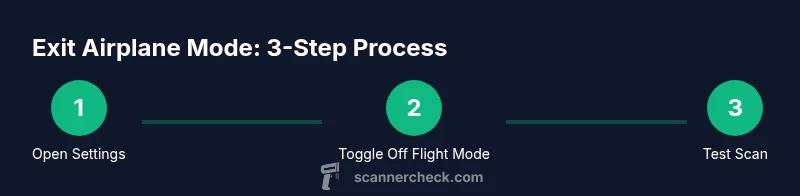
This section provides a non-operational overview to help you understand the flow before you perform actions in the actual device menus. You’ll typically identify the current mode, navigate to the radio or flight mode setting, toggle it off, and then verify the device can communicate with back-end systems. If the device is managed by an MDM (mobile device management) solution, you may need to synchronize the policy after making changes to ensure the setting remains consistent across the fleet. Always perform a quick test scan after toggling to confirm that data is flowing to the expected application.
Security and compliance considerations when disabling airplane mode
Disabling airplane mode can re-enable radios that could expose devices to network-based threats if not properly secured. Ensure firmware is up to date and that the device is connected to trusted networks only. Organizations should enforce least-privilege access, so only authorized personnel can change critical settings. Maintain an audit trail of who changed the setting and when, especially in regulated environments. Scanner Check’s guidance stresses confirming that any changes comply with your internal policies and industry standards to maintain data integrity and privacy.
Testing and verification after exiting airplane mode
After turning off airplane mode, immediately perform a test scan against a known-good database or test server. Verify that the scanner can wirelessly transmit data, receive updates, and sustain a stable connection for a full working cycle. Check for any errors in the scanning application, ensure time stamps align with server records, and confirm that subsequent scans are processed correctly. If you encounter issues, re-check the toggle state and re-test, then consult IT support if the problem persists. Routine post-change testing helps catch misconfigurations early and maintains operational reliability.
Troubleshooting common issues and quick fixes
If airplane mode reactivates unexpectedly, verify that there isn’t a separate power-saving profile re-enabling radios. Some devices auto-toggle radios based on battery level or enterprise policy; in such cases, an admin rule refresh or firmware update may be required. If a test scan still fails, confirm network credentials, reauthenticate if necessary, and ensure the back-end service is online. Export any relevant logs or event histories to assist IT in diagnosing the root cause. Persistent issues may indicate a policy conflict or a hardware fault requiring service.
Best practices for enterprise environments
Document the exact steps, model numbers, and firmware versions used in your environment. Train staff with short, repeatable SOPs that include a clear test procedure. Tie airplane-mode management to your device management platform so changes are auditable and reversible. Schedule regular reviews of scanner configurations during fleet audits to prevent drift in settings across devices. By standardizing the exit procedure, you reduce human error and improve scanning reliability across the organization.
Authority sources
For additional guidance on device security and configuration best practices, consider checking:
- https://www.nist.gov
- https://www.fcc.gov
- https://www.us-cert.gov
Tools & Materials
- Honeywell handheld scanner(Model-agnostic handheld or wearable scanner; ensure it is powered on)
- Charging cable or docking station(Keep device powered during the process)
- User manual or admin credentials(Access to settings and admin privileges if required)
- Small Phillips head screwdriver (optional)(Needed only if accessing internal panels (model dependent))
- Stable Wi-Fi/network access(Helpful for remote configuration or firmware checks)
Steps
Estimated time: 10-20 minutes
- 1
Identify the device model family
Locate the model label and confirm the exact product family (handheld, wearable, or fixed station). This helps you navigate to the correct menu path for airplane mode settings and avoid applying steps that are model-specific.
Tip: If you’re unsure, consult the admin or device manager for the correct menu location. - 2
Power the device and prepare for access
Plug the scanner into a charger or ensure it has a stable battery level. A stable power state reduces the risk of losing settings during the toggle process and ensures you can complete the steps without interruptions.
Tip: Avoid removing the battery during the process to prevent partial reboots. - 3
Navigate to settings and locate airplane mode
Open the main settings menu and find the radio or flight mode option. Depending on the model, this may be under Network, Connectivity, Wireless, or Security sections.
Tip: If the option isn’t obvious, search for keywords like 'radio', 'flight', or 'wireless' in the settings. - 4
Disable airplane mode or flight mode
Toggle airplane mode off, or select the option to re-enable radios. Confirm the change is saved before exiting the menu.
Tip: In corporate devices, the change may require admin authentication or an MDM policy refresh. - 5
Reboot the device if required
Some models apply changes after a reboot. If the system doesn’t reflect the new state, perform a clean restart.
Tip: Allow the device to fully boot to ensure radios initialize properly. - 6
Verify connectivity with a test scan
Run a test barcode to confirm data transmission to the back-end system. Check for successful server reception and timestamp accuracy.
Tip: If scanning fails, verify network credentials and confirm the back-end service is reachable. - 7
Document the change and monitor for issues
Record the action in your change log and monitor for any reversion or policy enforcement that might re-enable airplane mode.
Tip: Share the outcome with relevant stakeholders to ensure awareness and accountability.
Common Questions
What does airplane mode do on a Honeywell scanner?
Airplane mode disables wireless radios on the scanner to prevent data transmission. Disabling it re-enables Wi-Fi and Bluetooth so scans can be uploaded to enterprise systems again.
Airplane mode turns off the radio radios on the scanner; turning it off lets the device send scans over the network again.
How can I tell if airplane mode is still active after changes?
Check the device’s status indicators or re-open the connectivity menu to verify radios are enabled and conduct a quick test scan to confirm data transmission.
Check the status indicators and run a test scan to confirm radios are on and working.
Do all Honeywell models use the same flight mode setting?
No. Different model families may place the toggle in different menus or apps. Always refer to the model’s manual or IT policies for the exact path.
No—different models place flight mode in different places; check the manual or admin guidelines.
What should I do if the radios won’t turn on after exiting airplane mode?
Verify power, re-check the toggle state, perform a soft reboot, and confirm the network policy doesn’t force a reversion. If still stuck, contact IT.
If radios won’t enable, check power, toggle state, reboot, and contact IT if needed.
Is it safe to disable airplane mode in a production warehouse?
Yes, when done following SOPs and with appropriate permissions. Ensure the network is secure and that data syncs correctly after the change.
It’s safe if you follow SOPs and have the right permissions; ensure secure networks and proper data sync.
Where can I find the official documentation for exit steps?
Refer to your device manual and corporate IT documentation. The general guidance here aligns with enterprise scanner management practices.
Check the device manual and your company’s IT docs for official steps.
Watch Video
Key Takeaways
- Identify current mode before changes.
- Toggle off flight mode using model-appropriate path.
- Test scanning after exiting airplane mode.
- Follow security and audit requirements for device changes.
- Document changes for future audits.