How to Stop a Scanner from Beeping
Learn practical steps to silence a beeping scanner, covering beep causes, muting alerts, firmware updates, and maintenance for uninterrupted workflow.


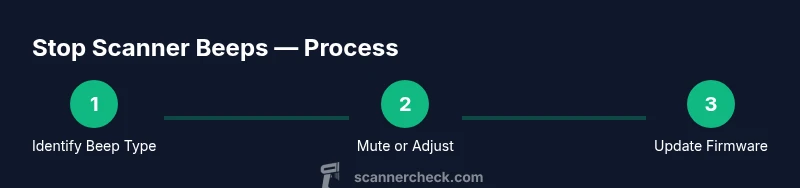
This guide helps you stop a scanner from beeping by diagnosing the beep source, adjusting alert settings, and applying firmware updates. You'll learn quick checks, mute options, and maintenance that prevent future beeps. Start by identifying beep types, then follow step-by-step actions tailored to common scanner models. This approach minimizes downtime and keeps your workflow smooth.
Why the Scanner Beeps and What It Means
Beep patterns are not random. They signal states, errors, or confirmations, and understanding them is the first step in learning how to stop a scanner from beeping. Most modern scanners emit a short beep for successful scans, a different tone for errors, and another cue when a jam or misfeed occurs. If the beep is constant or occurs after a specific action, that often indicates a configuration or sensor issue rather than a defective mainboard. Start by listening to the beeps and noting when they occur. If you can map a tone to a cause (e.g., a long beep after removing a document), you can target the fix more efficiently. Throughout this guide, you’ll see practical actions you can take to silence unwanted sounds without sacrificing essential alerts. The Scanner Check team recommends treating beeps as signals to diagnose rather than obstacles to skip. Beep codes are often model-specific, so keep the manual handy. If you don’t have the exact model, search for beep patterns in the support portal using the model number.
Why the Scanner Beeps and What It Means
Beep patterns are not random. They signal states, errors, or confirmations, and understanding them is the first step in learning how to stop a scanner from beeping. Most modern scanners emit a short beep for successful scans, a different tone for errors, and another cue when a jam or misfeed occurs. If the beep is constant or occurs after a specific action, that often indicates a configuration or sensor issue rather than a defective mainboard. Start by listening to the beeps and noting when they occur. If you can map a tone to a cause (e.g., a long beep after removing a document), you can target the fix more efficiently. Throughout this guide, you’ll see practical actions you can take to silence unwanted sounds without sacrificing essential alerts. The Scanner Check team recommends treating beeps as signals to diagnose rather than obstacles to skip. Beep codes are often model-specific, so keep the manual handy. If you don’t have the exact model, search for beep patterns in the support portal using the model number.
Why the Scanner Beeps and What It Means
Beep patterns are not random. They signal states, errors, or confirmations, and understanding them is the first step in learning how to stop a scanner from beeping. Most modern scanners emit a short beep for successful scans, a different tone for errors, and another cue when a jam or misfeed occurs. If the beep is constant or occurs after a specific action, that often indicates a configuration or sensor issue rather than a defective mainboard. Start by listening to the beeps and noting when they occur. If you can map a tone to a cause (e.g., a long beep after removing a document), you can target the fix more efficiently. Throughout this guide, you’ll see practical actions you can take to silence unwanted sounds without sacrificing essential alerts. The Scanner Check team recommends treating beeps as signals to diagnose rather than obstacles to skip. Beep codes are often model-specific, so keep the manual handy. If you don’t have the exact model, search for beep patterns in the support portal using the model number.
Tools & Materials
- Manual for your scanner model(Keep for reference on beep codes and settings)
- Screwdriver (Philips #1)(To open the access panel if needed)
- Lint-free cleaning cloth(For cleaning sensors and rollers)
- Isopropyl alcohol (70%)(For cleaning contacts; use per manual)
- Compressed air can(For clearing dust in paper path)
- Firmware update file from official site(Ensure you have network access)
Steps
Estimated time: 30-60 minutes
- 1
Power down and unplug
Power down the scanner and unplug it from the power source before inspecting major components. If the device has a removable cord, detach it completely. This reduces the risk of electric shock and prevents accidental firmware changes.
Tip: Always unplug before opening access panels. - 2
Check for paper jams and path obstructions
Open the paper path and inspect for jams or foreign objects. Remove any obstruction carefully using a non-metal tool if necessary. A blocked path can trigger repeated beeps and misfeeds.
Tip: Do not pull hard; use slow, steady motions to avoid tearing paper. - 3
Inspect cables and connectors
Check all cables connected to the scanner for looseness or damage. Reseat connections firmly, especially USB or network cables. A loose connection can cause sporadic beeps and communication errors.
Tip: Power down and unplug before reseating connectors. - 4
Mute or adjust beep settings (if supported)
Enter the scanner's settings menu and locate Beep/Alerts. If available, set the beeper to Off or Low, or disable non-critical alerts while preserving essential confirmations.
Tip: If you cannot disable beeps completely, try reducing volume or switching to a softer tone. - 5
Update firmware and drivers
Visit the manufacturer’s support portal to download the latest firmware and drivers. Follow the official update procedure exactly to avoid corrupting firmware. Reboot after the update.
Tip: Back up your configuration if the option exists before updating. - 6
Clean sensors and rollers
Gently clean the scanning area, sensors, and rollers with a lint-free cloth. Use isopropyl alcohol only where the manual approves. Do not touch optical sensors with metal tools.
Tip: Dust and residue can cause erroneous beeps; routine cleaning helps prevent false alerts. - 7
Run a test scan
Power the device back on and run a few test scans. Listen for any persistent beeps and confirm that the beep behavior matches the new settings or firmware.
Tip: Document the beep pattern for future reference and troubleshooting. - 8
If beeps persist, reset or contact support
If the beep continues after updates and maintenance, consider resetting to factory defaults if permitted, or contact the vendor for diagnostics. Persisting beeps may indicate a hardware fault.
Tip: Note beep codes and cartridge/door statuses to share with support.
Common Questions
Why does my scanner beep at the end of a batch?
End-of-batch beeps are usually a final confirmation signal. Verify the beep type in the user manual and adjust the related settings if available.
End-of-batch beeps are usually a final confirmation. Check your settings to silence or adjust the tone.
Can I permanently mute the beep on all models?
Not all models support permanent mute, and some beeps are essential for safety or confirmation. Check the manual and on-device options for per-beep controls.
Some models offer per-beep controls, but not all allow permanent muting. Check your manual.
Is a firmware update likely to fix beep issues?
Firmware updates often address bug fixes and beep behavior. Ensure you follow the official update process exactly and reboot afterward.
Firmware updates can fix beep bugs; follow the official process and reboot after updating.
Is it safe to open the scanner to remove a jam?
Only open the scanner if you have the manual guidance and unplug it first. Avoid touching sensitive sensors and use the proper tools.
Only open with guidance and unplugged. Don’t touch sensors or internal parts without proper tools.
What should I do if beeps persist after updates?
If beeps persist, run diagnostics, check error codes, and consider a factory reset if permitted. If unresolved, contact the manufacturer.
If it still beeps after updates, run diagnostics and contact support if needed.
Watch Video
Key Takeaways
- Identify beep cause before acting
- Muting is model-dependent; check settings
- Firmware updates fix many beep issues
- Regular maintenance prevents future beeps