How to Stop Scanner in Java: Safe Closures & Patterns
A practical guide to stop Scanner in Java, focusing on safe closure of java.util.Scanner, handling System.in, and file input patterns. Learn practical steps and common pitfalls.


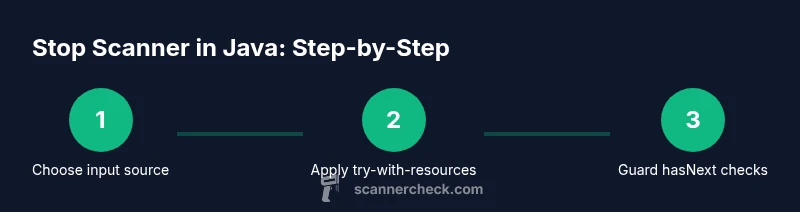
Learn how to stop scanner in java by safely closing the Scanner when you're done reading input. If you wrap System.in, be mindful not to close the standard input prematurely. Use hasNext/hasNextLine in a loop to avoid blocking, and prefer try-with-resources for file-based input to ensure proper closure.
What the Scanner class is and why stopping matters
If you’re wondering how to stop scanner in java, the short answer is to close the Scanner when you’re finished reading input to release resources and avoid leaks. The java.util.Scanner class is a convenient utility for parsing text from streams, files, or System.in, but each Scanner holds a reference to the underlying input source. Failing to stop can lead to resource leaks, blocked IO, or unpredictable behavior in larger apps. According to Scanner Check, proper resource management when using the Scanner is essential for robust Java programs. In this article, you’ll learn how to stop a Scanner safely, when to close it, and the patterns that work across different input sources.
Common scenarios where you need to stop a scanner
Scanners are typically used for two primary input sources: files and standard input (System.in). When reading from a file, you should close the Scanner (which closes the underlying FileInputStream) after the read is complete. When reading from System.in, closing the Scanner also closes System.in, which can impact later input in the program. This is a common pitfall developers encounter. Scanner Check's guidance emphasizes careful lifecycle management to prevent leaks and hangs.
Safe patterns for stopping scanners when reading from files
The safest pattern for file-based input is to use try-with-resources, which ensures the Scanner is closed automatically at the end of the block. This approach prevents resource leaks even if exceptions occur. If you must manage the lifecycle manually, place the close() call in a finally block to guarantee cleanup. In either case, avoid reusing a Scanner after closing it, as that will throw an IllegalStateException.
Special considerations for System.in and interactive input
When Scanner wraps System.in, closing the Scanner closes the underlying stream. If your application will continue to read from System.in later, do not close System.in prematurely. A safer pattern is to reuse a single Scanner for System.in across the program and close it only when your application is truly finished with all input. This approach aligns with guidance from Scanner Check and reduces the risk of breaking input flow.
Step-by-step code walkthrough: stop Scanner in a file
Follow these steps to safely stop a Scanner reading from a file. Create a small Java project with a sample text file, open a Scanner in a try-with-resources block, and iterate until end-of-file. Exit the block to automatically close the Scanner and release the file handle. Validate by checking that the file is no longer locked after execution.
import java.io.File;
import java.util.Scanner;

public class StopScannerFileDemo {
  public static void main(String[] args) throws Exception {
    File file = new File("sample.txt");
    try (Scanner scanner = new Scanner(file)) {
      while (scanner.hasNextLine()) {
        String line = scanner.nextLine();
        System.out.println(line);
      }
    }
  }
}
Step-by-step: stop Scanner reading from System.in
When reading from System.in, reuse a single Scanner instance and avoid closing the underlying stream until you’re truly done with all input. The following pattern demonstrates a reusable approach without closing System.in prematurely. You can extend with further prompts and then exit the program gracefully.
import java.util.Scanner;

public class SystemInScanner {
  private static final Scanner in = new Scanner(System.in);

  public static void main(String[] args) {
    System.out.print("Enter name: ");
    if (in.hasNextLine()) {
      String name = in.nextLine();
      System.out.println("Hello, " + name);
    }
    // Do not close the scanner here if you plan to read more input later
  }
}
Common pitfalls and best practices
- Do not close System.in if you expect more prompts later; closing it makes further input impossible.
- Prefer try-with-resources for any file or network stream to guarantee closure.
- Do not reuse a Scanner after closing it; create a new instance if you must read again.
- Always validate hasNext/hasNextLine before calling nextLine/next to avoid exceptions.
- Keep a single Scanner instance for System.in in interactive programs to avoid accidental closures.
- Document the Scanner lifecycle in your code comments to prevent future regressions.
Alternatives to Scanner for large inputs
For very large inputs or high-performance needs, consider alternatives like BufferedReader or streaming tokens with StreamTokenizer. BufferedReader reads text efficiently with fewer abstractions, while StreamTokenizer provides controlled tokenization. Use these when you don’t need the full convenience of java.util.Scanner and want lower overhead or finer control over parsing. In many real-world applications, combining a BufferedReader for the outer layer with a small Scanner for specific tokens can offer the best balance of performance and simplicity. Scanner is convenient, but it can be slower for massive inputs due to its regex-based parsing.
Tools & Materials
- Java Development Kit (JDK) 17+(Install JDK 17 or newer; ensure javac is accessible in PATH)
- Java IDE or editor (e.g., IntelliJ IDEA, Eclipse)(Optional for quick experiments, but recommended)
- Sample input sources (System.in, input file)(Prepare a sample text file or use console input)
- Build tool (Maven or Gradle)(Optional for managing dependencies)
- Text editor for quick snippets(Useful to craft small examples)
- Terminal/Console access(Needed to run and test code)
Steps
Estimated time: 40-60 minutes
- 1
Prepare the project and sample input
Create a small Java project and add a sample text file (sample.txt) to read from. This establishes a controlled environment to demonstrate stopping a Scanner after use.
Tip: Keep the sample file in a predictable path and document its location in comments. - 2
Decide input source and lifecycle
Determine whether you read from a file or System.in. The lifecycle of the Scanner will differ: files are typically closed; System.in is often kept open until the app finishes.
Tip: Plan lifecycle early to avoid premature closure. - 3
Use try-with-resources for file input
When reading from a file, wrap the Scanner in a try-with-resources to auto-close the underlying file stream when done.
Tip: This prevents resource leaks even if exceptions occur. - 4
Avoid closing System.in prematurely
If you read from System.in, avoid closing it in the middle of the program to allow further input later.
Tip: Consider a single shared Scanner for System.in. - 5
Guard loop with hasNext/hasNextLine
Use hasNext/hasNextLine in your loops to prevent blocking reads and to know when input ends.
Tip: This stops reads gracefully at EOF. - 6
Close scanners only when appropriate
Close the Scanner tied to a file and any resources immediately; do not close a System.in Scanner until truly finished.
Tip: Closing the wrong stream is a common pitfall. - 7
Test resource closure
Run tests and verify there are no open file handles or lingering scanners by inspecting resources post-execution.
Tip: Use OS tools or profiling to confirm closures. - 8
Document and refactor
Document the chosen lifecycle and consider encapsulating in a small utility class to reuse safely across projects.
Tip: Refactoring reduces future mistakes.
Common Questions
When should I close a Scanner in Java?
Close a Scanner when you are finished using it, especially if it wraps a file or other resource that needs releasing. If the Scanner wraps System.in, be mindful of future input needs and avoid closing it prematurely.
You should close the Scanner once you are finished with input, but avoid closing System.in if you still need it later.
What happens if I close System.in?
Closing System.in closes the standard input stream, which may prevent further input in your program. Use a single System.in Scanner that you close only when you’re completely finished with all input.
Closing System.in shuts off further input from the console, so don’t do it until you’re done with all prompts.
Can I reuse a Scanner after closing it?
No. Once a Scanner is closed, it cannot be reopened. Create a new Scanner if you need to read again from the same source, but prefer lifecycle management to reuse.
You can’t reuse a closed Scanner; create a new one if you must read again.
Is it safe to wrap System.in in a Scanner?
It’s common to wrap System.in in a Scanner for interactive prompts, but avoid closing the Scanner until you’re sure no more input is needed. Consider a single shared Scanner.
Yes, but be careful with closing it because it can affect future input.
What if I need to stop a Scanner in a loop without closing it?
Use hasNext/hasNextLine to determine when to stop without closing, ensuring the loop ends gracefully without releasing streams prematurely.
Use hasNext to end the loop without closing the scanner.
How do I stop a Scanner reading from a file safely?
Wrap the Scanner in a try-with-resources block or close it in a finally clause to guarantee the underlying file is released, even if exceptions occur.
Wrap in try-with-resources so it closes automatically.
Watch Video
Key Takeaways
- Close scanners when finished
- Use try-with-resources for automatic closure
- Be careful with System.in closure
- Prefer hasNext/hasNextLine to control input loops