How to Tell If Your Scanner Is TWAIN Compliant
Learn how to tell if your scanner is TWAIN compliant with practical checks, driver verification, and testing across common software. Clear steps, tips, and troubleshooting from Scanner Check.


According to Scanner Check, you can tell if a scanner is TWAIN compliant by verifying the driver reports and by testing a TWAIN source in a supported scanning app. Look for TWAIN in the source list, confirm the driver version, and run a test scan with common software to confirm compatibility.
What TWAIN compliance means
If you're wondering how to tell if scanner is twain compliant, understanding the TWAIN standard helps you verify compatibility across apps and workflows. TWAIN is a widely adopted API that lets scanning software request image data from a data source (the scanner) using a consistent interface. Compliance means the scanner’s driver implements the TWAIN Data Source interface correctly and supports core operations like Acquire, Get, and Set. This matters because it reduces driver fragmentation and ensures your scans transfer predictably to most software on Windows, macOS, and Linux.
Beyond the driver, true TWAIN compatibility also implies reliable color depth, resolution settings, and basic metadata transfer. Some devices ship with multiple bridge options (such as WIA on Windows or ICA on macOS); in practice, TWAIN compliance focuses on the standardized path from software to scanner. If you want a practical baseline, start by confirming that a TWAIN data source appears in your scanning app and that acquiring images completes without errors.
How to check your scanner's TWAIN compliance
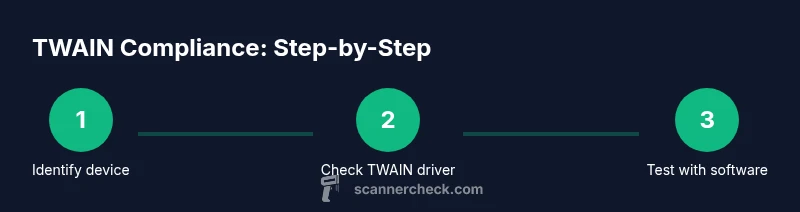
In this section, you’ll perform concrete checks to confirm TWAIN support. First, record your device model and the currently installed driver version. Then visit the manufacturer’s support site to locate the official TWAIN driver package for your exact model. After you install or update the driver, open a TWAIN-enabled scanning app and look for a TWAIN Source Manager or Source List. If your scanner appears there as a TWAIN data source, you’ve cleared a major hurdle. Finally, perform a basic test scan to verify that the data path, color depth, and resolution transfer correctly to your computer.
Signs your TWAIN driver is up to date and healthy
A healthy TWAIN driver typically shows a recent release date on the manufacturer site and lists TWAIN as the supported interface in the driver notes. If you’re unsure, compare the installed driver version with the latest release on the vendor page. Keep an eye out for warning messages in the scanning software about missing data sources or communication errors, which can indicate a driver or configuration mismatch. Regular updates help maintain compatibility as operating systems evolve and software ecosystems change.
Testing TWAIN with popular software
To validate TWAIN, run tests in multiple environments that you actually use. Start with a built-in TWAIN-capable tool (e.g., Windows Scan, Windows Fax & Scan, or a vendor utility). Then try a third-party TWAIN-compatible app like VueScan. In each case, select the scanner from the TWAIN Source list, adjust a few basic settings (color mode, DPI, and file type), and perform a test scan. Review the resulting image to confirm the transfer was successful and the image quality meets your needs. If mismatches arise, note the exact software and version to troubleshoot with support.
If your scanner isn’t TWAIN compliant: options and workarounds
If testing shows your device isn’t TWAIN compliant, you still have viable options. Use the vendor’s own software that may implement its own protocol, or install a WIA-era driver only if your OS supports it. Some users install a TWAIN bridge or third-party utility that translates non-TWAIN data paths into TWAIN-compatible output. In constrained environments (like macOS or Linux), you might rely on built-in imaging frameworks or cross-platform scanning tools that can bridge to your hardware. Each option has trade-offs in features and performance.
Additional considerations and common pitfalls
Common pitfalls include older hardware with outdated drivers, OS updates that break compatibility, and multiple scanning apps fighting for the same TWAIN source. To avoid surprises, maintain a small, reproducible testing routine: note device model, driver version, software versions, and test results after each major update. If problems persist, contact the manufacturer with exact driver and OS details, along with the test steps you performed.
Tools & Materials
- TWAIN-compatible driver package(Download the latest TWAIN driver from the manufacturer for your exact scanner model.)
- TWAIN-enabled scanning software(Examples include Windows Scan, VueScan, or other TWAIN-capable apps.)
- Computer or device with internet access(Needed to download drivers and software.)
- Scanner model number and manual(Used to identify the correct TWAIN driver and features.)
- USB cable or network connection to the scanner(Required for actual data transfer during tests.)
- Test document or image to scan(A simple page with text and a photo helps verify color and detail.)
- Administrative rights on the computer(Needed to install drivers and configure TWAIN settings.)
Steps
Estimated time: 20-40 minutes
- 1
Identify device and driver status
Locate the exact scanner model and check the currently installed driver version. This establishes whether you should look for a TWAIN Data Source and a matching TWAIN driver. Note any OS-specific notes from the vendor.
Tip: Record model and driver version for future reference. - 2
Open a TWAIN-enabled app and access Source Manager
Launch a TWAIN-capable scanning app and open the TWAIN Data Source or Source Manager. If the scanner is listed, you’ve confirmed basic TWAIN support. If not, you may need to install or re-install the driver.
Tip: If sources don’t appear, ensure the software is restarted after driver installation. - 3
Select the scanner and verify TWAIN mode
Choose the device from the TWAIN source list and confirm the app communicates with the scanner via the TWAIN interface. Look for messages indicating the data source opened successfully.
Tip: Watch for explicit TWAIN-related messages or status indicators in the app. - 4
Run a test scan using TWAIN
Initiate a scan with test settings (color mode, resolution) and save the output to a known location. This confirms the end-to-end transfer from scanner to computer.
Tip: Start with a low DPI (e.g., 300) to speed testing; then test higher settings if needed. - 5
Check results and metadata
Review the scanned file for correct color depth, resolution, and file type. Confirm that the data respects the chosen TWAIN settings and transferred without corruption.
Tip: Compare image dimensions and DPI against the chosen configuration. - 6
Document findings and plan next steps
Record device model, driver version, TWAIN status, and any issues. Use this log to decide on driver updates, alternative software, or support channels.
Tip: Keep a quick-reference sheet for future testing after OS or software updates.
Common Questions
What does TWAIN compliance mean for my scanner?
TWAIN compliance means the scanner's driver implements the TWAIN Data Source interface, allowing software to communicate and transfer images using a standardized protocol. This improves cross-application compatibility and reduces driver-specific quirks.
TWAIN compliance means the scanner uses a standard interface so many programs can talk to it reliably.
Can a TWAIN-compliant scanner still not work with my software?
Yes. Some software may require specific TWAIN driver versions or may default to non-TWAIN paths like WIA. If you see errors, verify the exact driver version, the TWAIN source, and the software's compatibility notes.
Even if it’s TWAIN compliant, some software versions might expect a specific driver version.
How do I update TWAIN drivers safely?
Visit the manufacturer’s support site, locate the exact model, and download the latest TWAIN driver. Install following their instructions and reboot if required before testing again.
Get the latest TWAIN driver from the maker and follow the install steps.
Is TWAIN the same as WIA?
TWAIN and WIA are different interfaces. TWAIN is platform-agnostic and widely supported by many apps, while WIA is Windows-specific. Some devices expose both; choosing TWAIN often provides broader software compatibility.
TWAIN is cross-platform; WIA is Windows-specific.
What can I do if my scanner isn’t TWAIN compliant?
Use the vendor’s software that ships with the device, or look for a TWAIN bridge/third-party tool to translate non-TWAIN data paths. Alternatively, consider a different scanner that offers official TWAIN support.
If it isn’t TWAIN, use the vendor app or a TWAIN bridge, or upgrade the scanner.
Do all TWAIN drivers support color depth and duplex scanning?
Most TWAIN drivers support color depth settings and duplex scanning, but feature support can vary by model and driver version. Always test the exact options you need.
Most TWAIN drivers support color and duplex, but check your model.
Watch Video
Key Takeaways
- Verify TWAIN source appears in your app
- Check driver version and official TWAIN support
- Run a test scan to confirm data transfer
- If not TWAIN compliant, consider updates or alternatives