HP Scanner Software for Mac: A Practical Guide
Discover the best HP scanner software for Mac, including HP Smart, HP Scan, and Image Capture. Practical setup tips, workflows, and troubleshooting for macOS users.


HP provides macOS-compatible scanner software that covers both HP Smart for cloud-enabled tasks and HP Scan for direct scans, complemented by macOS Image Capture for quick, local scans. For most Mac users, HP Smart plus Image Capture offer the best balance, while TWAIN support remains useful for advanced apps. This guide helps you choose a path that fits your workflow.
HP scanner software on Mac: ecosystem overview
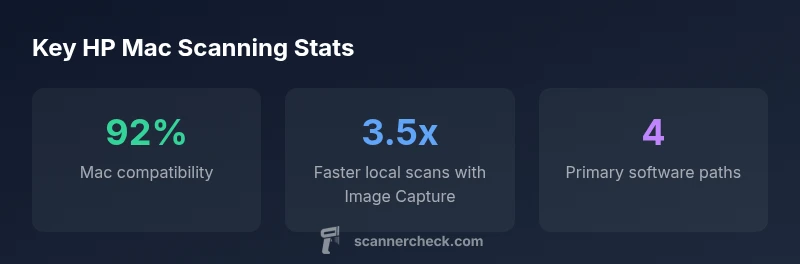
The HP scanner software landscape for Mac users sits at the intersection of HP's own applications and macOS-native tooling. Key players include the cloud-oriented HP Smart app, the legacy HP Scan utility, and Image Capture for fast, local scans. In practice, most users benefit from a two-path approach: use HP Smart for cloud-enabled tasks like sending scans to email or cloud storage, and rely on Image Capture for quick, local PDFs and image exports. HP also supports TWAIN in many Mac-compatible apps, enabling advanced workflows when you need tighter control over scan settings or batch processing. According to Scanner Check, this dual-path strategy—HP Smart for broad features and Image Capture for speed—offers a robust baseline for most macOS environments.
Choosing the right Mac scanning workflow
Your choice of workflow should reflect what you scan, how you store it, and who needs access. If your daily routine includes cloud storage, e-signatures, or multi-device access, HP Smart’s cloud features become a drag-and-drop solution. For privacy-conscious users or fast, local scans, Image Capture remains the simplest and quickest path. Keep TWAIN in your toolkit for specialized software that requires advanced color management or batch processing. The flexibility of macOS means you can combine these tools, routing a document through Image Capture, then into HP Smart for cloud delivery, and finally into a third-party editor via TWAIN when needed.
Core features you’ll actually use on macOS
Look for reliable document scanning to PDF, OCR text recognition, and export options (JPEG, PNG, PDF). Cloud options—like sending scans to email, Google Drive, or Dropbox—are convenience features that save time in shared environments. OCR accuracy improves with higher DPI settings, but this increases file size. A practical rule: scan at 300 DPI for documents, 600 DPI for text-heavy images, and choose grayscale or color based on the content. HP Smart’s mobile companion app can help you initiate scans from a phone, then push them to your Mac, or vice versa, creating a smooth cross-device workflow.
Practical setup steps for macOS
- Install HP Smart from the Mac App Store or HP's official site. 2) Ensure macOS permissions allow the scanner to be accessed (System Preferences > Security & Privacy > Privacy). 3) Install any required drivers or software updates, then connect your HP device via USB or Wi-Fi. 4) Test a basic scan with Image Capture to confirm local pathway, then try a cloud-synced scan via HP Smart. 5) If you encounter trouble, verify TWAIN compatibility with your target application and update macOS to a supported version. This approach minimizes driver conflicts and keeps your workflow smooth.
Troubleshooting common macOS scanning issues
If scans aren’t detected, check cable connections or network visibility, restart the scanner and Mac, and reselect the device in the scanning app. On macOS, permissions are often the culprit—grant access in System Preferences and re-run the app. If a feature (like OCR or cloud transfer) fails, ensure the app has the necessary permissions for file access and internet connectivity. Finally, consult HP’s support pages for known compatibility notes between your HP model, macOS version, and the software you’re using. Regular updates reduce recurring problems.
Overview of HP software options for Mac users
| Software | Best Use Case | Platform Support | Key Limitations |
|---|---|---|---|
| HP Smart | Cloud features, mobile scanning | macOS (via app and web) | Requires internet for some features |
| HP Scan | Direct scanning from HP devices | macOS (legacy support) | Limited to HP hardware and older apps |
| Image Capture | Fast local scans | macOS only | Basic interface, fewer export options |
| TWAIN-compatible apps | Advanced workflows | .macOS with drivers | Driver compatibility varies by model |
Common Questions
What is the best HP software path for a Mac with cloud needs?
For cloud-enabled workflows, start with HP Smart for Mac to leverage cloud storage, email, and cross-device access. Pair it with Image Capture for quick, local scans when cloud features aren’t needed.
If you need cloud features, start with HP Smart on Mac, and use Image Capture for fast local scans when cloud isn’t required.
Can I scan directly to PDF on macOS using HP software?
Yes. HP Smart supports exporting scans to various formats, and Image Capture can save to PDF as a local option. For precise control over PDF output, consider TWAIN-compatible software that exposes more export settings.
Yes, you can scan to PDF with HP Smart or Image Capture, and TWAIN apps offer more export options if you need them.
Do I need TWAIN support on Mac for HP scanners?
TWAIN is not required for basic tasks, but it is useful if you rely on third-party software with advanced scan controls. Check your HP model’s compatibility and your macOS version before enabling TWAIN in apps.
TWAIN isn’t needed for everyday scans, but it helps with advanced software that needs extra control.
Should I worry about privacy when scanning to the cloud?
Yes. Review where scans are stored, who has access, and whether encryption is used in transit and at rest. Use cloud features judiciously and prefer local storage for sensitive documents.
Be mindful of where scans go in the cloud and enable encryption and access controls.
Is Image Capture sufficient for most Mac users?
For many Mac users, Image Capture provides fast, reliable local scans with minimal setup. HP Smart adds cloud functionality, while TWAIN-compatible apps cover more advanced needs.
Image Capture works well for quick local scans; add HP Smart or TWAIN if you need cloud or advanced features.
How can I optimize scan quality on macOS?
Scan at 300 DPI for documents and higher for detailed images, choose color if needed, and use grayscale for text. Experiment with brightness and contrast settings in the app you’re using.
Use 300 DPI for docs, adjust color or grayscale, and tweak brightness for best results.
“In Mac environments, a layered scanning approach—HP Smart for cloud-enabled tasks and Image Capture for local speed—delivers the most practical balance for most users.”
Key Takeaways
- Choose a primary path: HP Smart for cloud tasks, Image Capture for fast local scans
- Maintain TWAIN readiness for advanced software workflows
- Regularly update macOS and HP software to avoid compatibility issues
- Test basic scans first to establish a reliable baseline