What Scanners Are Compatible with Chromebooks Today
Discover which scanners work with Chromebooks, from USB plug-and-play to cloud-based models. This guide covers Chrome OS compatibility, app support, setup tips, and practical buying advice.


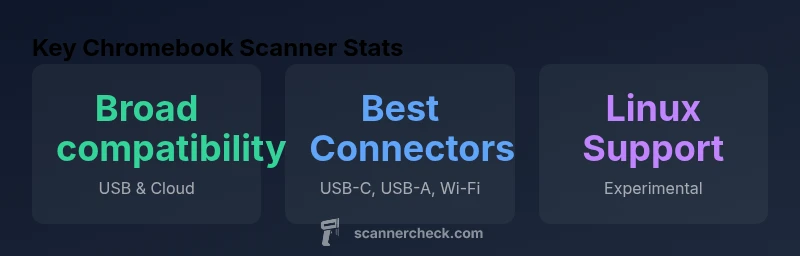
According to Scanner Check, Chromebooks work with most USB plug-and-play scanners and cloud-enabled models that offer Chrome OS apps. In practice, what scanners are compatible with Chromebook typically means USB scanners with Chrome OS support or driver-free cloud devices. Look for class-compliant USB-C/USB-A options and vendor apps that explicitly list Chrome OS compatibility.
What Scanners Are Compatible with Chromebook
If you’re asking what scanners are compatible with Chromebook, the answer is broader than you might expect. On Chrome OS devices, the most reliable options are USB plug-and-play scanners that expose themselves as a standard mass-market device or that come with Chrome OS–friendly software. Cloud-enabled scanners that ship with Chrome OS apps or offer a Scan-to-Drive workflow also work very smoothly. The key takeaway is that compatibility is driven by two factors: a supported connection type (USB-C or USB-A) and available software from the vendor that explicitly lists Chrome OS support. In practice, this means you can typically attach a modern USB scanner and begin scanning with minimal setup, or you can rely on a cloud-based workflow that pushes scans directly to Google Drive or email with a few taps.
USB Plug-and-Play Scanners: Quick Wins
USB plug-and-play models are the quickest way to get scanning on a Chromebook. The ideal devices are those that are USB-C or USB-A friendly and advertised as compatible with Chrome OS or as class-compliant scanners. When you plug the device in, Chromebooks usually recognize it automatically and offer a basic capture interface through the built-in scanning feature or a vendor app. To maximize reliability, check for devices that are actively updated and include a Chrome OS listing on the vendor site. If you need to use a powered hub for multiple devices, ensure the hub provides enough current without introducing connection instability. Finally, keep in mind that some legacy USB scanners work best with newer Chromebooks when your device runs a recent Chrome OS release, so staying current with OS updates is wise.
Cloud-based Scanning and Chrome OS Apps
Cloud-based scanning has become one of the most seamless paths on Chromebooks. Scanners that offer Chrome OS apps or cloud integration typically allow you to scan to Google Drive, Dropbox, or email directly from a dedicated app. This approach reduces driver management and simplifies sharing. When evaluating cloud-based solutions, look for one-click upload, reliable OCR, and offline-fallback options in case of network issues. Vendors that publish Chrome OS app compatibility tend to offer ongoing updates, which translates into better long-term compatibility. In practice, this means you can scan, organize, and search documents across Google Workspace with minimal friction.
Network Scanners: LAN and SMB Setup on Chromebooks
For network or SMB-based scanners, Chromebooks handle many networked devices well, provided the scanner supports standard discovery protocols or offers a Chrome OS app. Ensure your Chromebook is on the same network as the scanner and that any required credentials or permissions are configured. Some network scanners expose a web interface or a cloud portal that can be accessed from the Chromebook browser, making scan initiation straightforward. If your scan workflow relies on a centralized server or a shared folder, verify that your Chromebook can access the server—via SMB mounting or cloud-sync apps—without additional clients. This setup is particularly attractive in offices or study spaces with multiple devices.
Linux (Crostini) Scanning: When It Might Make Sense
Crostini (the Linux on Chrome OS feature) opens the door to a broader set of scanning options, but it remains experimental for casual users. If you enable Linux and install a scanning utility that communicates with your hardware, you can access a wider range of scanners, including some professional models that don’t offer Chrome OS apps. The caveat is that driver installation, permission handling, and occasional compatibility quirks require a comfort level with Linux software. For most Chromebook users, Linux-based scanning is a thoughtful option only if you already rely on Crostini for other tasks and are comfortable troubleshooting issues.
Vendor Apps: Finding Chrome OS–friendly Solutions
A practical guideline is to prefer vendors that publish explicit Chrome OS support through official apps or web-based scan interfaces. These apps are kept up to date and are tested against the latest Chrome OS releases, reducing the risk of incompatibilities after OS updates. When shopping, check the product page for “Chrome OS compatible” or “Google Drive integration” badges. You’ll also want to review OCR accuracy and file format options, since these features significantly affect your document workflow. If a vendor only provides Windows or macOS drivers, yourChromebook experience may require alternative workflows (cloud-based uploads, email scans, or the vendor’s cloud service).
Troubleshooting Common Issues
Even compatible scanners can run into hiccups. First, verify USB power and port compatibility; some compact scanners require more power than a single USB port can provide. Next, confirm that the Chrome OS version on your device is current, since firmware and app compatibility can hinge on OS updates. If the scanner isn’t detected, unplug and replug, try a different USB port, or test on another Chromebook to rule out device-specific issues. If cloud-based workflows fail, check your network connectivity and the vendor service status. When using Crostini, ensure the Linux container has the necessary permissions and that user groups are properly configured. Lastly, consult the vendor’s Chrome OS support page for troubleshooting steps specific to your model.
Practical Buying Guide: What to Look For
When deciding what scanners are compatible with Chromebook, focus on three criteria: connection type, software support, and future-proofing. Prefer USB-C or USB-A class-compliant devices for plug-and-play reliability. Look for scanners with Chrome OS listings or cloud-based solutions that provide ongoing updates. If you foresee a growing need for multi-user or organization-wide scanning, consider network scanners with straightforward setup and SMB/Cloud integration. Finally, factor in the expected volume of pages, OCR requirements, and preferred export formats to pick a device that aligns with your daily workflow.
Compatibility overview by scanner type
| Scanner Type | Chromebook Compatibility | Notes |
|---|---|---|
| USB plug-and-play | High (most models) | Ensure USB-C/USB-A support; look for Chrome OS compatibility on vendor page |
| Network/Wi-Fi | Good | Use same network; check for WSD/cloud workflow support |
| Cloud-based (Drive apps) | Excellent | Rely on vendor Chrome OS app or Google Drive integration |
| Linux (Crostini) scanning | Experimental | Depends on Linux support and OCR tool availability |
Common Questions
Do all USB scanners work with Chromebooks?
Most USB plug-and-play scanners that are brands’ modern, class-compliant devices work on Chromebooks. Always check Chrome OS compatibility on the vendor page and ensure you’re running a recent Chrome OS release for the best chance of smooth operation.
Most USB scanners that are current models and explicitly list Chrome OS support will work on Chromebooks.
Can I use Windows or macOS drivers on a Chromebook?
Windows or macOS drivers generally don’t install on Chrome OS. Instead, rely on Chrome OS–native apps, cloud-based scanning, or Linux (Crostini) options if you’re comfortable with Linux software. Check vendor pages for Chrome OS compatibility before purchasing.
Windows or Mac drivers won’t run on Chromebooks; use Chrome OS apps or Linux if needed.
Is Linux scanning recommended for beginners?
Linux scanning via Crostini is powerful but more technical. It’s best for users who already run Linux apps and are comfortable troubleshooting permissions and driver setups. For everyday use, stick to compatible Chrome OS apps or cloud-based workflows.
Linux scanning works but is best for advanced users.
What should I check before buying a scanner for Chromebook?
Verify Chrome OS compatibility on the vendor site, confirm whether the device is USB-C/USB-A class-compliant, and assess whether the vendor provides a Chrome OS–specific app or cloud workflow. Also consider network options and OCR/export formats to fit your workflow.
Check Chrome OS compatibility, connector type, and app support before buying.
Are there Chromebook-only scanners?
Most scanners are cross-platform, but very few devices are marketed as Chromebook-only. Look for universal compatibility statements and Chrome OS app availability rather than device-specific claims. If in doubt, contact the vendor’s support team.
Chromebook-only scanners are rare; look for cross-platform compatibility.
“Chromebook users can expect broad compatibility with modern USB scanners and cloud-enabled devices, provided the vendor offers Chrome OS apps or driver-free options.”
Key Takeaways
- Choose USB-C or USB-A class-compliant scanners for plug-and-play reliability
- Cloud-based and Drive-integrated workflows offer the smoothest Chromebook experience
- Network scanners work well when on the same network with minimal setup
- Linux/Crostini scanning is possible but niche and variable by device
- Always verify Chrome OS app support before buying to ensure long-term compatibility