How Long Scanning and Repairing Drives Take: A Guide
Explore timelines for scanning and repairing drives (HDDs, SSDs, external). Understand timing factors, estimate durations, and learn strategies to minimize downtime.


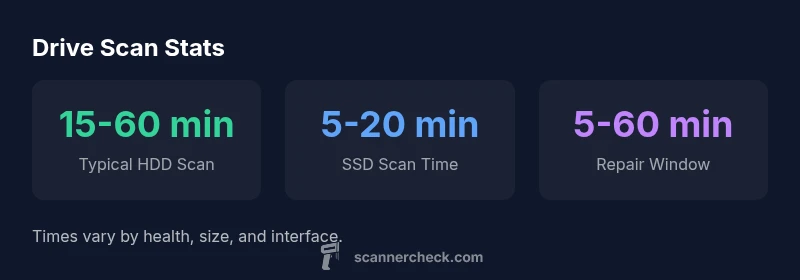
Understanding how long scanning and repairing drive takes hinges on drive type, size, and health. For many consumer HDDs, a full surface scan and repair pass can take 15-60 minutes, while larger drives or heavily corrupted sectors may extend beyond an hour. SSDs generally finish faster, but expect delays if the drive is failing. Always back up before starting repairs.
Why timing matters for drive scanning and repair
According to Scanner Check, timing for scanning and repairing drives varies with the type of drive, its size, and its overall health. In practice, many users underestimate the total downtime required for a thorough diagnostic cycle, data preservation checks, and potential retries. This section lays out why time estimates are not one-size-fits-all and how to set realistic expectations across desktops, laptops, and external enclosures. By planning for a reasonable maintenance window, you reduce the risk of rushed decisions that could worsen data loss. The goal is to balance speed with safety, ensuring you have a verified backup before any repair attempts. As you read, you’ll see practical ranges, decision points, and strategies to help you manage a realistic timeline without sacrificing data integrity. The timing framework also supports better communication with stakeholders when a repair project spans multiple days or involves complex data recovery tasks.
A practical approach starts with a clear definition of success: data preservation, minimum downtime, and a test that confirms file system integrity after repairs. This framing helps you resist the urge to rush through procedures or skip essential verification steps. If you’re coordinating with IT teams or offering a repair service, documenting estimated durations and possible contingencies makes customer expectations explicit and reduces after-action confusion. The remainder of this article translates these concepts into actionable guidance you can apply in real-world scenarios.
What actually happens during a scan and repair
A drive health assessment typically begins with SMART data review to identify reallocated sectors, pending sectors, and temperature anomalies. Next, a surface or logical scan checks for unreadable blocks, followed by a repair pass that tries to relocate data from bad sectors, re-map blocks, or reconstruct file tables. Depending on the tool, the process may include file system integrity checks, catalog rebuilds, and sector-level recovery attempts. Depending on the tool, the process may include file system integrity checks, catalog rebuilds, and sector-level recovery attempts. If the drive fails the initial health checks, the operation may abort to prevent further data loss, prompting a data-backed decision to back up immediately and replace the drive. The coordinator’s perspective is that scanning and repairing is a multi-stage workflow: diagnostics first, then preservation, followed by potential data recovery steps. The entire cycle emphasizes verification after each stage to catch errors early, which can save hours of post-repair troubleshooting and minimize overall downtime.
Factors that influence timing
- Drive type: HDDs rely on mechanical movement, whereas SSDs use electronic memory, typically speeding up scans.
- Drive size and data density: Larger drives with more data require more sectors to verify, increasing time.
- Health status: A drive with many unreadable sectors or a high reallocation rate will require additional recovery effort.
- Connection interface: USB, SATA, or NVMe can introduce latency depending on bandwidth and enclosure hardware.
- System load: Background antivirus scans, indexing services, and other I/O heavy tasks can extend the duration.
- Repair strategy: Quick error checks are faster; thorough sector rebuilds and data reconstruction take longer but offer higher data safety.
Practical timing ranges by drive type
- HDDs: Typical scan times range from 15 to 60 minutes for healthy drives; repairs or sector rebuilds can extend total time beyond an hour in challenging cases.
- SSDs: Scans are usually faster, often 5 to 20 minutes, with repairs generally shorter unless the drive is near failure.
- External USB drives: Performance depends on the enclosure and port; expect 20 to 90 minutes for scans, with longer durations if repair passes are required. Note: These ranges are approximate and assume moderate system load and minimal background I/O.
In practice, the best plan is to operate with a cushion for unexpected delays, especially when data recovery is a priority. This helps ensure you complete the process without rushing and compromising data safety.
Strategies to minimize downtime
- Back up before you begin, preferably to a separate device.
- Schedule scans during off-peak hours to reduce interference from other processes.
- Close non-essential applications to free up I/O bandwidth and reduce contention.
- Use SMART data as a gatekeeper: if the stats show many reallocated sectors, prepare for a potential drive replacement rather than lengthy repairs.
- Choose reputable recovery tools that support sector-level operations and provide detailed logs to avoid repeated retries.
- Plan post-scan steps in advance, including data verification, verify file integrity, and decide whether to reformat or reinstall if the drive shows unrecoverable damage.
What happens if the drive is failing or has many bad sectors
When a drive exhibits widespread damage, repairs may be incomplete or impossible. In such cases, continuing to attempt repairs may worsen data loss. The safest course is to stop repairs once data integrity is at risk and begin a structured data recovery process or replace the drive. Always have a confirmed backup before performing any repair attempts, especially on older drives or drives that show rising temperatures or unusual noises. Recognizing the limits of repair workflows helps you avoid overexerting the drive and losing data to unrecoverable failures.
In practice, the decision to continue or halt repairs should be made with a clear risk assessment and a plan for data recovery. If practical, isolate the failing drive and perform targeted recovery attempts on the most critical files first, then proceed with a complete backup if possible.
How to plan and communicate timelines
Planning a drive maintenance window should include a worst-case scenario for backup time, data transfer, and the potential need for drive replacement. Communicate to stakeholders the possible outcomes: full recovery, partial recovery, or replacement. Document the estimated duration alongside the tools used, the backup status, and any contingencies. By treating scanning and repair as a structured, multi-step process rather than a single event, you set realistic expectations and improve coordination among IT staff, users, and management. This approach also makes it easier to track progress and adjust timelines if new information emerges during the procedure.
Comparison of drive types for scanning and repair times
| Drive Type | Typical Scan Time | Repair Time Range | Notes |
|---|---|---|---|
| HDD | 15-60 minutes | 5-60 minutes | Depends on surface area and health |
| SSD | 5-20 minutes | 5-30 minutes | Generally faster and fewer bad sectors |
| External USB Drive | 20-90 minutes | 10-90 minutes | Connectivity affects timing |
Common Questions
How long does a full drive scan typically take?
A full scan can range from 15 to 60 minutes on HDDs, with SSDs usually faster. The total time increases if repair passes are needed due to bad sectors or heavy data density. Always plan for backup and verification time.
Most full drive scans take between 15 and 60 minutes on hard drives; SSDs are usually quicker, but repairs can extend the window.
Are SSDs quicker to scan and repair than HDDs?
Yes, SSDs generally complete scans faster than HDDs due to their lack of mechanical movement. Typical SSD scan times range from 5 to 20 minutes, with repairs usually shorter unless the drive is failing.
SSD scans are typically faster than HDD scans, often under 20 minutes.
Should I back up before scanning and repairing a drive?
Yes. Back up before you start. Scanning and repair can reveal or worsen data loss if there are failing sectors, so having a verified copy protects you from irreversible loss.
Always back up before starting a scan or repair.
What if the scan reports many bad sectors?
If many bad sectors appear, stop aggressive repair attempts and consider data recovery options or replacement. Prolonged retries can aggravate data loss; prioritize core data first.
If you see many bad sectors, back up what you can and plan for replacement or professional recovery.
Is it safe to run diagnostic tools on a failing drive?
Diagnostics can help identify issues but can stress a failing drive. Limit retries and proceed with data backup and a clear plan for replacement if health indicators worsen.
Diagnostics help, but don’t overdo retries on a failing drive.
“Drive scanning and repair are multi-step processes that should prioritize data preservation. Realistic timelines depend on drive health and interface, not just drive size.”
Key Takeaways
- Plan for a realistic maintenance window.
- Back up before starting any scan or repair.
- SSD scans are typically faster than HDD scans.
- Many bad sectors increase repair time and risk.