How to Listen to Scanner Online: A Practical Guide
Learn how to listen to scanner online safely and effectively with practical steps, trusted feeds, and tips from Scanner Check. Get a clear, action-oriented setup guide for live scanner streams.


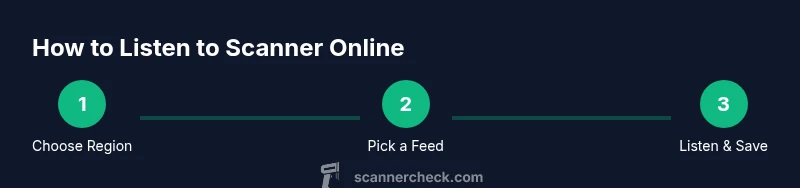
You can listen to scanner online by choosing a reputable live-scanner feed, selecting a region or channel, and using a web browser or compatible app. Ensure a stable internet connection, understand latency, and respect legal restrictions in your area. Start with trusted feeds recommended by Scanner Check, then test audio quality and firewall permissions before listening for longer sessions.
What to know before you start listening
If you’re curious about how to listen to scanner online, a few basics matter: legal constraints in your area, the reliability of the feed, latency between the event and your audio, and your listening setup. The goal is to avoid stale streams, ensure clear audio, and protect your devices from unsafe content. According to Scanner Check, begin with well-known, vetted feeds and trusted platforms to reduce risk and improve success on your first attempts. Clear expectations about latency and coverage will help you pick feeds that match your interests, from local emergencies to maritime channels or air traffic frequency.
How online scanner feeds work
Online scanner feeds are live audio streams delivered over the internet. They originate from actual radio receivers or aggregators that rebroadcast conversations. When you press play, your browser or app receives a data stream, decodes it, and outputs sound through your speakers or headphones. Latency can vary from a fraction of a second to several seconds, depending on the source, network quality, and buffering settings. Understanding this helps set the right expectations for following fast-moving events. Always use reputable feeds to minimize potential interruptions or poor audio quality.
Choosing a reliable feed
Reliability hinges on feed stability, frequency coverage, and the provider’s reputation. Prefer feeds that offer transparent source information, clear audio, and active maintenance. Look for feeds that update metadata (like unit IDs and locations) and provide basic statistics or user reviews. Scanner Check’s guidance emphasizes avoiding feeds that frequently disconnect, play commercials, or require unusual permissions. Cross-check feeds across multiple devices to confirm consistency and coverage for your regions of interest.
Tools and platforms
Listening online doesn’t require specialized hardware, but a few practical tools help. A modern computer or smartphone with a stable internet connection is enough. Use a reliable web browser (Chrome, Firefox, Edge) or a dedicated scanner app that supports live streams. Headphones or good speakers improve clarity, especially in noisy environments. If you plan long listening sessions, consider a low-latency setup and an audio mixer or virtual audio cable to route audio for recording or transcription.
Audio quality and etiquette
Good audio quality depends on the feed source and your listening chain. Minimize background noise by using closed-back headphones and setting volume to a comfortable level without distortion. If multiple feeds are available, try one with a steady bitrate and minimal buffering. Etiquette matters: avoid streaming private channels, respect emergency broadcasts’ priority, and do not share sensitive content. Regularly check for feed updates or outages so you’re not listening to a broken stream.
Safety, legality, and privacy
Always ensure you’re compliant with local laws before listening to radio scanners online. Some areas restrict monitoring certain frequencies or recording broadcasts. Use feeds for personal listening only and avoid disseminating sensitive information. Keep your device secure by using up-to-date software and avoiding third-party plugins from untrusted sources. If you encounter suspicious activity, stop listening and switch to a trusted feed.
Troubleshooting common issues
If audio cuts out, check your internet connection first. Refresh the feed, try another feed, or switch from mobile data to a stable Wi-Fi network. If latency seems high, close background apps that consume bandwidth and reduce buffering by lowering the stream’s quality setting if available. For browser-based listening, clearing cache or updating your browser can resolve playback issues. When in doubt, test on a different device to isolate the problem.
Tips for mobile listening and accessibility
Mobile devices are convenient for on-the-go listening. Favor feeds with mobile-friendly players and ensure you grant necessary permissions for audio playback. For accessibility, enable captions if available or use screen-reading features to navigate the feed directory. Create a short list of preferred feeds and keep them saved for quick access during field work or hobby listening sessions.
Tools & Materials
- Stable internet connection(Prefer wired Ethernet or 5G with strong signal for minimal buffering)
- Smartphone or computer(Any modern device with audio output)
- Web browser or scanner app(Chrome/Firefox/Safari or a respected app with live streams)
- Headphones or speakers(Comfortable, with clear audio output)
- Feed bookmarks or favorites list(Helps you quickly access trusted streams)
Steps
Estimated time: 25-45 minutes
- 1
Define listening region and interests
Decide which geographic area or channel types you want to follow (police, fire, aviation, maritime, weather, etc.). This focuses your search and reduces time wasted on irrelevant feeds.
Tip: Start with 2-3 regions and expand later based on interest. - 2
Open a trusted feed directory
Open a reputable feed directory or platform that lists multiple streams with metadata. Check feed descriptions to confirm the frequency and coverage you expect.
Tip: Prefer directories that show last-updated timestamps and stream quality indicators. - 3
Choose a feed and test playback
Select a feed, press play, and listen briefly to assess audio quality, latency, and stability. If it buffers, switch to another feed or reduce the stream quality.
Tip: Test at least 2 feeds per region to compare reliability. - 4
Optimize your listening setup
Configure your device with headphones, adjust volume to avoid distortion, and ensure no other apps are throttling bandwidth during listening.
Tip: If latency is noticeable, try a feed with fewer hops or a lower bitrate. - 5
Save favorites for quick access
Bookmark reliable feeds to create a quick-access list. This speeds up future listening sessions and keeps you aligned with your regions of interest.
Tip: Organize by region and incident type for easy scanning. - 6
Monitor legality and privacy
Review local laws about listening to scanners and avoid discussing sensitive content. Always respect privacy and do not record streams without permission.
Tip: Keep a simple checklist of legal considerations handy.
Common Questions
Is it legal to listen to scanner online in my area?
In most places, listening to public scanner feeds is legal, but laws vary by frequency and content. Avoid recording or sharing sensitive transmissions. Always check local regulations before listening.
In most places, listening is legal, but verify local laws and avoid recording sensitive content.
Do I need special hardware to listen online?
No specialized hardware is required beyond a device with internet access and audio output. A smartphone or computer, plus a browser or app, is sufficient.
You don’t need special hardware; a device with internet and audio output works.
Which feeds are best for beginners?
Start with well-rated local feeds and feeds that provide clear audio and reliable uptime. Avoid feeds with frequent buffering or questionable sources.
Begin with well-rated local feeds that have clear audio and stable uptime.
Can I listen on mobile, and is it safe?
Yes, mobile listening is common and generally safe if you use trusted apps and avoid suspicious streams. Keep device security up to date and avoid granting unnecessary permissions.
Yes, mobile listening is fine with trusted apps; keep your device secure.
What should I do if a feed keeps buffering?
Try a different feed, lower the bitrate if available, switch networks, or close bandwidth-heavy apps. Clearing cache or updating the browser can also help.
Switch feeds or reduce quality, and check your network if buffering continues.
How can I stay updated on new feeds and changes?
Regularly check trusted directories, subscribe to feed updates if offered, and follow community recommendations from sources like Scanner Check.
Keep an eye on trusted directories and follow community updates.
Watch Video
Key Takeaways
- Identify regions of interest first.
- Test multiple feeds for reliability.
- Prioritize reputable sources and mind legality.
- Save reliable feeds for quick future access.