How to Scan GOTV Without Remote
Learn how to trigger a GOTV channel scan without the original remote using decoder buttons, a mobile app, or a universal remote. Step-by-step guidance, tips, and safety notes from Scanner Check.


Goal: scan GOTV channels without the original remote. You can use the decoder’s built-in buttons to access the setup menu, a compatible mobile app if supported by your model, or a universal remote as a substitute. This guide shows practical, low-risk methods to trigger a rescan and restore channel access without buying new hardware or interrupting service.
GOTV scanning basics
GOTV scanning is the process of retuning the receiver to pick up available channels after a change, outage, or new service configuration. A scan can be automatic (auto-tune) or manual, depending on the model and firmware. Without the original remote, you still have reliable paths: you can use physical buttons on the decoder, a smartphone app or web interface if your model supports it, or a compatible universal remote with the correct codes. The goal is to trigger a fresh scan so the box detects current channels and updates its internal channel list. Always ensure the device is powered and connected (either by battery for portable units or a stable mains supply) to prevent mid-scan interruptions. This approach aligns with practical guidance from Scanner Check on common, safe methods for handling set-top box controls when a remote is unavailable.
Why you might need a remote-free scan
There are several legitimate reasons to perform a channel rescan without the remote: the remote is lost, the controls on the box are more convenient, or you want to avoid triggering a factory reset. A remote-free scan preserves your installed channels and preferences while refreshingly updating the channel lineup. It also minimizes the risk of altering parental controls or network settings that could occur with a factory reset. This is a low-risk operation when you follow manufacturer-recommended steps and avoid aggressive button combinations.
Methods to scan GOTV without the original remote
You have multiple paths depending on your equipment and comfort level. The most reliable options use the decoder’s built-in buttons to navigate to a setup or scan function. If your model offers a companion mobile app or a web-based interface, you can initiate a scan remotely from that app, provided you’re on the same network and the device is authorized. A universal remote with correct GOTV codes can serve as a substitute if it supports channel scanning, though compatibility varies by model. Always consult the user manual for your exact model to confirm which methods are supported and avoid accidental resets or misconfigurations.
Using the decoder’s built-in buttons
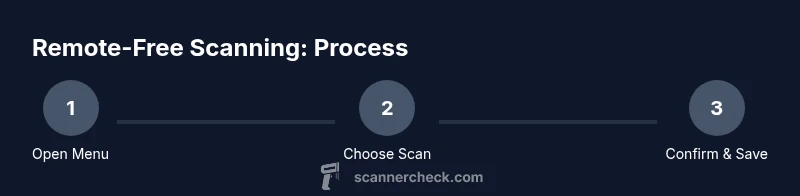
Many decoders place the essential scan commands in a dedicated setup or system menu reachable via front-panel buttons. To start, locate the Menu or Setup button, then use the navigation pad (up/down/left/right) to highlight the Scan or Auto-tune option. If your box requires you to confirm, press OK or Enter. Do not press multiple buttons at once; keep changes isolated to the scan operation. After initiating the scan, monitor progress on-screen and wait until the device reports completion. This method avoids any reliance on the remote and uses hardware controls in a predictable sequence.
Using a mobile app or web interface (if supported)
Some GOTV decoders offer a companion mobile app or a web interface that can control basic functions, including channel scans. If your model supports this, connect your smartphone to the same network as the decoder, sign in with the appropriate account, and navigate to the Setup or Tuning section to trigger a scan. Do not attempt changes from an app that isn’t compatible with your model, as unsupported control can lead to errors or misconfigurations. Apps can offer a smoother experience and provide feedback in real time during the scan.
Troubleshooting common issues when scanning without a remote
If the front-panel buttons do not respond or the scan option is hidden, verify power stability and ensure there is no lock on parental controls that blocks channel scans. If the setup menu is inaccessible, try a soft reset (power off for 15-30 seconds) and reattempt via the front panel. For app-based scanning, confirm the device is on the same network, that the app has permission to access the decoder, and that your model supports remote scanning features. If you continue to experience trouble, consult the official manual or contact support. Avoid factory resets unless explicitly advised; they can erase saved channels and settings.
Best practices for reliable, safe scans
Before starting, ensure your power supply is stable and avoid unplugging the device mid-scan. Keep the device within a reasonable distance from network access if you’re using an app or web interface. Record any codes or steps provided in your model’s manual in case you need to repeat the scan later. Use only official sources or support channels for model-specific instructions to minimize the risk of misconfigurations.
Safety considerations and maintenance
Never perform scans on devices that are hot or show signs of electrical issues. If you smell burnt circuitry or hear unusual noises from the box, power it down and unplug it before inspecting. Avoid forcing buttons or pressing hardware with excessive force; this can damage the front panel or keypad. Regular software updates from the manufacturer can impact how scans are initiated; check for firmware updates periodically to ensure compatibility with scanning methods.
What to do next after a successful scan
Once the scan completes, browse through the channel lineup to confirm reception, audio, and video. Scan results may list new channels or channels that moved frequencies; save or confirm the updated lineup if prompted. If you notice missing channels after a scan, re-run the process once more, or try a soft reset and re-scan. Maintain a simple backup log of channels that matter most for quick restoration in the future.
Quick-start cheat sheet for remote-free GOTV scanning
- Use front-panel Menu/Setup to locate Scan/Auto-tune.
- Confirm with OK/Enter and wait for completion.
- If available, try the mobile app or web interface for a remote scan.
- Avoid factory resets; use a soft reset if needed.
- Test saved channels thoroughly after completion.
Tools & Materials
- GOTV decoder / set-top box(Ensure the model supports scanning via buttons or app)
- Front-panel buttons (Menu/Setup, OK, navigation)(Used to navigate without a remote)
- Universal remote (optional)(Useful if it supports GOTV codes and controls)
- Smartphone or tablet with GOTV app or web interface (optional)(Needed for app-based scanning if your model supports it)
- Stable network connection (Wi-Fi or Ethernet)(Required for app/web control)
- User manual or official online support link(Helpful for model-specific steps)
Steps
Estimated time: about 25-40 minutes
- 1
Inspect the front panel for the Menu/Setup control
Power on the decoder and locate the Menu or Setup button on the front panel. This button is your gateway to all navigation without a remote. Press and hold if needed to wake up the menu cluster, then prepare to navigate with the directional pad.
Tip: If you can’t find Menu, check the user manual for the exact front-panel button layout. - 2
Open the Setup menu using the panel controls
Use the directional buttons to highlight the Setup or System option. Press OK or Enter to enter the submenu, where scan options are typically located. If the device shows a lock icon, you may need to enter a parental or access code.
Tip: Take a mental note of the path you took in case you need to repeat it later. - 3
Select Scan or Auto-Tune
Within the Setup or Tuning section, locate Scan, Auto-Tune, or Channel Scan. Highlight it and confirm with OK. Some models label it as Auto Scan or Quick Scan depending on firmware.
Tip: If you don’t see a Scan option, consult the manual—some models require a soft reset to reveal it. - 4
Initiate the scan and monitor progress
Start the scan and watch the progress bar or status indicator. Do not interrupt the process once it begins. Allow several minutes for full channel detection.
Tip: Keep the device plugged into a stable power source to prevent mid-scan shutdowns. - 5
If auto-scan isn’t available, perform a manual scan
In some models, you can specify scan type (cable, satellite, antenna). If no auto option exists, select the correct input and start a manual channel search to refresh the lineup.
Tip: Ensure you’re selecting the correct input type to avoid missing channels. - 6
Test channels and save settings
After the scan completes, flip through a few channels to verify audio and video. Save the updated channel list if prompted, otherwise confirm the changes in the menu.
Tip: Write down a quick note of any channels that require re-tuning. - 7
If you can’t find the scan option, try app or web control
If the front panel navigation fails, connect your phone or computer to the same network and launch the GOTV app or the official web interface to trigger a scan. Ensure device authorization is in place.
Tip: Only use official apps and interfaces recommended by the manufacturer. - 8
If issues persist, contact support
Some models require model-specific steps or firmware updates. If you’re stuck, escalate to the service provider or manufacturer support with your model number handy.
Tip: Avoid repeated resets; they can erase preferences or cause longer downtime.
Common Questions
Can I scan GOTV channels without a remote?
Yes. You can use the decoder’s front-panel buttons or a compatible mobile app/web interface if supported by your model to trigger a channel scan.
Yes, you can scan GOTV without a remote by using the box buttons or an app if your model supports it.
What if my decoder doesn’t show a scan option in the menu?
Try a soft reset and re-enter the setup menu. If still unavailable, consult the manual or contact support for model-specific steps.
If you don’t see a scan option, perform a soft reset and check the manual or contact support for guidance.
Is a universal remote a good substitute for scanning GOTV?
A compatible universal remote can substitute if it supports the GOTV codes for your model, but compatibility varies by device and firmware.
A universal remote can work if it supports your GOTV box, but check compatibility first.
How long does a typical scan take?
Most scans complete within a few minutes, but times vary by model and network conditions.
Usually a few minutes, but it depends on your model and network conditions.
What should I do if channels are still missing after scanning?
Repeat the scan, verify input type, and confirm you saved the updated channel list. If issues persist, contact support.
If channels are missing, try the scan again and consult support if needed.
Do I need special software to use a mobile app for scanning?
Only if your model explicitly supports app-based control. Use official apps and ensure firmware compatibility.
Only if your model supports app-based control; verify compatibility first.
Watch Video
Key Takeaways
- Use front-panel controls first to avoid remote dependency.
- Apps and web interfaces expand available options when supported.
- Avoid mid-scan interruptions to protect firmware integrity.
- Consult model-specific manuals for exact paths and labels.
- Test a few channels after scanning to confirm reliability.