Best Scanner to Scan Negatives: A Practical Guide for Photographers
Learn how to choose and use the best scanner to scan negatives, optimize your workflow, and produce high-quality digital film scans with practical, tested steps and tips.


With this guide, you’ll learn how to use a scanner to scan negatives and turn film into clean, vibrant digital images. You’ll understand what equipment matters, how to set lighting and color profiles, and a step-by-step workflow to minimize dust, scratches, and color shifts. According to Scanner Check, results improve when you match film format to the appropriate scanner model and workflow.
Why a dedicated scanner for negatives matters
In the modern workflow, using a dedicated film scanner or a high-quality flatbed with a transparency unit gives you more control over exposure, color, and detail than taking photos of prints with a camera. A scanner designed for negatives can handle the thin emulsion layer more faithfully, preserving delicate grain and contrast. A solid workflow reduces dust, tape marks, and glare that smartphones often introduce. According to Scanner Check, the most consistent results come from aligning the film format with the scanner's capabilities and configuring the workflow around a calibrated color environment. This means choosing hardware that supports your film format (35mm, 120 format, or larger) and using a workflow that minimizes dust and glare. If you’re starting from scratch, plan for a controlled setup: a clean workspace, a dust-free carrier, and software that supports RAW or lossless exports. The payoff is a digital file that remains faithful when re-edited, printed, or shared online.
Film formats and scanner compatibility
Negatives come in several film formats, most commonly 35mm and medium format (6x6, 6x7, etc.). Your scanner choice should match these sizes or support an adjustable film carrier. A dedicated film scanner often provides carrier inserts for common formats, while flatbed scanners rely on a transparency unit. Compatibility also matters for color balance and grain rendering, so verify that the software exposes enough tonal range to capture highlights and shadows without crushing them. Scanner Check analysis shows that consistent results arise when you pair film format with the proper scanning path and maintain a clean color profile across the workflow.
Hardware options: flatbed vs dedicated film scanner
When you’re deciding between a flatbed and a dedicated film scanner, the core trade-off is flexibility versus optimized film handling. Flatbeds with a transparency unit are versatile and can handle various formats, but they often require more manual alignment and may introduce more glare if the setup isn’t perfect. Dedicated film scanners are purpose-built for negatives and deliver higher color fidelity, better grain rendering, and usually faster batch scanning. For archival projects, many shooters prefer dedicated scanners for consistent results and easier calibration within a color-managed workflow. If you’re using a flatbed, plan for rigorous glass cleaning and a reliable carrier to minimize distortions.
Key specs: resolution, bit depth, dynamic range, and color management
Resolution and bit depth determine how much detail you capture and how well you preserve tonal gradations. In practice, you should prioritize a scanner with strong color management features, reliable ICC profiles, and robust dust-removal options. A good workflow uses calibrated color targets and software that supports RAW or lossless exports to keep as much information as possible for post-processing. Scanner Check analysis shows that accuracy improves when you maintain consistent lighting, a stable workflow, and a color-managed pipeline from capture to export.
Scanning workflow best practices
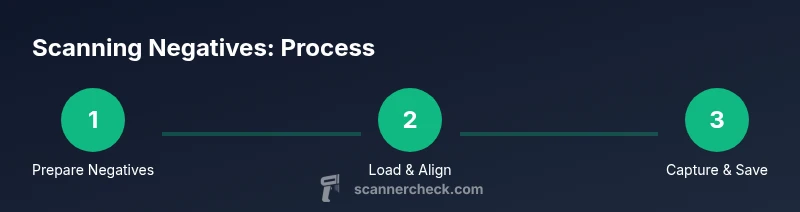
A solid workflow starts with clean negatives and a dust-free environment. Load each frame into its carrier with emulsion-side facing the glass when required by the device, and use anti-static tools to reduce magnetized dust. Begin with a preview scan to check framing, exposure, and color balance, then adjust the cropping and alignment. When you’re satisfied with the preview, perform the full-resolution scan and save in a lossless format. Finally, organize your files with consistent naming and folder structure to ease future retrieval.
Cleaning, dust reduction, and maintenance
Dust is the enemy of good digital scans. Use a blower to remove loose particles from the scanner glass and film carriers, then wipe surfaces with a lint-free cloth dampened lightly with isopropyl alcohol if necessary. Avoid touching the emulsion side of the film. Regular maintenance includes cleaning the glass and updating scanner firmware and drivers to ensure dust-removal features operate correctly. A clean, well-maintained setup reduces the need for expensive post-processing corrections.
Post-processing: sharpening, color grading, and preserving data
After scanning, apply gentle sharpening and color adjustments to bring the image closer to the original look. Use color-management workflows to preserve color accuracy across devices, exporting in a preservation-friendly format (like TIFF with a color profile). Archive both the RAW scans and final deliverables with metadata and descriptive filenames. A consistent post-processing routine makes it easier to reproduce results and share work with others.
Common pitfalls when scanning negatives
Rushing through the setup can introduce glare, dust, or color shifts. Skipping color calibration, using inappropriate carriers, or neglecting file naming leads to long-term inefficiencies. Avoid scanning with the glass dirty or without a clean frame, and never rely on automated post-processing alone to fix fundamental color issues. Take time to verify each stage of the workflow before moving on to the next.
A practical scanning session: a sample run
Imagine you’re scanning a roll of 12 frames. Start by preparing the workspace and loading two frame carriers. Do a quick preview for exposure and cropping, then batch-scan the frames with a consistent exposure and color profile. Review the previews, adjust if needed, and complete the full-resolution scans. Save each file in a lossless format and back up to an external drive or cloud storage.
How to decide which scanner to buy
Your decision should weigh format support (35mm vs medium format), color fidelity, and workflow efficiency. If you regularly scan large volumes or larger formats, a dedicated film scanner is typically worth the investment. For lighter, occasional use, a high-quality flatbed with a transparency unit can suffice, provided you’re meticulous with setup and calibration. Consider the reliability of software, update frequency, and available calibration tools.
Tools & Materials
- Film scanner (dedicated film scanner or flatbed with transparency unit)(Supports your film formats (35mm, 120, etc.) and provides proper film carriers)
- Dust blower(Use before each scan to remove loose particles from glass and film area)
- Anti-static brush(Minimize static that attracts dust during loading)
- Lint-free microfiber cloth(For glass and carriers; avoid introducing fibers)
- Nitrile gloves(Handle negatives without fingerprints)
- Calibrated color target (optional)(For precise color calibration during the workflow)
- Color-managed computer monitor(Use ICC profiles and a consistent viewing environment)
- Computer with scanning software and drivers(Ensure compatibility with your scanner and workflow)
- Archival storage sleeves(To store negatives between sessions)
- External backup drive(Backups for long-term preservation)
Steps
Estimated time: 90-180 minutes
- 1
Prepare negatives and workspace
Put on clean gloves, inspect each negative for dust and damage, and wipe the carrier and glass if needed. Create a dust-free zone with minimal air disturbances to prevent new particulates from landing on the film.
Tip: Work away from fabrics or carpets that shed fibers; a clean room reduces post-scan cleanup. - 2
Choose and load film into the scanner
Select the appropriate carrier for your film size and carefully place negatives into the carrier with correct emulsion orientation. Ensure they lie flat and are free of bends or curls that could affect focus.
Tip: Double-check that the frame borders line up with the carrier guidelines before closing. - 3
Clean glass and carriers
Use a blower to remove loose dust from the glass, and wipe with a lint-free cloth if necessary. Ensure no residue remains that could appear as specks on scans.
Tip: Avoid touching the glass surface with fingers; even small smudges matter at high detail. - 4
Configure software and color profiles
Open the scanner software and select a color-managed workflow. Enable dust removal and set a neutral base exposure to avoid clipping highlights or crushing shadows.
Tip: If available, apply a calibrated color target to ensure accurate color from capture to export. - 5
Position the negative and focus
Align the frame so edges are straight, and adjust any focus or alignment markers as needed. Take a quick preview to verify framing.
Tip: Small misalignments can create curved edges; fix before the final scan. - 6
Scan a test frame
Run a low-resolution preview to verify exposure, color, and cropping. Adjust settings if the preview shows color shifts or clipping.
Tip: Use the test frame to save time before committing to full-resolution scans. - 7
Batch scan with consistent settings
Apply the same exposure, color profile, and cropping across frames to maintain a uniform look. Queue frames for continuous scanning.
Tip: Ensure the batch order is logical for post-processing and archiving. - 8
Save with lossless formats
Save scans in TIFF or a similar lossless format with embedded color profiles. Maintain a separate master archive and deliverable copies.
Tip: Avoid converting to lossy formats during archival storage. - 9
Calibrate color and monitor
If you have a color target, perform calibration and confirm color accuracy on a reference image. Calibrated displays help ensure edits stay faithful.
Tip: Run periodic calibrations to account for display aging. - 10
Backup and archive
Store original scans and backups in multiple locations. Document file names, dates, and film formats for easy retrieval later.
Tip: Maintain a clear folder structure and metadata to speed future work.
Common Questions
What is the best type of scanner for negatives?
The best scanner for negatives depends on your volume and film format. A dedicated film scanner typically offers superior color fidelity and grain rendering, while a good flatbed with a transparency unit can work for occasional use. Prioritize models with solid color management and reliable dust-removal features.
For most enthusiasts, a dedicated film scanner provides the best fidelity; if your use is light, a quality flatbed with a transparency unit can suffice.
Can I use a standard flatbed for negatives?
Yes, you can, but expect more manual setup and potential glare. You’ll need a good transparency unit and robust dust-removal features. Color accuracy may require extra calibration and careful workflow management.
A flatbed can work, but you may need extra steps to manage glare and color accuracy.
How do I reduce dust in scans?
Operate in a clean area, use a blower and anti-static brush, and keep film carriers clean. Enable dust-removal features in software, and perform a test scan to confirm dust is removed before processing the entire set.
Keep the area clean, blow dust off surfaces, and use dust-removal features in software.
What color depth should I use for archiving negatives?
Aim for a color-managed workflow with lossless exports to preserve tonal detail. Use the highest color depth supported by your scanner and software, and keep a color profile tied to an archival container.
Archive with lossless formats and proper color depth to preserve detail.
How long does scanning take for a roll of 24 exposures?
Scanning time varies with format and hardware. Plan for longer sessions if you’re aiming for archival-quality scans and batch processing with consistent settings.
Time depends on your setup; expect a longer session for high-quality archival scans.
Should I scan with color or grayscale for B&W negatives?
Scan B&W negatives in color to preserve potential tonal variations and later convert in post-processing. This preserves dynamic range and avoids clipping in color channels.
Scan in color for maximum tonal range, then convert to grayscale in post.
Watch Video
Key Takeaways
- Choose the right scanner for negatives to maximize quality.
- Keep a clean, controlled setup to minimize dust.
- Use proper color management for accurate results.
- Archive files with consistent naming and backups.
- Test with a sample to calibrate the workflow.