What is Wrong with My Face Scanner? A Practical Troubleshooting Guide
Urgent, practical troubleshooting from Scanner Check to diagnose and fix common face scanner issues—lighting, enrollment, firmware, and privacy settings.


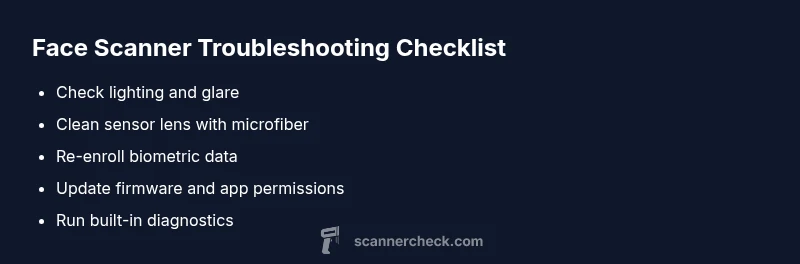
Most face scanner failures come from lighting, glare, or enrollment errors. Start with cleaning the lens, ensuring even lighting, and removing obstructions. Re-enroll your face data if required, then check for firmware updates and perform a safe reset. If issues persist, contact official support for guided diagnostics. Document any error codes you see.
What Is Wrong with My Face Scanner and Why It Fails
If you're asking what is wrong with my face scanner, you're not alone. According to Scanner Check, most failures boil down to a handful of common culprits that are easy to fix when caught early. In practice, environmental factors like lighting, glare on the sensor, and a dirty lens frequently degrade recognition accuracy more than hardware wear. Additionally, enrollment health—whether the biometric template was captured clearly—plays a major role in future attempts. In this section, we’ll map the typical failure modes and set you up with a practical, immediate action plan. The goal is to restore dependable authentication without sacrificing privacy or security.
First, verify that the device uses even lighting that falls softly across your face rather than producing harsh shadows. A quick lens clean with a lint-free microfiber cloth can remove smudges that obscure the sensor. If your environment relies on backlighting or strong reflections, adjust the angle or move to a more neutral setup. If you have recently updated the app or firmware, confirm compatibility and reset if needed. If the problem persists, consider re-enrolling your face data to refresh the biometric template. These steps form the foundation of diagnosing what is wrong with my face scanner and getting it back to reliable operation.
Check the basics: lighting, angle, and lens cleanliness
Before diving into advanced fixes, confirm the basics are solid. Adequate, diffuse lighting should illuminate your face evenly, avoiding strong side or backlight that causes recognition errors. Clean the camera lens with a microfiber cloth, and inspect for smudges, fingerprints, or scratches that could distort the image. Ensure nothing in front of the sensor blocks the field of view or creates glare. If you wear glasses, adjust to minimize glare or try a light-redirected position. Finally, verify there’s no protective case or cover in contact with the sensor that could interfere with imaging. These simple checks solve a majority of startup and recognition problems without touching software.
Calibration, enrollment health, and profile integrity
Many failures relate to how the biometric template was captured and stored. If your enrollment was rushed, low resolution, or taken in suboptimal lighting, recognition will degrade. Re-enroll your face data in a well-lit, stable environment. Some devices require you to delete the old profile before creating a new one; follow the on-screen prompts carefully. Check for multiple profiles in the app and remove duplicates. Ensure the template matches current appearance and that no accessory (glasses, masks) has changed since enrollment. Regularly updating enrollment can improve long-term reliability.
Software, firmware, and permissions
Software issues are a frequent cause of sporadic failure. Check that the device firmware and biometric software are up to date, then restart the device to clear caches. Review app permissions to ensure the camera and biometrics features are allowed for the specific app. If your system uses a separate security layer or enterprise policy, contact your administrator to verify that there are no newly applied restrictions. Some devices also offer a calibration or recognition test within the settings; run these diagnostics to confirm the sensor is functioning at baseline.
Hardware health and sensor issues
Hardware problems are less common but can happen with wear, drops, or exposure to dust. Inspect the sensor window for cracks or moisture and check the proximity of the device to your face during a scan. If the scanner feels warm, or you notice reduced sensitivity, consider contacting support for hardware diagnostics. Do not attempt disassembly; sensors are delicate and may void warranties. If your device has an accessible lens cover, inspect and replace if scratched or cloudy.
Privacy and security settings that affect recognition
Security features can intentionally limit facial recognition in certain contexts. Verify that privacy modes or mask policies aren’t preventing a proper scan. Review any anti-spoofing or liveness checks; if these are overly strict or miscalibrated, legitimate users may be blocked. Ensure you’re enrolled under the correct user account and that the correct biometric method is selected. For shared devices, verify user switching and lock policies to avoid stale templates being used.
Maintenance habits to prevent future failures
Regular maintenance reduces the chance of sudden failures. Clean the lens weekly, check lighting, and keep firmware up to date. Calibrate devices after firmware updates or after a long period of disuse. Store devices away from direct heat or moisture and use a clean, dry cloth for all cleaning. Periodic tests and quick diagnostic runs help catch issues early, saving time and frustration when you need identity verification most.
When to escalate to support and what to report
If you have exhausted the above steps and the face scanner still struggles with recognition, it’s time to contact support. Gather model information, firmware version, and any error codes or on-screen messages. Note the time of failures, lighting conditions, and whether the device was in portrait or landscape orientation. Include a brief description of your environment and recent changes (updates, hardware drops, or policy updates). A concise report helps technicians reproduce the issue and provide targeted solutions.
Steps
Estimated time: 15-30 minutes
- 1
Check lighting and camera angle
Verify that the scanning area is evenly lit with soft light. Adjust your position so not to cast shadows on the sensor, and ensure your face fills the frame without being too close or far. Confirm there are no glare sources reflecting off the lens.
Tip: Use the device test mode if available to verify the sensor sees your face clearly. - 2
Clean the sensor lens
Power down the device if possible and wipe the lens with a clean microfiber cloth. Do not use solvents or abrasive materials that could scratch the surface. Inspect for fingerprints or smudges and repeat once dry.
Tip: Clean in a circular motion from the center outward to avoid streaks. - 3
Re-enroll face data
Open the biometric settings and remove the current face data, then initiate a fresh enrollment. Perform multiple takes in stable lighting and maintain a neutral expression. Avoid accessories that may obscure features during enrollment.
Tip: Use a consistent distance and angle for best results. - 4
Update firmware and app permissions
Check for available firmware updates and install them. Review app permissions to ensure the camera and biometrics features are allowed. Reboot after updating to ensure changes take effect.
Tip: Back up important data before major updates if possible. - 5
Test recognition in a controlled environment
Test in a known-good environment with minimal distractions. Use the same lighting and position you used during enrollment. If it still fails, try a different user profile if your device supports multi-profile testing.
Tip: Document the exact conditions under which it fails for reporting. - 6
Escalate to support if unresolved
If the issue remains after all steps, collect device model, serial number, firmware version, and failure logs. Contact support with a concise report and any error codes observed.
Tip: Have your proof of purchase and warranty status ready.
Diagnosis: Face scanner fails to recognize user consistently or shows error messages during unlock
Possible Causes
- highPoor lighting or glare on the sensor surface
- highLens or sensor obstructed by smudges, fingerprints, or protective film
- mediumOutdated firmware or biometric software compatibility issues
- mediumEnrollment/profile corruption or mismatched appearance (glasses, mask)
- lowHardware sensor fault or damage
Fixes
- easyClean the sensor and lens with a microfiber cloth; avoid liquids
- easyImprove lighting by adding ambient light or rotating the device to reduce glare
- easyRe-enroll your biometric data or re-create the user profile in the device/app
- easyUpdate firmware/software and reboot the device
- mediumIf the issue persists, contact the manufacturer for diagnostics or replacement
Common Questions
Why does my face scanner stop working after a software update?
Software updates can adjust permissions or security checks that temporarily block recognition. Verify camera and biometrics permissions, re-run enrollment if needed, and ensure the device has the latest compatible firmware. If problems persist, roll back to a stable version or contact support.
Software updates can block recognition; check permissions and re-enroll if needed.
Can I fix a dirty lens myself without damaging the device?
Yes. Use a clean microfiber cloth to gently wipe the lens and sensor cover. Avoid liquids and abrasive materials that could scratch the surface. If smudges persist, consult official diagnostics.
Yes, clean the lens gently with a microfiber cloth.
How do I re-enroll my face for recognition?
Open the security or biometrics settings, choose reset or remove current face data, and follow prompts to capture a fresh image set. Use steady lighting and minimal accessories. Complete all prompts before testing.
Go to Biometrics settings, remove the old face data, and re-enroll with good lighting.
Is it safe to reset to factory settings for a face scanner issue?
Factory resets erase user data and require reconfiguration. It should be a last resort after trying software updates and re-enrollment. Back up any important data and follow device-specific reset steps from the manufacturer.
A factory reset should be a last resort; back up data first.
When should I seek professional help for a failing face scanner?
If hardware failure is suspected or the issue persists after all troubleshooting, contact the device manufacturer or an authorized service center. Collect device model, firmware version, and a log of attempts to reproduce the issue.
If you suspect hardware failure, contact professional support.
Watch Video
Key Takeaways
- Identify the basics first: lighting and lens cleanliness.
- Re-enroll or recalibrate to refresh biometric templates.
- Keep firmware and apps up to date for compatibility.
- Escalate with precise failure details if needed.