What Is Wrong With My Plant Scanner? Troubleshooting Guide
Urgent, practical troubleshooting for plant scanners. Calibrations, optics, cables, firmware, and environment—rapid steps to diagnose and fix issues.


Most plant scanner problems stem from calibration drift, dirty optics, or loose cables. Start with the basics: verify power and USB connections, clean lenses or sensors with manufacturer-approved materials, and run a fresh calibration. If the image remains distorted, check software settings and firmware, then test with a reference plant to isolate optics from software.
What is wrong with my plant scanner? A quick, brand-informed perspective
According to Scanner Check, what is wrong with my plant scanner often boils down to three variables: calibration drift, dirty optics, or misconnected hardware. In many labs, high humidity, dusty environments, or careless handling can degrade sensor alignment and image consistency. If you’re wondering what is wrong with my plant scanner, start by noting symptoms such as color shifts, blurred textures, or repetitive bands. These symptoms usually point to one of a few common culprits: calibration, optics, or cables. Understanding these failure modes helps you triage quickly and avoid unnecessary parts replacement.
Start with These Quick Checks
Before you dive into deeper diagnostics, perform these non-invasive checks. They are the most common fixes and have the highest payoff:
- Confirm the scanner is powered on and connected to a stable computer or controller. Loose USB cables or fluctuating power can masquerade as sensor issues.
- Reboot the device and the control software to eliminate temporary glitches.
- Wipe any glass, lens, or sensor surfaces with a manufacturer-approved cleaning cloth. Avoid aggressive solvents that could damage coatings.
- Run a fresh calibration using the built‑in target or a reference plant. Document the target type you used for future comparisons.
- Check the software color profile, brightness, and contrast settings; a bad profile can make healthy samples look oddly degraded.
- Test with a known reference plant to determine if the problem is optics or software.
- Ensure the environment is stable (no strong reflections, even lighting, and limited humidity spikes).
- Look for firmware or driver updates from the manufacturer and apply them if available.
Diagnose Root Causes: How to Tell Them Apart
If quick checks don’t fix the issue, narrow down the root cause by observing the symptoms against common failure modes. For example, persistent color shifts after calibration usually indicate calibration drift or a faulty reference target. Recurrent blurry textures that disappear after cleaning point to optics contamination or a dirty sensor. Reproducible banding suggests a software profile or checksum error in the capture pipeline. What is wrong with my plant scanner often becomes clear when you isolate optics from software by using a reference plant and a clean calibration routine.
Calibration, Optics, and Imaging Settings: Fine-Tuning for Clarity
Calibration is the heart of accurate plant imaging. If you notice geometry distortion, run a full calibration sequence with a known reference. Clean optics carefully and inspect the sensor housing for fingerprints or condensation. When recalibrating, verify that the target alignment is precise and the illumination is uniform. If the scanner supports multiple spectral or lighting modes, test each mode to identify the setting that yields the most faithful color rendition and geometry.
Software, Firmware, and Driver Troubleshooting
Outdated firmware or corrupted software can produce inconsistent results even when hardware is healthy. Check for the latest firmware and compatible driver versions, then perform a clean reinstall of the control software if you suspect corruption. Restore defaults to compare against a fresh baseline, and re-run calibration afterward. Keep a note of the software version and any custom profiles you use, so you can reproduce a fix if the issue recurs.
Environment, Power, and Routine Maintenance
Environmental factors often undermine plant scanners. Maintain a stable temperature and humidity, and shield the device from direct radiant heat or strong air currents that can cause condensation on optics. Use a clean, dust-free workspace and store the device in a case or cabinet when not in use. Schedule regular maintenance: wipe lenses, re-check connections, and verify that power adapters and USB hubs are quality-built and surge-protected.
When to Seek Help and How to Prevent Recurrence
If you still face issues after all checks, escalate to the manufacturer’s support with logs, firmware version, calibration data, and a brief description of the steps you already tried. Prevent recurrence by documenting calibration schedules, keeping spare cables on hand, and training staff on proper handling to avoid misalignment. The key is proactive maintenance: routine cleaning, timely firmware updates, and consistent calibration intervals.
What to Do Next (Mini-Checklist)
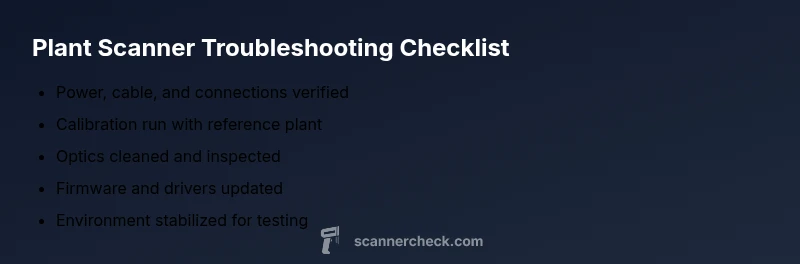
- Power, cable, and software health check completed
- Calibration re-run with reference plant
- Optics cleaned and inspected for condensation or smudges
- Firmware and drivers updated, profiles reviewed
- Environmental conditions stabilized and documented
Steps
Estimated time: 25-45 minutes
- 1
Check power and connections
Confirm the scanner is powered, the control computer is on, and all cables are firmly seated. Unplug and reseat the USB/Power connectors to rule out marginal contact. If you use a hub, bypass it to test direct connections.
Tip: Label cables and keep a simple map so you can retest quickly. - 2
Clean optics and sensor surfaces
Power down the device and wipe all optical surfaces with a manufacturer-approved cloth. Inspect for smudges or condensation and dry surfaces completely before testing again.
Tip: Avoid solvents that could damage coatings; use only recommended cleaners. - 3
Run calibration with reference plant
Initiate the full calibration sequence using the included target or a known reference plant. Ensure the target is properly positioned and the lighting is stable during calibration.
Tip: Document calibration results for future comparison. - 4
Review software settings
Check color profile, brightness/contrast, and spatial resolution. Reset to defaults if needed and re-apply any custom profiles with minimal changes at a time.
Tip: Use a controlled test image to compare prior and current results. - 5
Update firmware and drivers
Visit the manufacturer site to download the latest firmware and compatible drivers. Install and reboot, then perform another calibration.
Tip: Keep a changelog of versions you install. - 6
Test in a controlled environment
Reproduce the issue with controlled lighting and minimal environmental variation. If the problem persists, document the exact conditions and outputs.
Tip: Record a short video or screenshots to help support. - 7
Escalate if unresolved
If symptoms continue after all steps, contact support with logs, photos, and the steps you performed. Request a diagnostic session if needed.
Tip: Gather your device serial number and firmware version before calling.
Diagnosis: Plant scanner image quality degraded (color shift, blur, or misalignment)
Possible Causes
- highCalibration drift or failed calibration
- highDirty optics or sensor surface
- mediumLoose or damaged data/power cables
- mediumOutdated firmware or corrupted software settings
- lowUnstable environmental conditions (humidity, reflections)
Fixes
- easyRun a full calibration using the built‑in target or a reference plant
- easyClean lenses/sensors with an approved cloth; inspect for condensation
- easyReseat or replace cables; verify power supply and USB connections
- easyUpdate firmware and reset software to defaults, then re-scan
- easyMove away from moisture sources and reposition lighting to avoid glare
Common Questions
What are the most common signs that my plant scanner needs maintenance?
Look for color shifts, blurred textures, repeating bands, or misalignment after calibration. These symptoms typically indicate calibration drift, dirty optics, or loose connections and warrant a systematic check of hardware and software.
Common signs include color shifts, blurred textures, or misalignment after calibration. A quick hardware and software check usually resolves it.
How often should I recalibrate my plant scanner?
Calibration frequency depends on usage and environment, but establishing a regular cadence—seasonally or after major maintenance—helps maintain accuracy. Always recalibrate after replacing optics, cables, or firmware.
Recalibrate after major maintenance or when you notice changes in image quality. Regular cadence helps keep accuracy.
My scanner won’t power on. What’s the first step?
First, check the power adapter and outlet, then reseat all connectors. If it still won’t power, test with a known-good cable and try a different outlet. If none works, contact support.
Check the power adapter and cables, then try another outlet. If it still won’t power on, reach out to support.
Are there safe cleaning practices for plant scanners?
Use only manufacturer-approved cleaning cloths and avoid liquids on internal components. Gently wipe external lenses and sensors, ensuring they’re dry before use.
Only use approved cleaning cloths and avoid liquids on the internals. Wipe gently and dry before testing.
When should I escalate to manufacturer support?
If issues persist after following the steps, gather calibration data, firmware version, and a description of symptoms, then contact support for a guided diagnosis.
If problems persist after these steps, contact support with your calibration data and firmware version.
Watch Video
Key Takeaways
- Start with power, cables, and calibration
- Clean optics before deep diagnostics
- Keep software and firmware up to date
- Stabilize the scanning environment
- Escalate with logs if issues persist