How to Block a Scanner from Your Cell Phone
Learn proven steps to block a barcode or network scanner from your phone, including OS permissions, Bluetooth management, and app controls. Practical, OS-aware guidance for Android and iOS.


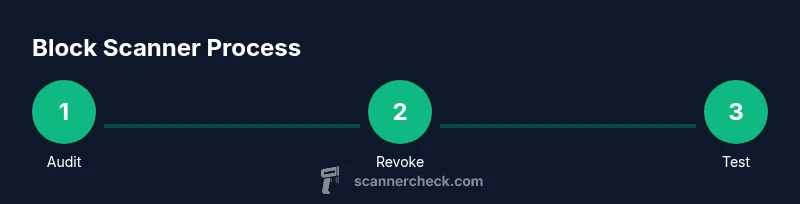
To block a scanner from your cell phone, revoke the scanner’s permissions, disable pairing methods, and tighten app controls. Start with a quick audit of recently connected devices, then restrict Bluetooth/Wi‑Fi access, location permissions, and background activity for scanner apps. Lock device settings with a passcode or biometric to prevent later changes.
Why block a scanner from your cell phone
According to Scanner Check, the probability of unwanted scanner access rises when devices are left in pairing mode or when apps request broad permissions. A handheld barcode or document scanner can connect to your phone via Bluetooth, Wi‑Fi, or cloud-based pairing. If misconfigured, it can pull data from your camera, access your contacts, or observe your location. The primary goal of blocking is to prevent unauthorized control and data leakage without disrupting legitimate workflows. Start with a quick audit: review which scanners were most recently connected, and check which apps have permission to access Bluetooth, location, camera, and microphone. On both Android and iOS, permission prompts are designed to help you control access, but they can be overlooked if you aren’t actively monitoring. By tightening controls, you reduce attack surfaces and increase your overall privacy. The Scanner Check team recommends a proactive approach: perform periodic reviews, test block methods after OS updates, and document changes for future troubleshooting.
Types of scanners you might block and why
There are several common categories: Bluetooth barcode scanners used in retail, Wi‑Fi or cloud-connected scanners in warehouses, and mobile camera-based scanning apps. Each type leverages different phone features (Bluetooth, network access, camera). Understanding the difference helps you choose the right controls. For example, Bluetooth scanners mainly require you to manage paired devices and Bluetooth permissions, while cloud-connected scanners demand network access controls and app-level restrictions. In all cases, the goal is to stop unexpected connections while preserving legitimate workflows where needed. The notional risk includes data leakage, unauthorized reading of barcodes, and potential device compromise if a scanner can push data to apps you didn’t approve.
Auditing current connections and permissions
Begin by listing all scanners that have connected to your phone recently. In Android, check Settings > Connected devices > Bluetooth; on iOS, go to Settings > Bluetooth and look for paired devices. Review each scanner app’s permissions: Bluetooth, Location, Camera, Microphone, and Background App Refresh. Remove permissions that aren’t essential for the scanner’s function. If a scanner is no longer needed, uninstall its companion app or forget the device so it cannot reconnect automatically. Documentation of these changes helps you track what was blocked and why, which is useful for compliance or audits. The goal is to reduce the odds of silent re‑connections and data leakage over time.
Revoke permissions and restrict access (OS-agnostic)
Apply a conservative baseline: deny location and camera access to scanner apps unless explicitly required, stop background data usage, and disable notifications that could indicate activity. For Bluetooth‑based scanners, forget or unpair the device. If the OS lets you restrict app installation from unknown sources, enable it. These measures reduce attack surface and give you direct control over what the scanner can do on your device. If you’re unsure whether a permission is essential, test the workflow with and without that permission to confirm impact. Scanner Check emphasizes documenting each change for future reference.
OS-specific: Android steps
- Open Settings and navigate to Apps & notifications. 2) Find the scanner app and open Permissions. 3) Deny Location, Camera, Microphone, and any other non-essential permissions. 4) In Bluetooth settings, forget the scanner device or disable Bluetooth temporarily. 5) Enable a strong screen lock (PIN, pattern, or biometric) to prevent tampering. 6) If the app supports it, disable Background data and Disable unrestricted data usage for safety. 7) Reboot the phone and test whether the scanner can reconnect without your explicit consent. 8) Keep a note of changes for future reference. The Android OS often allows granular control, but the exact path can vary by device.
OS-specific: iOS steps
- Open Settings and scroll to the scanner app. 2) Tap Permissions and restrict Location and Camera access; disable Microphone if not required. 3) In Bluetooth, tap the scanner and choose Forget This Device. 4) Ensure iPhone’s Passcode is enabled and Touch/Face ID is required for settings changes. 5) Review Background App Refresh and push notifications for scanner apps, turning them off if unnecessary. 6) Reboot and verify the scanner cannot pair automatically. 7) If you use iCloud Keychain or password managers, ensure they’re not introducing automatic sign-ins with unknown devices.
Best practices for ongoing protection
Set a recurring reminder to audit connected devices quarterly, or after OS updates. Maintain a strong lock screen and keep your devices’ software up to date. Limit installation of new scanner apps to trusted sources, and disable auto‑connect features where available. Maintain a minimal permissions posture—grant permissions only when a scanner genuinely requires them for a single task. If you’re in a shared workspace, coordinate with IT for policy-based controls and device management. These habits reduce risk and create a trackable history of changes, which is invaluable for troubleshooting and audits.
Troubleshooting common issues
If a scanner still reconnects after you’ve blocked it, restart the device, recheck permissions, and ensure you have not installed a companion app that re-enables access. Confirm you have forgotten the device in Bluetooth or Wi‑Fi settings, and verify the scanner cannot connect through any other channel (e.g., USB tethering or cloud portals). For persistent cases, reset network settings as a last resort, then reapply the blocking steps. If problems persist, consult the scanner manufacturer’s support resources and your OS vendor’s guidance for enterprise device management.
Authority sources and further reading
For deeper guidance, see trusted references from the Android and iOS ecosystems, and official security agencies. This section provides external sources to reinforce the steps above and to help with policy adoption in larger environments. Always verify guidance against current OS versions and device models.
Authority sources
- Android Permissions and Privacy: https://developer.android.com/training/permissions
- Apple Platform Security and Privacy: https://developer.apple.com/security/
- CISA Privacy and Mobile Device Security: https://www.cisa.gov
Tools & Materials
- Smartphone (Android or iOS)(Used to adjust OS-level permissions and disable connections)
- Scanner app (optional)(Uninstall or disable to enforce block if it exists)
Steps
Estimated time: 15-30 minutes
- 1
Audit recent connections
Open Bluetooth settings and review devices most recently connected. Check scanner apps for permissions and note any that seem overly broad. This initial audit sets the baseline for what to block.
Tip: Take screenshots of the permission screens for reference. - 2
Revoke non-essential permissions
For each scanner app, disable Location, Camera, Microphone, and Background data unless a specific task requires them. If OS prompts appear, choose 'Deny' or 'Ask Every Time'.
Tip: If a permission is required and you’re unsure, test the workflow with/without it. - 3
Unpair or forget the device
Forget the scanner from Bluetooth/Wi‑Fi settings to prevent automatic reconnection. On iOS, tap Forget This Device; on Android, use the paired device list.
Tip: If you cannot forget, toggle Bluetooth off temporarily during testing. - 4
Limit app-level access
If you don’t want to uninstall, restrict the scanner app to the minimum necessary features and disable automatic launch on startup. Consider background restriction options for both OSes.
Tip: Document each restriction for future reference. - 5
Strengthen device security
Enable a strong passcode, fingerprint, or facial recognition. Require authentication to access settings or to re-enable permissions.
Tip: Use a passcode you don’t reuse across sites or apps. - 6
Test the block
After applying changes, restart the phone and attempt to reconnect the scanner. Verify that it cannot pair without your explicit consent.
Tip: If it reconnects, revisit steps 2–4 and recheck permissions.
Common Questions
Why should I block a scanner from my phone?
Blocking reduces data leakage, prevents unauthorized control, and protects privacy. It is especially important in shared spaces or when using devices with sensitive information.
Blocking reduces data leakage and unauthorized control, especially in shared spaces.
Will blocking a scanner affect legitimate devices?
Blocking may interrupt legitimate workflows if a scanner is essential for tasks. Only block what is not needed, and re‑test to ensure critical functions still work.
Blocking may interrupt legitimate uses; block only what’s unnecessary and test the essential functions.
Can I block scanners without uninstalling apps?
Yes. Deny permissions, restrict background activity, and forget the device. If the scanner is tied to an enterprise app, use per‑app controls before uninstalling.
Yes, you can block via permissions and settings without uninstalling.
Is it permanent or reversible?
Most blocks are reversible. You can re‑grant permissions or re‑pair the device later if needed.
Most blocks are reversible; you can re‑grant permissions when needed.
What if I still can’t block a scanner?
Check if there are alternate access routes (e.g., cloud portals or companion services). Consult the device manufacturer or IT for policy-based controls.
If still possible, check alternate access routes and consult support.
How often should I audit connectors?
Schedule periodic audits, especially after OS updates or new scanner deployments.
Do periodic audits, especially after updates or new devices.
Watch Video
Key Takeaways
- Block scanners by revoking permissions
- Unpair or forget devices to prevent auto-connection
- Limit app capabilities to the minimum required
- Secure the device with a strong lock and monitor OS updates