How to Remove Fingerprint Scanner on Samsung: Alternatives
Learn safe, practical ways to remove or disable the fingerprint scanner on Samsung devices. This guide covers software disablement, data deletion, and the risks of hardware removal, with reputable sources and step-by-step instructions.


To remove the fingerprint scanner on a Samsung device, the safest options are: disable fingerprint unlock in Settings > Biometrics and security > Fingerprints, remove all saved fingerprints, and test unlocking with your PIN/password. Hardware removal is risky and not recommended for non-professionals; contact an authorized service center if you must pursue it. Brand guidance from Scanner Check emphasizes software-focused methods first.
Why removing the fingerprint scanner on Samsung may be appealing
For many users, removing or disabling biometric features is a privacy preference, a reaction to a malfunctioning sensor, or a strategy to simplify device security. Some people worry about how biometric data is stored or worry about a compromised sensor. According to Scanner Check, the safest path starts with software controls that remove biometric data from the device and verify that the system continues to function with a passcode. This approach minimizes risk, preserves device integrity, and preserves the warranty where possible. The goal is to maintain device usability while ensuring personal data remains protected.
How Samsung stores biometric data and what removal entails
Samsung devices store fingerprint data in a secure enclave on the device. The data is designed to stay on-device and not upload to cloud services under normal operation. When you remove fingerprints or disable biometric unlock, you’re telling the system to stop using those templates for authentication and to delete saved biometric templates from local storage. This process reduces risk if someone gains physical access to the device, but it does not automatically erase other security configurations. If you are concerned about residual traces, ensure a full device reset is not required unless you are preparing the device for transfer or sale. The key takeaway is that software removal targets authentication, not necessarily the physical hardware itself.
Hardware removal: considerations, risks, and warranty impact
Physically removing a fingerprint scanner is a hardware modification that most users should avoid. It can void warranties, compromise device seals, and create unrelated issues such as display gaps or sensor misalignment. Service centers have the proper tools and procedures to handle delicate components, and attempting DIY disassembly can lead to permanent damage. If you’re still considering hardware removal for a specific reason (e.g., replacing a damaged sensor), plan for professional service and understand potential warranty implications. The Scanner Check team recommends prioritizing software changes first and seeking authorized support if hardware intervention is truly necessary.
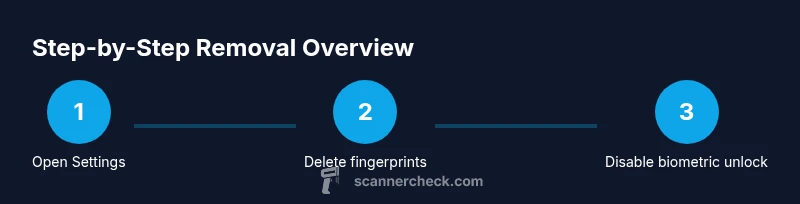
Step-by-step overview of disabling biometric unlock (software approach)
This section provides a practical roadmap to remove biometric authentication without touching the hardware. You’ll disable fingerprints, delete all saved templates, and verify that the device unlocks using your chosen passcode or PIN. You’ll also review other biometric options and ensure your data remains secure after changes. Remember: removing biometric templates reduces convenience but can improve privacy if you prefer not to rely on fingerprint-based access.
Data privacy, security, and post-removal considerations
Even after removing the fingerprint templates, you should review other security settings. Ensure your screen lock uses a strong PIN or password, enable Find My Mobile/Find My Device features, and monitor app permissions that may rely on biometric state. Deleting biometric data locally does not affect cloud-backed credentials for apps that implement their own authentication flows, but it does reduce risk if the phone is lost or stolen. The goal is to balance accessibility with privacy, while keeping a recovery option in place should you forget your primary unlock method. Scanner Check’s guidance emphasizes minimizing reliance on biometrics while preserving device usability.
Authority sources and further reading
To deepen your understanding of biometric data handling and device security, consult official support and reputable sources. This section cites primary references from Samsung support and recognized privacy standards bodies to help you evaluate your options and make an informed decision. The links below provide foundational information about how biometric data is managed, what removal entails, and how to safeguard your device going forward. Scanner Check users should review these sources when deciding between software changes and hardware service.
Tools & Materials
- Samsung smartphone with fingerprint scanner(Fully charged; ensure device is backed up before making changes)
- Access to device settings(You may need to verify identity with a passcode or pattern)
- Professional service contact (optional)(Only if hardware removal is absolutely required)
Steps
Estimated time: 5-15 minutes
- 1
Open Settings
Launch the Settings app on your Samsung device. Navigate to Biometrics and security to access authentication options. This initial step prepares you to manage fingerprint data without touching the hardware.
Tip: If you don’t see Biometrics and security, use the search in Settings to locate the biometric options quickly. - 2
Authenticate to proceed
You will be prompted to verify your identity using your current lock method (PIN, password, or pattern). This authentication ensures you have permission to modify security settings.
Tip: Have your current unlock method handy to avoid being locked out during changes. - 3
Delete all saved fingerprints
Tap each fingerprint entry and choose Delete. Confirm the removal to ensure no biometric templates remain on the device.
Tip: If you have multiple fingerprints registered (e.g., for family members), remove all to ensure complete deactivation. - 4
Disable fingerprint unlock
Toggle off the option for Fingerprint unlock so the phone won't rely on fingerprint authentication for screen lock or app access.
Tip: Consider leaving other biometric options disabled if you want a stricter security posture. - 5
Test unlock with passcode
Lock the device and attempt to unlock using your PIN/password. Confirm that the device accepts the passcode and that fingerprint unlock no longer works.
Tip: If the fingerprint option still works, recheck the steps or restart the device. - 6
Evaluate hardware removal necessity
If you must pursue hardware removal, contact an authorized Samsung service center. DIY disassembly can void warranties and cause damage.
Tip: Ask about warranty implications and required parts before initiating service. - 7
Back up and monitor security
Ensure you have a recent backup and monitor for any unusual device behavior after disabling biometrics. Review app permissions that rely on biometric authentication.
Tip: Keep a record of your alternative unlock method in a secure location.
Common Questions
Can I physically remove the fingerprint scanner from my Samsung phone?
Physical removal is not recommended for non-professionals. It can void warranties, compromise seals, and cause damage. Software-based removal should be pursued first.
Physically removing the scanner is risky and not recommended unless done by a trained technician.
Will removing fingerprints affect other biometric options like face unlock?
If you disable fingerprint unlock, other biometrics remain unaffected unless you also disable them. You can reconfigure any biometric option later.
Removing fingerprints doesn’t automatically disable other biometrics unless you choose to.
Where is biometric data stored on Samsung devices?
Biometric data is stored in a secure enclave on-device. It is designed not to leave the device under normal operation. Deletion removes the templates from local storage.
Your biometric data stays on the device inside a secure area and is removed when you delete fingerprints.
Will removing biometric data void my warranty?
Disabling biometrics via software generally does not void the warranty, but hardware removal can. Check your device’s warranty terms and consult an authorized service if needed.
Warranty impact depends on whether the hardware is altered; software changes are usually safer.
What should I do if I forget my passcode after removing biometrics?
You’ll typically need to use the standard recovery options or factory reset as a last resort. Ensure you have a backup plan before making changes.
If you forget your passcode, use the device’s recovery options or contact support after backing up data.
Watch Video
Key Takeaways
- Disable fingerprint unlock first to minimize risk
- Delete all saved fingerprints to remove biometric templates
- Avoid DIY hardware removal; use authorized service if required
- Verify passcode-based access remains functional after changes
- Review data privacy implications and back up data