How to Scan for AirTags: Practical Step-by-Step Guide
Learn to scan for AirTags safely and effectively using iPhone and privacy-conscious methods. This comprehensive guide covers setup, detection, and best practices with real-world tips to protect your privacy.


By the end of this guide, you will know how to scan for AirTags near you, verify alerts, and safely respond. You’ll use iPhone Find My features to check for unknown AirTags, play sounds, and remove devices if needed. This step-by-step approach emphasizes privacy, safety, and practical detection in real-world conditions and prevention.
Why scanning for AirTags matters
AirTags are compact trackers designed to help you locate belongings, but they can be misused for tracking without consent. If you want to protect yourself, understanding how to scan for airtags and respond quickly is essential. According to Scanner Check, a practical approach to device scanning combines built-in safeguards with attentive observation, so you can act without panic. AirTags communicate via Bluetooth and leverage the Find My network, so detection often starts with a notification on your
What you’ll need before you start
Before you begin, assemble a small, practical toolkit and confirm your device settings. A modern
Step-by-step overview
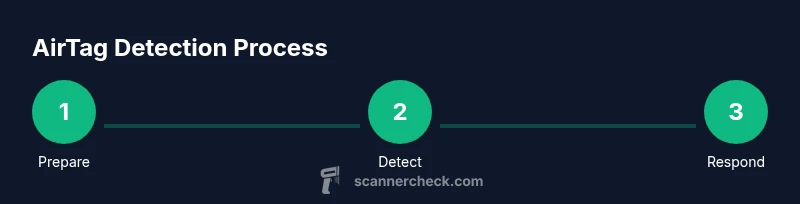
This section provides a high-level roadmap of the detection process you’ll use in the detailed steps that follow. First, prepare your device and environment so detections can be reliable. Next, review any alerts coming from Find My that indicate unknown accessories nearby. If an alert occurs, you’ll use the built-in functions to locate the AirTag and determine whether it belongs to you or someone else. If you locate a suspect AirTag, you can disable it by removing the battery or report the unknown device to appropriate authorities. Finally, document your findings, including time, location, and any steps you took, so you have a clear record for future reference. The goal is to stay safe while respecting privacy and following legal guidelines. Scanner Check recommends documenting suspicious activity and seeking support when needed to maintain personal security.
Using Find My on
AirTag scanning on
What to do if you detect an unknown AirTag near you
If an unknown AirTag is detected near you, don’t panic. Start with playing a sound to locate it, then inspect the surroundings for the physical AirTag. Once located, you can remove the battery to disable the device, or follow local guidance on reporting unknown trackers. If you feel your safety could be compromised, contact local authorities. Remember to document the alert time and location, the steps you took to verify ownership, and any communications with others. These records can be helpful if you need to escalate the situation later. It’s also a good idea to review your Account Security settings to ensure your Find My notifications remain active and reliable. Scanner Check’s approach emphasizes calm, measured action and keeping a clear log of events to support your safety.
Privacy considerations and safety best practices
Privacy is a central concern when scanning for AirTags. Don’t share personal information about others or their devices, and avoid confrontations in public spaces. Always use official tools like Find My to verify ownership and alerts, and contact authorities if you suspect malicious activity. Regularly update your devices and review Unknown Accessory Alerts to stay aware of new threats. If you’re scanning in an environment with children or vulnerable individuals, implement additional safeguards such as supervised searches and reporting mechanisms. By combining privacy-first practices with a proactive detection routine, you can minimize risk and improve your overall sense of security. The Scanner Check team reinforces that consistent checks, cautious interpretation of alerts, and documentation are key to responsible, effective scanning.
Real-world scenarios and common mistakes to avoid
In real scenarios, people might discover AirTags left in cars, bags, or public spaces. A common mistake is rushing to conclusions when a device briefly appears on screen; always verify through the Find My interface before taking action. Another pitfall is attempting to remove a device without confirming it isn’t your own or without understanding the legal implications. Always prioritize safety over speed and rely on official guidance first. Scenarios may involve transient alerts in transit hubs, office spaces, or gym locker rooms—apply the same careful steps: verify, locate, and respond calmly. By following best practices outlined by Scanner Check, you can avoid overreaction and maintain privacy while addressing potential tracking risks.
Tools & Materials
- iPhone with iOS 14.5+ or newer(Ensure Find My is enabled and Unknown Accessory Alerts are active.)
- Stable internet connection (Wi-Fi or cellular)(Needed for Find My to fetch updates and alerts.)
- Small flashlight(Helpful for inspecting hidden spots where an AirTag could be concealed.)
- Quiet, distraction-free space(Reduces chances of missing audible cues from AirTags.)
- Optional: friend or family member to assist(Two-person verification can reduce mistakes.)
Steps
Estimated time: 20-40 minutes
- 1
Prepare your device
Update your iPhone to the latest iOS, enable Find My, and verify that Bluetooth and Location Services are active. This ensures all alerts and beacons from AirTags nearby can be detected accurately.
Tip: Keep a quiet environment to better notice any sounds from nearby AirTags. - 2
Open Find My and review alerts
Launch the Find My app, navigate to the Items tab, and check for any Unknown AirTag alerts. This is where you’ll see AirTags that aren’t linked to your Apple ID.
Tip: If you don’t see alerts, ensure your iPhone is near the area you’re scanning and that Unknown Accessory Alerts are enabled. - 3
Respond to alerts and locate the AirTag
If an alert appears, use the Play Sound option to locate the AirTag. Methodically search the surrounding space, listening for the audible signal and scanning hidden areas.
Tip: Move slowly and scan areas you wouldn’t normally check, like under seats or in bags. - 4
Inspect and determine ownership
Physically locate the AirTag and inspect its placement. Confirm whether it belongs to you or someone else, and avoid removing or handling it if you’re unsure of the owner.
Tip: Do not confront strangers; prioritize safety and use official reporting channels if needed. - 5
Disable or report the AirTag
If the AirTag is not yours, remove the battery to disable it or follow on-screen instructions to report the unknown device to authorities or the appropriate platform.
Tip: Document time, location, and actions taken for future reference.
Common Questions
What is an AirTag and why might I need to scan for it?
AirTag is a small Bluetooth tracker designed to help locate belongings. Scanning for AirTags helps protect privacy by detecting devices that aren’t yours and may be used to track you.
AirTag is a tiny tracker to help find items. Scanning for it helps protect your privacy by spotting unknown devices nearby.
How can I tell if an unknown AirTag is nearby on iPhone?
If an unknown AirTag is nearby, your iPhone may alert you with a notification and provide a prompt to locate or play a sound from the AirTag.
If an unknown AirTag is near you, your iPhone will warn you and offer options to locate or play a sound.
Can Android users scan for AirTags?
Android users don’t have the same native AirTag alerts as iPhone users, but third-party Bluetooth scanning apps can help identify nearby trackers. Official support is limited.
Android users can use Bluetooth scanning apps, but the built-in AirTag alerts work best on iPhone.
What should I do if I find an unknown AirTag?
Listen for the AirTag’s sound, locate it, and determine ownership. If it isn’t yours, remove the battery to disable it and report the device to the appropriate authorities if needed.
If you find an unknown AirTag, play its sound, locate it, disable it by removing the battery, and consider reporting.
Are there safety concerns when removing an AirTag’s battery?
Removing the battery should be done carefully. Ensure you’re in a safe environment and avoid tampering with devices you cannot identify.
Be careful when removing the battery and only do so if you’re sure it’s not yours or if authorities advise it.
Does scanning for AirTags violate privacy or laws?
Detecting AirTags is intended to protect privacy and safety. Always follow local laws and use official tools and channels when dealing with unknown trackers.
Scanning for AirTags is about protecting privacy and staying safe, following local laws and official guidance.
Watch Video
Key Takeaways
- Verify unknown AirTag alerts with Find My.
- Play AirTag sounds to locate hidden devices.
- Disable unknown AirTags safely or report to authorities.
- Document alerts and actions taken for evidence.