What to Do with a LiDAR Scanner
Learn practical steps to use a LiDAR scanner, from planning and capture to processing and delivery. This Scanner Check guide explains workflows, safety tips, and best practices for reliable 3D data.


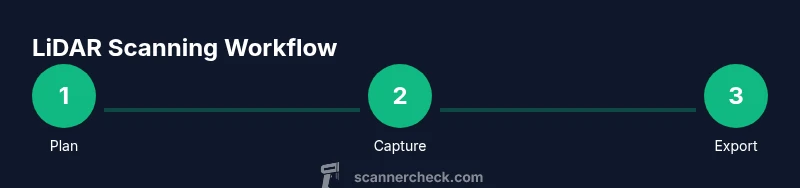
With a LiDAR scanner, you can capture precise 3D space data for mapping, surveying, architecture, and AR projects. To get started, define your objective, ensure your hardware and software are compatible, and plan your scans with appropriate overlap. The key is a clear workflow: prepare, capture, register, and refine your data.
Understanding LiDAR: what it measures and how it works
LiDAR, short for Light Detection and Ranging, uses laser pulses to measure distance to surfaces. The resulting dense 3D point cloud represents the geometry of the scene with metric accuracy. In practice, a LiDAR scanner emits pulses, records return times, and applies coordinates to generate a spatial model. For the question of what to do with lidar scanner, begin by defining your goal—whether you want to map a room, capture an outdoor site, or build a digital twin—and decide on the required resolution and area. Environmental factors such as light, wind, and reflective surfaces affect data quality, so plan accordingly and document your objectives for a repeatable workflow.
This guide from Scanner Check emphasizes practical planning, capture methods, processing, and delivery formats to help you achieve reliable results across projects.
"
Tools & Materials
- LiDAR scanner(Firmware up to date; supports required scan modes (static/mobile) and has adequate memory.)
- Tripod or mounting gear(Stable base; level and secure to prevent drift during long scans.)
- Power supply / extra batteries(Field-ready power; carry backups for sessions over an hour.)
- Calibration targets or markers(For reliable alignment between scans.)
- Laptop/computer with compatible software(At least 16 GB RAM; consider SSD for faster processing.)
- External storage (SSD or HDD)(Maintain two copies of raw data for safety.)
- Reflective tape/markers (optional)(Helpful in challenging scenes; can aid registration.)
Steps
Estimated time: 2-3 hours
- 1
Define objective and scan plan
Start by articulating deliverables, required accuracy, and area to cover. Decide how many positions you will scan from and what overlap you need for reliable registration. This planning minimizes rework later.
Tip: Create a checklist with target accuracy, area boundaries, and reference frames before you begin. - 2
Prepare the site and equipment
Inspect the environment, secure cables, and verify you have a stable power supply and sufficient storage. Check weather and surface reflectivity that could distort scans.
Tip: Run a quick pre-check scan in a small area to validate settings. - 3
Mount and level the scanner
Attach the LiDAR scanner to the tripod or mount, ensure it’s level, and lock it in place. Correct mounting reduces drift and improves registration accuracy.
Tip: If mounting on uneven terrain, use shims or adjustable legs for stability. - 4
Capture data with deliberate overlap
Position the scanner to maximize field of view and ensure 20–50% overlap between scans, depending on distance and texture. Record multiple passes if occlusions are present.
Tip: Avoid rushed sweeps; slower, steady motion improves data quality. - 5
Register scans and refine
Import scans into your software and align overlapping areas using targets or natural features. Clean noise, remove outliers, and crop to the survey area.
Tip: Use ground control points if high absolute accuracy is required. - 6
Export, backup, and document
Export to standard formats (LAS/LAZ, PLY, OBJ), back up to at least two locations, and save metadata (CRS, units, scanner model, date). This ensures reproducibility.
Tip: Maintain a simple workflow log to replicate results in future scans.
Common Questions
What is LiDAR and what can I use it for?
LiDAR is a sensing technology that uses laser light to measure distances and create precise 3D point clouds. It’s widely used for surveying, architecture, construction, and visualization in AR/VR. The choice of scanner and workflow depends on project scale and required accuracy.
LiDAR uses laser pulses to measure distances and build 3D models, useful for surveying, architecture, and AR projects.
What software do I need to process LiDAR data?
Processing typically requires point-cloud software for alignment, cleaning, and export. Popular options include specialized LiDAR tools and general 3D modeling packages. Your choice should support the file formats you export (LAS, LAZ, PLY, OBJ) and offer a clear workflow.
You’ll need software that can import, align, and export point clouds, like LAS/LAZ and common 3D formats.
How long does a typical LiDAR scan take?
Scan time depends on area size, desired density, and equipment. Smaller interior scans can take minutes per position, while large outdoor sites can require hours with multiple passes.
It varies by area and density; interior scans are usually quicker, large outdoor sites take longer.
Is LiDAR safe to use around people?
LiDAR is generally safe when used according to manufacturer guidelines. Avoid direct eye exposure and follow standard safety practices to minimize hazards in occupied spaces.
LiDAR is typically safe when used properly; follow the device’s safety guidelines around people.
Can I use consumer-grade LiDAR for professional work?
Consumer-grade LiDAR can work for basic projects but may lack accuracy, consistency, or long-term reliability required for professional deliverables. Assess your accuracy needs and required data formats before choosing hardware.
For high-accuracy projects, professional-grade scanners are usually preferable.
What are common causes of misalignment in scans?
Common causes include insufficient overlap, reflective surfaces, moving objects, and miscalibrated targets. Address these by planning, using calibration markers, and reviewing scans after capture.
Poor overlap or reflective surfaces often cause misalignment errors.
Watch Video
Key Takeaways
- Plan objectives before you scan
- Ensure adequate overlap for registration
- Verify data quality after each session
- Back up data and document workflow
- Choose appropriate output formats for deliverables