Can You Put a Phone in a Scanner? Safe Practices and Setup
Explore why you should not place a phone inside a scanner, and learn safe, practical ways to integrate mobile scanning with your scanner setup using apps, accessories, and proper workflow.


Generally, you should not insert a phone into a flatbed or feeder scanner. Scanners are built to handle paper and media, not phones, and forcing a device through the platen can scratch glass or damage the mechanism. Use your phone to control or accompany the scan via wireless apps, or scan with the phone itself and import into the computer.
Why attempting to insert a phone into a scanner is risky
In most consumer and prosumer scanners, the glass platen is designed for flat sheets of paper or photographs. A phone is a rounded, hard, electronic object that can be heavier than expected and has protruding ports and cameras. Pressing a phone through a scanner can scratch the glass, misalign the feed, or void warranties. According to Scanner Check, manufacturers generally warn against introducing foreign objects that are not documents or media. Even small misfeeds can trigger safety sensors and halt a scan cycle, leading to jams or system errors. If you’re tempted by a DIY shortcut, take a moment to consider the potential repairs or service fees. A little prevention saves time and money in the long run.
How scanners are designed for documents and media, not devices
Flatbed and feeder scanners optimize optics, sensors, and calibration for flat pages. The platen’s depth, coating, and alignment guides assume standard paper thickness. A phone introduces variations in thickness, curved surfaces, and edge profiles that scanners aren’t meant to handle. If a phone is placed on the glass, it can introduce shadows, glare, and distortion that degrade image quality and require rescanning. In short, the hardware isn’t intended to cradle a mobile device; use it as a controller or capture tool instead of a physical object to be scanned. This aligns with general industry guidance and helps preserve device longevity and scanning accuracy.
Safe alternatives: how to integrate phone scanning with a scanner
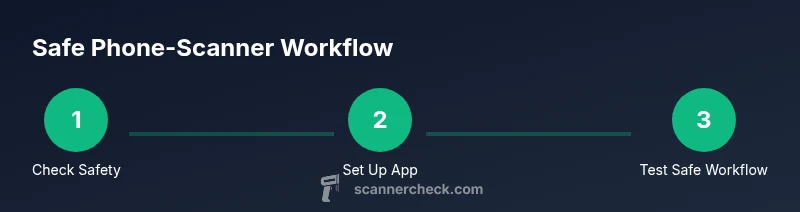
There are several safe patterns for combining phone capture with a traditional scanner:
- Use the scanner’s companion app or cloud workflow to send the scan from the device to your phone after the fact.
- Photograph a document or barcode with your phone, then import the image into your scanning workflow for OCR or archival.
- Use a Bluetooth or Wi‑Fi connection to trigger scans from your phone without placing the device on the glass.
- If you must capture a QR code or screen content, place the phone at a fixed distance and capture a reflection or use the phone’s own camera to generate a digital file that you then feed into the scanner pipeline.
These approaches keep both devices safe while preserving workflow efficiency and image quality.
tipOkToAddMarkdownForBodyBlocksAndExamplesOnlyWhenNeeded
Tools & Materials
- Flatbed scanner(Choose a model with a stable, clean glass platen and a lid that closes.)
- Phone (smartphone)(Use as a companion device; do not insert into the scanner.)
- Phone stand/cradle(Optional to hold the phone at safe distance during demonstrations.)
- Soft microfiber cloth(For cleaning the scanner glass before testing.)
- Non-slip mat(Optional to keep equipment stable on the desk.)
Steps
Estimated time: 40-60 minutes
- 1
Verify safety and consult the manual
Check the user manual for warnings about foreign objects and ensure you are not using any accessory that could compromise the platen or sensors. If the manual explicitly forbids inserting objects like phones, proceed with caution and do not attempt insertion.
Tip: If in doubt, contact the manufacturer’s support line before attempting any physical test. - 2
Gather the required tools
Assemble the scanner, a stand for the phone (optional), a microfiber cloth, and any cables. Having everything ready reduces the temptation to improvise with risky placement.
Tip: Pre-clean the glass to avoid dust particles causing streaks on scans. - 3
Set up a safe testing arrangement
Place the scanner on a stable surface. Position the phone nearby on a stand or at arm’s length, not on the platen. Prepare a sample document for testing to compare image quality when using safe workflows.
Tip: Keep fingers clear of the glass when placing objects nearby. - 4
Initiate a scan using the phone’s control methods
Use the scanner’s app or a connected workflow to trigger a scan from the phone without touching the platen. If the app supports mobile control, select the desired scan mode (color, grayscale, resolution) and start the scan from the phone.
Tip: Ensure the scanner is set to the correct resolution for your document type. - 5
Import and review results on the phone
Once the scan completes, transfer the image to the phone via the app or cloud. Review for alignment, density, and crop. If needed, re-scan using the app to adjust settings instead of attempting physical insertion.
Tip: Use OCR features on the app to verify readability before final storage. - 6
Power down and store equipment
Turn off devices and tidy the workspace. Clean the glass again if needed and store accessories in a safe place.
Tip: Document any settings used for future reference in your workflow notes.
Common Questions
Can I physically insert my phone into a scanner?
No. Placing a phone on the platen can scratch glass, misalign sensors, and void warranties. Stick to safe workflows using apps or external captures.
No—phones should not be inserted into scanners; use wireless control or external captures instead.
What should I do if a phone accidentally touches the glass during a scan?
Stop the scan immediately, remove the phone, and inspect the glass for scratches. If you notice any marks, pause further scans and refer to the warranty or service options.
If the phone touches the glass, stop and inspect for damage before continuing.
Is it possible to scan a phone screen with a flatbed scanner?
You can photograph the phone screen or use the phone as a separate image source, then import that image into the scanner workflow. Scanning the screen directly is not recommended due to possible glare and pixel distortion.
You can photograph the screen and import the image, but don’t try to scan the screen directly.
Are there scanners with phone cradles or docks?
Some enterprise or specialty scanners offer accessories or docks to position phones safely nearby. These are for display or control, not for inserting the phone into the platen.
There are docks or stands, but they are for safe placement, not insertion.
Can I connect multiple devices to the scanner at once?
Most consumer scanners connect to one device at a time for control. Verify your model’s specifications and use a single phone along with a computer or tablet as the controller.
Usually one device controls the scan; check your model’s specs for details.
What should I use for barcode scanning with a phone?
For barcode scanning, use a dedicated barcode app on the phone and import results into the scanner workflow if needed. This avoids placing the phone near the platen and maintains reliability.
Use a barcode app on the phone and bring results into your workflow instead of trying to scan with the phone itself.
Watch Video
Key Takeaways
- Avoid inserting phones into scanners; it risks damage.
- Use apps and external captures to integrate phone workflows.
- Safe setups preserve device warranties and image quality.
- Follow manufacturer guidelines and test with non-critical documents.