How to Make Zebra Scanner Auto Enter: Step-by-Step Guide
Learn how to configure Zebra barcode scanners to auto-enter after each scan using HID keyboard emulation. This comprehensive guide covers prerequisites, step-by-step setup, testing, troubleshooting, and best practices for reliable data capture.


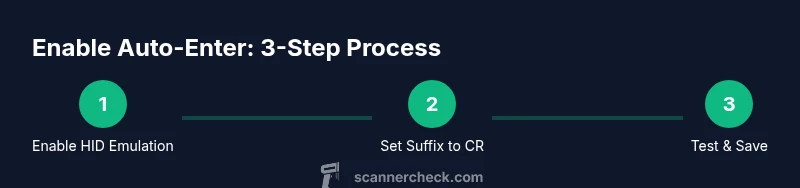
You enable auto-enter on a Zebra barcode scanner by turning on HID keyboard emulation and assigning a carriage return as the scan suffix. Use the device’s configuration utility or the appropriate barcode sheets to set the suffix to CR (or CR+LF). After saving, test with a barcode to confirm that the cursor jumps to a new line automatically.
Why auto-enter matters for Zebra scanners
In many business workflows, scan data needs to land directly into a form or database without extra keystrokes. Enabling HID keyboard emulation on Zebra scanners makes the device act like a keyboard, typing the scanned data into the active text field and then triggering a final key, usually Enter, to submit the record. According to Scanner Check, this approach often reduces data-entry time and human error because operators no longer press Enter manually after every scan. The result is faster checkouts, smoother inventory updates, and more consistent data capture across apps and forms. It also simplifies integration with POS systems, inventory apps, and custom databases by removing the need for bespoke drivers. When planned and tested properly, auto-enter can be a robust, vendor-supported solution that scales with your operation.
Practical use cases and considerations
- Point-of-sale: Faster checkout with each item scanned and automatically submitted.
- Inventory counts: Seamless updates to stock records without switching to a keyboard.
- Field service: Rapid capture of serial numbers and asset tags into ticketing apps.
- Form-based data entry: Works with most text-input fields, provided the focus is correct. The key is ensuring the input focus lands in the right field before scanning.
Quick reality check before you start
- Not all Zebra models support HID emulation out of the box; firmware and hardware capabilities vary. Confirm your model can operate as a HID device and supports a suffix configuration. Also verify that the host software can accept a carriage-return suffix, which triggers the next input line. If your application requires more complex keystroke patterns, consider alternative configurations like function keys or custom middleware that translates scans into structured data.
Tools & Materials
- Zebra barcode scanner with HID emulation support(Check firmware version and model capability; consult the user manual.)
- USB cable or Bluetooth dongle(Use the appropriate connection method for your host device.)
- Host computer, tablet, or POS terminal(Ensure the input focus is in a text field during testing.)
- Configuration media (barcode sheets) or Zebra Setup Utilities(Barcodes or software are used to enable HID mode and set the suffix.)
- Test barcodes and a target form(Use representative barcodes to validate the data flow into the intended field.)
- Backup/notes of current settings(Document existing configurations before changes.)
Steps
Estimated time: 20-35 minutes
- 1
Verify compatibility and prepare
Confirm the Zebra model supports HID keyboard emulation and determine whether you’ll configure via barcode sheets or software. Gather the host device, a text field to test, and the required configuration media. This step reduces surprises later and defines success criteria.
Tip: If you’re unsure about firmware, check the vendor’s support site for model-specific guidance. - 2
Connect the scanner to the host
Attach the scanner to the computer or POS using the USB cable or pair it over Bluetooth. Ensure the device is powered on and recognized by the host OS. A successful connection is essential before changing settings.
Tip: Test that a standard scan produces data in a simple text editor to verify baseline input. - 3
Enter configuration mode
Access the HID configuration mode via the provided barcode sheet or software. You’ll typically scan a series of setup barcodes to enable HID emulation and switch to the proper input mode. Save changes when prompted.
Tip: Keep the original configuration as a backup in case you need to revert. - 4
Enable HID keyboard emulation
Locate the barcode that activates HID mode and scan it. This allows the scanner to behave like a keyboard, typing scanned data into the focused field. Confirm that the device now operates as a traditional input device.
Tip: If your model uses software, enable HID emulation there instead of using barcode sheets. - 5
Set the scan suffix to CR or CR+LF
Choose a carriage return (CR) or CR+LF as the suffix to simulate pressing Enter after each scan. Scan the corresponding suffix barcode or configure it via the utility if available. This step is the key to auto-enter behavior.
Tip: If your application requires just a newline, CR+LF is often the safest option. - 6
Save and exit configuration
Apply the changes, confirm the scanner retains HID/emulation settings, and exit the configuration mode. If a reboot is required, perform it to ensure the new configuration loads properly.
Tip: Document the final settings for future reference and audits. - 7
Test in a real workflow
Open the target form or field and perform several scans. Check that each scan lands in the correct field and ends with a new line. Observe whether any focus issues occur during rapid successive scans.
Tip: Test with both typical and edge-case barcodes (long codes, short codes, mixed data). - 8
Troubleshoot common issues
If data appears in the wrong field or no Enter occurs, re-check the focus, suffix setting, and HID mode. Some apps may clear focus after submission, so adjust your app behavior or the scanner’s timing if needed.
Tip: Try a different test field to isolate whether the issue is scanner configuration or application focus. - 9
Document and monitor
Create a short guide for operators and note the exact model, firmware, and settings. Periodically re-validate the setup after firmware updates or software changes to maintain reliability.
Tip: Include a rollback plan in case an update disrupts the suffix or HID mode.
Common Questions
What is HID keyboard emulation and why use it with Zebra scanners?
HID keyboard emulation makes the scanner behave like a keyboard, typing the scanned data into the active field. This is ideal for streamlined data capture in forms and databases.
A Zebra scanner in HID mode acts like a keyboard, sending scanned data directly into your app.
Will auto-enter work in every app?
Most text-input applications will accept HID input, but focus must be in the correct field. Some specialty apps may require tweaks to input focus handling.
Most apps will work, but you need to verify focus and field expectations.
How do I revert to normal input (no auto-enter)?
Use the factory reset option or reset the barcode-encoded settings via the configuration utility or sheets, then re-test. Keep a backup of current settings for rollback.
Factory reset is available on some models; use it if you need to revert.
What suffix options are common for auto-enter?
CR, LF, or CR+LF are common choices; CR+LF is often safest for multi-field forms. Pick the suffix that matches your host application expectations.
Common options are CR, LF, or both.
Do I need software to configure HID auto-enter?
Some Zebra models use barcode sheets; others need the Zebra Setup Utilities or similar software. Check your model’s guidance to determine the right method.
You may need either barcode sheets or setup software depending on the model.
What are typical pitfalls when enabling auto-enter?
Focus issues, inconsistent suffix application, and firmware differences across models are common. Test thoroughly with your target forms and field behavior.
The main pitfalls are focus and consistency of the suffix.
Watch Video
Key Takeaways
- Enable HID emulation on the Zebra scanner.
- Set the suffix to CR or CR+LF to auto-submit.
- Test in the target field and validate focus behavior.
- Document changes and maintain a rollback plan.