How to Remove a Barcode Scanner: A Practical Guide
A comprehensive, step-by-step guide to safely removing wired or wireless barcode scanners from PCs, POS systems, and networks with driver cleanup, reconfiguration, and disposal tips.


Removing a barcode scanner involves identifying whether it is wired or wireless, safely disconnecting or unpairing it, uninstalling drivers or software, updating inventory, and disposing of or repurposing components as needed. This guide provides the exact steps for wired USB scanners and Bluetooth/BLE devices, with safety checks and post-removal follow-ups.
What counts as a barcode scanner and when to remove it
If you’re asking how to remove barcode scanner hardware from a workstation, POS terminal, or warehouse PC, the basics are the same: a barcode scanner is any device that reads barcodes and sends data to a computer or network. There are wired scanners that connect via USB or RS-232, and wireless scanners that pair over Bluetooth, Wi‑Fi, or other radio links. Removal becomes necessary when the device is decommissioned, replaced with a newer model, or integrated into a different workflow. The Scanner Check team notes that proper removal reduces security risk, prevents orphaned drivers, and keeps inventory accurate. Before you begin, map out where the scanner was used (e.g., POS, inventory app, ERP module) and confirm who has responsibility for device accounting. This helps ensure you don’t leave stray entries in driver caches, IT asset management systems, or software integrations.
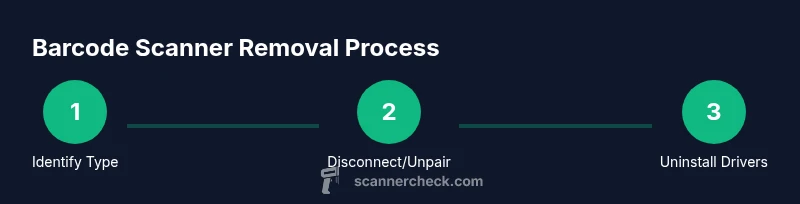
The precise steps differ by type, but the overarching process is: identify, disconnect or unpair, remove software traces, verify the device is no longer recognized, and update your records. If the scanner has RFID or multi-scan capabilities, note any shared cables or mounting hardware that will affect future setups. In many organizations, this task is part of IT asset disposition (ITAD) or hardware lifecycle management, and following a documented procedure reduces the risk of data leakage or accidental device reactivation. By understanding the scope and context, you can tailor the removal to your environment so it’s clean and auditable.
wordCount: 0
Tools & Materials
- Antistatic wrist strap(Attach to a grounded surface; prevents ESD damage to internal components.)
- Screwdriver set (Phillips #1 and #2)(Use the appropriate bit for device panels and mounting screws.)
- Device manager access or admin credentials(Needed to uninstall drivers and remove device entries from the OS.)
- Documentation of the system inventory(Helps verify removal in asset registers and software inventories.)
- Labeling materials (pen and stickers)(Mark removed devices and store identifiers for future reference.)
- Optional: Bluetooth adapter or USB-to-serial adapters(Useful if you’re re-purposing ports or migrating to a new scanner.)
Steps
Estimated time: 60-90 minutes
- 1
Power down and disconnect power sources
Shut down the computer or POS terminal and unplug any power adapters. If the scanner is networked, disconnect it from the network to avoid phantom scans or data transmission during removal.
Tip: If the device is on a shared power strip, switch off the strip to ensure no residual power remains. - 2
Identify the scanner type
Check if the scanner is wired (USB/RS-232) or wireless (Bluetooth/Wi‑Fi). Look for model labels, sysinfo in the OS, and any pairing indicators on the scanner. This determines whether you’ll unmount drivers or remove a pair from the OS.
Tip: Take a photo of the back panel or label for your records before disconnecting anything. - 3
Disconnect wired scanners safely
Unplug the scanner’s USB or RS-232 connection. If it’s mounted, note its mounting position and store screws for future reinstallation. Verify that no software is actively using the port.
Tip: Avoid yanking the cable; gently pull from the connector to reduce risk of port damage. - 4
Uninstall drivers and remove device entries
Open Device Manager (Windows) or System Information (macOS) and locate the scanner entry. Right-click to uninstall or remove the device, then reboot if prompted. This cleans up residual drivers that could interfere with future devices.
Tip: Document the exact driver name you remove for IT records. - 5
Unpair wireless scanners and forget networks
If the scanner uses Bluetooth, remove the pairing from the computer’s Bluetooth settings. If it uses Wi‑Fi, forget the network or disable roaming features tied to the device.
Tip: If you manage devices via an MDM/MDM-like console, remove the scanner there as well. - 6
Verify the scanner is no longer detected
Reconnect power and boot the system to confirm the scanner no longer appears in Device Manager or pairing lists. Run a quick test with a barcode sample to ensure no ghost input remains.
Tip: Keep a test sheet handy with common barcodes you use regularly for fast verification. - 7
Update inventory and configuration
Annotate the asset record to indicate removal. Remove or re-map any software profiles, shortcuts, or inventory integrations referencing the scanner. If needed, adjust keyboard mapping in the OS to avoid unused keystrokes.
Tip: Update the asset tag and disposition status in your ITAM system. - 8
Disposal, reuse, or repurposing
Decide whether to dispose of the scanner in accordance with local e-waste laws, or repurpose it for a different workflow. If reselling or donating, wipe any stored data or credentials.
Tip: Check manufacturer guidelines for proper disposal and data erasure steps.
Common Questions
How can I tell if my barcode scanner is wired or wireless?
Check the cable connections and the scanner’s indicators. Wired scanners use a physical USB/RS-232 cable; wireless models pair via Bluetooth or Wi‑Fi and may show pairing LEDs. If you’re unsure, review the model label or manufacturer documentation.
Look for a physical cable versus a wireless pairing indicator on the device. If in doubt, check the label or manual.
Do I need admin rights to remove a barcode scanner?
Yes. You typically need administrator privileges to uninstall drivers, remove device entries, and modify inventory records. If you don’t have rights, contact IT.
Administrator access is usually required to remove drivers and adjust system settings.
What if the scanner reappears as a keyboard input after removal?
That usually means the scanner is configured as a keyboard wedge and still connected or drivers persist. Ensure the device is physically disconnected, then remove related input device drivers and mappings.
If it still types, verify connections and drivers are fully removed and mappings updated.
Is it safe to discard a barcode scanner?
Dispose according to local e-waste guidelines. If the device contains any memory or credentials, perform a factory reset or data wipe if supported.
Dispose per local rules and wipe data if possible.
What should I do with a scanner that's built into a POS terminal?
Coordinate with the vendor or IT team. Some integrations require reconfiguration or firmware updates; removal might involve disabling the scanner in POS software rather than hardware.
Work with IT or the vendor to safely disable it in the software configuration.
How long does the removal process typically take?
Most straightforward wired or wireless removals take about one hour, depending on device complexity and IT asset processes.
Usually about an hour, longer if you’re reorganizing software mappings.
Watch Video
Key Takeaways
- Identify scanner type before removing to choose the right steps.
- Uninstall drivers and forget Bluetooth/Wi‑Fi connections to prevent reappearance.
- Document everything for IT asset management and future audits.
- Dispose or repurpose hardware responsibly and legally.
- Test post-removal to ensure no residual input remains.