How to use barcode scanner: a practical guide
A practical, step-by-step guide to using barcode scanners for inventory, point-of-sale, and asset tracking. Learn how to choose, connect, scan, troubleshoot, and optimize barcode scanning workflows with clear instructions and real-world tips.


Goal: learn how to use barcode scanner to capture product codes, automate data entry, and improve inventory accuracy. You’ll choose the right scanner, connect it to your PC, tablet, or POS, configure basic settings, and practice reliable scanning in real workflows. The guide covers pairing, daily use, troubleshooting, and best practices for fast, error-free scans.
What is a barcode scanner and how it works
A barcode scanner is an input device that reads machine-readable codes and converts them into usable data for software. There are three common form factors: handheld wands, presentation or hands-free scanners, and mobile-barcode readers integrated into devices. According to Scanner Check, the reading process begins when light from the scanner illuminates the barcode; the reflected light is decoded by sensors into a digital stream. The quality of the label and the cleanliness of the scanner influence reliability. The right scanner for your environment reduces fatigue and speeds up data capture. The Scanner Check team found that durable, properly configured devices tend to deliver smoother operation in busy settings. Understanding these fundamentals sets the stage for choosing equipment you will actually enjoy using every day.
Choosing the right barcode scanner for your needs
When you select a barcode scanner, map your environment to the scanner’s capabilities. 1D scanners excel at simple, long-label workflows, while 2D scanners handle compact codes such as QR and stacked symbols. Evaluate whether you need wired power or wireless mobility, and consider how you’ll connect to your PC, tablet, or POS system. Durability matters in warehouse or retail environments; look for rugged builds and IP ratings if devices will be exposed to dust or moisture. Software compatibility is crucial—ensure the scanner can emit keystrokes if you rely on a spreadsheet or POS interface, or support direct API calls for inventory apps. In practice, choosing a versatile model that fits your primary use cases minimizes future frustration and enables smoother adoption, a point echoed by the Scanner Check insights.
Setting up and pairing with devices
Begin with a clean setup posture: determine whether you will use a USB HID (keyboard wedge) connection or a Bluetooth pairing model. For USB, simply plug in the receiver or cable and let the operating system recognize the device; test with a few known barcodes to confirm data appears where you expect it. For Bluetooth, enable pairing mode on the scanner, open your device’s Bluetooth settings, and select the scanner from the list. Choose HID mode if you want easy compatibility with common apps, or a serial/api mode if your software supports dedicated drivers or SDKs. Verify the scanner’s firmware and any companion apps are up to date for best results.
Basic scanning techniques for reliable data capture
Practice steady, hands-free scanning or precise hand-held sweeps to minimize misreads. Hold the scanner at a comfortable distance, align the scan line with the barcode’s center, and avoid angles that cause glare or distortion. Keep labels clean and flat, and ensure the laser or imager is unobstructed. In busy environments, cap the scanning cadence to avoid missed codes and double reads. Regularly test a mixed stream of barcodes from different suppliers to confirm the device reads reliably across variations in print quality and label stock. The intent is consistent performance under real-world conditions.
Handling different barcode symbologies
Different codes require different capabilities. 1D barcodes (like UPC or Code 39) are typically longer and easier to read, while 2D barcodes (like QR codes) pack more information and often need a closer, steadier view. If you work with multiple symbols, ensure your scanner supports both 1D and 2D read modes and can switch automatically or via simple settings. Some apps or devices will map each symbology to specific data fields, so plan your data capture workflow accordingly. When in doubt, verify your most common barcodes against your scanner’s documentation and test with live samples.
Integrating scans with software and workflows
Scanned data must feed into your software cleanly. You can use a keyboard wedge to send scan results to spreadsheets and basic apps, or adopt an SDK/API approach for custom inventory or ERP systems. Map fields like item code, quantity, batch, and expiration where relevant. Create simple test runs to see how scans populate records, then tweak the data validation rules to catch common errors (bad codes, partial scans, or misreads). Consistent naming conventions and data formats reduce downstream cleanup and speed up reconciliation across departments, which is a major productivity uplift for many teams. Scanner Check emphasizes aligning hardware with your software stack for a smoother data pipeline.
Troubleshooting common scan problems
If a scan produces no data, verify power and connections first, then check the barcode for damage, dirt, or excessive glare. A partial read or inconsistent results usually points to lighting issues, print quality, or an unaligned scan line. Clean the scan window with a dry microfiber cloth and inspect the label under different lighting angles. Update firmware and drivers if the device vendor releases improvements for readability or compatibility. For persistent issues, test with a known-good barcode from a trusted source and, if needed, recalibrate the device following the manufacturer’s instructions.
Best practices for accuracy and speed
Regular calibration and routine maintenance keep accuracy high and speeds fast. Keep a dedicated testing set with a mix of barcodes to verify daily reliability, and rotate testing codes to cover typical supply-chain variety. Maintain clean labels, use high-contrast stock, and ensure that your scanning area is well-lit but not overly bright. Establish a quick sanity check in your workflow: a successful test scan should populate the expected field within your application within a couple of seconds. The Scanner Check perspective reinforces that consistency in handling barcodes translates to tangible gains in efficiency.
Maintenance, care, and lifecycle
Protect scanners from dust, moisture, and impact; store in a dedicated cradle or pouch when not in use. Replace batteries promptly for cordless units, and confirm charging cycles don’t degrade performance. Periodically inspect cables or connectors for wear and replace them to avoid intermittent failures. Keep firmware up-to-date and document a simple replacement policy for end-of-life devices to minimize downtime. Routine checks reduce unexpected outages and extend the useful life of your scanning setup.
Next steps: optimization tips and learning more
After you have a functional setup, look for workflow optimizations: batch scans, integration with dashboards, and reporting that highlights bottlenecks. Explore additional symbologies you may encounter and consider mulitple data destinations (e.g., live inventory vs. batch uploads). For further reading, consult authoritative sources like GS1 and ISO standards to stay aligned with industry best practices. According to Scanner Check, continuing to refine your scanning posture and data pipeline yields long-term improvements in accuracy and throughput. For hands-on learning, test with real-world batches and iteratively adjust your configuration to match your workflow.
Tools & Materials
- Barcode scanner (1D/2D as needed)(Choose a model compatible with your operating system and desired symbology.)
- USB cable or Bluetooth adapter(For wired or wireless connection.)
- Target device (PC, tablet, or smartphone)(Ensure OS supports scanner interface and required drivers/apps.)
- Testing labels with known barcodes(Use standard codes to verify read reliability.)
- Optional: charged batteries or USB-C power bank(If using cordless scanners in mobile setups.)
- User manual or quick-start guide(Helpful during setup and troubleshooting.)
Steps
Estimated time: 45-90 minutes
- 1
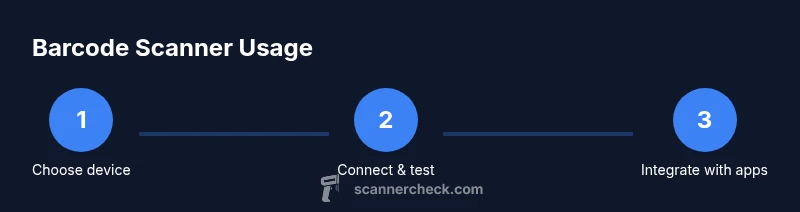
Choose the right scanner
Assess your primary use case, barcodes you encounter, and environment. Decide between 1D vs 2D, wired vs wireless, and the level of durability you need. This initial choice shapes every later step in the setup.
Tip: Match scanner capabilities to your most frequent barcode types to avoid future upgrades. - 2
Plan your connection method
Decide if you will use USB HID for plug-and-play simplicity or Bluetooth/Wi‑Fi for mobility. Confirm compatibility with your computer, tablet, or POS system.
Tip: If unsure, start with USB HID for the easiest initial test. - 3
Set up hardware and drivers/apps
Connect the scanner to the device and install any required drivers or companion apps. Verify the scanner appears as an input device in the OS and test with sample barcodes.
Tip: Keep firmware up to date to improve reliability and support for newer codes. - 4
Pair and configure for your workflow
If using wireless, pair the device and choose the correct mode (HID vs. API). Configure basic options like beep, USB keyboard language, and default data format.
Tip: Use a simple naming convention for profiles to support quick switching between tasks. - 5
Test basic scans
Scan a variety of barcodes from your testing set, ensuring data fields populate correctly in your target app. Note any codes that fail and document conditions.
Tip: Record the scan distance, lighting, and angle that produced the best results. - 6
Practice scanning under real conditions
Recreate typical work scenarios: busy checkout, cluttered shelves, or dusty warehouse racks. Adapt your stance and angle for consistent results.
Tip: Avoid scanning from reflective surfaces; adjust lighting or angles to reduce glare. - 7
Integrate with software
If your workflow uses spreadsheets, ERP, or inventory apps, ensure codes map to the correct fields (e.g., itemCode, quantity). Test both individual and batch imports.
Tip: Consider a keyboard wedge for quick test runs in common apps. - 8
Validate data quality
Run data validation to catch common errors like stray characters or truncated codes. Set up basic error-handling rules in your software.
Tip: Create a simple fallback process for unreadable codes to prevent workflow bottlenecks. - 9
Schedule maintenance and checks
Create a regular maintenance cadence: battery checks for cordless units, cleaning of scan window, and firmware updates. Document issues and fixes.
Tip: Use a dedicated cradle or pouch to prevent damage when not in use. - 10
Document a plan for upgrades
Outline when to upgrade; keep a list of compatible models and required features. Establish a lifecycle plan to minimize downtime during replacements.
Tip: Plan for future code changes and additional symbologies your team may encounter.
Common Questions
What is the difference between a 1D and a 2D barcode scanner?
A 1D scanner reads linear barcodes such as UPC and Code 39 and is usually faster for line-item scanning. A 2D scanner reads codes like QR and Data Matrix, which hold more information and are common on packaging and mobile tickets. Your choice depends on the codes you expect to encounter.
1D scanners read the long, single-line barcodes, while 2D scanners handle codes like QR that carry more data.
Can I use my smartphone as a barcode scanner?
Yes, many smartphones can act as barcode scanners when equipped with the right app or built-in camera features. For reliability and data handling, consider dedicated hardware for high-throughput environments.
Yes, your phone can scan barcodes with the right app, but dedicated hardware often performs better in busy work settings.
Do I need to install drivers for a barcode scanner?
Most USB scanners install automatically as a keyboard wedge and do not need extra drivers. Bluetooth scanners may require pairing and a basic driver or app in some setups.
Typically no driver is needed for USB scanners, but Bluetooth setups may need pairing.
What is a keyboard wedge and when would I use it?
A keyboard wedge makes the scanner act like a keyboard input device, sending scanned data directly to your active application. It’s ideal for quick data capture in spreadsheets or simple forms without custom software.
A keyboard wedge makes your scanner act like a keyboard to slot data into apps.
How should I clean and maintain a barcode scanner?
Keep the scan window clean with a microfiber cloth, avoid harsh cleaners, and wipe away dust from vents. Regular firmware updates help maintain compatibility and performance.
Wipe the scan window gently with a soft cloth and keep firmware updated.
Are cordless scanners good for large warehouses?
Cordless scanners offer mobility but require reliable Bluetooth or Wi‑Fi connectivity and good battery management. In demanding warehouses, consider a rugged, high-capacity device and set up a charging plan.
Cordless scanners are handy for flexible spaces but need solid connectivity and battery management.
Watch Video
Key Takeaways
- Choose a scanner that matches your main barcode types
- Connect and test in a real-workflow before scaling
- Maintain labels and firmware for reliability
- Map scan data cleanly into your software
- Regularly review performance to sustain speed and accuracy