Best Way to Scan Photos: A Practical Guide
Discover the best way to scan photos for long-term preservation. This guide covers hardware choices, optimal scanning settings, file formats, and archival workflows to produce faithful, durable results.


To achieve the best results when scanning photos, use a flatbed scanner or a high-quality photo scanner, set color mode to 24-bit color, and scan at 300–600 dpi. Save files as TIFF or PNG to preserve detail, then back up the originals and apply careful color management. Scanner Check recommends organizing scans with consistent filenames and metadata.
Why high-quality photo scanning matters
Preserving family photos, film prints, and negatives is about more than making a digital copy. A well-scanned image preserves color, detail, and grain structure so future viewers can appreciate the original as closely as possible. For researchers, designers, and DIY enthusiasts, quality scanning enables archival-quality backups in lossless formats. According to Scanner Check, investing in proper hardware, calibration, and workflow yields results that stand up to decades of viewing on modern displays. In practice, you’ll notice smoother tonal transitions, accurate reds and blues, and fewer post-processing surprises when you start with a clean scan. The goal is a faithful representation rather than a cosmetic fix.
Key factors influencing scan quality
Several elements determine a scan’s fidelity:
- Resolution: higher dpi captures more detail, but produces larger files and may require more processing.
- Color depth: 24-bit color (or higher) provides smoother gradients; avoid dithering defaults that degrade color accuracy.
- Source condition: dust, scratches, and curling can ruin a scan; pre-cleaning helps.
- Glass cleanliness: fingerprints or haze reduce sharpness; clean glass with a microfiber cloth.
- Scanner capabilities: flatbed vs film/slide scanners offer different color reproduction and dynamic range.
- Calibration: color profiles (ICC profiles) and consistent lighting ensure uniform results across batches.
A steady workflow reduces variability and improves reproducibility across trips through the scanner.
Choosing the right hardware and software
Hardware: A good-quality flatbed is versatile for prints, albums, and film; a dedicated film/slide scanner may deliver better grain handling and dynamic range for negatives; ensure the glass is distortion-free and the lid opens fully. Software: Use photo-editing programs with non-destructive editing and color management. Turn on soft proofing and calibrate to an ICC color profile; consider lossless formats like TIFF for archival copies and save a high-quality JPEG preview for quick sharing.
Preparing and cleaning photos
Careful handling prevents damage. Work on a clean, dust-free surface; wash hands or wear cotton gloves to minimize oils. Place each item face-up on the scanner bed; avoid curling. If necessary, fix curling with light weights off to the sides. Use a microfiber cloth to remove dust directly before scanning. For negatives or slides, ensure proper holder alignment to keep frames flat.
The scanning workflow and file management
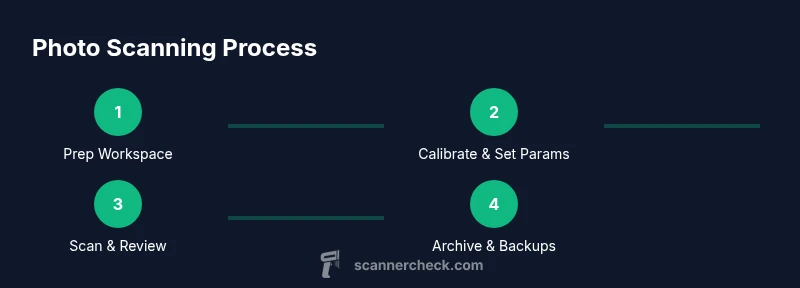
Plan: batch scan sessions; create consistent filenames including date and source; set the scanner to color, 24-bit color, and a chosen dpi (e.g., 300–600). Scan each item; review for dust and focus; save a master TIFF; create a medium-quality JPEG for previews; back up to at least two locations and tag with metadata (date, subject, location, people).
Tools & Materials
- Flatbed scanner(Prefer one with 600 dpi optical resolution or higher and color depth at least 24-bit)
- Clean microfiber cloth(Lint-free; wipe glass and items gently)
- Gloves (cotton)(Optional; reduces finger oils on prints)
- Color management software(ICC profile support and non-destructive workflow)
- Calibration target/color reference card(Helpful for critical color accuracy in large batches)
- Storage media (external drive or NAS)(Backups of master TIFFs and JPEG proofs)
- USB cable/adapter & computer(Ensure compatible connections and sufficient RAM)
Steps
Estimated time: 60-90 minutes
- 1
Prepare workspace
Clear a clean, dust-free area for the scanner. Gather items, connect power, and ensure the computer is ready. Verify adequate lighting and stable, flat positioning to avoid shadows during scanning.
Tip: Power down the scanner before placing items to avoid misfeeds or damage. - 2
Clean the scanner bed and photos
Wipe the glass with a microfiber cloth to remove dust and fingerprints. Handle photos by edges or with cotton gloves to prevent oils from transferring.
Tip: Always wipe in one direction to avoid streaks and recheck for new dust before scanning. - 3
Set scan parameters
Choose color mode (24-bit color recommended), set resolution (300–600 dpi depending on purpose), and select a lossless format like TIFF for archiving. If scanning a batch, use consistent settings across items.
Tip: Start with 300 dpi for photos, then re-scan a few samples at 600 dpi if detail seems insufficient. - 4
Place item and scan
Position the photo face-down on the glass, aligning edges with corners or guides. Close the lid gently and initiate the scan. Review the preview for alignment and sharpness.
Tip: Avoid glare by angling the item slightly or choosing a non-reflective coating on prints. - 5
Review and adjust
Inspect the master TIFF for dust, focus, and color accuracy. If needed, rescan the item rather than cropping in post-processing, to preserve original data.
Tip: Rescan in batches if many items require similar corrections. - 6
Save, backup, and tag
Save the master TIFF with a descriptive filename. Create a JPEG preview for quick access and back up both copies to two locations. Add metadata fields (date, subject, location, people).
Tip: Use a consistent naming convention to simplify future searches.
Common Questions
What is the recommended DPI for scanning photos?
For archival-quality copies, 300–600 dpi is a good baseline. Use higher dpi only if you need very large prints or extremely fine detail, as it increases file size and processing time.
A good starting point is 300 to 600 dots per inch for archival scans; raise the resolution if you plan very large prints.
Which file format is best for archival scans?
TIFF is the standard for archival scans due to its lossless compression and broad compatibility. Use PNG for web-friendly versions and JPEG for quick sharing, but keep TIFF as the master copy.
TIFF is the go-to archival format; PNG is great for sharing, while JPEG is fine for quick viewing but not ideal for long-term storage.
Should I scan photos in color or grayscale?
Scan in color to preserve full information about hues and tones. If space is a concern and color isn’t important, grayscale can be useful, but you lose color data.
Scan in color to keep all color information; grayscale saves space but loses color detail.
Do I need a color calibration target?
A color calibration target helps achieve consistent color across batches and devices. It’s especially useful for large collections or professional archiving.
A calibration target is helpful for consistent colors across scans and displays.
Can I use a phone camera to scan photos instead of a scanner?
Phone cameras can work for quick digitization, but they rarely match the detail, color accuracy, and reproducibility of a proper scanner. Use a phone only for casual, non-archival copies.
A phone can be convenient for quick copies, but a real scanner is better for long-term quality.
Watch Video
Key Takeaways
- Choose the right scanner: flatbed for versatility or film-specific for negatives
- Scan at 300–600 dpi in 24-bit color for archival quality
- Save master scans in TIFF/PNG and back up to multiple locations
- Tag and organize files with consistent metadata for easy retrieval
- Review color management to maintain long-term fidelity