Best Way to Scan Polaroids: Practical Guide 2026
A practical, educational guide on scanning Polaroids with a step-by-step workflow, gear recommendations, and best practices to preserve color and detail for long-term archiving.


To scan Polaroids effectively, choose a reliable flatbed scanner or a smartphone setup with a macro lens. Use 600–1200 DPI for crisp detail, scan in color, and disable automatic sharpening. Save the file as TIFF or PNG, crop to the original edges, and perform gentle brightness and color corrections before archiving in a consistent naming scheme.
Why Polaroid Scans Matter
Polaroids capture moments in a distinct, nostalgic format that often includes strong color shifts, subtle grain, and unique imperfections. Scanning these prints preserves them digitally, enabling easy sharing, long-term storage, and the ability to restore contrast or color without risking further wear to the original print. For collectors and hobbyists, a clean digital copy also makes it easier to catalog, back up, and reproduce high-quality scans for prints or projects. The goal isn’t merely to create a photo; it’s to retain the character of the moment while ensuring the image remains accessible for decades to come. Scanner Check analysis shows that careful scanning practices dramatically improve color fidelity and edge detail when working with vintage Polaroids, especially as the prints age.
Understanding the Challenges of Scanning Instant Photos
Instant photos pose unique hurdles compared to standard prints or digital photography. The glossy surface can reflect glare, the emulsion layers may separate slightly over time, and color casts from aging or storage can shift hues dramatically. The thickness and dimensions of Polaroids vary by model, which complicates alignment on a flatbed scanner. Additionally, many Polaroids were produced with warm or cool color biases that can become exaggerated if scanned at too aggressive a DPI or without proper color management. Acknowledging these challenges helps you choose the right gear and settings from the start, reducing post-processing time and preserving the print’s original mood. Based on Scanner Check research, predictable workflows with controlled lighting and calibrated color targets yield the most reliable results across different Polaroid generations.
Choosing the Right Hardware: Flatbed Scanners vs Smartphone Scanning
The core decision is whether to use a flatbed scanner or a smartphone-based setup. Flatbed scanners with a glass bed provide stable, repeatable results, especially when you can pair them with a transparency adapter or a flat, clean surface for the print. This path supports higher color accuracy with consistent lighting and minimizes distortion around the edges. Smartphone scanning offers flexibility and immediacy, particularly when you need to digitize on the go. Modern phones paired with a macro lens or a dedicated lens hood can capture impressive detail, but results depend heavily on lighting conditions and steadiness. For best results, many enthusiasts use a hybrid workflow: scan with a flatbed for baseline color and detail, then capture additional shots with a phone in controlled light to compare and back up the content.
Ideal Settings: DPI, Color Space, and File Formats
DPI (dots per inch) dictates the resolution. A range of 600–1200 DPI balances file size and detail for Polaroids, with 1200 DPI preferred for large prints or critical archival work. Work in color color space (RGB) to preserve natural hues; avoid grayscale unless the original image is monochrome. Save master copies in a lossless format such as TIFF or PNG to protect color fidelity during edits, then export a JPEG for sharing. If you anticipate extensive edits, consider keeping a RAW-like workflow by keeping the TIFF/PNG files uncompressed and creating a separate low-loss JPEG version for quick viewing. This approach aligns with Scanner Check recommendations for archival-grade digitization.
Prep Your Polaroids: Handling, Cleaning, and Layout
Before scanning, handle each print by its edges to minimize fingerprints on the emulsion surface. Use a soft microfiber cloth or a clean brush to remove dust, being careful not to rub the surface. Place the Polaroid face-up on a clean, lint-free mat or the scanner bed, aligning it to the edges to minimize cropping. If the print is warped, press it gently with a clean, flat board for a few seconds to reduce curvature. Consider using a slim spacers or a matte backing to improve edge detection in your scanning software. Minimal handling, clean equipment, and a steady setup reduce artifact introduction during digitization.
Step-by-Step Scanning Workflow (Flatbed Scanner)
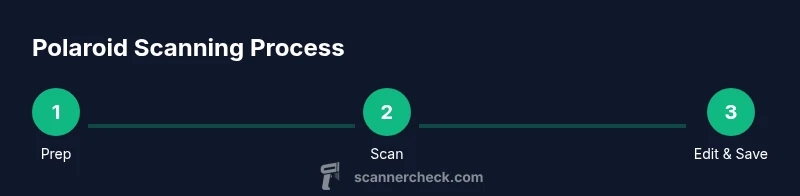
- Prepare the workspace with clean lighting and a dust-free scanner surface. 2) Clean the Polaroid gently on the corners and surface. 3) Set the scanner to color mode, 600–1200 DPI, and no sharpen. 4) Place the Polaroid on the glass with the image facing up; align to the edges. 5) Scan and review the preview for any glare; re-scan if needed. 6) Save a master TIFF/PNG file and rename it according to a consistent scheme. 7) Crop to the print edges to remove the scanner border. 8) Open in editor to adjust brightness and color as needed. 9) Save a high-quality archival version and a sharable JPEG. 10) Back up to cloud and local storage with clear metadata.
Post-Processing: Dust Removal, Color Correction, and Cropping
Post-processing helps restore Polaroid color and remove scanning artifacts. Use dust-removal tools sparingly to avoid erasing texture, and apply color correction using a neutral gray reference or white balance guide if available. Healthy edits keep the print’s mood rather than over-saturating hues. Cropping should preserve the original composition while eliminating unwanted borders from the scan. For consistency, apply the same color profile and cropping rules across all scans in a batch. A well-tuned post-process improves legibility, detail, and the archival robustness of your digital collection.
Saving and Archiving: File Naming and Cloud Backups
Develop a naming convention that encodes date, subject, and scan version (for example, 2026-Polaroid01_v1). Store master files in a lossless format such as TIFF/PNG and create compressed JPEGs for sharing. Implement a two-tier backup system: local redundant storage and a cloud backup with version history to recover from accidental deletions or corruption. Document metadata such as camera model if known, original Polaroid type, and any observed color shifts. Archival-grade workflows prioritize stability, ease of retrieval, and long-term accessibility.
Troubleshooting Common Issues
Glare and hotspots can ruin a scan; adjust lighting or rotate the print to minimize reflection. If colors appear overly warm or cool, calibrate with a gray card or reference target and apply a targeted color correction in post. Bent corners or curvature may cause focus issues—flat-press the print briefly with a clean, flat acrylic sheet to reduce warping before rescanning. If the edges crop awkwardly, re-scan with a tighter alignment, or crop later with a consistent aspect ratio. Regularly check your backups and verify file integrity using checksums.
Tips for Special Polaroid Formats and Age-Related Considerations
Older Polaroids can suffer from color shifts, fading, or emulsion cracks. Scanning these prints benefits from very gentle handling and a conservative editing strategy that preserves original hues. If a print is fragile, avoid excessive cleaning or pressure. Some formats (e.g., early instant films) respond better to higher DPI with careful post-processing to retain texture. For recent Polaroids, adjust color balance and saturation modestly to reflect the print as seen in real life, not as a digital imitation. Lastly, document the print’s provenance and any known storage history to support future restoration work.
Quick Comparisons: What You Get for Each Approach
Flatbed scanning consistently yields color-accurate results, repeatable crops, and stable archiving across a large batch. Smartphone-based scanning offers portability and speed but can introduce variation in lighting and color fidelity. A hybrid approach leverages the strengths of both methods: use a flatbed for baseline archival scans and a smartphone capture for quick previews or mobile sharing. The choice depends on your priorities: archival quality, convenience, or a balance of both.
Tools & Materials
- Flatbed scanner with glass bed(Prefer models with adjustable DPI and non-reflective glass)
- Polaroid photos to scan(Handle by edges; avoid touching the emulsion)
- Soft microfiber cloth(For dusting surfaces; avoid cleaners on prints)
- Soft brush or blower(Gently remove dust from the surface)
- Macro lens or smartphone with macro attachment(Use if you don’t have a scanner)
- Color reference card/gray card(For color calibration during post-processing)
- Computer with photo editing software(Tools like Lightroom, Photoshop, or GIMP)
- USB cable or power adaptor for scanner(Ensure power and connectivity)
- External hard drive or NAS(For long-term backups)
- Archival storage medium (optional)(CDs/DVDs or long-term cloud plans)
Steps
Estimated time: 60-90 minutes
- 1
Prepare workspace
Clear the desk, ensure stable lighting, and power the scanner. Use a clean, dust-free surface to prevent specks from transferring to the scan.
Tip: Lock the scanner lid to reduce movement during scanning. - 2
CleanPolaroid surface
Gently wipe the print edges and surface with a microfiber cloth to remove dust. Avoid liquids that could seep into the print layers.
Tip: Do not rub vigorously; polaroids can smear or lift. - 3
Set scanner parameters
Configure color mode (RGB), DPI to 600–1200, and disable sharpening. Choose TIFF/PNG as the master format.
Tip: Test with a small area first to confirm color fidelity. - 4
Position Polaroid on glass
Place the print face-up, aligning with the glass edges. If warped, flatten gently with a clean sheet between the print and glass.
Tip: Use a light, even pressure to avoid embossing the surface. - 5
Scan and review
Capture a preview and inspect for glare, edge cropping, or color shifts. Re-scan if necessary.
Tip: Shift the print slightly if glare hits a corner. - 6
Save master copy
Save the initial scan as TIFF or PNG with a consistent file name and date stamp.
Tip: Keep the unedited master untouched for archival quality. - 7
Crop to edges
Crop to the original print edges to remove scanner borders while preserving composition.
Tip: Maintain a consistent aspect ratio across the batch. - 8
Light edits
Apply gentle brightness and color corrections. Avoid extreme alterations that erase the print’s character.
Tip: Use a neutral reference card if color is off. - 9
Export shareable version
Create a JPEG for quick sharing while keeping TIFF/PNG for archives.
Tip: Choose high-quality JPEG settings to minimize compression artifacts. - 10
Back up scans
Copy all master files to a cloud service and a local drive to prevent loss.
Tip: Enable versioning in cloud storage if available. - 11
Add metadata
Tag files with date, subject, and scan settings in your photo manager.
Tip: Consistent metadata speeds future searches. - 12
Review and iterate
Assess a sample of scans for quality and adjust workflow if needed.
Tip: Document lessons learned for the next batch.
Common Questions
What DPI should I use to scan Polaroids?
Aim for 600–1200 DPI. This range provides enough detail for most Polaroids without creating overly large files. Save as TIFF or PNG for archival quality and export a JPEG for easy sharing.
For Polaroids, start with 600 to 1200 DPI to balance detail and file size.
Flatbed scanner or smartphone—what’s better?
Flatbed scanners are more consistent for color and alignment, while smartphones are convenient. A hybrid approach often yields the best results: archival scans with a flatbed, quick previews with a phone.
Flatbeds give consistent color; phones are convenient but less predictable.
Which file formats should I save polaroid scans in?
Keep a master in TIFF or PNG for archival editing, and export a high-quality JPEG for sharing. This preserves color and detail while offering easy distribution.
Save masters as TIFF or PNG; export JPEG for sharing.
How can I fix color shifts in scans?
Use a color reference and white balance during post-processing. Make small adjustments to hue and saturation to reflect the print’s original mood without oversaturating.
Calibrate with a gray card and adjust color gently.
Can aged Polaroids be scanned effectively?
Yes, but expect faded or uneven color. Scan at higher DPI and apply careful color correction to preserve age and character.
Older Polaroids can scan well with careful editing.
How should I archive my Polaroid scans?
Adopt a consistent naming scheme, store masters in a reliable format, and back up to both cloud and local storage with metadata.
Back up with a consistent naming system and metadata.
Watch Video
Key Takeaways
- Define a consistent scanning workflow for archival quality
- Prefer lossless master files (TIFF/PNG) for edits
- Back up scans locally and in the cloud
- Calibrate color with references for faithful results
- Document metadata to ease future retrieval