How do scanner: A practical guide for beginners
A practical guide to how do scanner usage, covering types, setup, OCR optimization, and workflow integration for reliable digital documents.


With this guide you will learn how to locate a suitable scanner, connect it to your devices, and complete high-quality document scans. You’ll compare features, perform setup, optimize for OCR, and troubleshoot common issues. By the end, you’ll be able to choose, use, and maintain a scanner for reliable, crisp digital copies.
What is a scanner and why it matters
A scanner is a device that converts physical documents into digital images or text, enabling storage, editing, searching, and sharing. In 2026, most desk setups include a scanner that can capture grayscale or color, support various paper sizes, and connect via USB or Wi-Fi. For newcomers, the big question is not just what a scanner does, but how to get consistent, high-quality results across different documents and apps. According to Scanner Check, choosing the right scanner and following a methodical setup can dramatically improve digitization results. The path from raw feed to usable data depends on hardware, software, and workflow. If you’re asking how do scanner choices affect outcome, the short answer is: pick a device that matches your typical tasks, learn its software, and apply sane defaults that you can reuse. This guide will walk you through selection criteria, setup steps, and practical tips that you can apply whether you scan a dozen pages a day or a few times a week. The goal is reliable scans you can OCR, archive, and retrieve later.
Core types of scanners (flatbed, sheet-fed, portable) and their use cases
Scanners come in several shapes, each suited to different tasks. Flatbed models resemble photocopiers and are ideal for fragile or bound materials, photos, and mixed media. Sheet-fed scanners move a stack of pages through the device, delivering fast results for large volumes but requiring clean, single-page feeds to avoid jams. Portable or mobile scanners emphasize compactness and battery operation, perfect for on-the-go digitization. When choosing, consider document size, feed reliability, and OCR needs. For general home and small-office tasks, a compact sheet-fed scanner with auto-document feeder can balance speed and quality. For archival projects or delicate books, a reliable flatbed model is often worth the extra investment. As you compare models, prioritize build quality, warranty, and software compatibility to ensure long-term value.
How scanners connect to devices and software ecosystems
Most modern scanners support USB, Wi-Fi, or Bluetooth connections. USB provides a stable, plug-and-play experience, while Wi-Fi enables wireless scanning from laptops, phones, or tablets. Software ecosystems vary by brand and include on-device apps, desktop drivers, and cloud integrations. Operating systems like Windows, macOS, iOS, and Android have varying levels of native support, so verify compatibility before purchase. Some scanners offer built-in OCR and document management features, which can simplify workflows without third-party tools. The key is to ensure your computer or mobile device can see the scanner reliably and that you can automatically save, rename, and organize scans in your preferred folder structure or cloud service.
Key features to compare when buying a scanner
When evaluating models, focus on these core capabilities:
- Resolution and color depth: higher values improve OCR accuracy and photo realism, especially for text-heavy documents and images.
- Scan speed and duty cycle: faster devices handle more pages per minute; a higher duty cycle means more reliable daily use.
- Paper handling and jam resistance: robust feeders reduce interruptions on busy days.
- OCR and file formats: native OCR quality, searchable PDF, and flexible output (PDF/A, TIFF, JPEG).
- Connectivity and software: reliable drivers, compatible apps, and cloud integrations simplify workflows.
- Size and ergonomics: a compact footprint helps if desk space is limited.
- Maintenance and warranties: long warranties and easy-access replacement parts save time and money.
Scanner Check emphasizes that the best choice depends on your daily tasks, so balance cost with the expected volume and the need for accurate OCR. If you expect to process a lot of pages with mixed content, a sheet-fed model with automatic document feeder and solid OCR is usually a good bet. For fragile or bound materials, a high-quality flatbed with precise glass is indispensable.
How to set up a scanner for first use
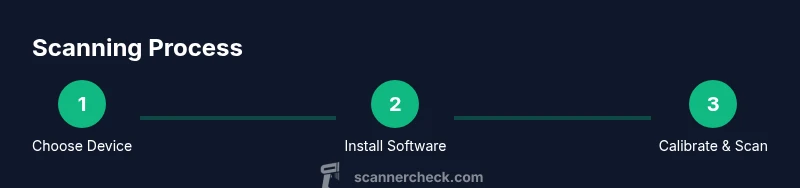
Setting up a new scanner involves several coordinated steps to ensure reliable results. Start by choosing a suitable location with stable power and a clean, dust-free glass surface. Connect the device via USB or configure the Wi-Fi network, then install the latest driver and software provided by the manufacturer. During installation, grant necessary permissions for scanning and OCR features. Create a default scan profile that specifies resolution, color mode, and file format. If your setup supports cloud storage, connect your preferred service and test a sample scan to confirm that files transfer correctly. Finally, run any built-in calibration or alignment routines to ensure edges and margins are clean. Allow 10–20 minutes for the initial setup, and keep the user manual handy for model-specific steps.
Calibrating and optimizing scans for OCR and accuracy
Calibration is the process of aligning the scanner’s hardware with software expectations, which directly affects OCR accuracy. Start with the default scan profile and run a test document with known text. Compare the OCR output against the source and adjust resolution (usually 300–600 dpi for documents), color vs black-and-white modes, and contrast. If your documents contain fine print or small fonts, increase the resolution and consider enabling sharpening sparingly to avoid halo artifacts. Enable deskew or auto-crop features to ensure pages sit correctly within the frame. For mixed documents (text plus images), you may want separate profiles to optimize each content type. If your scans show color shifts or inconsistent brightness, recalibrate using color targets or a grayscale test page provided by the software.
Maintenance, cleaning, and troubleshooting common issues
Regular maintenance helps prevent unusable scans. Clean the glass with a microfiber cloth and a mild, non-abrasive cleaner; never spray liquid directly onto the glass. Check the paper path for dust, debris, or torn pages that could cause jams. If scans show blurred edges or skew, re-check the alignment and calibrate again. For connectivity problems, reboot the scanner, update drivers, and verify network configuration in case of Wi‑Fi scanning. If OCR results are poor, validate that the correct language packs are installed and that the document is properly lit when captured. In rare cases, you may need to reset the scanner to factory defaults and reconfigure your scan profiles.
Best practices for color, grayscale, and resolution
Color scans provide the most flexibility for proofreading and archival purposes, but they generate larger files. Grayscale can be a good compromise for text-heavy documents, delivering readable OCR with smaller file sizes. For general document workflows, 300 dpi offers reliable OCR for most fonts; use 400–600 dpi for small type or microfilm. When scanning mixed content, consider creating separate buffers for text and images to optimize both OCR accuracy and storage efficiency. Always test different profiles on a representative document set to identify the best balance of quality and size for your needs.
Scanning in workflows: cloud, apps, and automation
Modern scanners integrate with cloud storage and productivity apps to streamline workflows. Choose devices with built-in cloud connectors or compatible desktop/mobile apps to push scans directly to folders, email, or collaboration platforms. If you operate a digitization pipeline, plan consistent file-naming conventions and metadata (date, client, page count). Some setups support automated OCR pipelines that convert scans to searchable PDFs and index content for easy retrieval. Remember to review access permissions and data privacy settings for cloud destinations to protect sensitive information. This approach can save time and reduce manual handling across devices and teams.
mainTopicQuery
Tools & Materials
- Scanner hardware (flatbed, sheet-fed, or portable)(Choose based on your use case and volume.)
- Computer or mobile device(Windows/macOS/iOS/Android with compatible software.)
- Power and connection cables(USB cable or power adapter as required.)
- Scanner software and drivers(Install latest versions from the manufacturer.)
- Cleaning cloth and isopropyl alcohol (optional)(Lint-free microfiber for glass cleaning.)
- Test documents (various sizes)(Use to validate profiles and OCR accuracy.)
Steps
Estimated time: 60-90 minutes
- 1
Choose the right scanner
Assess your typical tasks, volume, and document types. Flatbeds are great for fragile or bound materials; sheet-fed scanners speed through multi-page batches; portable models offer mobility. This choice sets the baseline for features and price.
Tip: Match your daily task profile to a single core use case to avoid overbuying. - 2
Unbox and verify contents
Check that all components are present, inspect the glass for debris, and confirm power and network options. Read the quick start guide for model-specific steps before powering on.
Tip: Keep the manual handy for quick reference during setup. - 3
Connect power and establish connection
Plug in the scanner and connect via USB or configure the Wi‑Fi connection. Ensure the device is discoverable by your computer or mobile device.
Tip: If using Wi‑Fi, place the scanner within strong signal range of the router. - 4
Install and update software
Install drivers and the manufacturer’s software suite. Check for the latest firmware and apply updates if available.
Tip: Update during a quiet period to prevent interruptions in calibration. - 5
Create a default scan profile
Set resolution, color mode, and file format to a baseline that works for most documents. Save this as your primary profile for consistency.
Tip: Avoid high resolutions for everyday scans to save storage and speed. - 6
Load a test document and calibrate
Place a representative page on the glass and run the calibration or auto-detect feature. Review margins and edge cropping.
Tip: Run calibration with a page that includes text, graphics, and a small photo for best results. - 7
Run a first scan and review results
Scan a sample batch, then open the output in your preferred viewer or editor. Check OCR text accuracy and file integrity.
Tip: If accuracy is off, adjust the DPI or color mode and re-scan. - 8
Refine settings for different content
Create separate profiles for documents, photos, and mixed media. Tailor brightness, contrast, and sharpening per content type.
Tip: Use RAW scans for archival and compressed formats for sharing. - 9
Organize and integrate into workflow
Save scans with a consistent naming scheme, categorize by project or client, and route files to cloud storage or a local library.
Tip: Automate naming with date and page count to keep files searchable.
Common Questions
What’s the difference between flatbed and sheet-fed scanners?
Flatbed scanners sit a document on glass for manual feeding and are ideal for books, photos, and delicate pages. Sheet-fed scanners pull pages through automatically, offering speed for large volumes but may be sensitive to misfeeds with uneven stock.
Flatbeds are best for fragile items or books, while sheet-fed models excel at bulk scanning; choose based on your task type.
Do I need internet to use a scanner?
No, most scanners work via USB or local Wi‑Fi without internet. Internet becomes necessary only for cloud storage or cloud-based OCR processing.
No internet is required for basic scanning; use cloud features if you want online storage or OCR tools.
What resolution should I use for OCR?
For standard documents, 300 dpi is typically sufficient for accurate OCR. Increase to 600 dpi for small fonts or high-detail documents.
300 dpi is usually good for OCR; go higher if the text is tiny or you need extra clarity.
Can I scan photos and documents at the same time?
Many scanners support mixed content, but the best results come from using appropriate profiles for photos and for text documents. Consider scanning photos at 300–600 dpi in color.
Yes, but use separate profiles for photos and documents to keep quality high.
How do I clean the scanner glass safely?
Use a microfiber cloth dampened with water or isopropyl alcohol. Never apply liquids directly to the glass. Clean gently to avoid scratches.
Wipe the glass gently with a soft cloth; never spray liquids on the glass.
What file formats should I save scans in?
Common options are PDF (searchable if OCR is done), TIFF, and JPEG. Use PDF for documents, TIFF for archival, and JPEG for quick sharing.
PDF for documents, TIFF for archiving, JPEG for sharing is a good mix.
Watch Video
Key Takeaways
- Choose a scanner that matches your typical tasks
- Create reliable, repeatable scan profiles
- Calibrate and test OCR regularly
- Maintain glass and feeders to prevent issues
- Integrate scans into a clear, organized workflow