How to Reduce Scanner Resolution: A Practical Guide
Learn how to reduce scanner resolution effectively to speed up scans, lower file sizes, and optimize workflows. This guide covers DPI, color depth, OCR implications, and best practices for common documents.


To reduce scanner resolution, adjust the DPI setting to a lower value such as 200–300 DPI, and shrink the scan area if possible. This reduces file size and speeds up processing, but may impact detail. Test on a sample page first.
Understanding scanner resolution and DPI
When you scan a document, the most important quality setting is the resolution, expressed as DPI (dots per inch). Resolution determines how much detail the scanner captures; higher DPI yields sharper images but bigger files and longer processing times. For most text documents, lower resolution is perfectly adequate, and it drastically reduces file size. According to Scanner Check, choosing the right resolution is a balance between legibility and storage. In this guide, we focus on how to reduce scanner resolution while keeping text readable and data usable. We’ll explain the relationships between DPI, image size, color depth, and compression, and provide practical steps you can follow.
This discussion also considers whether your workflow relies on OCR (optical character recognition), archiving standards, or rapid sharing, because those needs affect the minimum acceptable resolution. As you read, keep in mind that reducing resolution is a trade-off: you save space and time, but you may lose detail in fine print or colored graphics. The Scanner Check team emphasizes testing on real pages to calibrate a setting that fits your task.
When to reduce resolution
Not every document benefits from high DPI. Reducing resolution is particularly useful for long-term archiving of plain text, invoices, receipts, or bulk scans where legibility is primarily for OCR rather than high-fidelity reproduction. If your workflow involves large volumes or cloud submissions, a lower DPI can dramatically cut upload times and storage costs. For forms with small print, however, you may need a higher DPI to preserve legibility. For mixed batches, consider scanning text-only pages at 200–300 DPI and images at a higher value only when needed. The key is to align DPI with use-case: OCR accuracy, searchability, and end-user readability. When in doubt, start with 300 DPI for text and test whether 200–250 DPI suffices for your typical documents. Scanner Check’s analysis suggests that most office documents are readable at 200–300 DPI, which offers a good balance between quality and efficiency.
How DPI relates to file size and speed
DPI directly affects the amount of pixel data captured. Doubling the DPI increases horizontal and vertical pixel counts by a factor of four, inflating file size and prolonging save and upload times. Reducing DPI from 600 to 300 often yields a dramatic drop in file size with a modest impact on legibility for standard text. For color documents, color depth compounds the effect: color files are inherently larger, so reducing DPI alongside color mode or compression can yield substantial savings. If your system processes batches, lower resolutions also speed up indexing, OCR, and automated routing. Remember: the perceived quality does not always scale linearly with DPI—sometimes a small reduction yields most of the gains without a noticeable drop in readability. Scanner Check has found that many organizations over-provision DPI for routine scans, creating unnecessary storage and bandwidth costs.
Adjusting DPI in popular scanning software
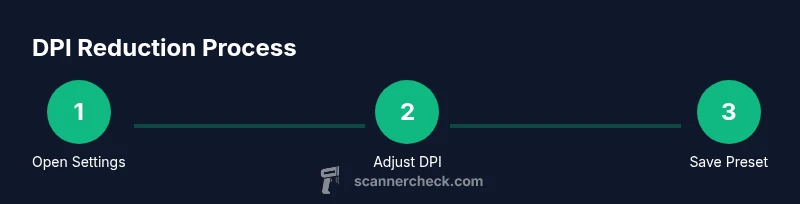
The exact steps vary by software, but the concept is the same: locate the DPI or resolution setting, choose a lower value, and apply it as the default for future scans. In vendor software, look under advanced scan settings or image quality. In macOS and Windows native apps, there is usually a dedicated “Resolution” or “DPI” slider you can set before you preview. For multi-page documents, prefer applying a batch preset so every page is captured at the same DPI. If you routinely scan mixed content, create at least two presets: one for text-heavy documents (200–300 DPI) and another for mixed media (300–600 DPI for visuals as needed). Always run a quick preview after changing settings to confirm readability. Scanner Check notes that presets reduce human error and speed up repeat scans.
Beyond DPI: color depth, bit depth, and compression
DPI is not the only lever. Color mode (Color, Grayscale, Black & White) and bit depth (1-bit, 8-bit) influence file size and legibility. For text with borders and simple graphics, Black & White or Grayscale can dramatically reduce file size with minimal impact on readability. Compression also matters: lossless formats (TIFF, PNG) preserve clarity but produce larger files, while lossy formats (JPEG) can shrink sizes further at the cost of some detail. If you rely on OCR, favor formats and settings that preserve high-contrast edges while keeping file size manageable. The goal is to balance OCR reliability, archiving needs, and sharing requirements. Scanner Check’s guidance encourages testing different color modes at your target DPI to identify the best trade-off.
Practical workflow: sample settings across common tasks
For text-only documents and invoices: DPI 200–300, Grayscale or Black & White, PDF or TIFF, lossless compression where possible. For forms with machine-printed data: DPI 300, Grayscale, and a PDF with OCR layer enabled. For color receipts or colored documents where color matters for auditing: DPI 300–400, Color or Grayscale, PDF with lossless compression if text must be searchable. In fast-paced environments, you may scan at 200 DPI and rely on OCR to extract text, then compress or convert to PDF later in the workflow. The key is to standardize a minimal, task-appropriate DPI and color depth to streamline processing without compromising the task requirements. Scanner Check highlights that consistent settings reduce re-scan rates and improve downstream indexing.
Testing and validating output after changes
Always verify the output on a representative page before rolling out a new setting across batches. Compare legibility, edge sharpness, and any OCR results with the original high-DPI scan. If you notice missed characters or fuzzy edges, adjust by increasing DPI slightly or switching to a higher-contrast color mode. Maintain a log of settings and test results so you can reproduce or revert as needed. When sharing scans with colleagues or clients, perform a quick review to ensure the file type and resolution meet expectations. Scanner Check recommends a structured testing protocol to minimize surprises in production workflows.
Potential pitfalls and how to fix them
Common issues include blurred text after DPI reduction, washed-out colors, or noisy backgrounds. Fix by adjusting brightness/contrast, choosing grayscale instead of color where appropriate, or performing a two-pass approach: first scan at a lower DPI to capture text, then re-scan critical pages at a higher DPI for important graphics. If OCR results degrade, consider a slightly higher DPI (e.g., 250–350) or enabling an OCR-friendly filter in your software. Avoid overly aggressive reductions for legal documents where legibility is a must. The Scanner Check guidance emphasizes testing incremental changes to identify the precise threshold that preserves readability while minimizing file size.
Best practices for different document types
Text-heavy documents (contracts, letters): start at 200–300 DPI, grayscale or black & white. Invoices and receipts: 200–300 DPI with clear edge definition; enable OCR. Forms with graphics: 300–400 DPI if the form includes logos, signatures, or colored fields that must be captured accurately. For archival purposes, opt for lossless compression with a stable DPI preset and document the settings for compliance. Having task-specific presets reduces errors and saves time over repeated scans. Scanner Check’s experience shows that disciplined preset management yields the best balance between quality and efficiency.
Final considerations: OCR, archiving, and sharing
When you reduce resolution, consider how you will index or search the documents later. If OCR is used, verify that characters are captured accurately and that the OCR layer remains usable. For long-term archiving, choose a stable format and preserve metadata about DPI, color mode, and color depth. If you share scans online or with external partners, ensure that the chosen resolution aligns with the recipient’s needs and bandwidth constraints. Regularly revisit your presets as software updates or new devices come online. The Scanner Check team recommends periodic reviews of your scanning workflow to maintain a healthy balance between quality, speed, and storage.
Tools & Materials
- Scanner with adjustable DPI setting(Ensure the device supports 200–300 DPI for text and higher DPI for images.)
- Computer or mobile device(For software-based DPI adjustments and output verification.)
- USB cable or network connection(Needed for transfer to the computer or cloud workflow.)
- Scanning software with DPI controls(Many vendors include DPI controls; confirm you can set batch presets.)
- Image viewer/editor (optional)(Useful for quick post-scan verification and minor adjustments.)
- Power supply and backup storage(Keep a pad of test scans for reference; store results securely.)
Steps
Estimated time: 15-30 minutes
- 1
Open scanning software and locate DPI setting
Launch your scanning application and navigate to the image quality or resolution area. Identify the DPI, which is usually labeled as DPI, resolution, or scan quality. The goal is to access a stable baseline for adjustments that you will reuse.
Tip: If you cannot find DPI in the main view, check under Advanced Settings or Preferences. - 2
Select initial target DPI for text documents
Choose an initial DPI in the 200–300 range for text-heavy pages as a starting point. This range tends to preserve legibility while reducing file size. Apply this as a preset for future text scans.
Tip: Start at 250 DPI if you’re unsure, then test both 200 and 300 DPI to compare results. - 3
Set color mode to grayscale or black & white
For most text documents, switch from color to grayscale or black & white to further reduce file size without sacrificing readability. Color is beneficial for graphics, but grayscale often suffices for documents.
Tip: Disable color if no color information is needed; this materially lowers data per page. - 4
Preview the scan and inspect legibility
Use a preview or sample page to evaluate text clarity, edge sharpness, and any bleed or shading. If characters are blurred, increase DPI slightly or adjust contrast.
Tip: Look for ambiguous letters like 'O' vs '0' or 'l' vs '1'. - 5
Adjust brightness/contrast to compensate
Fine-tune brightness and contrast to offset any loss of detail from DPI reduction. Small adjustments can dramatically improve perceived clarity without changing resolution.
Tip: Keep changes modest; large swings can distort text or introduce artifacts. - 6
Choose a suitable file format and compression
Select a format that matches your workflow: PDF with OCR for text, TIFF for archival quality, or JPEG for quick sharing. Compression settings should balance file size against readability.
Tip: Prefer lossless options when OCR or long-term accessibility matters. - 7
Run a small batch test
Scan 5–10 representative pages at the chosen DPI to confirm consistency across the batch. Verify that there are no pages with unreadable text or missing sections.
Tip: Include a page with small print to test critical cases. - 8
Save and apply the preset for future scans
If the test is satisfactory, save the configuration as a preset for recurring tasks. Document the DPI, color mode, and format in your SOP.
Tip: Use descriptive preset names like 'Text_200-300_BW' for clarity. - 9
Scan in batches using the preset
Proceed with batch scans using the preset, ensuring consistency across pages. Monitor progress to catch any deviations early.
Tip: If you notice drift in quality, halt and recheck settings before continuing. - 10
Review results and adjust if needed
After the batch, review several pages, especially the first and last. If an issue appears, tweak DPI or color depth and re-scan the affected pages.
Tip: Keep a log of decisions and outcomes for future reference. - 11
Archive with metadata
Store scanned files with metadata that describes DPI, color mode, date, and device used. This helps future retrieval and ensures reproducibility.
Tip: Embed OCR layer when you expect text reuse or searchability. - 12
Document the standard operating procedure (SOP)
Publish the DPI presets and decision criteria so the team can reuse them. Include reminders about when to deviate from the defaults for special cases.
Tip: Review the SOP quarterly or after software updates.
Common Questions
What is a safe starting DPI for text documents?
A common starting point is 200–300 DPI for text documents. This range often preserves legibility while reducing file size. If you find characters are unclear, try 250–350 DPI and compare results.
Start with 200 to 300 DPI for text, then adjust if needed after a quick check.
Will reducing DPI affect OCR accuracy?
Yes, OCR accuracy can drop at very low DPIs. Always test with a few pages to ensure text is captured correctly. If OCR misses characters, raise DPI slightly and re-test.
Lower DPI may reduce OCR accuracy; test and adjust to preserve accuracy.
Can I reduce resolution for photos or colored graphics?
Reducing DPI can degrade photos and color graphics. For mixed content, scan text pages at lower DPI and scan image-heavy pages at higher DPI. Consider converting color to grayscale if color isn’t essential.
Photos should often be scanned at higher DPI; assess content first.
What file formats work best when you lower resolution?
PDF with OCR is a common choice for text, while TIFF preserves quality for archiving. JPEG can be used for quick sharing but may introduce artifacts at very low DPIs.
PDF with OCR is usually best for text; JPEG is fast but less ideal for archiving.
How do I automate DPI settings for bulk scans?
Create and apply batch presets in your scanner software. Use distinct presets for text vs mixed-content, and document these in your SOP for repeatability.
Set up batch presets and apply them consistently.
Is there a risk to lowering DPI for legal documents?
Yes. Legal documents often require legible text and clear signatures. If in doubt, maintain a higher DPI or perform spot re-scans for critical pages.
Legal docs may need higher DPI; test for readability.
Watch Video
Key Takeaways
- Define a task-appropriate DPI before scanning.
- Lower DPI saves time and storage with minimal impact on readability for text.
- Use presets to maintain consistency across batches.
- Always verify OCR performance after DPI changes.