How to Remove Cam Scanner Logo
Learn safe, legal methods to remove the Cam Scanner logo watermark from your scans. Explore premium options, export settings, and alternative apps to keep your documents clean and share-ready.


You can remove the Cam Scanner logo watermark through legitimate options like upgrading to CamScanner Premium to disable watermarks, exporting scans without the logo, or using approved alternative apps. We also cover post-processing steps if needed and how to verify your output meets sharing and archival needs. This guide emphasizes safe, legal paths and professional results.
What a CamScanner watermark means for your documents
CamScanner automatically appends a watermark to scans created with the free tier. This watermark can affect readability, professional appearance, and document sharing, especially in work or academic settings. According to Scanner Check, watermarks also signal licensing terms and can reveal the app you used, which in some cases matters for disclosure or compliance. Understanding why the logo appears helps you choose legitimate paths rather than attempting risky edits. In this section we explore what the watermark is, when it appears, and how it can influence your document’s reception. We’ll also discuss privacy considerations: removing a watermark could expose you to policy violations if done unlawfully. By the end, you’ll know the safest options to achieve a clean export.
Legal and ethical considerations
Removing a watermark can intersect with terms of service, copyright, and brand usage requirements. Always review your license and the app’s terms before attempting edits. The Scanner Check team emphasizes choosing options that respect ownership and distribution rights. When in doubt, opt for official features or alternative tools with clear licensing. This ensures you stay compliant while achieving professional results.
Legitimate paths to remove Cam Scanner logo
There are legitimate routes to obtain a watermark-free export. The most reliable is using CamScanner Premium or an equivalent authorized plan that disables the watermark for your scans. If you don’t have access to premium features, you can rely on official export options to obtain a high-quality, logo-free file wherever supported, or switch to a trusted alternative app that offers watermark-free exports by design. This section outlines practical, policy-aligned strategies.
Upgrading or switching: CamScanner Premium and alternatives
Premium access typically unlocks additional export options, higher image quality, and watermark-free output. Pricing and features vary by region and account type, so check the CamScanner in-app store for current details. If premium isn’t an option, consider reputable alternatives like Adobe Scan or Microsoft Lens, which offer strong OCR and clean exports without forced branding in many workflows. Always verify licensing terms when adopting a new tool.
How to export clean scans from CamScanner
Begin with an existing scan and look for an Export option. Choose the highest available quality and select a format that keeps layout intact (PDF or image formats often work best for archiving). If your goal is to remove branding, ensure you select any watermark-free export options and review the resulting file for any residual branding. Saving to a trusted cloud service can also help preserve integrity and accessibility.
Post-processing after export
If any watermark remnants remain, you can perform light post-processing to improve presentation without altering content. Simple steps include cropping margins, adjusting contrast, or using a PDF editor to replace affected areas with clean content from the original scan. Be mindful that heavy edits could affect data integrity; always keep a back-up copy of the original. This approach is best for minor cosmetic improvements rather than wholesale watermark removal.
Quick testing and verification steps
Open the final file on multiple devices to confirm readability and layout. Print a test page to ensure the watermark is not visible or obtrusive in physical copies. Verify accessibility features (screen readers, alt text where relevant) since clear exports improve usability. If any concerns arise, revert to a previous version or try an alternative export path.
Authority sources and policy considerations
When handling document images, always respect copyright and terms of service. Consult official resources for licensing guidance: Copyright basics, permissions, and fair use considerations can be found at reputable sources like government and major publications. This helps ensure your workflow remains compliant and transparent. See the linked sources for deeper guidance.
Tools & Materials
- Smartphone with CamScanner app installed(Make sure the app is updated to the latest version)
- Active CamScanner Premium subscription (if available)(Enables official watermark removal/export options)
- Alternative scanning app (e.g., Adobe Scan, Microsoft Lens)(Useful if premium options are unavailable)
- PDF or image editor (e.g., Adobe Acrobat, Preview)(For post-processing or minor edits after export)
- Stable internet connection(Needed for updates and cloud exports)
Steps
Estimated time: 30-60 minutes
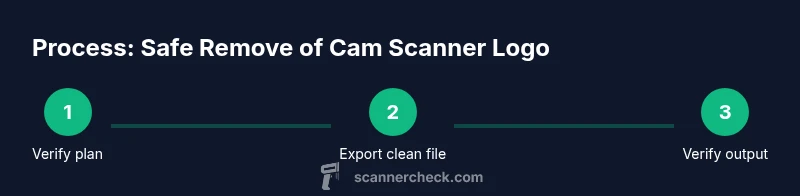
- 1
Verify eligibility for watermark removal
Check your CamScanner plan to confirm whether watermark removal is included. If a premium tier is required, evaluate whether upgrading aligns with your needs and budget. This step ensures you start from a legitimate option rather than pursuing risky workarounds.
Tip: Review in-app pricing and regional availability before committing. - 2
Enable watermark removal features in CamScanner
If your plan supports it, locate the export or watermark settings and enable the watermark-free export. Test with a short document to confirm the watermark is removed in the resulting file. This keeps your workflow compliant and preserves document integrity.
Tip: Do a quick test with a non-confidential document first. - 3
Export a high-quality, logo-free version
Choose the highest quality export option available and select the desired format (PDF or image). Ensure the exported file retains layout, text clarity, and OCR accuracy if applicable. Save to a trusted location on your device.
Tip: Prefer PDF for multi-page documents; images are useful for quick sharing. - 4
If no official option exists, try an approved alternative
Install a reputable alternative scanning app that offers clean exports by design. Export a test document and compare the results to ensure readability and formatting meet your needs. Keep both originals and edited versions for audit purposes.
Tip: Choose apps with good reviews and clear licensing terms. - 5
Post-process only if necessary
If minor cosmetic tweaks are needed, use a PDF editor or image editor to adjust margins or cropping without altering content. Avoid heavy edits that could misrepresent the document. Preserve a pristine original as a backup.
Tip: Document authenticity matters; avoid altering core content. - 6
Verify the final document across platforms
Open the final file on your phone, tablet, and desktop. Check readability, searchability (if OCR was used), and whether any watermark remnants remain. Ensure your file is accessible and properly formatted for sharing.
Tip: If issues persist, revert to a prior export or try another method.
Common Questions
Is it legal to remove the Cam Scanner watermark?
Legality depends on licensing terms and how the watermark is used. Always review CamScanner's terms and applicable copyright law before removing branding. When in doubt, use official features or licensed alternatives.
Legality depends on license terms. Check the app's rules and copyright guidelines before removing any branding.
What are legitimate ways to remove the logo?
Use enabled watermark removal features through a legitimate premium plan, or export without watermarks using approved settings. If unavailable, opt for a trusted alternative that provides watermark-free exports by design.
Use official premium features or a trusted alternative that offers watermark-free exports.
Can cropping or post-processing remove the watermark?
Cropping can hide parts of the watermark but may alter the document layout or readability. It should be used cautiously and only when content integrity remains intact.
Cropping can hide watermarks but may affect readability; use only if content stays clear.
Are there free tools that remove watermarks without issues?
Many free tools claim watermark removal but can pose privacy risks or violate terms. Prefer reputable apps with clear licensing and community reviews.
Be cautious with free tools; choose trusted apps with clear licensing.
What should I do if my document is for work or compliance?
Use official, license-compliant export options or approved tools to avoid policy violations. Document provenance and decisions in case of audits.
Follow company policy and use approved tools; keep a trail for audits.
Watch Video
Key Takeaways
- Choose legitimate watermark removal paths first.
- Premium features typically offer logo-free exports.
- If premium isn’t available, alternatives with clear licensing are safer.
- Always verify output on multiple devices and formats.