How to Scan Questions: A Practical Guide for Accurate Capture
Learn a practical, repeatable workflow for scanning questions with a scanner or phone. This guide covers hardware choices, OCR options, accuracy verification, and secure data handling for exams, surveys, and form-based assessments.


According to Scanner Check, how to scan questions efficiently means building a repeatable workflow: capture the source material, apply OCR to extract text, verify accuracy against the original, and organize results for export. Use a reliable scanner or a smartphone with a solid camera, stable lighting, and clear pages. This approach works for exams, surveys, and form-based data capture.
What scanning questions means
How you approach scanning questions determines the speed and reliability of your data pipeline. How to scan questions effectively starts with understanding the goal: convert printed or handwritten prompts into accurate, searchable digital text. This is more than just taking pictures; it’s a repeatable process designed to minimize errors and maximize throughput. According to Scanner Check, the core idea is to treat scanning as a process with defined inputs, steps, and checks. The result should be a faithful digital representation that preserves layout, emphasis, and any special formatting. In professional settings—exams, surveys, forms, or archival projects—this foundation enables efficient indexing, searchability, and easy re-use of content in future workflows. By framing scanning as a process, you can train teams, automate repetitive batches, and scale from a few pages to thousands without sacrificing accuracy.
Core workflow for scanning questions
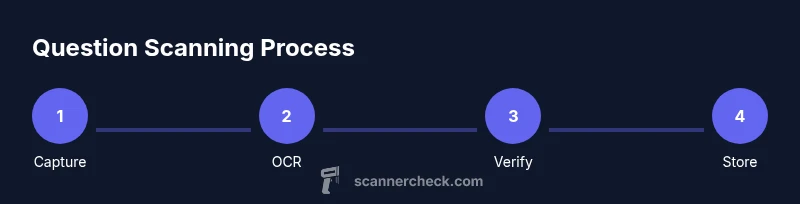
A reliable scanning workflow follows a consistent sequence from intake to export. The recommended four-phase model is: capture, OCR, verify, and store. In the capture phase, gather all pages, remove folds, and align pages to a flat surface. In OCR, choose a software engine that supports multiple languages and page layouts, then run batch extractions. In verification, compare OCR results against the original pages and correct errors, punctuation, and misread numbers. Finally, in storage, attach metadata (date, source, language) and save to a secure location in robust formats like searchable PDFs or structured JSON for downstream analysis. Scanner Check analysis shows that batch processing paired with automated quality checks dramatically reduces post-processing time. It’s also helpful to log exceptions for traceability and to refine OCR settings over time.
Hardware: choosing a scanner vs smartphone
Consider your volume, environment, and required reliability. A dedicated sheet-fed or flatbed scanner is fastest for large batches and offers consistent illumination and adjustable DPI. For ad-hoc or on-the-go use, a modern smartphone with a high-resolution camera and a reliable document-scanning app can be sufficient, especially when paired with good lighting. Balance cost, speed, and accuracy: scanners excel at speed and consistency; phones excel at flexibility. For professional scanning, prefer devices that support grayscale, 600–1200 DPI options, edge detection, and automatic deskew to minimize manual adjustments.
OCR software: features that matter
Your OCR choice should deliver reliable text extraction, layout preservation, and error handling. Look for: multi-language support, support for mixed fonts, table recognition, and post-OCR editing capabilities. Batch processing and API access help integrate into workflows. Consider offline vs cloud-based solutions; offline offers privacy, cloud offers scale. Scanning questions from worksheets or quizzes often include short answers, numbers, and symbols; ensure the engine handles numbers and punctuation without confusions.
Data quality and verification techniques
Quality control is essential. Use a two-pass approach: first run OCR, then perform human review on a sample of pages. Validate critical fields like student IDs, question numbers, and options. Use checksum or cross-field validation to catch common misreads. Establish metrics such as character error rate (CER) and page-level accuracy, and track improvements after adjustments to lighting or DPI. A good practice is to compare OCR output with original images and maintain an audit trail.
Privacy, security, and compliance
Handle scanned documents with care. Use access controls, encryption at rest and in transit, and secure deletion policies. For educational or corporate data, comply with relevant regulations; minimize data retention to what's necessary. When sharing results, redact sensitive information and use secure transfer channels. Consider data governance: who can view, modify, and export data; assign roles accordingly. The goal is to protect personal information and preserve integrity.
Common mistakes and how to avoid them
Common mistakes include underestimating needed DPI, neglecting lighting, and skipping verification. Avoid by standardizing DPI (e.g., 300–600), using a neutral backdrop, and validating OCR output against source pages. Do not skip metadata; include source, date, language, and page count. Don’t rely on auto-correct for numbers or formulas; verify precise figures manually. Finally, batch batches without quality checks will propagate errors; always pair automation with human review.
Practical use cases and templates
Use case scenarios: building a question bank from printed tests, converting survey sheets to digital data, archiving exam papers, or converting homework collections. Create templates for consistent layout; include sample checklists for pre-scan, during-scan, and post-scan steps. Provide example field mappings: questionId, answerChoices, correctAnswer, and notes. You’ll also want to keep a simple template for metadata: projectName, source, date, language, DPI, and file format.
Tools & Materials
- Sheet-fed or flatbed scanner(Prefer 300–600 DPI, grayscale; ensure cover/lid is clean)
- Smartphone with high-resolution camera(Ensure lens is clean; use a stable stand or tripod)
- Document stand or cradle(Helps keep pages flat in uneven surfaces)
- OCR software or app(Choose one with batch mode and multi-language support)
- Reliable lighting (daylight or neutral LED)(Avoid shadows and glare; use diffuse light)
- Quality writing surface and clean pages(Remove staples, folds; align pages)
- Storage solution (local/cloud)(For backups; encrypted when possible)
- USB cable or charging dock(Needed if scanner is wired to computer)
Steps
Estimated time: 30-45 minutes
- 1
Prepare and organize documents
Gather all pages for the batch, remove creases or staples, and arrange pages in reading order. Check for legibility and set aside any damaged sheets that may require re-scanning. Align pages face up on a flat, clean surface to minimize skew.
Tip: Test scan a single page to confirm lighting and DPI before processing the full batch. - 2
Set up capture environment
Choose a stable workspace with diffuse lighting. Position the scanner or phone so the camera is perpendicular to the page, ensuring edges are visible. Disable glare sources such as strong lamps directly over the page.
Tip: Use a small tripod or stand for a phone to keep shots consistent. - 3
Capture clean images
Scan or photograph each page ensuring the entire content is within the frame and in focus. Avoid shadows, reflections, and folds. If pages are multi-page, consider a single-page per image workflow for easier OCR.
Tip: Use a fixed DPI (300–600) and select grayscale if available to reduce noise. - 4
Run OCR on captures
Process images through your OCR tool, enabling batch mode where possible. Choose language settings that match the document and enable layout retention for tables or multi-column text.
Tip: Run OCR on a small subset first to verify accuracy before batch processing. - 5
Verify and correct results
Review OCR output against the original pages, correcting misreads in numbers, punctuation, and special symbols. Maintain a change log for traceability and future improvements.
Tip: Prioritize verification of critical fields like questions, options, and identifiers. - 6
Add metadata and organize
Attach metadata such as source, date, language, and DPI to each file. Organize outputs by batch, topic, or course, using consistent folder structures and naming conventions.
Tip: Use templates to speed up metadata entry and ensure uniformity. - 7
Export to preferred formats
Save as searchable PDFs for reading and as structured data (CSV/JSON) for data pipelines. Keep a parallel backup in a secure location.
Tip: Offer multiple formats to accommodate different downstream workflows. - 8
Archive and secure data
Apply access controls, encrypt files at rest, and choose a retention policy aligned with compliance needs. Schedule periodic audits to verify integrity.
Tip: Encrypt sensitive data and restrict access to authorized personnel.
Common Questions
What is the best hardware setup for scanning large batches of questions?
For high-volume work, a sheet-fed or flatbed scanner with 600 DPI, along with steady lighting, offers the best balance of speed and consistency. A smartphone can supplement when portability is needed.
For high-volume work, use a dedicated scanner with good lighting; a phone can help on the go.
How accurate is OCR for scanned questions with numbers and punctuation?
OCR accuracy is high when you use proper DPI, clean pages, and high-contrast lighting; however, numbers and punctuation can misread, so always verify and correct.
OCR is usually accurate with good setup, but always verify numbers and punctuation.
Can I use a smartphone to scan questions effectively?
Yes, with a stable setup, good lighting, and a reputable OCR app, smartphones can be effective for ad-hoc scanning; plan for post-processing to correct errors.
A phone can work well for quick scans if you’re careful with lighting and app choice.
What file formats are best for scanned questions?
Use searchable PDFs for archival and JSON or CSV for data pipelines; include multiple formats if needed for downstream apps.
Save as searchable PDFs for readability and as structured data for analysis.
What metadata should accompany scanned questions?
Record source, date, DPI, language, page count, and any identifiers; metadata enables reliable search and traceability.
Keep essential metadata like source, date, and DPI.
How do I handle security and privacy when scanning questions?
Apply access controls, encryption in transit and at rest, and minimize retention; redact sensitive data when sharing.
Use strong security measures and limit access.
Watch Video
Key Takeaways
- Define a repeatable scanning workflow for questions
- Choose hardware based on volume and mobility
- Prioritize OCR accuracy and post-editing controls
- Securely store and manage scanned data
- Review results with a metadata-driven process