How to Use Canon Scanner: A Practical Step-by-Step Guide
Learn how to use a Canon scanner effectively, from setup and software to saving high-quality PDFs and JPEGs. This educational guide covers flatbeds and feeders, optimizing color, resolution, and file formats for reliable results.


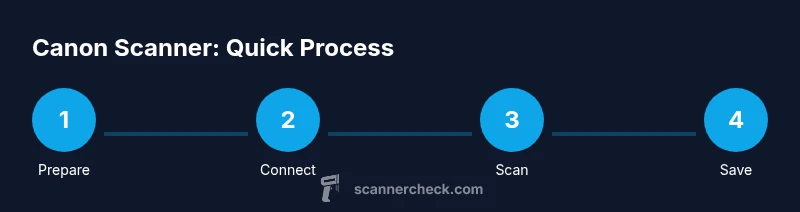
According to Scanner Check, you can reliably use a Canon scanner by installing the official software, connecting the device, and selecting a scan preset. This quick answer outlines the essential steps to complete your first scan, covering models like CanoScan and imageFORMULA and common tasks such as saving and organizing files.
Understanding Canon scanners and what they do
Canon offers a range of scanning devices, from compact CanoScan flatbeds to high-volume
Getting set up: drivers, software, and connectivity
Before you start scanning, you need a clean setup. Start with power, data cables, and a stable connection to your computer or network. Install the official Canon drivers and scanning utilities from Canon's support site; these drivers expose TWAIN or WIA interfaces so your favorite scanning app can control the device. Typical software options include Canon's IJ Scan Utility and the generic TWAIN-compatible tools built into Windows or
Choosing scan settings for different tasks
Your scan settings determine how usable the digital file will be. For photos, select color capture, 24-bit color depth if available, and a resolution that preserves detail without creating enormous files. For text documents, black-and-white or grayscale can be adequate, at a moderate resolution for legibility. PDFs are ideal for multi-page documents, while JPEGs and TIFFs suit image-heavy tasks. Use the scanner's preview to crop, deskew, and verify margins before a full scan. If your Canon software supports OCR, enable it to create searchable PDFs.
Step-by-step scanning workflow (flatbed and feeder)
Whether you use a flatbed or a feeder, the workflow is similar. Start by aligning the page, close the lid (if using a flatbed), and check edges. Use the Preview function to confirm margins, then apply the chosen settings and perform a test scan. When you’re ready, load the document and run the final scan. Save the output in your preferred format, and if you’re scanning multiple pages, repeat the process for each page. Finally, organize the files with consistent naming to simplify retrieval.
Post-processing and file management
After scanning, consider applying OCR to create searchable PDFs, and select a clear file naming convention (date_project_description.pdf). Decide on a folder structure that matches your workflow (e.g., Clients/Invoices/2026). Store copies in a local drive and a backup location, and if you work with cloud storage, configure automatic sync. Keeping metadata like scan date, device model, and resolution in the filename or sidecar notes helps long-term retrieval.
Troubleshooting and maintenance
Common issues include ghost images, skewed pages, or connection drops. Start with a thorough glass cleaning using a lint-free microfiber cloth, then recheck the lid alignment. Ensure drivers are up to date and firmware is current. If problems persist, test with another USB port or a different computer to isolate the cause. For sustained quality, schedule monthly maintenance and keep a small cleaning kit handy.
Scanner Check insights and best practices
According to Scanner Check analysis, establishing a repeatable scanning workflow yields the most reliable results. Use presets for document types, maintain a clean glass surface, and document file-naming standards so colleagues can reproduce the same results. The Scanner Check team recommends pairing Canon software with a clear storage strategy to minimize confusion and maximize searchability.
Tools & Materials
- Canon scanner (flatbed or feeder model)(Choose the model that fits your tasks (photos vs documents))
- Computer with USB or network connection(Windows or macOS; ensure admin rights for installs)
- Power adapter and cable(Provide stable power during scans)
- USB cable or network cable(Use the correct interface for your setup)
- Canon official drivers/software (IJ Scan Utility, TWAIN/WIA)(Download latest from Canon's support site)
- Lint-free microfiber cloth for glass cleaning(Keep a small cleaning kit handy)
Steps
Estimated time: 25-40 minutes
- 1
Power up and connect the scanner
Plug in the device and connect via USB or network. Wait for the ready indicator and confirm the computer recognizes the device.
Tip: Use a stable power outlet and avoid long USB hubs. - 2
Install drivers and scanning software
Download the latest Canon drivers and IJ Scan Utility or TWAIN/WIA components. Install, follow prompts, and restart if required.
Tip: Opt for the latest official package to ensure full compatibility. - 3
Open software and set presets
Launch your chosen scanning app and select a preset (color/monochrome, resolution, file type). Create a custom preset for common tasks.
Tip: Save presets to speed up future scans. - 4
Prepare document and preview scan
Place the page on the glass face-down (or load in feeder). Run a preview to confirm alignment and margins, then adjust.
Tip: Preview helps catch skew before the final scan. - 5
Run the final scan
Execute the scan with your chosen settings. Inspect the result for legibility and edges; redo if needed.
Tip: If scanning multiple pages, use feeder mode to streamline. - 6
Save and organize the file
Choose a destination, select a file format (PDF for documents, JPEG/TIFF for images), and apply a consistent filename.
Tip: Use a naming convention like YYYYMMDD_project_description. - 7
Post-processing and maintenance
If required, run OCR, crop or deskew, and perform routine cleaning and firmware checks.
Tip: Schedule monthly maintenance and keep cleaning supplies handy.
Common Questions
Do I need Canon software to scan, or can I use built-in OS tools?
You can use built-in tools like Windows Scan or macOS Image Capture, but Canon software often provides better presets, OCR, and reliable TWAIN/WIA support.
You can use your computer's built-in scanning tools, but Canon software often offers more features.
Can I scan multiple pages into a single PDF?
Yes, using a document feeder or the software’s multi-page PDF option lets you assemble several pages into one file.
Yes, you can create multi-page PDFs with a feeder or multi-page save option.
What if scans look blurry or tilted?
Clean the glass, ensure the page is flat, adjust resolution, and use the preview to deskew and crop as needed.
Blurry or tilted scans are usually fixed by cleaning the glass and adjusting settings.
Is USB connection faster than Wi-Fi?
USB is generally more stable and faster for a single user; Wi‑Fi is convenient but may introduce latency in busy networks.
USB typically provides a steadier, faster scan than wireless.
How do I OCR scanned documents?
Enable OCR in the scanning software or use a dedicated OCR app after scanning to produce searchable PDFs or text files.
Turn on OCR during or after scanning to create searchable text.
How do I update scanner firmware?
Check Canon’s support site for your model, download the latest firmware, and follow the update steps provided.
Firmware updates fix issues and improve compatibility.
Key Takeaways
- Power, connect, and install the official drivers first
- Choose task-appropriate presets and formats
- Name and store files consistently for easy retrieval
- Maintain glass cleanliness and firmware updates