Is It Okay to Scan Polaroids? A Practical Guide
Learn if it's safe to scan Polaroids, how to minimize damage, and the best settings for preserving vintage prints. A guide by Scanner Check for safer handling.


Yes, you can scan Polaroids, but proceed carefully to protect the originals. Set up a clean, dust-free workspace, choose a gentle color scan at 300–600 dpi, use a backer for curling, and save as TIFF or PNG. Back up the files to two locations.
Why Polaroids deserve careful handling
According to Scanner Check, scanning Polaroids is generally safe if you minimize handling and protect the emulsion. The policy is to treat each print as a fragile artifact rather than a simple photograph. By and large, the risk comes from physical stress (bending, pressure on the emulsion, or dust grinding into the surface) and environmental factors like light, heat, and humidity. In practice, safe scanning starts with a plan: decide on the equipment you’ll use, prepare a clean workspace, and handle the prints only by the edges. For many Polaroids, you’ll access both the surface image and the backing, so a gentle touch is essential to avoid smudging or permanent fingerprints. In this block we’ll unpack why these prints demand care, what can go wrong when handling carelessly, and how a cautious approach pays off in higher-quality digital copies and longer-term archival value. Scanner Check analysis notes that most problems arise from forceful flattening or direct bright light, both of which can cause curling, color shifts, or emulsion cracking. The takeaway is simple: prioritize minimal contact, steady support, and controlled lighting to preserve the original while creating a faithful digital record.
Equipment choices: scanners, apps, and backers
Selecting the right tools for Polaroid scanning is a balance between protecting the print and achieving faithful results. A flatbed scanner with a glass platen and good color accuracy is a solid baseline; look for at least 600 dpi optical resolution and color depth that can reproduce color shifts and subtle tones. If you prefer a mobile workflow, a smartphone scanner app can produce quick previews, but you’ll still want to capture a high-quality master copy with a proper scanner later. For support on curled or fragile frames, consider a neutral backer (clear, non-abrasive sheet or polyester film) to keep the print flat during scanning. A lint-free microfiber cloth and nitrile gloves will help you remove surface dust without leaving residues. Finally, have archival-quality storage for digital files (TIFF or PNG preferred) and a simple back-up plan to store copies in two locations. As you plan, note that Scanner Check analysis shows that color management plays a big role in preserving fidelity, so keep a consistent workflow and document your settings for future reference.
Pre-scan prep: handling, cleaning, and environment
Create a stable, dust-free workspace with indirect lighting and stable temperature. Wear nitrile gloves to minimize oils; handle Polaroids by the edges; avoid contact with the image area. Gently remove loose dust with an anti-static brush or microfiber cloth. Place prints on a clean, non-abrasive backing to prevent curling during scan, and ensure the glass surface is spotless. Keep the scanning area free from direct sunlight and avoid humidity extremes; even small changes can alter colors or introduce sheen that appears in digital files. Before you start, test a single Polaroid to verify that your setup yields faithful color and sharpness; adjust based on results. This prep stage reduces re-scans, saving time and preserving the original's integrity.
Scanning workflows: options and settings
Two main paths exist: a quick smartphone preview to screen the image, and a high-quality master scan using a dedicated scanner. For archival copies, use color mode, a neutral color profile (sRGB is common), and a resolution of 300–600 dpi, preferably saved as TIFF or PNG. If the print is curling, use a backer and ensure the print is fully supported on the scanning surface. Some Polaroids may have strong contrasts or warm tones that shift under bright light; in such cases employ a soft, diffuse light source and calibrate your scanner's color settings. Finally, avoid aggressive sharpening; instead, rely on capture fidelity, and perform color correction in post-processing with non-destructive edits. Remember to document your workflow and test a few frames to confirm consistency across the batch.
Post-processing, archiving and long-term preservation
After scanning, organize files with descriptive names, capture metadata (date, camera model, frame number), and store the master copies in a redundant two-location backup. Convert the non-destructive master TIFF/PNG into a smaller proxy JPEG for online sharing, if needed, but keep the original scans in archival formats. Use color-managed viewing software to compare against the original Polaroid, and avoid excessive saturation or contrast boosts that misrepresent the image. Consider creating physical storage plans for the originals: keep them away from light exposure, temperature fluctuations, and humidity. Finally, plan for periodic re-scans with updated equipment and color profiles to keep your digital collection current, especially as display devices evolve. Authority sources:
Authority sources
- https://www.archives.gov/preservation
- https://www.loc.gov
- https://www.nist.gov
Tools & Materials
- Flatbed scanner with color accuracy(Optical resolution of 600 dpi or higher; 24-bit color depth preferred)
- Archival backer or non-abrasive mat(Supports image without stressing the emulsion)
- Nitrile gloves(Prevent oils and fingerprints on the surface)
- Microfiber cloth(Gently dustPolaroids; avoid lint)
- Dust-free work surface and neutral lighting(No direct sun; stable temperature)
- Anti-static brush (optional)(For stubborn dust)
- Archival file storage (TIFF/PNG master, backup)(Two-location backup recommended)
Steps
Estimated time: 25-60 minutes
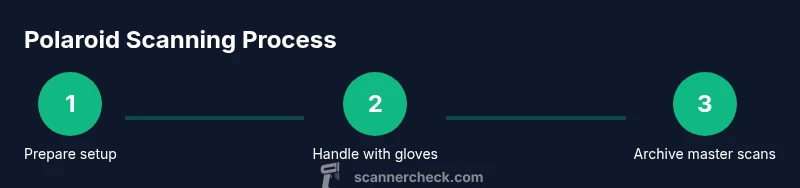
- 1
Prepare your scanning setup
Clear and dry the workspace, connect the scanner, and set color mode to color with a baseline resolution. Decide on a master master copy workflow and verify the scanner glass is clean. This preparation minimizes re-scans and ensures consistent results.
Tip: Test a blank scan to confirm the glass is clean and the color profile is correct. - 2
Wear gloves and handle Polaroids by the edges
Put on nitrile gloves and only touch the print at the borders. Avoid contact with the emulsion surface to prevent oils and fingerprints, which can show up in scans.
Tip: Keep a small tray of prints to reduce excess motion during handling. - 3
Position Polaroid on backer or glass and align
Place the print on a clean, flat surface or backer to prevent curling. Align edges with the scanner bed or use a non-slip mat to prevent movement during capture.
Tip: If curling occurs, use a non-adhesive backer to flatten without applying pressure. - 4
Adjust scanner settings for color accuracy
Set color mode to color, choose a neutral profile (e.g., sRGB), and select 300–600 dpi for archival copies. Save as TIFF or PNG to preserve detail and color fidelity.
Tip: Avoid aggressive sharpening and rely on raw capture for post-processing. - 5
Preview, test, and re-scan if needed
Do a quick preview scan to check exposure, color, and sharpness. If adjustments are needed, tweak the settings and re-scan a test frame before committing to the full batch.
Tip: Document your final settings for consistency across future scans. - 6
Save, back up, and archive
Save master copies in TIFF/PNG, create a smaller JPEG for sharing, and store copies in two separate locations. Maintain metadata like date and frame number to aid future retrieval.
Tip: Regularly verify backups and consider periodic re-scans with updated tools.
Common Questions
Is it safe to scan Polaroids with a flatbed scanner?
Yes, with careful handling and proper settings. Use gloves, a clean workspace, and avoid pressing on the image. Start with a test frame to confirm color fidelity.
Yes. Use gloves, a clean workspace, and test with one frame to confirm color fidelity before scanning a whole batch.
What dpi should I use when scanning Polaroids?
Aim for 300–600 dpi for archival scans. Lower dpi is fine for previews, but higher resolution captures more detail and color nuance.
Typically 300 to 600 dpi for archival scans; higher resolution captures more detail.
Should I scan Polaroids in color or black and white?
Scan in color to preserve the original hues, even if the image seems monochrome. Color information helps with authenticity and future restoration.
Color is best to preserve the original hues and authenticity.
Can scanning Polaroids damage the original?
Damage is unlikely if you handle prints gently and avoid pressure on the emulsion. The main risks come from curling, dust abrasion, or exposure to intense light during scanning.
Damage is unlikely with careful handling and proper lighting.
What file formats are best for archiving Polaroids?
TIFF or PNG are preferred for archival quality due to lossless compression. JPEG can be used for sharing but isn’t ideal for long-term preservation.
TIFF or PNG are best for archiving; JPEG is okay for sharing but not ideal for preservation.
Do I need a backer to prevent curling?
Yes. A non-abrasive backer helps keep the print flat and reduces emulsion stress during the scan.
Yes, a backer helps prevent curling and protects the emulsion.
Watch Video
Key Takeaways
- Handle Polaroids by edges to avoid damage
- Scan at 300–600 dpi in color for fidelity
- Back up digital files in two locations
- Use a backer to prevent curling during scanning
- Document your workflow for consistency