Scanner Works Like a Photocopy Machine: A Practical Guide
Explore how a scanner works like a photocopy machine, with a rigorous comparison of modern scanners versus traditional copiers, plus practical tips to optimize digitization and archiving workflows.


In practice, a scanner works like a photocopy machine by converting a physical page into a digital image that can be stored, shared, and edited. The end result is a faithful reproduction of the original, but scanners bring digital advantages such as OCR, searchable PDFs, and workflow automation that physical copiers cannot easily replicate. The analogy holds for basic reproduction, yet modern scanners expand capabilities far beyond a simple copy.
The Scanner Works Like a Photocopy Machine: Why It Matters
In everyday use, a scanner performs the digitization that a photocopier does physically, but with digital flexibility. According to Scanner Check, modern document scanners convert pages into high-fidelity digital images that can be stored, indexed, and processed with software tools. This creates a bridge between the tangible world of paper and the digital realm where documents are organized, searched, and shared. The key takeaway is that the same optical idea—capturing an image of a page—drives both devices, but the downstream handling of that image diverges dramatically in purpose and capability. Understanding this helps IT teams, administrators, and DIY hobbyists decide when digital archiving beats physical copies and when a quick print is still the right call.
Core Differences Between Scanners and Photocopiers
The most obvious distinction is output: scanners produce digital files, while photocopiers output tangible pages. Behind that, the optical path shares a conceptual backbone: light reflects off the page, returns to a sensor, and becomes an image. Photocopiers rely on toner and multiple rotating drums to lay down ink on paper, creating a physical reproduction. Scanners rely on sensors and digital processing pipelines to capture detail and color information that can be adjusted later. For office workflows, that difference matters because it determines whether you value archival quality, searchability, or speed of a physical copy.
Optical Technologies: How Scanners Capture Images
Documents are digitized through a combination of lighting, optic design, and sensor choice. Modern scanners use contact-free illumination and either CIS (contact image sensor) or CCD (charged-coupled device) technology. CIS devices are compact and energy-efficient, while CCD sensors historically offer high dynamic range and color fidelity. The choice affects sharpness, grayscale depth, and color accuracy. Many scanners support high optical resolutions (for example, 600–1200 dpi) that preserve fine text and graphics. In practice, your choice should align with document types (text vs images), expected output formats, and downstream processing needs such as OCR.
Color Management and Calibration for Consistency
Color accuracy matters when digitizing photographs, marketing collateral, or scanned paperwork with color-critical information. Scanners leverage ICC profiles and color spaces (sRGB, AdobeRGB, etc.) to ensure consistent results across devices and software. Regular calibration helps maintain stable output over time, reducing drift from lighting changes or sensor aging. If your workflow includes multiple scanners or multi-department access, establishing a standardized color profile and a calibration routine minimizes surprises when documents move from scanner to archive to an end-user display.
Digitization Workflows: OCR, Archiving, and Access
A core benefit of scanners is the ability to generate searchable PDFs and structured metadata through OCR (optical character recognition). This turns static images into text that can be indexed, searched, and routed through automated workflows. In practical terms, you can reduce manual data entry, improve document retrieval times, and integrate scanned files into content management systems. But OCR quality depends on source material, font legibility, and the software used. For best results, combine high optical resolution with clean sheets and proper deskewing to minimize misreads.
How to Compare Scanners: Feature-by-Feature Guide
When evaluating scanners, focus on factors that directly influence your tasks. Look for optical resolution that matches your document types, reliable duplex scanning for multi-page batches, robust OCR and file-format support, and a favorable total cost of ownership. User interfaces, software integration, and bundled scanning workflows can significantly affect productivity. In addition, confirm support for downstream outputs like searchable PDFs, multi-page TIFFs, or PDF/A archiving, depending on your compliance requirements.
Use Case Scenarios: When the Analogy Holds and When It Breaks
For routine digitization of paper documents, a modern scanner often delivers faster, cleaner digital copies and superior searchability compared to a copier used with a scanner or document feeder. However, scenarios that demand rapid physical copies, mixed-media sheets, or on-device editing without digital storage may still favor a traditional photocopier. In libraries and legal offices, the digital workflow is typically preferred, but back-up physical copies may be necessary for compliance or client-facing proofs.
Practical Setup Tips for Real-World Tasks
To maximize results, start with a clean scanner glass and good ambient lighting to reduce shadows. Choose a scan resolution appropriate for your material—300–600 dpi is usually adequate for text, while images and forms may benefit from 600–1200 dpi. Enable duplex scanning when handling double-sided documents, and use batch scanning to accelerate workflows. Apply appropriate page orientation, deskew, and background cleanup to minimize the need for manual correction. Finally, set up OCR with language packs and create named profiles for common document types to speed up retrieval.
Maintenance, Upkeep, and Total Cost of Ownership
Long-term efficiency comes from regular cleaning, firmware updates, and durable hardware. Routine tasks include cleaning the glass, checking rollers, and ensuring software remains compatible with your operating system. Energy-efficient models reduce running costs, while solid warranties protect against early failures. Total cost of ownership weighs upfront price against consumables, maintenance intervals, and the potential time saved through automated workflows. By planning for these factors, you can choose a scanner that continues to deliver value over years of use.
Comparison
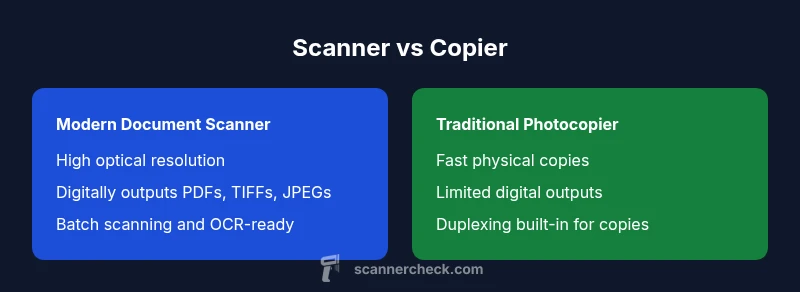
| Feature | Modern Document Scanner | Traditional Photocopier |
|---|---|---|
| Image Quality (optical resolution) | up to 1200 x 1200 dpi | up to 600 x 600 dpi |
| Color Management | full ICC profiles and calibration | limited color management |
| Duplex Scanning | automatic duplex scanning | no automatic duplex; may require manual duplex |
| Output Formats | PDF, TIFF, JPEG, searchable PDF | PDF, JPEG, TIFF (image outputs) |
| Speed (pages/min) | approx. 25-60 ppm | approx. 15-40 ppm |
| Maintenance/Ownership Cost | lower ongoing costs; energy efficient | higher consumables (toner) and maintenance |
| Best For | digitizing and archiving workflows | high-volume quick copies |
Pros
- Lower long-term operating costs with energy efficiency and fewer moving parts
- Better integration with digital workflows and OCR
- Higher scan quality control through color management and calibration
- Smaller footprint and quieter operation in typical offices
- Easier to automate with batch scanning and software-enabled routing
Drawbacks
- Higher upfront cost for quality document scanners
- Limited built-in copying features compared with copiers
- Requires separate workflow for advanced color profiles and retention policies
Modern scanners win for digitization and workflow automation; copiers still shine for rapid physical copies
If your goal is efficient digitization, searchable archives, and integration with document systems, choose a scanner. If you frequently need fast, bulk physical copies, a photocopier remains valuable as a backup.
Common Questions
What is the main difference between a scanner and a photocopier?
The scanner digitizes pages into digital images, enabling storage, editing, and search. A photocopier reproduces physical copies using toner. The digital path enables workflows like OCR and metadata tagging, while the photocopier focuses on immediate, tangible outputs.
A scanner makes digital copies you can store and search, while a copier makes physical copies on paper.
Can a scanner fully replace a photocopier for everyday office tasks?
For most archival and digital-distribution tasks, a scanner replaces photocopiers. If your daily work requires rapid physical copies for meetings or handouts, a copier remains relevant. Many offices use both devices to cover both digital and physical needs.
For digital work, yes, a scanner is often enough; for quick physical copies, you’ll still want a copier.
What factors influence scan quality the most?
Optical resolution, sensor type (CIS vs CCD), lighting quality, and proper calibration drive scan quality. Document condition, font legibility, and paper color also affect OCR accuracy and image clarity.
Resolution, sensors, and calibration matter most for clean scans.
Is automatic duplex scanning common in consumer-grade scanners?
Many business-oriented scanners offer automatic duplex scanning, while entry-level consumer models may lack this feature. If you deal with two-sided documents regularly, prioritize duplex capability in the purchase.
Yes in many business models; check your model’s duplex capability before buying.
Which output formats should I look for in a scanner?
Look for PDF (preferably searchable PDF), TIFF, and JPEG support. For long-term archives, PDF/A compatibility is advantageous, and OCR-enabled PDFs improve accessibility and searchability.
PDF with OCR is ideal for archives; add TIFF or JPEG as needed.
Key Takeaways
- Choose digitization first for digital workflows
- Prioritize optical resolution and color accuracy for critical documents
- Leverage duplex scanning for efficiency on multi-page tasks
- Invest in calibration and file formats that fit your archive needs
- Factor total cost of ownership beyond the upfront price