How to Scan for Malware: A Practical Guide
Learn how to scan for malware across Windows, macOS, and mobile devices with a practical, step-by-step approach, tool recommendations, and remediation strategies.


Across Windows, macOS, and mobile, this guide shows you how to scan for malware effectively. Start by updating software, then run full-system scans with reputable antivirus or anti-malware tools, and finally quarantine threats and restore from backups if needed. Regular checks and offline boot scans improve detection. By the end, you’ll have a clean, protected device.
What is malware scanning and why it matters
Malware scanning is the process of examining a device’s files, running processes, and network activity to identify malware, adware, ransomware, and other threats. A robust scan combines signature-based detection with heuristics, behavioral analysis, and sometimes cloud-based intelligence. For the average user, malware scanning is essential to prevent data loss, performance degradation, and privacy breaches. The goal is to detect malicious code before it can exfiltrate data, hijack resources, or spread to other devices. In this guide, we focus on practical steps you can take to scan for malware across Windows,
How malware scanning works: signatures, heuristics, and more
Malware scanning leverages several techniques to detect malicious software. Signature-based detection compares files against a catalog of known threats; heuristics analyze suspicious code patterns; behavioral detection monitors real-time actions like unusual file modifications or network activity; and cloud-based checks augment local results with global intelligence. Some tools offer boot-time scans that run before your operating system loads, catching stealthy threats that hide in memory. Scanners often combine multiple methods to reduce false positives and improve detection rates. The reader should understand that no single approach catches every threat, so a layered strategy—signatures, heuristics, and behavior—yields the best protection. Scanner Check recommends using at least two independent tools when possible to confirm findings and avoid vendor bias. Also remember to keep virus definitions up to date and to configure realistic scan schedules that fit your usage patterns.
Types of scans you'll use
Different scan types serve different purposes. A quick scan checks common locations for obvious threats in a short time, while a full scan inspects every file and process, taking longer but offering deeper coverage. Boot-time or offline scans run before the operating system starts, catching dormant threats in memory. Rootkit scans target hidden components that try to evade standard checks. Network scans look for suspicious activity across connected devices, especially on shared networks. For most users, a layered mix of quick scans, full scans, and periodic offline scans delivers practical protection without disrupting daily work.
Tip: Consider enabling cloud-assisted scanning if your tools offer it, but ensure you understand data-sharing implications and privacy settings.
Step-by-step workflow for scanning on your devices
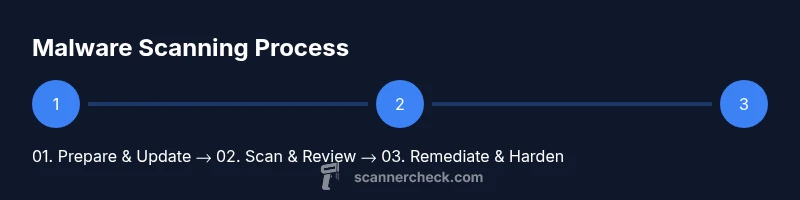
Scanning for malware is a process that spans preparation, execution, and remediation. This section outlines a practical approach you can follow on most devices, with an emphasis on minimizing disruption while maximizing detection. Start by confirming you have legitimate tools installed and definitions updated. Then run a full-system scan, review any findings, and address them with quarantine or deletion as appropriate. Finally, perform a verification sweep and implement ongoing protections to prevent reinfection.
Tools and criteria for choosing scanning software
Selecting the right malware scanning tools is crucial. Look for reputable antivirus/anti-malware suites with real-time protection, automatic updates, and clear remediation options. Consider both on-device scanners and optional offline/rescue media for boot-time scanning. Features to prioritize include detection of rootkits, minimized false positives, low system impact, and transparent privacy policies. For a layered defense, pair tools from different vendors and compare results to verify threats before taking action. Scanner Check’s guidance emphasizes practical, defense-in-depth choices over single-vendor reliance.
Remediation and post-scan practices
Remediation is about containment, repair, and verification. Quarantine any detected threats immediately to stop their spread. Remove or repair infected files, reset compromised credentials, and patch vulnerabilities identified during the scan. After remediation, re-run scans to confirm that all threats are gone and that the system is back to a clean state. Update security settings to close gaps, enable automatic updates, and schedule regular scans. Maintain a clean incident log to track changes and improvements over time.
Common mistakes and how to avoid them
Common mistakes include running a scan with no updates, relying on a single tool, or ignoring boot-time scans for stubborn infections. Another frequent misstep is pausing security features during remediation, which can leave the system exposed. Always verify results with a second tool when possible and avoid clearing quarantine items without reviewing them. Lastly, neglecting backups makes remediation riskier; ensure you have reliable restore points before taking actions that could alter files.
Long-term malware hygiene and ongoing protection
A robust malware hygiene routine combines regular scans, automatic updates, safe browsing, and routine backups. Schedule weekly or biweekly scans for most devices, with deeper quarterly dries runs using offline boot tools. Educate all users on phishing, suspicious links, and social engineering. Consider implementing endpoint detection and response (EDR) where appropriate, and review security logs regularly to spot anomalies early. A sustainable approach is to treat scanning as a living practice rather than a one-off task.
Tools & Materials
- Trusted antivirus/anti-malware software(Choose reputable tools; keep definitions updated and enable real-time protection.)
- Operating system updates(Apply security patches and feature updates promptly.)
- Backup drive(Maintain offline or cloud backups; test restore periodically.)
- Bootable rescue media(Optional for offline/boot-time scanning on systems with suspected rootkits.)
- Network isolation option(Have a plan to disconnect from the network if you suspect ransomware activity.)
Steps
Estimated time: 1-3 hours
- 1
Prepare the system and backups
Verify that all important data is backed up to a separate device or cloud storage. Ensure you have a restore plan in case files are affected during remediation. If possible, document the baseline state of your system before scanning.
Tip: Back up before touching any suspicious files to avoid data loss. - 2
Update software and enable protections
Install the latest operating system updates and update all security tools. Enable real-time protection and automatic updates so you catch new threats after the scan.
Tip: Keep definitions current to maximize detection coverage. - 3
Choose scanning tools and tailor settings
Select at least two reputable scanners, configure full-system scans, and enable boot-time options if available. Adjust sensitivity to balance detection with false positives.
Tip: Test configurations on a non-critical sample before running a full audit. - 4
Run a full-system scan
Start a comprehensive scan of all user and system directories, including installed programs, temporary folders, and startup items. Do not use the computer heavily during this period if possible to avoid interference.
Tip: Record scan progress and keep screenshots of findings for later review. - 5
Perform an offline/boot-time scan
If available, boot into offline mode to scan outside the main OS. This helps uncover malware that hides when the system is running.
Tip: Boot-time scans catch memory-resident threats that evade live monitoring. - 6
Quarantine, remediate, and verify
Quarantine any detected threats, remove or repair affected files, and reset compromised credentials if needed. Re-run scans to ensure all threats are eliminated.
Tip: Do not assume a threat is gone after one run—verify with a second scan. - 7
Harden and schedule ongoing protection
Re-enable protections and set up automatic scans on a regular schedule. Consider adding an extra layer such as an EDR for enterprise environments.
Tip: Automate as much as possible to reduce human error. - 8
Document results and plan next steps
Keep a remediation log, note lessons learned, and set a plan for ongoing health checks. Share findings with stakeholders if in a team environment.
Tip: Documentation helps improve future incident response.
Common Questions
What does malware scanning cover?
Malware scanning covers detecting viruses, trojans, ransomware, adware, spyware, and rootkits. It combines signatures, heuristics, and behavioral analysis to identify threats.
Malware scanning checks for viruses and other threats using multiple detection methods—signatures, heuristics, and behavior.
How often should I scan for malware?
For most users, a weekly or biweekly full scan is a good baseline, with automatic daily quick scans and real-time protection enabled.
A weekly full scan plus daily quick checks is a solid baseline, with real-time protection on.
Can built-in tools be enough on their own?
Built-in tools can be helpful, but layered coverage from multiple tools provides deeper protection and reduces blind spots, especially on multi-device environments.
Built-in tools help, but a layered approach with extra scanners improves protection.
What should I do if a scan finds malware?
Isolate the threat by quarantining first, then remove or repair infected files. Change passwords if credentials were compromised and patch related vulnerabilities.
If malware is found, quarantine it, remove it, and change compromised credentials.
What is boot-time/offline scanning?
Boot-time scanning runs before the OS starts, catching threats that hide in memory. It’s critical for stubborn infections and rootkits.
Boot-time scans run before the OS loads to catch hard-to-detect threats.
Are online scanners safe to use?
Online scanners can be useful as a secondary check, but rely on trusted vendors and avoid exposing sensitive data. Do not use untrusted web-based tools.
Online scanners can help as a second opinion, but stick to trusted providers.
Key Takeaways
- Update software and back up data before scanning.
- Use multiple scan types for thorough coverage.
- Quarantine threats promptly and re-scan to verify.
- Schedule regular scans to maintain protection.
- Review results carefully and patch vulnerabilities.