How to Scan for Viruses: A Practical Guide
Master virus scanning with actionable steps, robust tools, and best practices. Learn how to choose antivirus vs anti-malware, prepare your system, run scans, and remediate threats for home and office protection.


Install a reputable antivirus, update signatures, run a full system scan, review detected items, and quarantine or remove threats. Enable real-time protection, quarantine suspicious files, and schedule automatic scans. For best results, combine antivirus with safe browsing, OS updates, and regular backups. Keep definitions up to date and run scans after major software changes.
What antivirus scanning is and why it matters
Virus scanning is the process of detecting malicious software on your devices using specialized software that examines files, processes, and network activity. In today's threat landscape, most malware tries to hide, so scanners rely on signatures, heuristic analysis, and behavior monitoring to identify suspicious items. According to Scanner Check, a layered approach—signature-based detection, behavioral analysis, and regular updates—offers the best protection for homes and small offices. Regular scanning helps catch infections that real-time protection might miss and reduces the risk of data loss or downtime. When you scan, you also learn about frequently affected areas (like email attachments, removable drives, and downloaded installers) and improve your security posture over time. The key is to treat scanning as a routine, not a one-off event, and to pair it with safe computing habits such as avoiding untrusted downloads and keeping systems updated. In practice, you should plan scans to run after important updates or new software installations, and you should verify that your chosen tool has an active support channel in case you need help interpreting results.
Choosing the right tools: antivirus vs anti-malware suites
When you set out to scan for viruses, you first need the right tools. Antivirus software focuses on known threats and often provides real-time protection, email scanning, and web protection. Anti-malware suites broaden that coverage to detect and remove less common or evolving threats. The choice is not black and white; many vendors combine features, so you want a solution that includes signature-based detection, heuristic analysis, and behavioral monitoring. The Scanner Check guidance emphasizes using reputable tools with frequent updates, transparent privacy policies, and clear remediation steps. For most users, a single, well-supported solution paired with the OS’s built-in security features offers robust protection. If you operate in a high-risk environment or manage multiple devices, consider layered security—alternate scanners on-demand for second opinions, plus regular backup routines.
Preparing your system before you scan
Preparation matters. Before you start scanning, ensure your system is current: install pending updates, apply the latest security patches, and update virus definitions. Close nonessential applications to reduce interference and free resources for the scanning process. Create a restore point or full backup so you can recover if a scan uncovers a stubborn infection or if remediation requires changes to system files. Make sure your internet connection is stable, and disconnect unneeded external storage if you want to isolate external media. If your device supports it, enable boot-time protection or pre-boot scanning features; these can catch threats that hide during normal operation. By preparing properly, you reduce scan time, improve accuracy, and lower the chance of missing threats.
Scanning workflow explained
Scanning typically involves quick scans, full system scans, and targeted scans. Quick scans check key areas (system memory, startup locations, recent files) and are fast, but may miss deeply embedded threats. Full scans inspect every file and process; they take longer but offer the most thorough protection. When you start a full scan, ensure the device remains powered and connected to power; avoid using the device for heavy tasks during the run. Some tools offer bootable rescue discs for malware that hides in the boot sector; this can be crucial for stubborn infections. After scanning, the software will quarantine or delete threats according to its policy. If a false positive flags a safe file, consult vendor guidance and consider temporarily whitelisting it after verification.
Interpreting results and remediation
Results interpretation is the bridge between detection and cleanup. Review each item carefully: quarantined files are isolated but not erased, while deletions remove the threat from active areas. Use the tool’s suggested actions, but verify with a second opinion if uncertain. Ensure you back up important files before remediation, so you can restore clean copies if you accidentally remove something critical. After remediation, run another scan to confirm the system is clean and monitor the machine for any recurring signs of infection. If you detect persistent issues, consider offline scanning or a bootable rescue environment to target rootkit or boot- sector threats.
Best practices for ongoing protection
Adopt a defense-in-depth approach to virus scanning. Keep all software updated, enable real-time protection, and schedule regular full-system scans. Combine a trusted antivirus with secure browsing practices, email filtering, and OS security features. Maintain current backups on a separate device or cloud service, so you can restore clean copies quickly if needed. Periodically review your security settings, test the scanner against new threat families, and consider additional on-demand scans for high-risk files or removable media. The Scanner Check team recommends layering protection and treating scanning as an ongoing habit, not a one-off task.
Authoritative sources and further reading
- CISA: https://www.cisa.gov
- NIST Cybersecurity Framework: https://www.nist.gov
- FBI Internet Crime Report: https://www.fbi.gov
Quick-start checklist
- Update virus definitions and software
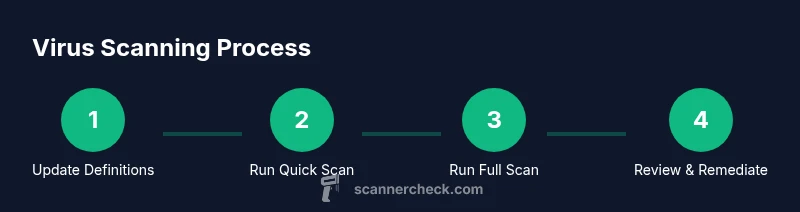
- Run a quick scan and then a full scan
- Quarantine or remove detected threats
- Schedule automatic scans and maintain backups
Tools & Materials
- Reputable antivirus/anti-malware software(Must offer real-time protection, regular updates, and full-system scan capability.)
- Updated virus definitions/signatures(Ensure definitions are current before scanning.)
- Full backup or restore point(Create a restore point or backup before remediation.)
- Stable internet connection(Needed for updates and cloud lookups.)
- Administrative access credentials(Needed to run scans with sufficient privileges.)
- External USB drive (optional)(For offline quarantine or backup of detections.)
Steps
Estimated time: 45-90 minutes
- 1
Prepare and update
Update your antivirus definitions and install pending software updates. Close nonessential apps to free system resources before scanning. This reduces false positives and speeds up the process. Use a restore point as a safety net.
Tip: A clean starting point minimizes interference during scanning. - 2
Run a quick scan
Start with a quick scan to check common infection vectors like startup items and recently changed files. Note any items flagged and take appropriate action per the tool’s guidance.
Tip: If the quick scan flags multiple items, proceed to a full scan for a deeper check. - 3
Run a full system scan
Initiate a full scan to inspect every file, process, and memory region. Avoid heavy multitasking during this period to ensure the scan completes without interruption.
Tip: Keep your device plugged in or powered to prevent mid-scan shutdown. - 4
Review detections
Assess quarantined and removed items. Confirm true threats and not false positives by cross-checking with vendor guidance or a second opinion tool.
Tip: If unsure, quarantine for later review rather than deleting critical files immediately. - 5
Remediate threats
Follow the recommended actions for each threat—quarantine, delete, or repair. After remediation, run another scan to verify cleanup and monitor for residual activity.
Tip: Document remediation steps for your future reference. - 6
Schedule ongoing protection
Set automatic updates, schedule regular scans, and enable real-time protection. Maintain backups and review security settings periodically.
Tip: Automated routines reduce the chance of human error.
Common Questions
How often should I scan for viruses?
Aim for a regular cadence, such as a full scan weekly or biweekly, depending on risk exposure. In high-risk environments, increase frequency and enable real-time protection at all times.
Set a weekly full scan as a baseline and keep real-time protection on at all times.
What's the difference between quick scan and full scan?
A quick scan checks common infection points to save time, while a full scan inspects all files and processes for a thorough check. Use both periodically for balanced protection.
Quick scans are fast previews; full scans are thorough investigations.
Can I run two antivirus programs at once?
Running two active antivirus programs can cause conflicts and reduce protection. If you need extra assurance, use a secondary on-demand scanner rather than a second resident protector.
Avoid installing two real-time antivirus programs at the same time.
What should I do if a scan flags a false positive?
If a safe file is flagged, check vendor guidance, quarantine temporarily, and consider whitelisting after confirmation. Run a secondary scan to confirm the file's status.
If unsure, quarantine and verify with the vendor before deletion.
Do virus scanners remove threats automatically?
Many scanners offer automatic remediation, but it's best to review items before removal to prevent data loss. Use automated actions with caution.
Automatic removal helps, but you should review each threat first.
Should I scan external drives or USB devices?
Yes. External drives can carry malware; include them in periodic scans and scan new media before use. Disable autorun to reduce risk if supported by your tool.
External drives should be scanned, especially before use.
Watch Video
Key Takeaways
- Adopt a layered approach to virus scanning.
- Keep definitions and software updated.
- Schedule regular scans and verify results.