How to Scan for Malware on iPhone: A Practical Guide
Learn practical, step-by-step methods to verify your iPhone's security, check for rogue profiles, and strengthen defenses. This Scanner Check guide explains iOS protections, safe habits, and when to seek help.


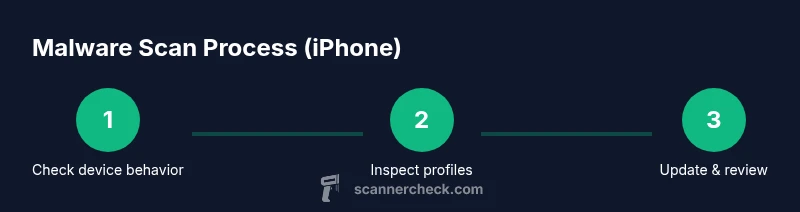
If you’re wondering how to scan for malware iphone, you’ll focus on verifying iOS integrity rather than running a traditional scanner. Start with the built-in protections, check for rogue configuration profiles, review Apple ID security, and keep iOS updated. This guide walks you through practical checks and safe practice to protect your iPhone.
Understanding
Signs your
Quick verification steps you can take today
To start, ensure your
Inspect configuration profiles and accounts
Configuration profiles can automatically configure Wi‑Fi, email, or VPN settings. Malicious profiles are rare but can give an attacker control over network traffic or data exposure. To inspect: Settings > General > VPN & Device Management. If you see a profile you don’t recognize, tap it, review the organization name, and remove it if it looks suspicious. After removal, sign out of
Update, browser security, and device hardening
Regular OS updates close security gaps attackers could exploit. Always install the latest
The role and limits of security apps on
Safe browsing and network hygiene
Public Wi‑Fi is risky; use a strong, unique password for home networks and enable a reliable VPN when on public networks. Be cautious with links in text messages, emails, and social apps; phishing attempts often lead you to credential harvesting sites. Enable two‑step verification for your email, cloud storage, and financial services; keep backup recovery options up to date. Review app permissions regularly—if an app asks for access you don’t understand or need, deny it and revoke permissions later. Periodically review which devices are connected to your Apple ID and log out of unused devices. A combination of Hardened settings and consistent scrutiny among daily activity makes malware on
When to reset or contact support
If you cannot identify the cause of abnormal behavior or suspect a serious breach, take decisive steps. Back up your
Quick-start checklist you can print and use
Print this quick checklist and run it monthly or after any major change. • Update
Tools & Materials
- iPhone with latest iOS update(Keep automatic updates enabled; check Settings > General > Software Update monthly.)
- Stable internet connection(Wi-Fi or cellular data for updates and profile checks.)
- Apple ID with two-factor authentication(Ensure 2FA is enabled; review trusted devices.)
- Backup of iPhone data(Use iCloud or iTunes/Finder to back up before changes.)
- Reputable security app (optional)(Choose apps focused on phishing protection or network security, not full OS scans.)
- Printer and notes for reference(Print the quick-start checklist for offline use.)
Steps
Estimated time: 45-60 minutes
- 1
Check for unusual device behavior
Observe for sudden battery drain, heat, or erratic performance. Open Settings > Battery to review app-level usage and data activity. Note any processes you didn’t start and be prepared to document them for further steps.
Tip: If you see a spike in background activity, restart the device and recheck after a short interval. - 2
Update iOS to the latest version
Navigate to Settings > General > Software Update and install any available updates. Updates fix known security gaps that attackers could exploit.
Tip: Enable automatic updates to avoid missing critical patches. - 3
Review Apple ID security
Change your password if you suspect compromise, enable two-factor authentication, and review the list of trusted devices. Remove any unfamiliar devices from your account.
Tip: If you’re unsure, sign out of all devices and sign back in with your credentials. - 4
Inspect configuration profiles
Go to Settings > General > VPN & Device Management. If a profile looks unfamiliar, tap it, verify the organization, and remove it if needed.
Tip: After removing a profile, reboot and re-check network settings. - 5
Check Safari and passwords
Review Safari privacy settings, disable suspicious extensions, and audit saved passwords under Settings > Passwords.
Tip: Use a unique password for each site and enable autofill only for trusted sources. - 6
Evaluate app permissions
Go through each installed app and verify requested permissions. Deny any unnecessary access and revoke where warranted.
Tip: If an app behaves oddly after permission changes, consider removing it. - 7
Leverage safe browsing and networks
Enable Fraudulent Website Warnings, use a reputable VPN on public networks, and avoid connecting to unknown hotspots.
Tip: Never enter credentials on sites reached via suspicious links. - 8
Backup and consider a reset if issues persist
If symptoms continue, back up data and consider a factory reset followed by a clean restore from a known-good backup.
Tip: Only restore from backups created after you’ve secured the device. - 9
Document and seek help when needed
Record symptoms, actions taken, and any alerts. Contact Apple Support or IT if the issue remains unresolved.
Tip: Provide a concise timeline of events to speed up assistance.
Common Questions
Can an iPhone get malware?
Yes, though rare, iPhones can be compromised via rogue profiles, phishing, or misconfigurations. The typical risk is mitigated by iOS sandboxing and vigilant user habits. Regular updates and profile reviews reduce likelihood.
Yes, iPhones can get malware, but it’s uncommon. Regular updates and careful profile checks help keep it rare.
Do iPhone malware scanners exist?
There isn't a universal on-device malware scanner for iPhone like on some other platforms. Security apps on iOS focus on phishing protection, privacy, and network security rather than full OS scans. Use built-in protections plus trusted apps for layered defense.
There isn’t a typical iPhone malware scanner; use built-in protections plus trusted security apps for guidance.
What should I do if I suspect malware?
Pause activity, back up data, update iOS, review profiles, and secure Apple ID. If signs persist, contact Apple Support or IT for specialized help. Document symptoms to speed resolution.
If you suspect malware, back up, update, review profiles, and contact support if needed.
Is antivirus on iPhone safe?
Yes, but choose reputable providers. Antivirus apps on iPhone mainly offer phishing protection and privacy tools, not a full OS scan. They should complement, not replace, Apple’s built-in defenses.
Yes, use reputable antivirus tools for protection, not as a replacement for iPhone security.
How often should I check for malware on iPhone?
Perform a basic check monthly and after any suspicious event (phishing, unusual prompts, new unknown profiles). Regular maintenance helps catch issues early.
Do a basic check monthly and after any suspicious events.
Will resetting fix a malware issue?
A factory reset can resolve persistent issues but should be a last resort. Always back up first, then restore from a clean backup and reconfigure securely.
A factory reset can fix persistent problems, but back up first and restore carefully.
Key Takeaways
- Verify iOS integrity first, not a generic scan
- Check for rogue profiles and account security
- Keep iOS updated and review app permissions
- Rely on built-in protections and reputable apps
- Seek professional help if issues persist