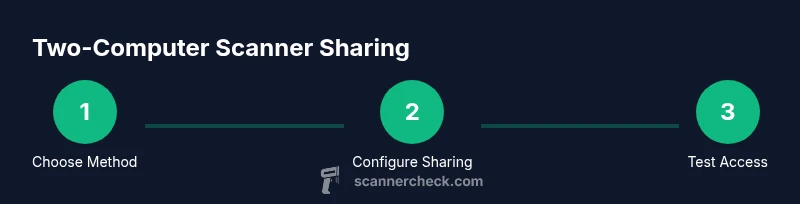
Can a Scanner Be Connected to Two Computers? A Practical How-To Guide
Learn how to share a scanner between two computers using USB sharing, network access, and practical setup steps. Includes hardware, software, and troubleshooting tips.


Yes, you can share a scanner between two computers, but you typically cannot scan to both at once over a single USB port. Use network sharing, a USB-sharing switch, or a network-enabled scanner to provide access from multiple machines. Choose the method based on your environment and OS support.
Understanding Why You Might Want Two Computers Access
In many offices, labs, or home setups, more than one person needs to scan documents without physically swapping cables. The central question is: can a scanner be connected to two computers? The short answer is yes, but only if you adopt a sharing approach that routes the scanner's input to multiple machines. This typically means moving away from a direct USB connection toward a shared interface, either over your local network or via a dedicated USB-sharing device. By understanding the capabilities of your scanner, drivers, and operating system, you can design a setup that minimizes wait times, reduces cable clutter, and preserves security and driver compatibility across both Windows and macOS, as well as Linux.
USB Sharing vs Network Sharing: What Works Best
Two common paths exist for making a scanner accessible to two computers: USB sharing and network sharing. USB sharing uses a hardware device (a USB switch or hub with switching capability) to allow two PCs to access the scanner sequentially or on demand. Network sharing relies on a scanner that is itself network-enabled or on a host PC that shares the scanner over the network via built-in OS features or third-party utilities. Each approach has trade-offs: USB sharing is simple and fast for nearby devices but requires manual switching; network sharing offers simultaneous access depending on the device, but can introduce latency and driver considerations.
How OS and Drivers Impact Sharing
Your operating system and drivers significantly affect which sharing method will work smoothly. Windows commonly uses built-in sharing features and TWAIN/WIA drivers, macOS leverages Image Capture alongside TWAIN, and Linux users may rely on SANE or vendor-provided drivers. Compatibility between host and client systems matters; some scanners present different features on different platforms. If you plan to access the scanner from two different OS environments, consider a network-enabled scanner or ensure driver support on each machine. Keeping firmware and drivers up to date reduces compatibility hiccups and improves reliability when multiple users access the device.
Typical Scenarios and Use Cases
- Small office with two PCs on the same LAN: network-sharing-enabled scanners or a host PC that shares the scanner over SMB or Bonjour services can work well. This setup minimizes cable clutter and provides smoother access for multiple users.
- Home setup with a single scanner and a second computer: a USB-sharing switch can let you route the scanner to the active computer without reconnecting cables. It’s a practical, low-cost solution if you don’t need simultaneous multi-user scans.
- Mixed-OS environment: if one computer runs Windows and the other macOS or Linux, a network-enabled scanner is often the simplest solution. Dual-driver support and compatibility across platforms matter here.
Troubleshooting Common Issues
If you run into trouble, verify that the scanner is visible to both devices, check that the correct drivers are installed on each machine, and confirm that network discovery is enabled where appropriate. If you’re using USB sharing, ensure the switch is correctly configured and that the host PC recognizes the scanner when switched back. For network sharing, confirm firewalls aren’t blocking scanner traffic, and check the scanner’s IP address against the client devices.
Security and Access Control Considerations
Sharing a scanner over a network can expose it to other devices on the same network. Use strong passwords for any shared access, enable encryption if available, and segment printer/scanner traffic on a dedicated VLAN when possible. Regularly review who has access and ensure that only authorized computers can initiate scans. If you’re using a USB-sharing switch, the security considerations focus more on physical access and ensuring that only trusted devices can connect when the switch is in use.
Maintenance, Updates, and Longevity
Keep firmware up to date on both the scanner and any network bridge devices. Regular driver updates on host machines reduce compatibility issues and improve scanning reliability. Periodically test the setup with typical documents to catch drift in alignment or recognition early. Document configuration steps so future users can reproduce the environment if you upgrade hardware or OS versions.
Quick Checklist Before You Begin
- Confirm whether you’ll share via USB switching or network sharing.
- Gather all required hardware: scanner, two computers, cables, and any switches or routers.
- Verify driver availability for all target OS versions.
- Ensure both computers are on the same local network or connected via a shared USB path.
- Prepare basic troubleshooting steps and access controls.
AUTHORITY SOURCES
- NIST: https://www.nist.gov
- IEEE: https://www.ieee.org
- ISO: https://www.iso.org
Tools & Materials
- Two computers on the same local network(Ensure both machines can see each other on the network. Wired Ethernet is preferred for reliability.)
- Scanner with USB and/or network capability(Check if the model supports network sharing or requires a host-pc sharing method.)
- Network router or switch(Needed if using network sharing; ensures stable communication between devices.)
- Ethernet cables(Cat5e or newer recommended for better performance.)
- USB cable (if using USB sharing)(Only needed for USB direct connections or when troubleshooting USB‑sharing setup.)
- USB sharing switch or USB hub with switching capability(Allows sequential access to the scanner from two computers.)
- TWAIN/WIA or SANE driver packages(Ensure drivers are available for all target operating systems.)
- Administrative access on both computers(Needed to install drivers and enable sharing features.)
- Documentation or notes of the network/USB path(Helpful for future maintenance or troubleshooting.)
Steps
Estimated time: 45-75 minutes
- 1
Assess and choose sharing method
Evaluate your environment to decide between USB sharing and network sharing. Consider how many users will access the scanner, network reliability, and OS compatibility. This choice determines subsequent hardware and software configuration.
Tip: If two users are in different rooms, network sharing is usually the better long-term choice. - 2
Prepare hardware
Collect all required devices: scanner, two computers, network gear, and any USB switches. Power down devices before connecting components to avoid static or misdetection.
Tip: Label cables if you’re using a USB switch to avoid confusion when switching between machines. - 3
Install or update drivers on the host computer
On the computer that will host the scanner, install the latest TWAIN/WIA drivers or SANE backend as appropriate for your OS. Reboot if prompted to ensure the scanner appears in the OS device list.
Tip: Keep a note of driver versions in case you need to reproduce the environment later. - 4
Enable sharing on the host OS
Turn on scanner sharing in the host OS settings, selecting the scanner in the printers/scanners list and enabling sharing. Verify the host is discoverable from the other computer.
Tip: Some OSes require you to enable network discovery or disable firewall rules temporarily during setup. - 5
Add the scanner on the client computer
On the second computer, add a scanner using the OS’s add-device flow and point it to the shared resource. Install and configure the appropriate drivers if prompted.
Tip: If the scanner doesn’t appear, try connecting via a network path or use the host’s IP address for manual addition. - 6
Test a basic scan
Open a scanning app on the client and perform a basic scan to verify end-to-end communication. Check both sides for successful data transfer and image quality.
Tip: Test with different document sizes and types to ensure compatibility across typical workflows. - 7
Troubleshoot and finalize
If issues arise, verify firewall settings, ensure correct ports for scanner traffic are open, and re-check drivers on both ends. Document the final configuration.
Tip: Create a short troubleshooting checklist for future maintenance.
Common Questions
Can I scan to two computers at the same time?
Generally no with a single USB path. Access can be shared, but concurrent scans from two machines require a network-enabled scanner or a server setup. Check your scanner's capabilities and OS support.
Usually you can't scan to two computers at the exact same moment with one USB connection. Use network sharing or a dedicated server setup if you need concurrent access.
Do I need a network-enabled scanner for two-computer access?
Not always. A USB-sharing switch can work for two nearby PCs. A network-enabled scanner provides easier multi-user access and often works across different OSs.
You don't always need a network-enabled scanner, but it makes multi-user access simpler and cross-platform.
What OS support should I expect?
Windows, macOS, and Linux each handle sharing a bit differently. Ensure drivers exist for all target systems and consider a network-based approach to minimize OS-specific issues.
Most OSes support scanner sharing, but you’ll want drivers for each system and a plan for cross-platform access.
Can I access a shared scanner remotely over the internet?
Remote access adds complexity and risk. It’s typically limited to local networks. If remote access is needed, use secure VPNs and validated client configurations.
Remote access is usually not recommended without a secure VPN and careful configuration.
Will sharing affect scanning speed?
Yes, network latency and device sharing can introduce delays. Expect some variability based on traffic, file size, and driver efficiency.
You may notice some slowdown when multiple users access the scanner, depending on the method used.
What security risks should I consider?
Expose only trusted devices, use strong credentials, and segment traffic. Disable unnecessary services on the scanner and monitor access logs where available.
Limit access to trusted devices and keep firmware up to date to reduce risk.
Watch Video
Key Takeaways
- Share via network or USB switch, not just direct USB.
- Drivers and OS compatibility drive success; update regularly.
- Test with real documents and keep a simple setup guide.
- Prioritize security and access control on shared devices.