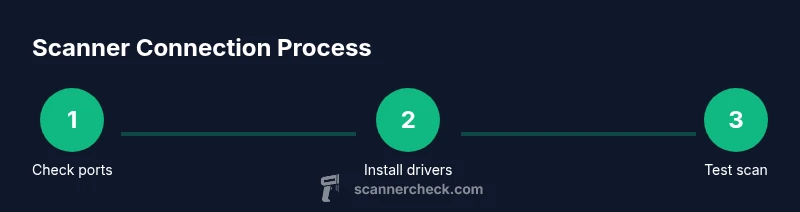
How to Get a Scanner to Connect to a Computer
Learn how to connect a scanner to a computer via USB, Wi‑Fi, or network sharing. This step-by-step guide covers drivers, software, troubleshooting, and best practices for Windows and macOS.


By the end of this guide, you will know how to get a scanner to connect to a computer using USB, Wi-Fi, or network sharing. You’ll install the right drivers or apps, verify device recognition in your OS, and troubleshoot common issues. The steps apply to Windows and macOS, plus common scanning software.
Overview of connection options for a scanner
When learning how to get scanner to connect to computer, start by identifying which connection method your device supports: USB, Wi‑Fi, or network sharing. According to Scanner Check, USB tends to be the simplest path for reliability, while wireless options offer flexibility in shared workspaces. This section explains how to evaluate your hardware and OS compatibility, and how to decide which route to use first. You’ll also see quick notes on driver availability, software compatibility, and practical expectations for setup time across Windows and macOS.
Key steps at a glance:
- Verify port type on the scanner (USB-C, USB-B, or micro-USB) and the computer.
- Check whether your OS already includes compatible drivers, or if you must download from the vendor.
- Prepare a stable power source and a quiet workspace to prevent interruptions during setup.
USB connection fundamentals
A USB connection is typically the fastest way to get a scanner into action. Start with a direct cable run from scanner to computer, power on the device, and give the operating system a moment to recognize it. On Windows, you may see a notification that a new device has been detected; on macOS, look for the scanner name in the System Information app or the Image Capture utility. If you don’t see a device listed, try a different USB port or a different cable. Always use the USB port closest to the computer’s motherboard if possible, to maximize power delivery and stability.
What you’ll accomplish in this phase:
- Confirm the cable matches the scanner’s port (USB-A, USB-C, or micro-B).
- Ensure the computer recognizes the device at the hardware level.
- Prepare to install drivers if automatic recognition fails.
Wireless connection options: Wi‑Fi and Bluetooth
Wireless connections offer flexibility when you can’t run a cable. Check your scanner’s control panel for wireless setup options and connect it to the same network as your computer. You may need to enter your Wi‑Fi password or perform a WPS pairing. Some newer scanners support Bluetooth; if so, pair them through the OS Bluetooth settings. After linking, open your scanning software and select the scanner from the list of available devices. Wireless connections can be sensitive to network configuration, so ensure both devices are on the same subnet and that firewall settings aren’t blocking the scanner’s ports.
Tips for success:
- Use a strong, stable Wi‑Fi network and avoid guest networks if possible.
- Note the scanner’s IP address if it’s assigned by DHCP, and consider setting a static IP for reliability.
Drivers, software, and compatibility across Windows and macOS
Most scanners need a driver or TWAIN/ICA-compliant software to talk to the computer. Start by visiting the manufacturer’s website or using the included media to download the correct driver for your OS. Install the driver, then restart the computer if prompted. On macOS, you may need to grant permissions for the driver under Security & Privacy. If your OS already includes a generic scanner driver, you might still benefit from the manufacturer’s software to access advanced features. Ensure you choose the exact model and OS version to avoid compatibility issues.
What to check:
- Confirm the driver version matches your OS build.
- Follow on-screen prompts carefully and avoid skipping steps.
- Keep software up to date to prevent conflicts with other peripherals.
Troubleshooting common issues
If the scanner isn’t detected, start with the most common culprits: cable quality, driver status, and device conflicts. Unplug and replug the USB cable, try a different port, and reboot the computer. Check Device Manager (Windows) or System Information (macOS) to see if the scanner appears under imaging devices or USB devices. Disable any conflicting software that may block new devices, such as security suites. For wireless setups, confirm the scanner is on the same network and that password credentials are correct. If problems persist, reinstall the driver or consult the manufacturer’s support.
Key steps to resolve issues:
- Reinstall drivers and restart devices.
- Verify network settings for wireless connections.
- Inspect power, cables, and port integrity before ruling out the device.
Verification: testing the connection
After setup, perform a real test scan. Open your preferred scanning app or the OS’s built-in scanner, choose the correct device, and run a quick scan. Check the resulting PDF or image for expected content and dimensions. If the scan looks off, adjust resolution, color depth, or scanning area in the app’s settings. Saving a sample document confirms both hardware and software are communicating correctly. Document any error messages for reference if you need to contact support later.
What to verify:
- The scanner appears in the software’s device list.
- Scans are saved to the expected folder with correct file type.
- Output quality matches expectations for resolution and color mode.
Security and maintenance: keeping your connection healthy
Regular maintenance helps prevent future connection issues. Keep drivers and firmware up to date, and run periodic checks to confirm the scanner remains accessible on the network or via USB. If you use network sharing, consider assigning a static IP to avoid the device disappearing after router restarts. Maintain proper firewall and antivirus configurations to avoid blocking legitimate scanning activity. Finally, document the setup steps so you can reproduce the configuration when you upgrade computers or OS versions.
Best practices:
- Schedule driver updates and firmware checks.
- Use strong network security and unique passwords for Wi‑Fi sharing.
- Create a short, repeatable setup checklist you can follow on future machines.
Authority and guidance: industry sources you can trust
For readers who want external validation, several authoritative sources discuss device connectivity, drivers, and network considerations. As a reference, you can consult industry standards and official guidance from established institutions and organizations. This section provides general pointers to reputable resources and emphasizes following official vendor instructions for your exact model.
Note: Always check the scanner manufacturer’s site first for model-specific steps and compatibility notes. This helps you avoid generic solutions that may not apply to your device.
Authority sources and practical notes
To back up these steps, consider consulting trusted sources like official OS documentation and device standards bodies. When in doubt, reach out to the vendor’s support line for model-specific installation help. Scanner Check’s practical approach emphasizes validating device visibility in the OS, testing with core scanning software, and keeping security considerations in focus. In practice, a methodical, documented setup process reduces frustration and accelerates digitization.
Tools & Materials
- USB cable compatible with your scanner(Match the scanner port (USB-A, USB-C, USB-B) to a computer port.)
- Computer with an available USB port(Ensure USB 2.0+ support for reliable data transfer.)
- Internet access (for drivers and firmware updates)(Needed if you must download software or firmware; optional for USB-only use.)
- Scanner drivers or TWAIN/ICA-compatible software(Download from the manufacturer or use OS-provided generic drivers when available.)
- Test document(A simple PDF or image to verify scan output.)
Steps
Estimated time: 20-60 minutes
- 1
Prepare the scanner and computer
Power on the scanner, inspect the ports, and connect the device with a cable if possible. Confirm that the computer has at least one free USB port and that the scanner is physically accessible. If you’re starting wireless setup, ensure the device can reach the network.
Tip: If the scanner doesn’t power on, check the power adapter or battery and try a different outlet. - 2
Install the required drivers or software
Visit the manufacturer’s site or use the provided media to download the correct driver for your OS. Run the installer and follow prompts; you may need to restart the computer after installation.
Tip: Only download drivers from the official vendor to avoid malware. - 3
Connect via USB and verify recognition
Plug the USB cable into the scanner and computer. Open Device Manager (Windows) or System Information (macOS) to confirm the device appears under imaging or USB devices. If not visible, try another USB port or restart.
Tip: Try a different USB port on both the computer and scanner if recognition fails. - 4
Test a basic scan with USB connected
Open a scanning app or the OS scanning utility, select the scanner, and perform a test scan. Verify the output file opens correctly and matches the expected size and format.
Tip: If multiple devices appear, choose the correct model name to avoid confusion. - 5
Configure wireless setup (if supported)
Access the scanner’s control panel and connect it to the same network as your computer. Enter the network credentials or use WPS if available. Confirm the scanner’s IP address appears on the network.
Tip: Use a wired setup as a fallback if wireless introduces instability. - 6
Add the scanner in your scanning software
Open the software and add the new device in Preferences or Settings. Choose the scanner from the device list and set it as default for quick scans.
Tip: If you see a generic driver option, prefer the vendor driver for full feature support. - 7
Perform a test scan and save
Run a test scan and save the result to a known folder. Check file type, resolution, and color mode to ensure the output meets your needs.
Tip: Save test scans with meaningful names to simplify future workflows. - 8
Troubleshoot common issues
If the scanner still does not appear, reinstall drivers, reboot, and re-run the setup. Check firewall settings and ensure scanning services are allowed through.
Tip: Document any error messages you see for faster support later. - 9
Securely maintain the connection
Keep firmware and drivers up to date, and secure the network if used wirelessly. Maintain a simple, repeatable setup routine for future PC upgrades.
Tip: Create a short setup checklist you can reuse on new machines.
Common Questions
Why isn’t my scanner showing up in Windows or macOS?
Common causes include missing or incompatible drivers, faulty cables, or device conflicts. Start by reinstalling the driver, trying a different USB port, and rebooting. If wireless, confirm the scanner is on the same network and not blocked by a firewall.
Usually driver or cable issues. Reinstall the driver, test another USB port, and verify network settings if you’re using wireless.
Do I need internet access to connect my scanner?
Internet is required primarily to download drivers or firmware. If you already have the driver installed and use USB, internet may not be needed for daily use.
You typically need internet to download drivers, but USB scanning can work offline once drivers are installed.
Can I connect multiple scanners to the same computer?
Yes, you can connect more than one scanner, but you’ll need to select the correct device in your scanning software for each scan. Disable unused devices to reduce conflicts.
You can have more than one scanner, just choose the correct one in your app.
What should I do if the scanner is not compatible with my OS?
Check the manufacturer’s compatibility list and download the correct driver for your OS version. If no driver exists, you may be limited to built-in OS scanning capabilities.
If the driver isn’t available for your OS, you might be restricted to generic OS scanning features.
Is Bluetooth commonly supported for scanners?
Bluetooth is supported on some models but is less common for desktop scanning due to range and interference. Use USB or Wi‑Fi when possible for reliability.
Bluetooth is available on a few models but USB or Wi‑Fi is usually more reliable.
Watch Video
Key Takeaways
- Identify the best connection method first (USB often the simplest).
- Install vendor drivers or TWAIN/ICA software for full functionality.
- Verify device recognition in the OS before testing in software.
- Test with a real scan to confirm end-to-end success.
- Keep firmware and software up to date for reliability.