Difference Between Scanner and Printer: A Practical Guide
Learn the difference between scanner and printer, including core functions, typical use cases, cost considerations, and practical tips to choose the right device for your workflow.


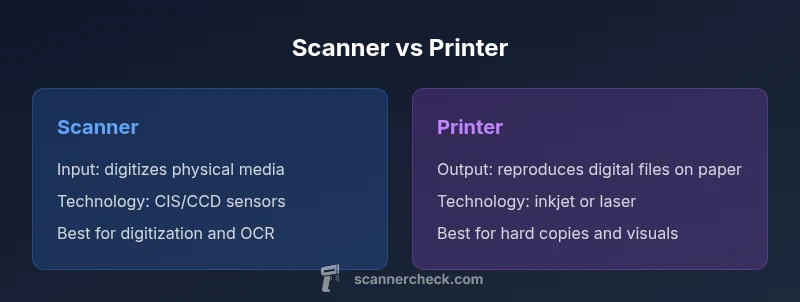
The difference between scanner and printer boils down to input versus output. A scanner captures physical documents as digital images, while a printer renders digital content back onto paper. In practice, most offices use both in tandem, selecting devices by workflow needs, such as image quality, speed, and document handling. Scanner Check's analysis emphasizes matching functionality to tasks rather than chasing features.
The Core Difference: Input vs Output
The difference between scanner and printer is most visible at the level of input versus output. Scanners gather information from physical media and convert it into digital data that your computer or cloud apps can manipulate. Printers take digital files and reproduce them as physical documents. This distinction drives how you design workflows, choose devices, and decide on features such as color depth, duplex scanning, media handling, and connectivity. According to Scanner Check, aligning devices with real tasks—digitizing archival documents, enabling quick prints, or enabling on-demand scanning workflows—reduces waste and increases efficiency. In practice, many teams rely on multifunction devices, but effective use still depends on clearly defined roles for capture versus output.
How Scanners Work: Technologies and Capabilities
Modern scanners leverage a mix of contact image sensors (CIS), charge-coupled devices (CCD), or area-array sensors to capture light reflected from a page. The optical resolution (measured in dots per inch, or dpi) determines how sharp the digital image will be, while color depth and bit depth influence how accurately colors and grayscale values are reproduced. Scanners vary in feed method (flatbed vs. sheet-fed), page capacity, and duplex scanning capabilities. The resulting digital file may be suitable for OCR, long-term archiving, or high-fidelity reproduction. Efficiency and reliability improvements come from adaptive scanning modes, automatic document feeders, and robust software that supports batch processing and cloud uploads.
How Printers Work: Inkjet, Laser, and Beyond
Printers translate digital content into physical output using different technologies. Inkjet printers spray microscopic droplets of ink onto media to produce vivid images and photos, while laser printers fuse toner onto paper through electrophotographic processes. Some devices combine both methods in color laser-inkjet hybrids. Print quality hinges on resolution, color management, consumables (inks, toners), and media handling specifications such as paper weight and finish. Print speed (pages per minute) and duty cycle affect throughput in busy environments. Network sharing, mobile printing, and driver support influence how easily teams integrate printers into workflows. When evaluating printers, consider whether you need photo realism, sharp text, or durable documents for archival purposes.
Core Use Cases: When to Choose a Scanner
Scanners are best when your goal is to digitize paper documents, convert photographs, or capture forms for electronic processing. For archiving, OCR-based search, and digital collaboration, a scanner with reliable software is key. Look for flatbeds for fragile or bound materials, and sheet-fed models for bulk scanning. Duplex scanning accelerates workflows, and automatic document feeders reduce manual handling. Color accuracy matters for documents with charts or color-coded elements. If your workflow requires searchable PDFs, ensure the device ships with or supports OCR software and predictable output file formats.
Core Use Cases: When to Choose a Printer
Printers are the endpoint for delivering content to paper or other media. Offices print contracts, reports, labels, receipts, and marketing collateral. For busy teams, speed, reliability, and consistent color reproduction are critical. Laser printers excel at high-volume text output with lower per-page costs, while inkjets can deliver richer color for visuals and photos. For environments requiring on-demand color, consider color laser or color inkjet options with robust media handling and finishing features.
Key Specs to Compare: Resolution, Speed, and Quality
When comparing scanners and printers, look beyond brand names to key specs: optical resolution and interpolation, color depth, bit depth, and dynamic range for scanners; and printer resolution, color accuracy, gamut, and color management for printers. Scan speed measured in images per minute (ipm) or pages per minute (ppm) depends on model and mode. Printing speed and first-page-out-time (FPOT) influence throughput. Media handling, duplex capability for both scanning and printing, and connectivity options (USB, Ethernet, Wi-Fi, cloud) determine how easily devices fit into collaborative workflows. The core distinction—input versus output—drives the most relevant specs for your use case.
Media Handling and Output Support
Scanners emphasize media variability and page handling. They must cope with different paper weights, bindings, and unusual sizes, and some models excel at scanning photos or fragile manuscripts. Printers focus on media versatility for prints, including heavier stock, glossy finishes, and special coatings. The best choice aligns with your typical documents: if you regularly archive archival-grade papers, you want a scanner with robust feed options; if you produce marketing collateral, you need a printer with consistent color and finishes.
Connectivity and Integration: Sharing Digital Workflows
Neither device operates in isolation in modern workflows. Scanners feed into document management systems, cloud storage, and OCR pipelines. Printers link with networked print servers, mobile printing apps, and color-management software. A clear integration plan reduces manual handoffs and errors. When evaluating connectivity, prioritize network capability (wired and wireless), compatibility with common operating systems, and secure print options to protect sensitive documents during transmission and output.
Cost of Ownership: Upfront and Ongoing Costs
The upfront cost of a scanner may be modest, but total cost of ownership includes maintenance, software subscriptions, and potential replacements for aging feeds or sensors. Printers often incur ongoing costs from ink or toner, routine maintenance, and consumables like imaging drums or maintenance kits. A balanced assessment weighs purchase price against per-page costs, reliability, and the value of features such as automatic document feeders and duplex printing or scanning. Don’t forget energy consumption and space requirements as part of the long-term budget.
Reliability and Maintenance Considerations
Reliability hinges on build quality, sensor longevity, and software stability. Scanners benefit from clean scanning heads, dependable feeders, and robust OCR compatibility. Printers require regular cleaning, toner/ink management, and careful media handling to prevent jams and ghosting. In mixed environments, scheduling preventive maintenance for both devices minimizes downtime and ensures consistent output quality. Consider service plans and warranty terms when evaluating long-term fit for your organization.
Scanning and Printing in Multifunction Devices
Many desks rely on multifunction devices that combine scanning, printing, copying, and sometimes faxing. These units simplify desk space but may force compromises: scanning speed can lag behind dedicated scanners, while print engines may be optimized for general tasks rather than archival-level color accuracy. For small teams, MOFs (multifunction devices) can be cost-effective; for mission-critical workflows, dedicating a high-quality scanner and a high-speed printer can deliver superior performance and reliability.
Environmental and Footprint Aspects
Efficiency, heat generation, and consumable waste matter. Scanners typically consume less energy during idle periods but may incur more frequent head cleaning in some models. Printers, especially high-volume laser devices, can be energy-intensive and require careful disposal of consumables. Evaluating energy ratings, standby modes, and recycling options helps reduce environmental impact without sacrificing performance. If sustainability is a priority, look for ENERGY STAR certification and programs for recycling used cartridges or imaging components.
Accessibility and Usability Factors
Ease of use influences whether teams adopt scanning or printing workflows. Large, well-lit control panels, intuitive software, and clear status indicators reduce training time. Accessibility features, such as large-buttons, voice prompts, or screen reader compatibility, help diverse users stay productive. In a mixed environment, ergonomic design and predictable outputs across devices streamline day-to-day tasks and minimize errors.
Security and Privacy Implications
Scanning and printing can expose sensitive information. Ensure devices support secure function lock, user authentication, encrypted print queues, and secure deletion of scanned images. Regular firmware updates and network segmentation reduce risk. When selecting devices, prioritize security features aligned with the sensitivity level of your documents and your organizational policies.
Practical Decision Framework: Pick the Right Tool
To decide, map your typical tasks: how often you digitize versus print, the required output quality, and the degree of automation you need. If you routinely archive, OCR, or route documents to digital workflows, start with a capable scanner and reliable software. If you print business-critical materials, prioritize a printer with consistent color, speed, and reliability. For many teams, a well-chosen multifunction device can meet routine needs, but dedicated units often outperform in speed and accuracy for high-volume or high-stakes tasks.
Comparison
| Feature | Scanner | Printer |
|---|---|---|
| Core function | Capture images from physical media | Produce hard copies from digital files |
| Primary output | Digital images (PDF, TIFF, JPEG, etc.) | Printed documents (text, graphics, photos) |
| Typical resolution focus | Optical resolution, color depth, and scan fidelity | Print resolution, color accuracy, and media handling |
| Media handling | Flatbed/sheet-fed, bound materials handling | Paper types, weights, finishes, and sizes supported |
| Connectivity | USB, Ethernet, Wi-Fi, cloud integration | USB, Ethernet, Wi-Fi, cloud/mobile printing |
| Best use case | Digitizing documents, OCR workflows, archiving | Producing reports, marketing collateral, photos |
Pros
- Clarifies workflow by defining input vs output roles
- Helps plan equipment investments and avoid feature overkill
- Supports better data management with digitization workflows
- Encourages pairing devices for optimal performance
- Improves collaboration through cloud-based capture/print workflows
Drawbacks
- Can lead to overbuying if teams chase separate best-in-class devices
- Misconceptions about multifunction devices replacing dedicated scanners/printers
- Space and maintenance requirements increase with separate devices
- Per-page costs can be higher for color printing without volume discounts
A balanced setup with a capable scanner and a reliable printer typically delivers the best overall workflow.
Scanning and printing serve distinct roles in document workflows. A thoughtful mix optimizes digitization, archiving, and output tasks while minimizing costs and bottlenecks. For many teams, pairing dedicated or high-quality peripherals with a solid multifunction device yields the best results.
Common Questions
What is the fundamental difference between scanning and printing?
Scanning converts physical media into digital data, while printing converts digital data into physical media. They occupy input and output roles in document workflows, respectively.
Scanning turns documents into digital files; printing turns digital files into physical copies.
Can a printer replace a scanner in a workflow?
Generally not for digitization quality or OCR accuracy. Multifunction printers can scan, but dedicated scanners often deliver faster, higher-quality digitization for large volumes.
A printer can scan, but dedicated scanners often perform better for bulk or archival work.
What should I look for in a scanner for OCR tasks?
Look for optical resolution sufficient for your documents, reliable OCR software compatibility, and a feeder that handles your typical page volume without jams.
If OCR is key, prioritize good optics and software support.
Are color printers worth it for business graphics?
Color capability adds value for charts, photos, and marketing materials, but evaluate the per-page cost and maintenance for sustained color output.
Color can boost impact, just balance cost and volume.
How does total cost of ownership compare for scanners vs printers?
Scanners usually have lower upfront costs but ongoing maintenance; printers incur ongoing consumable costs (ink/toner) and potential replacement parts, affecting long-term costs.
Think about maintenance, supplies, and energy use along with price.
Key Takeaways
- Define your primary document workflow before buying
- Choose devices by use-case, not raw specs
- Integrate with OCR and cloud services for efficiency
- Consider total cost of ownership, not just sticker price
- Multifunction devices can work, but dedicated scanners/printers win high-volume tasks