Epson V600 Scanner Driver: Complete Install & Update Guide
Learn how to download, install, and verify the Epson V600 scanner driver for Windows and macOS. This guide from Scanner Check covers compatibility, step-by-step installation, common issues, and driver updates to keep your scans sharp and reliable.


Install and configure the official Epson V600 scanner driver to enable reliable scans, full user control, and access to device features across Windows and macOS. This quick answer highlights where to download, how to install, and how to verify the driver is functioning, plus tips for updates and troubleshooting.
Understanding the Epson V600 Scanner Driver
According to Scanner Check, the Epson V600 driver is the essential software layer that translates your computer’s commands into actions the scanner can perform. It manages communication over USB, applies color profiles, and exposes settings such as the scan resolution, color depth, and output format. The driver also often bundles companion utilities that streamline tasks like batch scanning or color restoration. In short, the driver determines compatibility, reliability, and the quality of your scans across Windows and macOS.
Checking System Compatibility (Overview)
Before you download anything, confirm you are using a modern operating system with a live USB connection to the scanner. The driver supports current Windows and macOS releases and will usually interact with built-in scanning APIs or Epson's own software stack. Ensure your computer has enough free disk space for driver installation and temporary scan data. If you use a laptop, have the power adapter connected to avoid interruptions. If security software flags the installer, verify you downloaded from Epson’s official site and temporarily allow the installer to run.
Finding and Downloading the Correct Driver
Navigate to Epson’s official support site and search for the V600 model. Locate the driver package labeled for your operating system (Windows or macOS). Verify the OS version shown on the page matches your computer and download the complete package. Avoid third‑party mirrors; official sources reduce the risk of bundled adware or corrupted installers. After the download completes, keep the installer file in a known folder until installation finishes.
Installing the Driver on Windows
Close all apps using the scanner and connect the device to a powered USB port. Run the downloaded installer as an administrator, and follow on-screen prompts to accept the license, choose a destination folder, and complete the installation. When prompted, allow Windows to install any necessary USB drivers and restart if required. After reboot, open a test scan from the Epson software or your chosen scanning app to verify normal operation.
Installing the Driver on macOS
On macOS, mount the installer and launch the package. You may be prompted to authorize the installer in System Preferences > Security & Privacy. Provide administrator credentials when asked, then follow the prompts to complete the installation. Reboot the Mac if requested. After reboot, open Preview or the Epson software to perform a test scan and confirm color accuracy and exposure settings.
Common Issues and How to Fix Them
If the scanner isn’t recognized, try a different USB port or a direct cable connection (avoid hubs for initial setup). Ensure the driver version matches your OS and the V600 is selected as the default scanner in your scanning app. If scans come out blank or skewed, reset color profiles, recalibrate the scanner, and re-check the ICC profile in your app’s color management settings. Firewall or antivirus software can occasionally block installer components; temporarily disable them during installation if you encounter problems.
Keeping Drivers Updated for Best Results
Driver updates often bring improved stability, better color handling, and compatibility with new software. Check Epson’s support pages periodically and enable automatic updates if available. Scanner Check analysis shows that keeping drivers current reduces common scanning glitches on both Windows and macOS. After updating, perform a quick test scan to confirm no regressions.
Testing, Calibration, and Validation
Run a baseline test scan using a standard document and a color photo to compare results before and after the driver installation. Use built-in calibration tools or a printed color target to assess color fidelity and exposure. If results vary between apps, test multiple scanning programs to identify whether the issue is driver-related or application-specific. Document your test results for future reference.
Security, Privacy, and Best Practices
Only download drivers from Epson’s official site to minimize risk of malware. Keep your operating system and antivirus definitions current. If you must disable security features during installation, re-enable them promptly afterward. Create a system restore point or Time Machine backup before major driver updates so you can revert if something goes wrong.
Performance Tips for Swift, Stable Scans
Use a stable USB connection, avoid scanning at unnecessarily high resolutions for routine tasks, and apply ICC profiles that match your paper stock. In applications with batch scanning, enable multi-scan settings and auto-save to reduce handling time. Regularly pruning temporary files helps keep your system responsive during long sessions.
Tools & Materials
- Computer (Windows or macOS)(Ensure OS is a currently supported version)
- USB cable for Epson V600(Original or high-quality cable with stable data lines)
- Internet connection(For downloading the driver installer from Epson)
- Printer/Scanner powered on and connected(USB connection active before install)
- Administrative access on the computer(Needed to install device drivers)
- Backup plan(Create a system restore point or Time Machine backup)
- Antivirus/firewall adjustments(Temporarily allow installer if blocked (policy permitting))
Steps
Estimated time: 30-60 minutes
- 1
Prepare the system
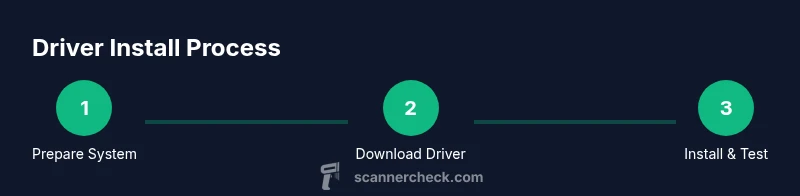
Close other applications, connect the Epson V600 via a direct USB port, and verify the scanner is powered on. This minimizes driver conflicts and ensures the installer can access all necessary components.
Tip: Use a wired connection and avoid USB hubs during installation to prevent intermittent disconnects. - 2
Download the official driver
Visit Epson’s official support site, locate the V600 driver page, and download the correct package for your operating system. Save it in a dedicated folder and check the file size to avoid corrupted downloads.
Tip: Verify the site’s URL starts with https and that the page clearly shows Epson as the publisher. - 3
Install on Windows
Run the installer as an administrator, accept the license terms, and follow prompts to complete the installation. If Windows asks for permission to install drivers, allow it and restart if prompted.
Tip: If installation stalls, restart the computer and try again with the installer downloaded anew. - 4
Install on macOS
Open the installer, authorize the package in Security & Privacy if prompted, and enter administrator credentials. Complete the setup and restart the Mac if requested.
Tip: After reboot, check System Preferences for any new device settings related to the scanner. - 5
Verify with a test scan
Open your preferred scanning app and perform a test scan of a standard document. Confirm colors look accurate and the image is properly aligned.
Tip: Try both a simple text page and a color photo to validate multiple modes. - 6
Update and maintain
Return to Epson’s site periodically to check for driver updates and install when available. Keeping the driver current reduces compatibility issues.
Tip: Enable automatic notifications if offered by Epson’s site or your OS update system. - 7
Create a recovery point
Create a system restore point on Windows or a Time Machine backup on macOS before applying major updates.
Tip: Backup first to simplify rollback if a driver update introduces new issues.
Common Questions
Do I need to uninstall old drivers before installing the Epson V600 driver?
In most cases, Windows or macOS will replace the old driver when installing the new package. However, if you encounter conflicts, use the system’s device manager or ‘Printers & Scanners’ settings to remove prior entries before reinstalling.
Usually you don’t have to uninstall first, but if you see conflicts, remove the old driver entry and reinstall the new one.
Which operating systems are officially supported for the Epson V600 driver?
Epson provides drivers for modern Windows and macOS releases. Always check the official product page for the exact supported versions before downloading.
Check Epson’s site for the exact supported Windows and macOS versions before downloading.
Where can I download the correct Epson V600 driver?
Download the driver from Epson’s official support page by searching for the V600 model and selecting the appropriate OS version. Avoid third‑party mirrors to minimize risk.
Go to Epson’s official site, search for V600, and pick the right OS driver.
What steps should I take if the scanner isn’t recognized after installation?
Check USB connections, try another port, restart the computer, and re-run the installer if needed. Ensure the scanner is set as the default device in your scanning app.
Try different USB ports, reboot, and re-run the installer if it’s still not recognized.
Can I use third‑party scanning software with the V600 driver?
Yes, many third‑party applications can use the V600 driver. Confirm compatibility with your preferred software and the driver version you installed.
Yes, most third‑party apps work with the V600 driver; check compatibility first.
How can I verify color accuracy after installing the driver?
Perform a test scan of a color target or a standard photo and compare results against expected colors. Adjust color management settings in your scanning software if needed.
Scan a color target and compare; tweak color management if colors look off.
Is driver security a concern, and how can I stay safe?
Always download from official sources, keep OS security features up-to-date, and avoid running unsigned installers. If in doubt, consult Epson’s support channels.
Only use official sources and keep your system secure; consult support if unsure.
Watch Video
Key Takeaways
- Install only through official Epson channels to ensure reliability.
- Test a variety of scan types to confirm color accuracy and software compatibility.
- Keep drivers updated and create a backup point before major updates.
- Verify the scanner is recognized across both Windows and macOS after installation.