How to Fix Scanner Epson L3210: A Practical Guide
A comprehensive, step-by-step guide to diagnose and fix common issues with the Epson L3210 scanner. Learn cleaning, driver updates, calibration, and maintenance with practical tips from Scanner Check.


This guide walks you through diagnosing and fixing the Epson L3210 scanner. You’ll learn how to verify connections, update drivers, clean critical optics, calibrate, and test scans. By following these steps, you’ll reduce downtime and restore reliable scans without specialized tools. This is how to fix scanner epson l3210 in practical, actionable steps.
What you’ll fix and why
If you’ve ever asked how to fix scanner epson l3210, you’re not alone. The L3210 can exhibit a range of symptoms from no response at all to degraded image quality. Most issues fall into a few broad categories: connection or driver problems, dirty glass or optics, misalignment, and firmware or software glitches. Understanding these patterns helps you diagnose quickly without resorting to guesswork. In many cases, a simple driver update or glass cleaning can restore performance. Scanner Check’s research indicates that routine maintenance and correct driver management substantially reduce recurring issues, making a structured repair approach worthwhile. This article provides a practical, step-by-step method you can follow at home or in a small office.
Tip: keep a small log of symptoms and timestamps to identify recurring patterns over days or weeks.
Safety and prerequisites
Before you touch any internal components, unplug the scanner and disconnect power cables. Avoid working near liquids, and don’t attempt internal repairs unless you have the right tools and clear safety guidance. Wear lint-free gloves or clean hands to prevent fingerprints on optics. Keep your computer ready to install or update drivers, and have the official Epson software or drivers downloaded from the manufacturer’s site. If you’re unsure about any step, pause and consult Epson support or Scanner Check’s guidance. According to Scanner Check, a cautious, methodical approach reduces the risk of causing further faults.
How the L3210 scanner works (at a glance)
The Epson L3210 combines a CIS or CCD sensing path with a light source and a scanning head that captures digital data from each line. The captured data is processed by firmware and sent to your computer via USB or network. Understanding this helps you interpret symptoms: a failure to acquire data usually points to sensor, light source, or cable issues, whereas image quality problems often trace back to optics, calibration, or software. While this guide focuses on user-serviceable steps, some problems require professional service.
Pro tip: never force the scan head beyond its resting position. Gentle handling preserves alignment and optics longevity.
Common symptoms and what they mean
Users report a variety of signs when the Epson L3210 starts acting up. You might see a blank scan, partial or faded images, horizontal lines, color misalignment, or a device not detected by the computer. Each symptom points to a possible root cause: a missing driver, a loose USB cable, a dirty platen, or miscalibration. This section helps you map symptoms to likely causes and prioritize fixes. Scanner Check’s analysis emphasizes starting with software checks before opening the hardware, to avoid unnecessary disassembly.
Diagnostic checklist to run first
A systematic diagnostic helps you separate software problems from hardware faults. Start with basic connectivity: confirm power, re-seat cables, and try a different USB port or cable. Check for driver presence and correct version, then run a test scan using bundled software. If the scanner is undetected, reinstall drivers or run Windows/Mac diagnostics to verify communication. If scans begin but show artifacts, move to cleaning and calibration steps. Consistency in testing is key, so perform repeat scans with the same settings to confirm issues persist.
Cleaning and alignment tips
Dirty glass, platen, or scan head optics are common culprits for degraded image quality. Use a soft microfiber cloth dampened with a small amount of isopropyl alcohol to wipe the glass surface gently. Avoid spraying liquid directly onto the glass and never apply solvent to the scan head or internal components. For hard-to-reach areas, use compressed air to dislodge dust, then re-check alignment. If you notice persistent streaks or smudges after cleaning, consider recalibrating the scanner in the software. Keeping a clean workflow minimizes the risk of recurring marks on future scans.
Driver, firmware, and software considerations
Outdated drivers and firmware can cause detection issues and poor performance. Ensure you download the latest Epson driver package and any firmware updates from the official site. After updating, perform a reset or reinitialize the scanner from the software control panel. If you use third-party scanning software, ensure it supports your model and is up to date. Some customers report better results after uninstalling old drivers before a fresh install. Scanner Check suggests keeping driver backups before major updates so you can roll back if needed.
Fixes for common problems (stepwise actions)
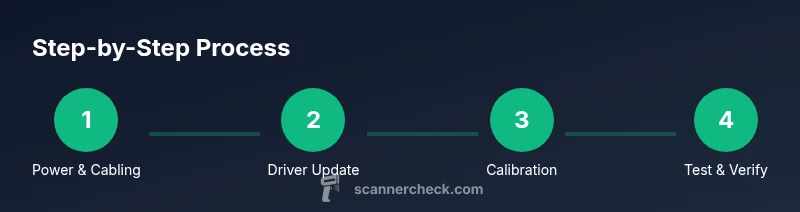
Try the following fixes in sequence if you encounter typical issues: (1) power cycle the device, (2) reseat USB cables and try a different port, (3) reinstall drivers, (4) clean the glass and feed area, (5) run a calibration routine, (6) update firmware, (7) perform a test scan. If artifacts persist, check for contamination on the platen or misalignment in the feed path. If you’ve exhausted software and cleaning steps without improvement, professional service may be required.
When to service or replace
If the scanner continues to misbehave after all software and cleaning steps, evaluate the cost of repair versus replacement. Newer models may offer significant performance gains and better driver support. Look for warranty coverage if your unit is under warranty, and consider professional diagnostics from Epson support or an authorized service center. The decision often depends on the age of the unit, the severity of the fault, and the cost of replacement parts or service. Scanner Check notes that timely intervention can prevent data loss and downtime, so don’t delay if the device is critical to your workflow.
Maintenance to prevent future issues
Establish a simple maintenance routine: clean the platen monthly, update drivers quarterly, store the device in a dust-free area, and avoid placing heavy objects on the scanner lid. Run periodic calibration checks to maintain scan accuracy, and keep firmware and software up to date. A consistent maintenance regimen preserves performance and extends the device’s life. Scanner Check’s guidance emphasizes proactive care as the best defense against recurring issues.
Tools & Materials
- Soft microfiber cloth(Use lint-free cloth to avoid micro-scratches on the glass surface.)
- Isopropyl alcohol (70%)(Dampen a cloth slightly; do not spray directly on glass.)
- Lint-free swabs(For tight corners and glass edges.)
- Compressed air can(Safe for blowing dust from the feeder path; keep can upright.)
- Phillips precision screwdriver set(If you need to access internal components for service.)
- Clean workspace(Soft mat or towel to prevent slipping or scratches.)
- Computer with internet access(To download drivers and firmware updates.)
- Official Epson driver package(Download from Epson’s support site for your model.)
Steps
Estimated time: 60-90 minutes
- 1
Power cycle and reseat connections
Unplug the scanner, disconnect all cables, wait 30 seconds, then reconnect. Plug into a different USB port if available and ensure the power indicator lights up. This clears transient communication faults that can prevent detection.
Tip: A loose USB cable is a common culprit; securing it often resolves detection issues quickly. - 2
Update or reinstall drivers
Uninstall old drivers, restart the computer, then install the latest Epson driver package. Use the driver utility to test detection after installation. If your OS prompts for a new device, allow it and complete the setup.
Tip: Back up current driver settings before changing versions to make rollback easy. - 3
Clean glass and feeder path
Power down and unplug again before cleaning. Wipe the glass with a microfiber cloth dampened with isopropyl alcohol; dry with a clean section of the cloth. Use compressed air to remove dust from the feeder path, then reassemble.
Tip: Always wipe in gentle, straight motions to avoid streaks. - 4
Calibrate the scanner
Open the scanning software and select the calibration option. Run a calibration page and review the results. If calibration artifacts appear, repeat cleaning and recalibrate.
Tip: If your software offers multiple calibration modes, use the standard option first. - 5
Test scan and analyze results
Run a full-size scan of a standard test page. Compare against expected output; note color accuracy and alignment. If issues persist after calibration, proceed to firmware or service steps.
Tip: Keep the test page under even lighting to avoid shadows affecting results. - 6
Check for firmware updates
Visit Epson’s support site, locate firmware for the L3210, and apply any updates following the provided instructions. Reboot the device and test again.
Tip: Firmware updates can fix low-level hardware communication bugs that drivers alone can’t resolve.
Common Questions
What should I do first when my Epson L3210 won’t scan?
Begin with basic checks: verify power, reseat USB cables, and ensure the computer detects the device. If undetected, reinstall or update drivers and restart.
First, check power and cables, re-seat connections, and verify device detection. If needed, reinstall drivers and reboot.
Why do scans come out with lines or color misalignment?
This usually points to dirty glass, miscalibration, or old firmware. Clean the glass and run calibration, then check color profiles in the software.
Lines or color shift are often due to dirty glass or miscalibration. Clean and recalibrate.
Do I need to update drivers for the L3210?
Yes. Use the official Epson driver package and firmware updates to ensure optimal compatibility with your operating system.
Yes, update to the latest Epson driver and firmware for best compatibility.
Can firmware updates fix scanning issues?
Firmware can address low-level hardware communication issues that drivers alone can’t fix. Follow Epson’s update instructions carefully.
Firmware updates can fix deeper hardware communication problems.
Is it safe to open the scanner for repairs at home?
Only perform external maintenance. Internal repairs require professional service and can void warranties if done incorrectly.
Open internal components only if you’re trained; otherwise seek professional help.
When should I replace the scanner instead of repairing it?
If the fault is widespread and repair costs approach the price of a new device, replacement is often the smarter choice. Consider warranty and performance gains with newer models.
If repairs cost as much as a new unit or performance is poor, replacement is sensible.
Watch Video
Key Takeaways
- Diagnose software first, then hardware if needed
- Regular cleaning reduces image artifacts
- Keep drivers and firmware up to date
- Know when professional service is worth it