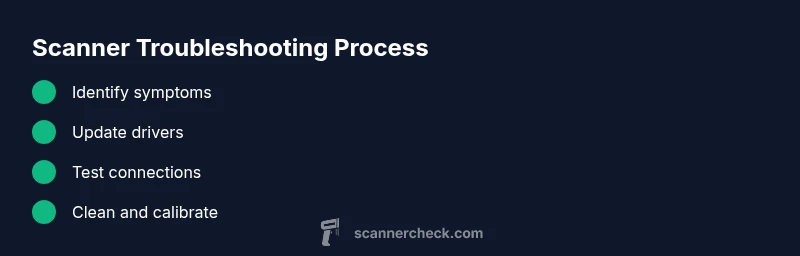
How to Fix Scanner on Epson Printer: A Practical, Step-by-Step Guide
Learn how to diagnose and fix scanner issues on Epson printers with a practical, safe, step-by-step approach. Update drivers, check connections, clean the glass, calibrate, and test across apps.


Goal: fix the scanner on an Epson printer by validating drivers, updating firmware, and testing connections and hardware. You’ll need a computer, the Epson printer, a network or USB setup, and basic hand tools. This guide provides a practical, step-by-step process to diagnose and resolve common scanning problems, with safety checks to protect your device and data.
Quick Diagnostic Overview
When the scanner on an Epson printer stops working, the root cause is often a combination of software and hardware factors. This section gives you a fast, high-level map of the most common culprits: missing or outdated drivers, firmware that’s out of date, connectivity issues (USB or network), and physical problems like dirty glass or misaligned lids. According to Scanner Check, starting with a software and connection audit typically resolves a large share of cases without needing expensive repairs. As you work through this guide, document any error messages or warning lights so you can share precise details if you must contact support. Keep in mind that Epson models vary, so tailor the steps to your exact printer series.
Why this matters
- Drivers and firmware establish the language the printer uses to communicate with your computer.
- A clean connection prevents intermittent failures that look like hardware problems.
- Proper calibration and glass cleanliness ensure scanned images are legible and correctly aligned.
Quick wins you can try first
- Reboot both printer and computer.
- Check cables and network status.
- Run a basic scan from the manufacturer software before exploring third-party apps.
Safety and preparation
Power down the printer before opening any covers or cleaning the glass. Use a soft microfiber cloth and isopropyl alcohol as needed. If your model has a maintenance mode, consult the manual before attempting advanced steps. Having a phone or notebook to capture error messages helps when you seek further assistance.
Tools & Materials
- Screwdriver set (Phillips and flathead)(For any panel screws; avoid over-tightening when reassembling)
- USB cable and network connectivity options(Use the cable recommended by Epson for your model)
- Updated Epson printer drivers(Download from the official Epson support site for your model)
- Firmware update utility(Run only after verifying device compatibility and backing up settings)
- Soft cloth and isopropyl alcohol (91%+)(For cleaning glass and lid surfaces; avoid raw solvents)
- PC or Mac with internet access(Needed to download drivers and perform calibration)
Steps
Estimated time: 45-70 minutes
- 1
Identify symptoms and isolate the issue
Start by noting the exact error message, when the problem occurs (during scan or save), and which software is involved. Differentiating between driver, hardware, or app problems helps you choose the right next step. If the issue happens across multiple programs, the cause is more likely software or connectivity rather than a single app.
Tip: Record screenshots or notes of any error codes for later reference. - 2
Back up and prepare your workspace
Power off the printer and unplug from the wall when you handle internal components or glass cleaning. Clear a clean surface, gather tools, and ensure you have the latest driver files ready. This prep minimizes risk and speeds up the troubleshooting process.
Tip: Work in a well-lit area to avoid missing smudges on the glass. - 3
Update drivers and firmware
Install the latest Epson drivers for your model and perform any available firmware updates through the official software. Reboot both computer and printer after installation to ensure changes take effect. Outdated software often causes miscommunication between devices.
Tip: Always download drivers from Epson’s official site to avoid bundled software risks. - 4
Test USB and network connections
If scanning via USB, confirm the cable is firmly connected and try a different port. For network scanning, verify the Wi‑Fi or Ethernet link is stable and that the correct scanner is selected in the software. Disable any firewall rules that might block the driver path temporarily while testing.
Tip: If possible, perform a local USB scan first to rule out network issues. - 5
Clean glass and inspect the scanner lid
Power off, open the lid, and wipe the glass and lid with a soft microfiber cloth dampened with isopropyl alcohol. Look for smudges, dust, or scratches that can affect image quality. A misaligned lid can also cause uneven scans; reseat it gently if it feels loose.
Tip: Avoid using paper towels that might leave fibers behind. - 6
Calibrate and adjust scanner settings
Run any built-in calibration or alignment tools provided by Epson software. Check brightness, contrast, and resolution settings to ensure they match what you expect for the documents you scan. A misconfigured profile can yield dark or washed-out images.
Tip: Calibrate with a blank page to establish a neutral baseline. - 7
Test across apps and file types
Scan using Epson’s software, a TWAIN/WIA compatible app, and a lightweight image editor to confirm consistency. If one app works but another doesn’t, the issue is likely with the specific program's settings or compatibility. Save tests in multiple formats (PDF, TIFF, JPEG) to verify output stability.
Tip: Note any differences in scan quality between apps to pinpoint the culprit. - 8
Evaluate results and decide on next steps
Compare test scans against your baseline expectations. If issues persist after all steps, consult Epson support and reference the error messages you captured. Document serial numbers, firmware versions, and installed driver versions to streamline assistance.
Tip: If under warranty, ask about repair options or replacement coverage.
Common Questions
Why won't my Epson scanner show up in Windows or macOS?
Ensure the correct drivers are installed and the device is connected. Reboot both computer and printer, then re-run the driver installation if detection fails.
Make sure the driver is installed and the device is connected; restart and reinstall if needed.
My scans come out blank or with lines.
Clean the scanner glass, ensure the lid is properly seated, and recalibrate the scanner. Check brightness and contrast settings and try a blank page calibration.
Clean the glass and recalibrate, then adjust brightness if needed.
Should I update firmware for my Epson scanner?
Only update firmware if Epson issues a notice or the update resolves a documented problem. Follow the official procedure and back up settings first.
Only update the firmware when Epson recommends it.
Can I use third-party scanning software with an Epson printer?
Yes, TWAIN/WIA compatible apps can work with Epson scanners. If you encounter conflicts, disable conflicting software and retry the scan.
Third-party apps can work, but watch for conflicts.
What if the hardware seems damaged?
Stop using the device and contact Epson support. If the unit is under warranty, discuss repair or replacement options with authorized service.
If damaged, contact support and check warranty options.
Watch Video
Key Takeaways
- Update drivers and firmware first
- Check both USB and network paths
- Clean and calibrate the scanner
- Test across multiple apps
- Escalate to support if unresolved